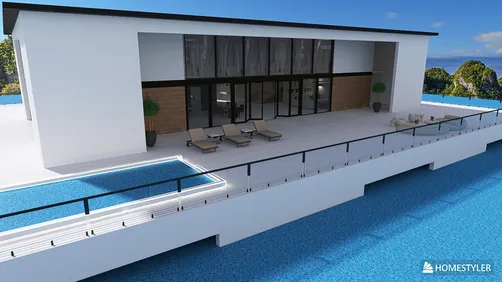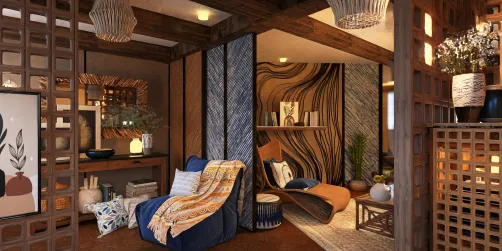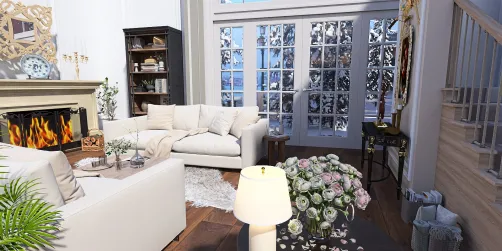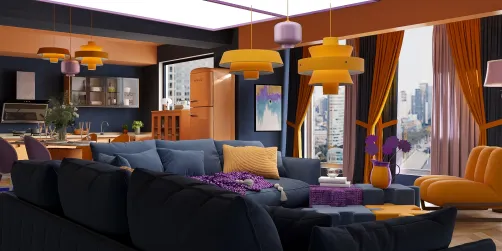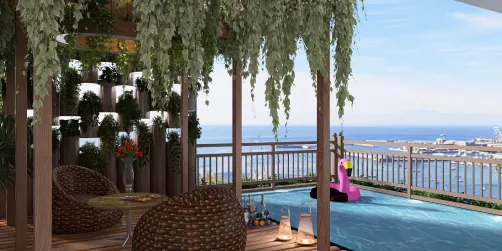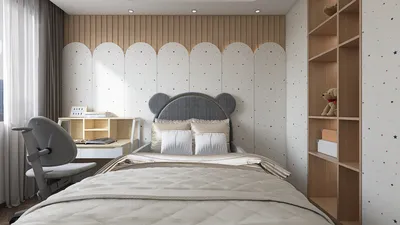
Rendering outdoor lighting in Revit plays a vital role in crafting visually stunning presentations and comprehending the dynamics of light within your architectural projects. By incorporating online rendering tools like Homestyler, you can significantly reduce the time needed for rendering while simultaneously boosting the visual quality of your outputs. This guide will provide you with crucial steps and tips for effectively rendering exterior lighting online using Homestyler.
Grasping the Fundamentals of Revit Rendering
Before embarking on the online rendering journey, it's essential to familiarize yourself with the basic principles of rendering in Revit. This process involves converting your 3D designs into 2D visual representations, which reveal textures, materials, and the play of light. This understanding is especially critical for exterior lighting, as it directly influences the mood and visual appeal of your designs.
Configuring Your Exterior Lighting in Revit
To ensure optimal results in your online rendering, start by properly configuring your exterior lighting setup:
Selecting an Online Rendering Platform
There are numerous online rendering platforms that seamlessly integrate with Revit, enabling you to generate high-caliber images without needing advanced hardware resources. Tools like Homestyler are particularly effective for this purpose:
Enhancing Your Rendering Settings
Once you have chosen your rendering platform, it is imperative to refine your settings for the best results:
Completing Your Render and Presenting
Once your rendering is complete, evaluate your images to verify they align with your expectations. Make necessary amendments in either the model or lighting configurations, and re-render if required. When it's time to present your efforts, consider assembling a portfolio showcasing images with both day and night lighting scenarios, effectively demonstrating the impact of your exterior lighting design.
Frequently Asked Questions
Q: What is the most effective method for rendering exterior lighting in Revit? A: The optimal approach involves correctly setting up your light fixtures, selecting an appropriate online rendering tool like Homestyler, and fine-tuning your rendering settings to achieve high-quality results.
Q: Is it possible to use Enscape for real-time rendering in Revit? A: Absolutely, Enscape supports real-time rendering, allowing for easy visualization of lighting effects as you modify your design.
Q: How can I enhance rendering quality in Revit? A: Improve rendering quality by choosing high-grade materials, adjusting light intensity, and employing advanced settings in your preferred rendering tool, such as Homestyler.
Welcome to the Leading Home Design Software