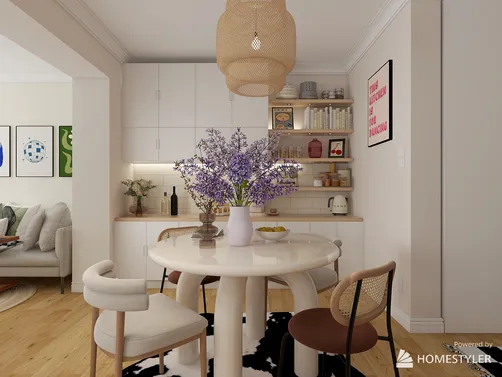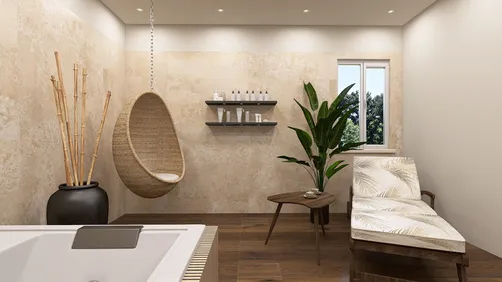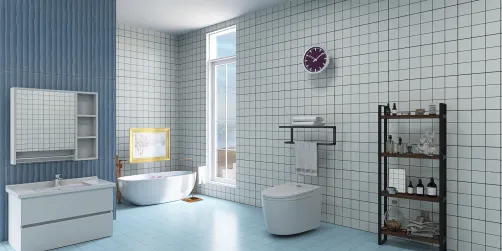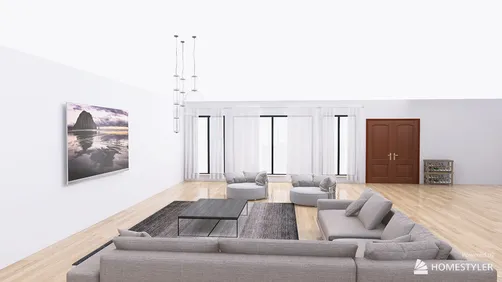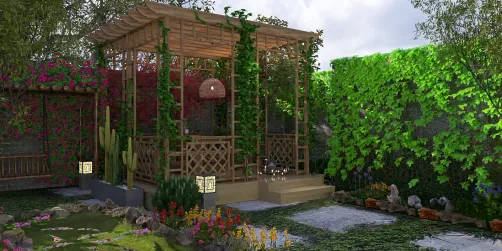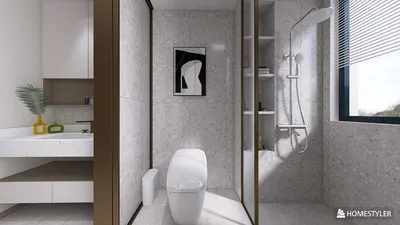
Setting up interior renders using Homestyler can significantly enhance your design presentations, allowing you to visualize spaces with clarity. To achieve breathtaking visuals, here are key steps that will ensure your designs stand out in any undertaking.
Grasping the Fundamentals of Homestyler Rendering
Homestyler features an intuitive interface for rendering interiors that smoothly integrates with your design process. Begin by getting acquainted with the layout, available tools, and various rendering options the software provides.
Initiating Your Journey with Homestyler
1. **Create a New Project**: Open Homestyler and opt to initiate a new project. Enter the dimensions and specifications of the area you wish to design.
2. **Import Designs from Other Sources**: Should you have designs created in different software, you can easily import them into Homestyler for further enhancements.
3. **Configure Your Environment**: Set up the scene parameters such as lighting, shadows, and background elements to reflect your vision accurately.
Selecting the Appropriate Materials and Textures
The materials you choose substantially influence the realism of your renders. Opt for high-quality textures that closely replicate actual surfaces, including wood, fabric, and metal finishes.
Lighting Techniques for Achieving Realistic Renders
Lighting is essential in improving the visual appeal of your renders. Here are several lighting techniques to consider:
Rendering Settings and Essential Tips
Before you finalize your render, make sure to fine-tune the rendering settings for the best possible output:
Once all parameters are adjusted, start the render process and let Homestyler create your interior visuals.
Enhancing Your Renders Post-Processing
After completing the render, think about using post-processing software to improve your images. This further editing can enhance colors, adjust brightness levels, and introduce special effects.
Final Thoughts
By adhering to these guidelines, you can proficiently set up your interior render in Homestyler, ensuring your designs are presented beautifully and convey your intended message effectively. Harness the potential of rendering as an integral part of your design journey!
Frequently Asked Questions
Q: What is the ideal resolution for interior renders? A: It is advisable to maintain a resolution of at least 300 DPI for high-quality prints.
Q: Can I utilize Homestyler for exterior rendering? A: Absolutely, Homestyler accommodates both interior and exterior rendering, offering flexible design options.
Welcome to the Leading Home Design Software















![Design [4]](https://hs-designs.homestyler.com/production/design/images/07c2de3a-88ec-4be8-8910-ff255b795bc2/1731419398293/7841697.jpg?x-oss-process=image/resize,w_502,m_mfit/format,webp)