
With collaborative comments, designers can share render links, and clients can mark images directly and submit feedback. Both sides can view, reply to, and confirm requests on one page, improving communication and revision efficiency.
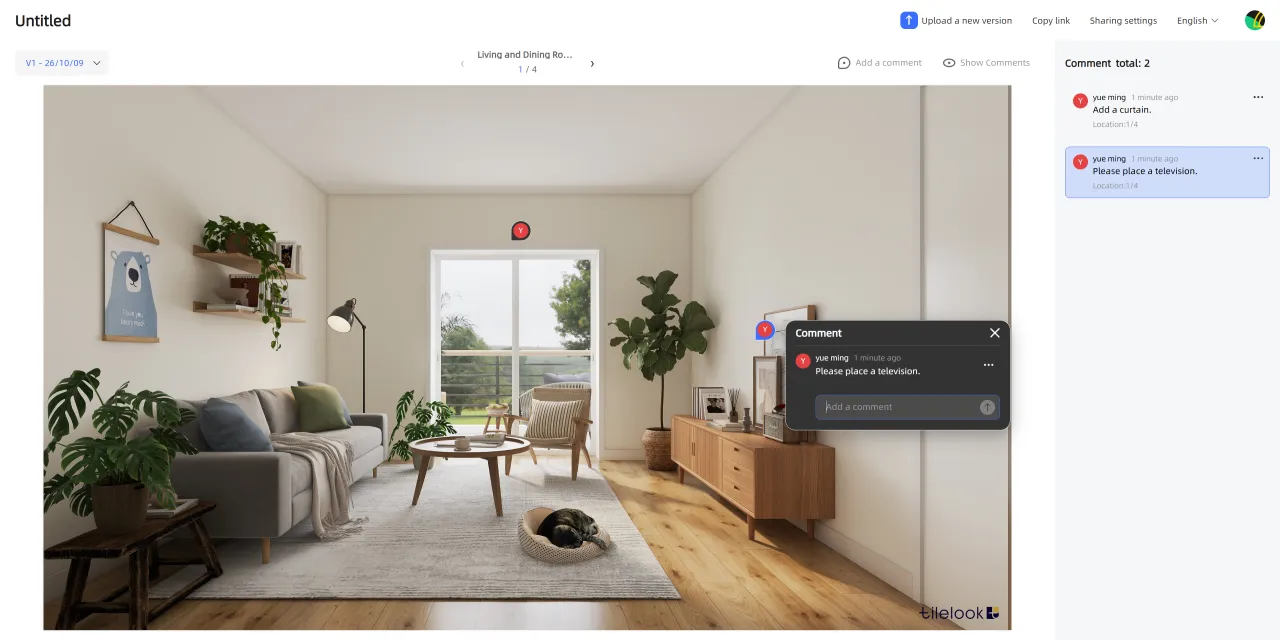
How to create and share a collaborative comment link
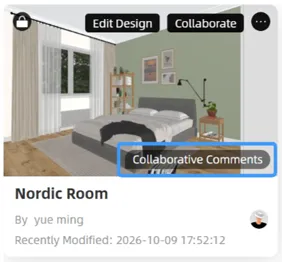
Find the target design in the Design Space, and click "Collaborative Comments" in the lower-right corner of the preview image.
Note: If collaboration has already been enabled for the design, it will open the collaboration page directly.
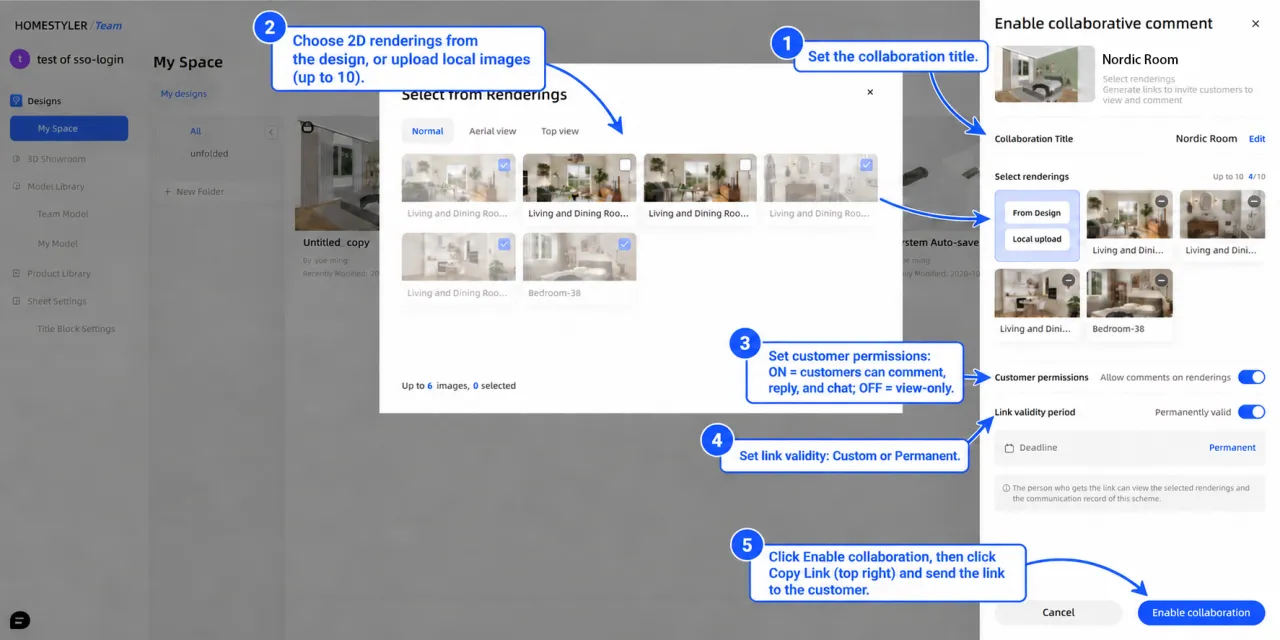
In the "Enable Collaborative Comment" panel:
1. Set the collaboration title.
2. Select 2D renders from the design, or upload local images, with a maximum of 10 images.
3. Set client permissions. When enabled, clients can comment, reply, and chat; when disabled, they can only view the renders.
4. Set the link validity period, which can be customized or set to permanent.
5. Click "Enable Collaboration", then click "Copy Link" in the upper-right corner of the page and send the link to the client.
How to collect and reply to comments
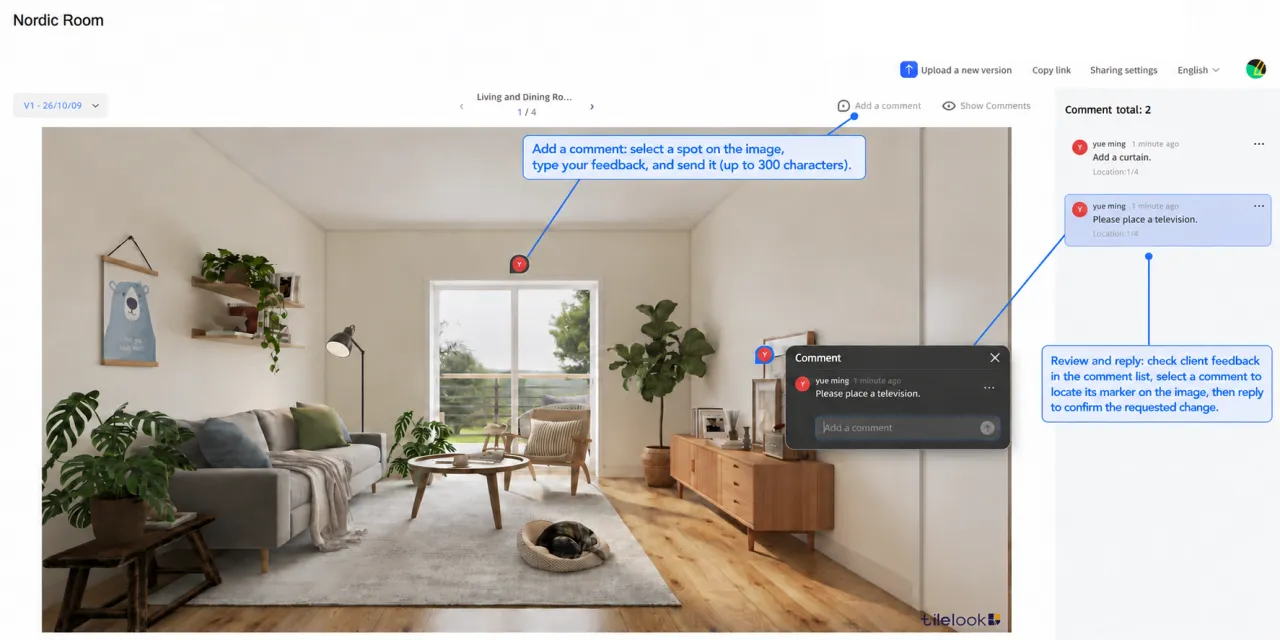
Clients can mark the locations that need changes on the render, and designers can locate issues through comments and reply to confirm revision requirements.
- Client submits feedback: Open the shared link, sign in to or register a Homestyler account, and view the render; click "Add a Comment", select a location on the image, enter feedback, and send the comment (up to 300 characters).
- Designer reviews and replies: Check client feedback in the comment list, where a blue dot indicates an unread comment; click a comment card to locate its marker on the image, and reply within the comment to confirm the revision requirement.
How to update the collaborative comment link after revisions
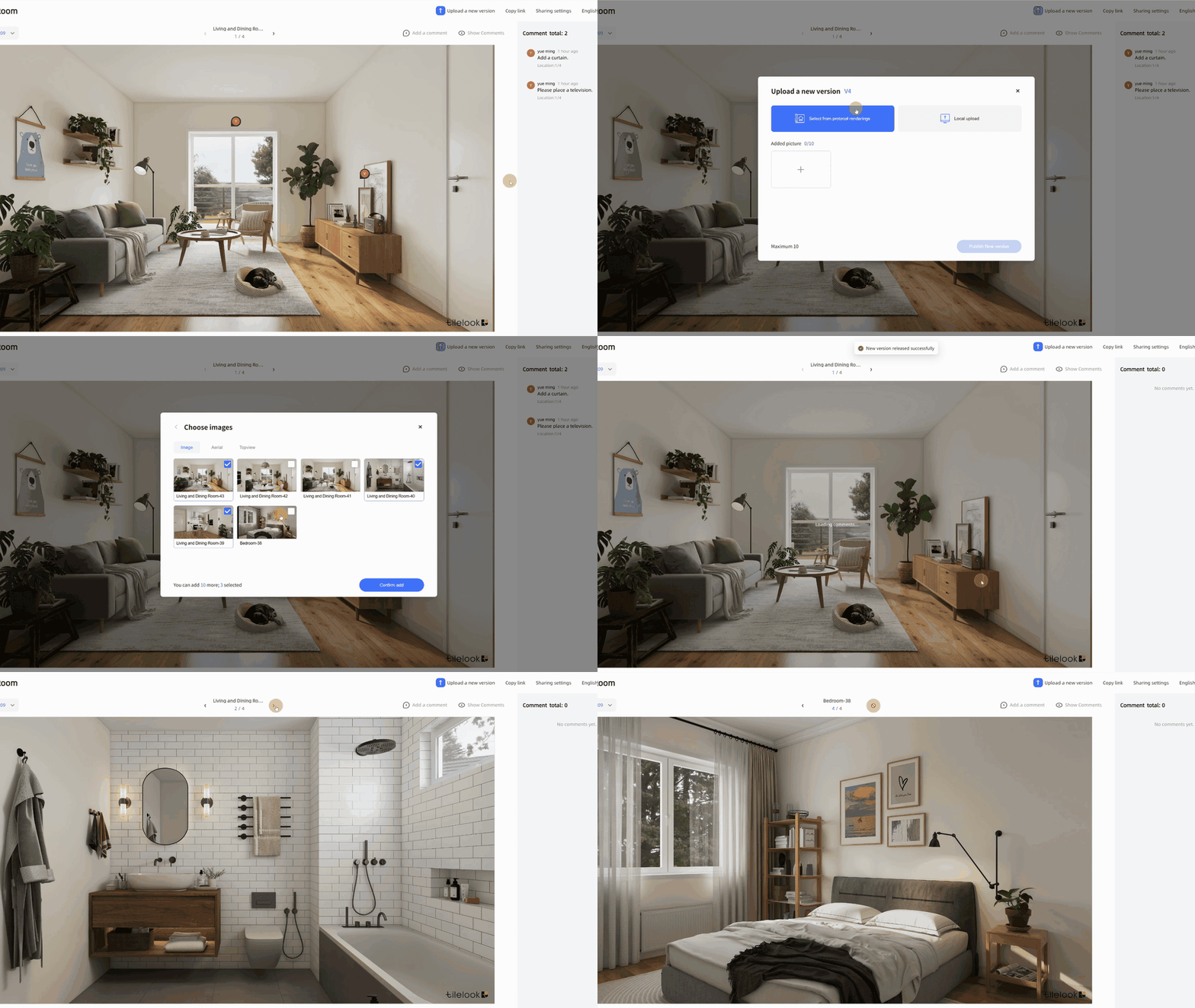
After completing the design revisions, the designer can update the renders, and the client can view the updated content through the original shared link.
1. Click "Upload a New Version" in the upper-right corner.
2. Select renders from the design or upload local images, with a maximum of 10 images.
3. After confirming the images, click "Publish New Version".
Note: Images and comments from previous versions are kept. Comments do not carry over automatically, and must be added again in the new version.
Notes
- If the "Collaborative Comments" button is grayed out, please contact the design owner to initiate collaborative comments and obtain the shared link.
- After collaborative comments are created, you can click "Sharing Settings" in the upper-right corner of the comment page to modify the configuration again.
- If you need to add or replace renders, you need to update them manually in "Upload a New Version".


