
🌟 Feature Overview
Homestyler brings you a major technical update — the brand-new Porch tool is officially live! With this feature, you can easily design stunning outdoor porches, corridors, and entrance spaces.
- One-Click Smart Generation: Say goodbye to tedious manual assembly. Simply draw the area on the canvas, and the system will automatically generate the 3D porch model.
- Fully Parametric Components: Customize every detail with ease. Components such as roof slope, overhang width, column size, step counts, and railing spacing are fully parametric for rapid customization.
🛠️ Step-by-Step Guide
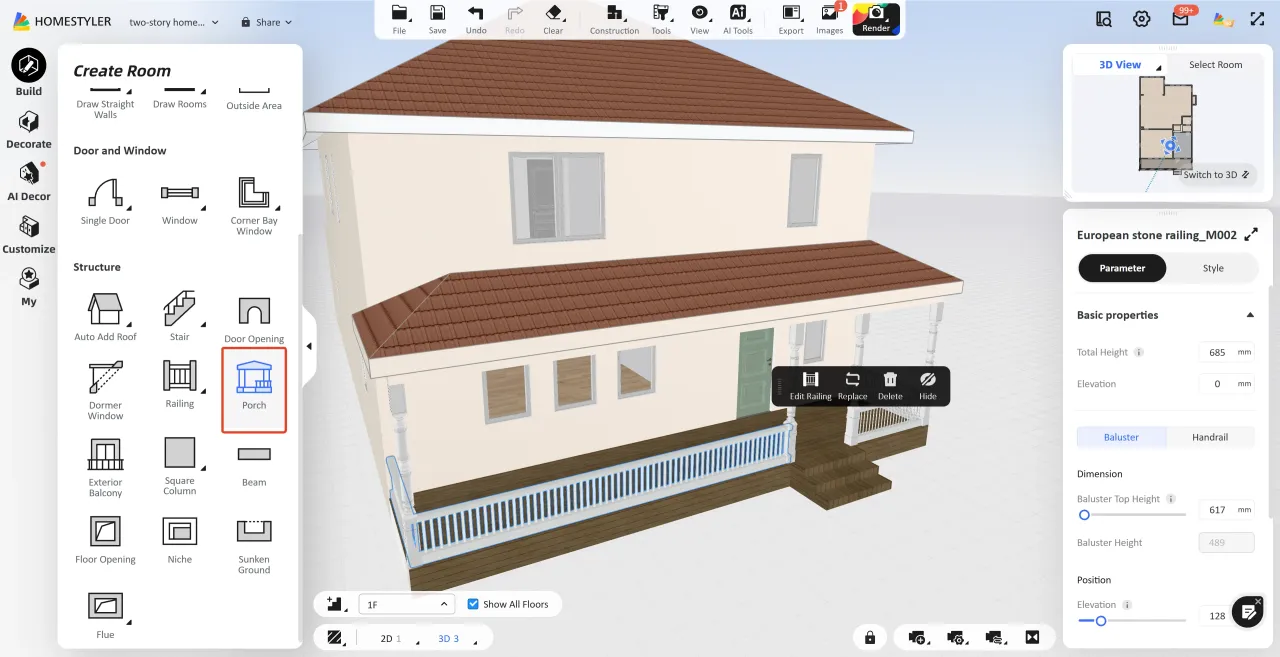
1️⃣ Step 1: Access the Porch Design Interface
In the top navigation bar, click Build and select the Porch icon to enter the dedicated drawing workspace.

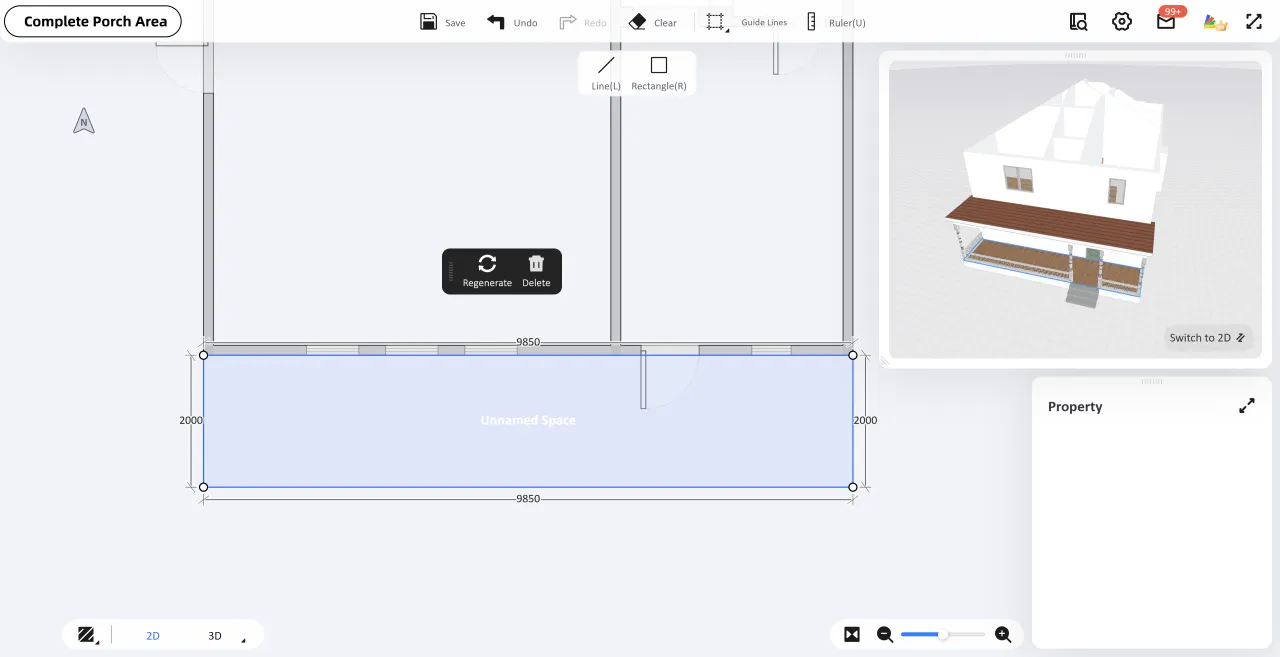
2️⃣ Step 2: Draw & Adjust Porch Dimensions (2D)
1. In 2D View, use the Line (L) or Rectangle (R) tool in the top toolbar to draw the porch boundary outline.
2. 💡 Pro-Tip (Dimension Input): While drawing, press the Tab key on your keyboard to quickly switch between width and length input fields to enter precise values. Once the closed path is completed, a default 3D porch is auto-generated.
3. ⚠️ Crucial Step (Regenerate): If you resize, drag, or reshape the boundary in 2D view, you must click the "Regenerate" button in the canvas to recalculate and update the 3D model to match the newest boundary.
3️⃣ Step 3: Parametric Component Customization (3D)
Switch to 3D View and click on individual porch components. You can fully customize their settings in the right-hand Property Panel:
🏠 Roof Customization:
- Type Selection: Select the roof to change the Roof Type (e.g., Flat, Shed, Gable, Hip, Saltbox, Box Gable, etc.).
- Dimension Settings: Adjust Roof Parameters such as Thickness and Offset (overhang distance).
- Floating Menu: Select the roof to Replace Material, Delete, Hide, or Lock the roof.

🏛️ Column Customization:
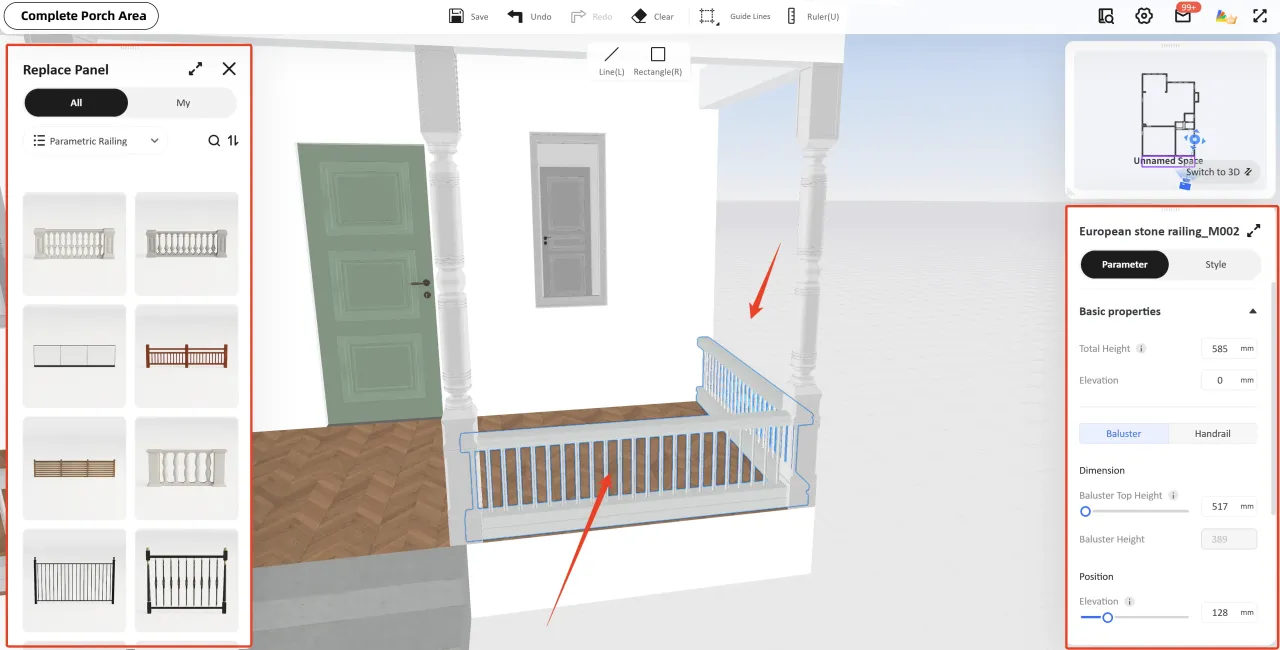
- Style Replacement: Click any column to open the left-side Replace Panel and choose new styles from the library (under the "Columns & Beams" category).
- Parameter Tuning: Adjust its Size (Width, Length, Height), Position (Elevation), Axial Rotation, and Material in the right property panel.
- Batch Sync: Click Apply to Similar Models at the bottom right to sync the style and parameters to all columns instantly.

🚧 Railing Customization:
- Click the railing to replace the overall style and customize parametric details of the railings and their sub-components.
🧱 Steps Customization:
Easily toggle styles (Straight/Side Step) and fully customize overall dimensions, individual step parameters (risers, treads, side wrap, and edge lighting), and surface materials (under the Style tab) in the property panel.

💡 Pro-Tips & Important Notes
📌 Deletion Logic Difference:
- In 2D View: Clicking and deleting the porch will delete the entire porch structure.
In 3D View: You can select and delete/customize individual components (e.g., delete a single column or remove the roof entirely for an open-air porch).
📐 How to Adjust Porch Platform (Floor) Height:
- Click Complete Porch Area in the top-left corner to exit the porch editing workspace.
- Click on any empty space of the canvas (ensuring no models or components are selected).
- In the right-hand Property Panel, locate the Floor Thickness field and enter your desired value to raise or lower the entire porch platform.
🔗 Parametric Exterior Balcony:
👉 https://www.homestyler.com/forum/view/2067507773160808450