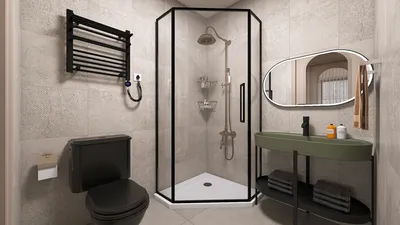


Are you prepared to transform your floor plan into a vivid reality? Turning a floor plan into a 3D print allows you to visualize your design in an interactive manner. Whether you're a seasoned interior designer or a passionate DIYer, this guide will provide you with the essential steps to elevate your 2D designs into a captivating 3D experience with tools like Homestyler.
Grasping the Fundamentals of 3D Printing
Before embarking on the conversion journey, it's crucial to understand the basics of 3D printing. Also known as additive manufacturing, 3D printing constructs three-dimensional objects layer by layer from a digital source. Common materials for this process include plastic filaments, with metal and resin options also available.
Step 1: Select the Ideal Software
The first stage in the conversion of your floor plan to a 3D print involves choosing an appropriate software tool. There are numerous applications to choose from, including free versions like SketchUp Free and Tinkercad, along with advanced tools such as AutoCAD, Blender, and the convenient Homestyler.
Step 2: Upload Your Floor Plan
After selecting your software, you’ll need to upload your floor plan. Most design applications permit you to upload images or PDFs of your plan. It's important to ensure the scale is accurate, as this will heavily influence the precision of your 3D model.
Step 3: Develop the 3D Model
Using your selected software, begin the process of converting your floor plan into a 3D model. This includes outlining the walls, windows, and doors, then extruding these elements to add height. It’s vital to focus on dimensions to ensure the model accurately represents the actual dimensions of the space.
Step 4: Export the Model for Printing
Once your 3D model is finalized, export it in a file format compatible with your 3D printer, typically STL or OBJ. Check that all components of the model are properly grouped and that there are no errors that could pose problems during the printing process.
Step 5: Prepare for the Printing Process
Load the exported file into slicing software, which prepares the model for printing by creating the necessary G-code. This software allows you to adjust settings for print quality, speed, and choice of material.
Step 6: Start the Printing Process
Finally, send the G-code to your 3D printer and initiate the printing process. Keep an eye on the print for any issues that might occur, such as filament jams or misalignment.
Finishing Touches After Printing
After your model is printed, you may wish to refine it by sanding, painting, or adding other finishing details to elevate its appearance. This step can breathe life into your model, turning it into an impressive representation of your design vision.
Conclusion
The process of converting your floor plan into a 3D print is not only thrilling but also facilitates visualization of your space and assists in design planning. With the proper tools and steps like those provided by Homestyler, you can create a tangible model that beautifully showcases your vision.
Frequently Asked Questions
A: Tinkercad is a fantastic option for beginners due to its intuitive interface and free accessibility.
A: Print time can differ based on the complexity of the model and the speed of the printer, ranging from a few hours to several days.
A: Yes, you can 3D print smaller furniture items or components; however, larger pieces might require assembly from several printed sections.
Discover the Convenience of a Free 3D Floor Planner
Design Now for FREE
































