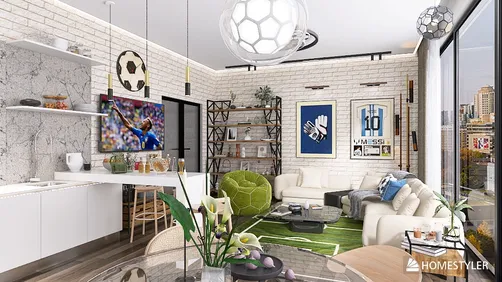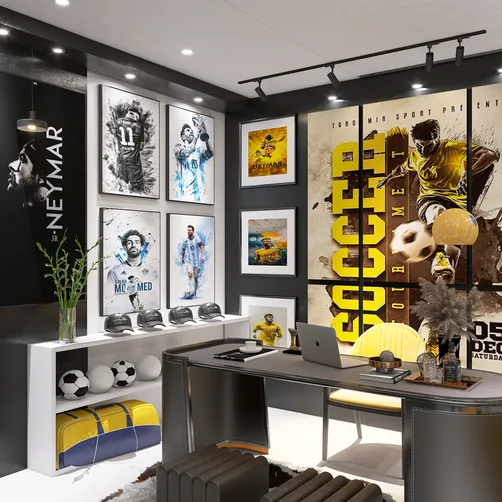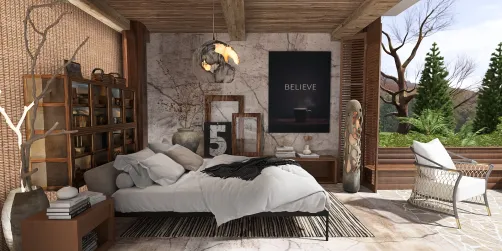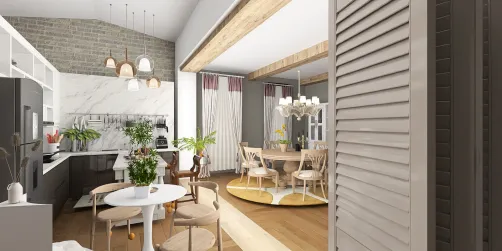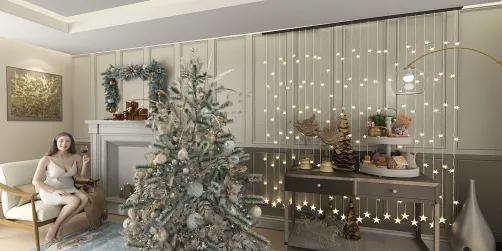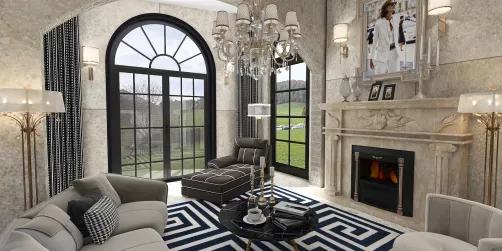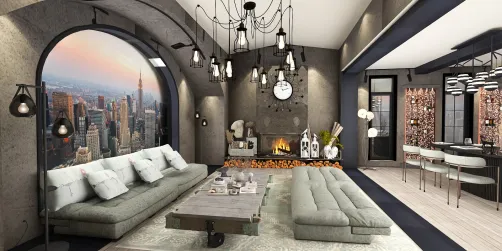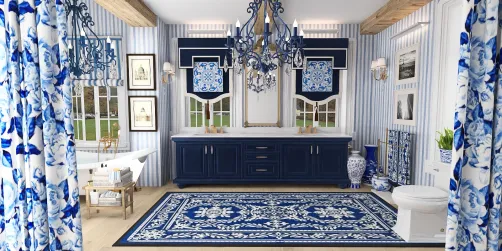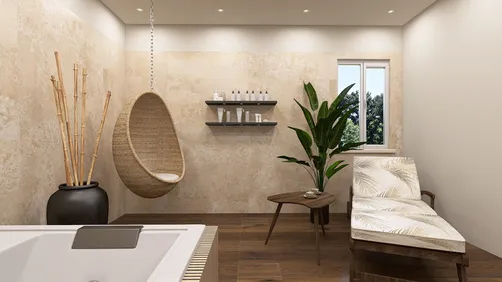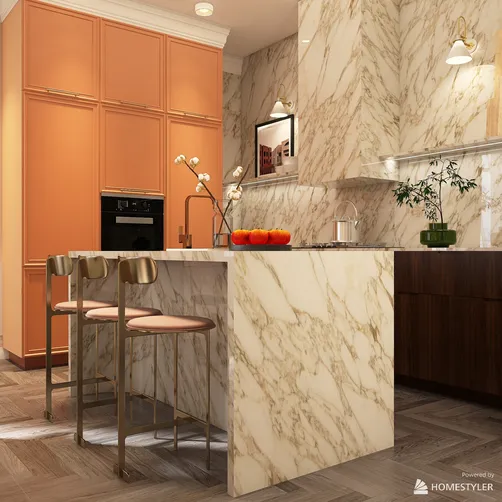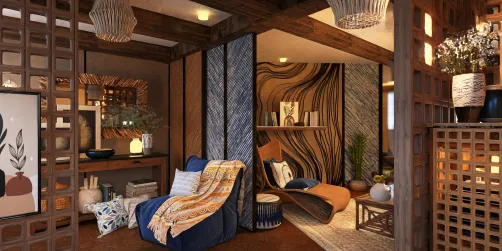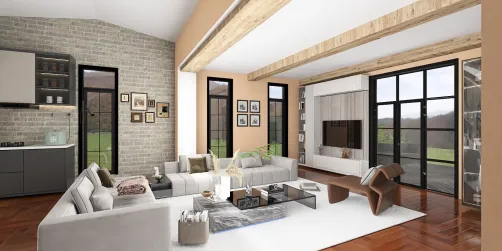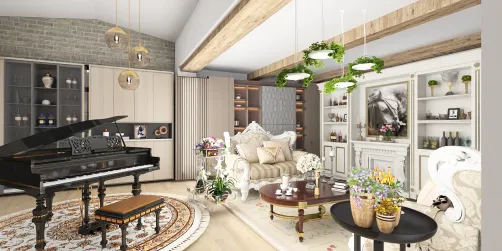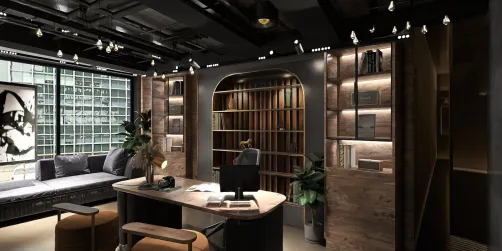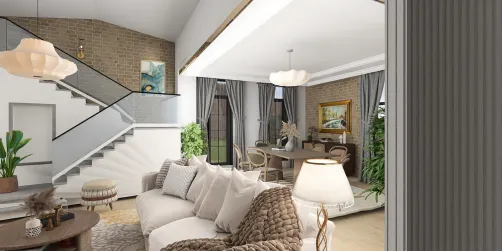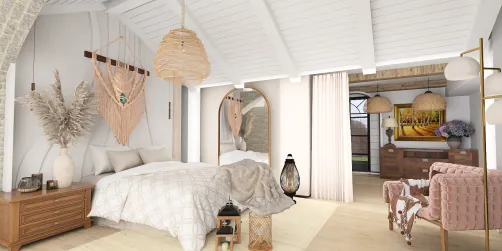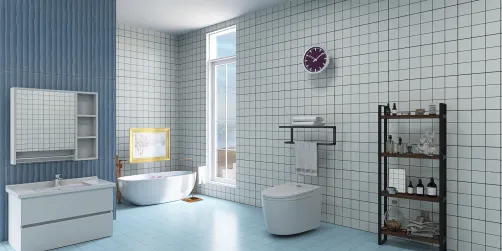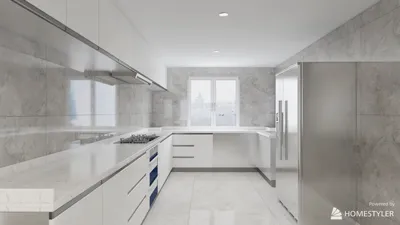
Creating breathtaking interiors using the Homestyler platform can significantly elevate your design presentations. To achieve optimal results, it is essential to comprehend the appropriate rendering settings. In this guide, we'll examine how to fine-tune your interior rendering settings in Homestyler, enabling you to produce lifelike, high-quality images.
Familiarizing Yourself with Homestyler Render Settings
Before we delve into the details, it is vital to understand the primary components of the rendering settings within Homestyler. The key aspects to consider are:
Key Render Settings for Interior Design in Homestyler
Here are fundamental settings to take into account for achieving superior interior renders:
Selecting the appropriate resolution and aspect ratio is critical. A typical setting for high-resolution images is:
Within Homestyler, you will discover a variety of quality settings. For interior designs, it is advisable to utilize the following configurations:
Lighting is a vital element in interior design. Implement:
Ensure your materials are designed to interact effectively with light. Utilize:
Post-render, consider applying various post-processing effects available in Homestyler:
Final Recommendations for Enhancing Renders
To further improve your interior renders, keep these suggestions in mind:
Frequently Asked Questions
Q: What is the ideal resolution for interior renders in Homestyler? A: A resolution of 1920 x 1080 pixels is recommended for high-quality renders, though higher resolutions should be used for print purposes.
Q: How can I optimize the rendering speed? A: You can enhance rendering speed by reducing the quality settings during preview and utilizing the Progressive Image Sampler for quicker results.
Q: What lighting arrangement is most effective for interiors? A: A combination of Homestyler's Sun feature, Area Lights, and Sky settings creates a cohesive and realistic lighting environment.
Welcome to the leading home design software, Homestyler!