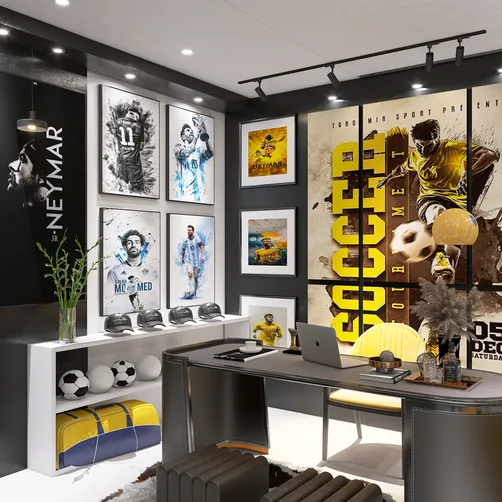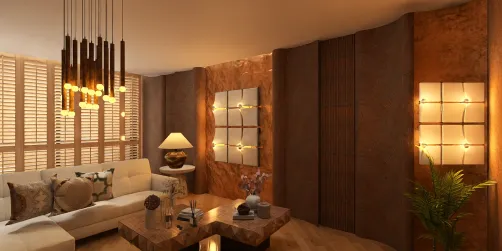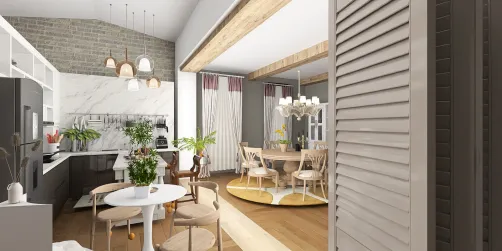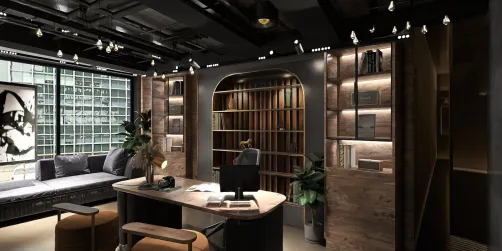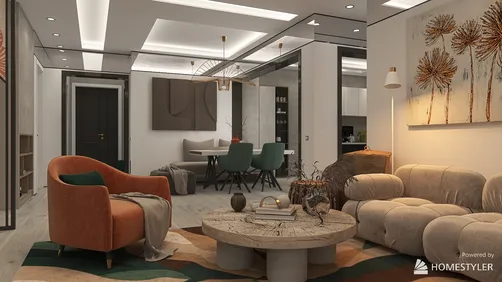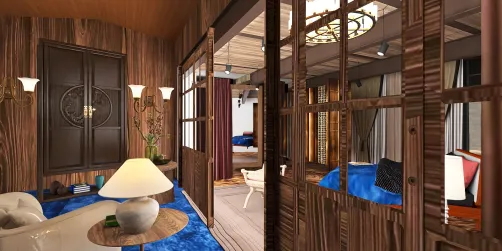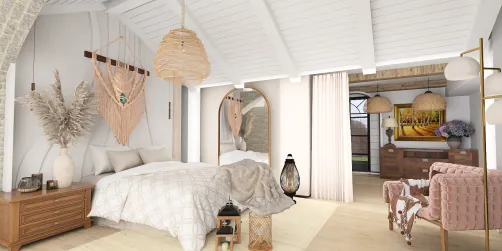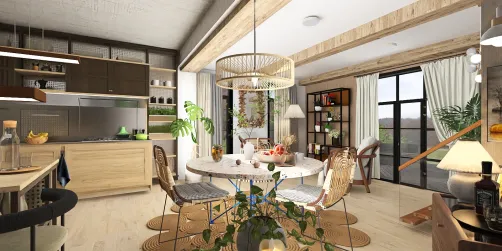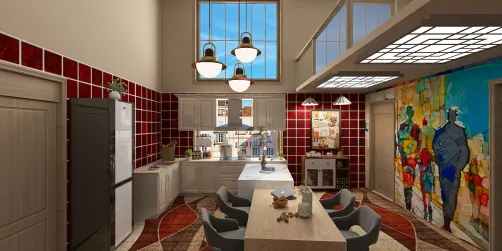
Creating interior renderings in Revit can significantly enhance your design presentations, offering a realistic glimpse into your projects. If you aim to generate captivating visualizations that truly represent your designs, it is crucial to master the rendering techniques available in Revit. Let’s explore the steps required to produce stunning interior renderings.
Getting Acquainted with Revit's Rendering Features
Revit is equipped with robust rendering capabilities that enable you to produce photorealistic images. It’s important to familiarize yourself with these essential features:
Preparing Your Model for Rendering Success
Prior to rendering, make sure your model is properly prepared:
Optimizing Rendering Settings for Outstanding Quality
To achieve impressive results, it’s necessary to fine-tune your rendering settings:
Enhancing Rendered Images through Post-Processing
Once you have completed the rendering, consider utilizing post-processing techniques to further elevate your images:
Wrapping Up
By adhering to these outlined steps, you can create remarkable interior renderings in Revit, effectively conveying your design vision. Remember, practice is key, so continue to test out various settings and techniques to hone your skills. Additionally, tools like Homestyler can provide supplementary resources to support your design endeavors.
Frequently Asked Questions
Q: What resolution is ideal for rendering in Revit? A: A resolution of 1920x1080 pixels serves as an excellent starting point for producing high-quality outputs.
Q: Is it possible to render animations in Revit? A: Yes, Revit supports animation rendering, though additional software or plugins may be necessary for more advanced features.
Q: What strategies can I employ to enhance my rendering speed in Revit? A: To improve speed, simplify your model, lower the quality settings during previews, and ensure your hardware is well-suited for rendering tasks.
Explore the Premier Home Design Software