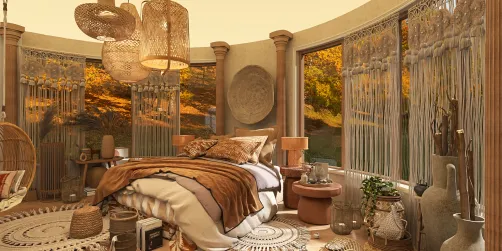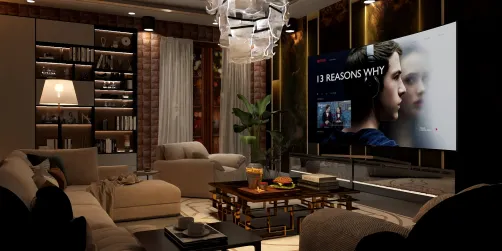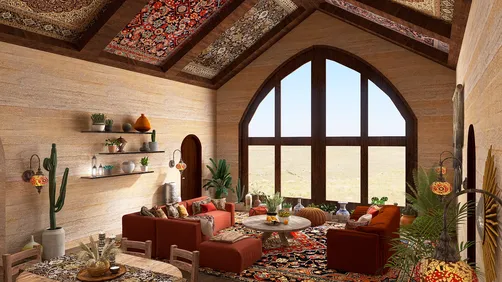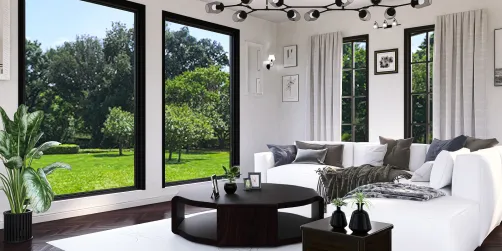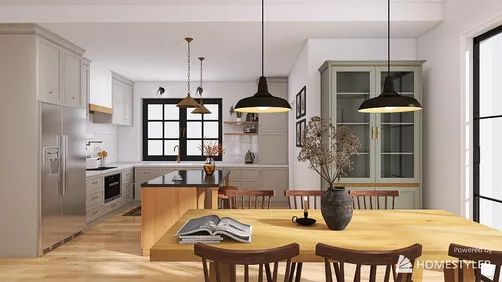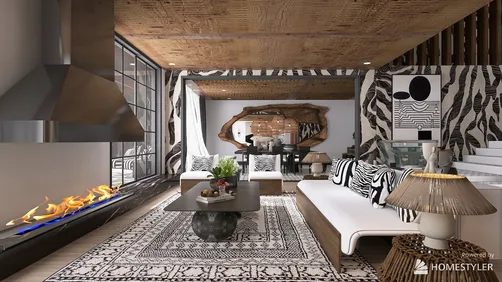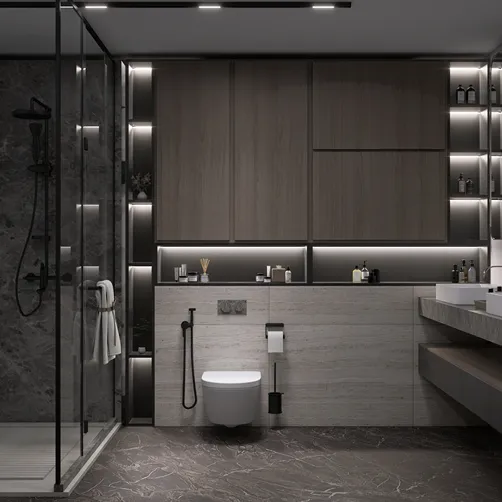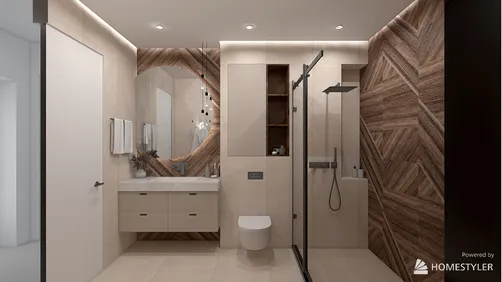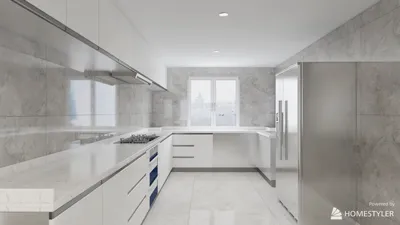
Creating impressive interior renders with Lumion 6 is heavily influenced by the render settings you choose. Whether you're tackling a compact design or a larger-scale project, mastering these settings is essential for achieving photorealistic visuals. Below is a comprehensive guide to help you optimize your rendering experience.
Optimizing Your Render Settings
The render settings in Lumion 6 are critical for influencing the rendering quality and the speed at which it operates. Focus on these vital aspects to enhance your outputs:
Select from Draft, Normal, or High settings aligned with your project requirements:
Effective lighting is vital for bringing your interior renders to life. Make sure to fine-tune the following settings:
Enhanced Techniques for Interior Renders
Incorporating reflections can add a layer of realism to your scenes:
Camera adjustments are key to crafting dynamic and engaging compositions:
Ways to Boost Rendering Speeds
Consider these strategies to improve your rendering efficiency:
Frequently Asked Questions
Q: What lighting practices should I implement in Lumion 6? A: To achieve an ideal lighting setup, blend natural light with artificial sources. Modify the intensity and positioning of lights for optimal results.
Q: What are effective ways to decrease render times in Lumion 6? A: To lower render times, choose Draft or Normal quality settings, reduce the application of high-resolution textures, and cut down on the number of active lights.
Discover the No.1 Home Design Software for your projects with Homestyler, which simplifies and enhances your design process.