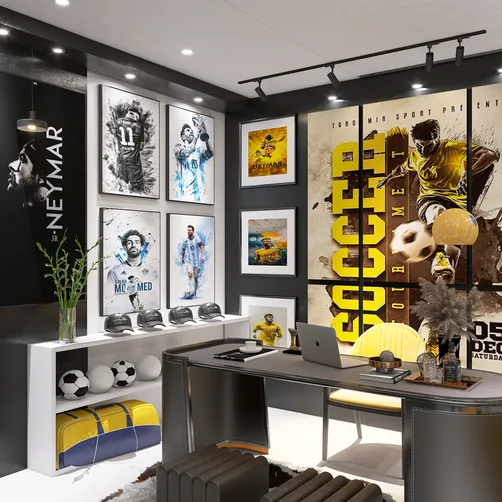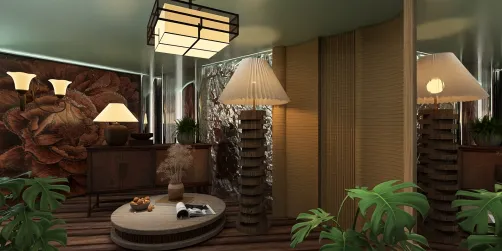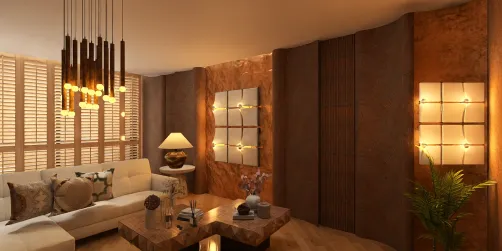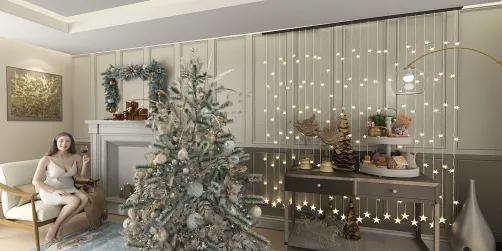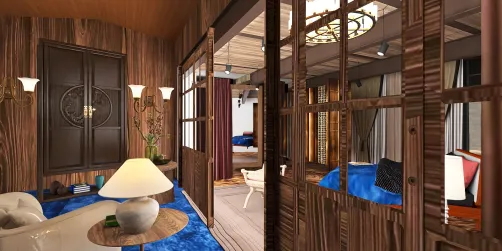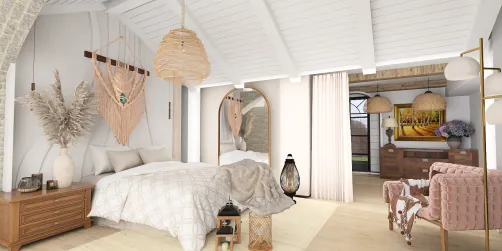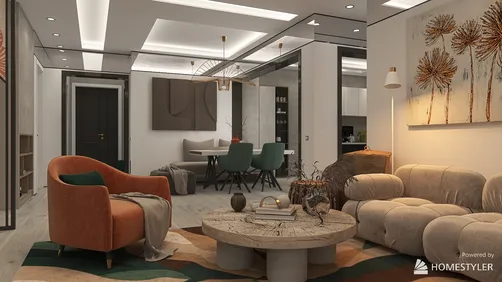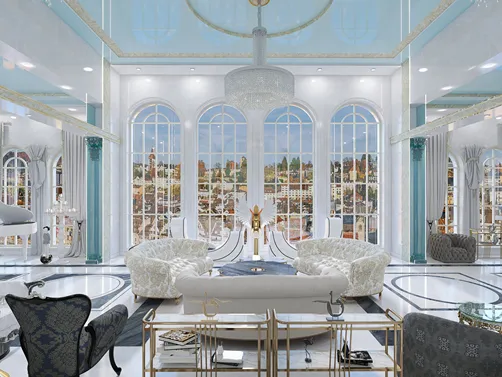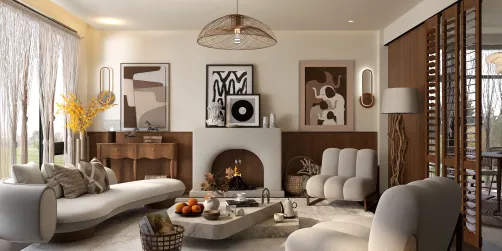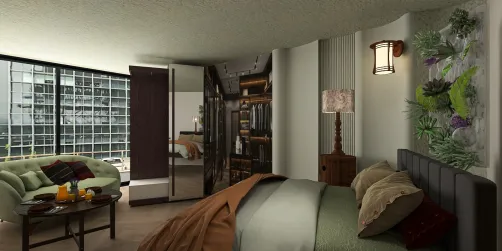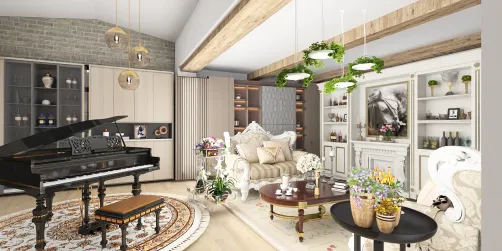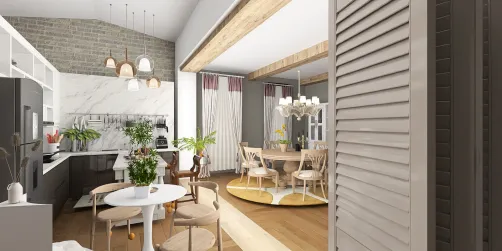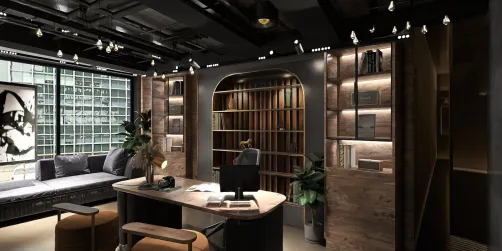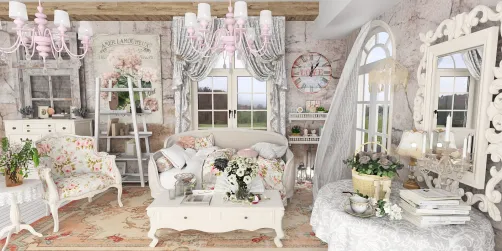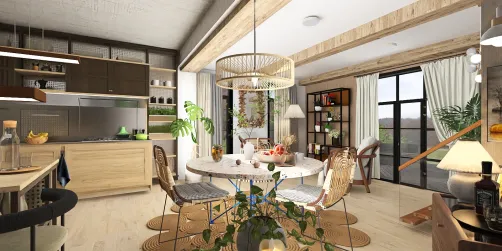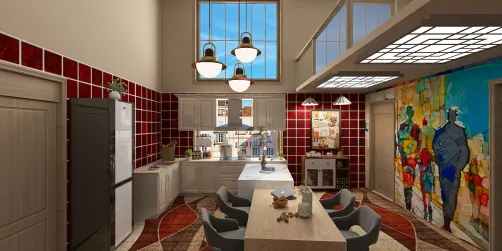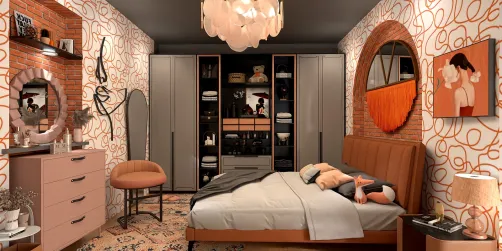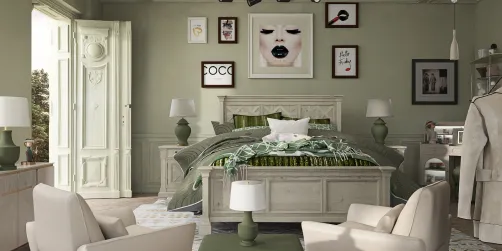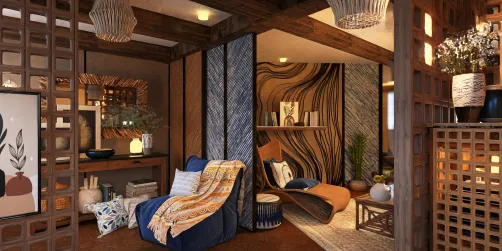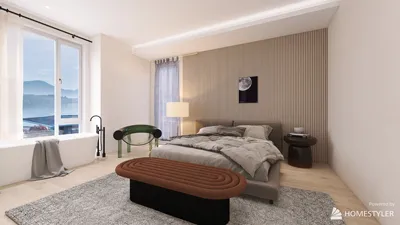
Crafting magnificent interior design renders with the help of Homestyler can significantly enhance your design presentations and captivate your clients. Whether you're working on a snug apartment or a vast office space, learning to utilize Homestyler for rendering can help you visualize your environments effectively. Here’s a comprehensive guide to achieving high-quality interior renders using Homestyler.
Exploring Homestyler's Rendering Features
Homestyler includes various rendering features that empower you to create lifelike visualizations of your projects. Getting acquainted with these functionalities is crucial for generating remarkable renders.
Before diving into rendering, it's imperative to set your render parameters correctly. Adjust settings such as quality, lighting, and texture to heighten the realism of your outcomes.
Proper lighting is essential for your interior design visuals. Explore diverse lighting options, including both artificial and natural sources, to achieve the perfect atmosphere.
Crafting Authentic Materials
Materials are pivotal in obtaining a genuine render. Homestyler allows you to customize materials that align with your design intentions.
Utilize the Material Editor feature in Homestyler to create and modify materials. Focus on aspects like surface patterns, colors, and finishes to bring your designs to life.
Homestyler's Asset Library offers a selection of pre-defined materials. Browse this library to discover materials that will enhance your design vision.
Streamlining Your Render Workflow
To ensure a seamless rendering process, keep these tips in mind:
Implementing view templates can help you maintain uniformity across your renders and simplify your workflow.
Lengthy render times can disrupt your productivity. Fine-tune your render settings to achieve a balance between quality and speed, ensuring you're using your time efficiently.
Final Enhancements for Eye-Catching Renders
Once you've completed the rendering, consider post-processing your images to boost their visual impact.
Employ software tools like Photoshop to modify brightness, contrast, and color balance in your final outputs.
Integrate your renders into polished presentations to effectively showcase your designs. Utilize mock-ups and layout designs to enrich the visual narrative of your project.
Common Questions
Q: How can I enhance the render quality in Homestyler? A: Concentrate on fine-tuning your render settings, utilizing high-quality materials, and ensuring appropriate lighting.
Q: Is it possible to create exterior renders with Homestyler? A: Absolutely, Homestyler is adept at rendering both interior and exterior visualizations effectively.
Q: What file format should I use to save my renders? A: Common choices include JPEG and PNG, catering to various presentation requirements.
Welcome to the Leading Home Design Software