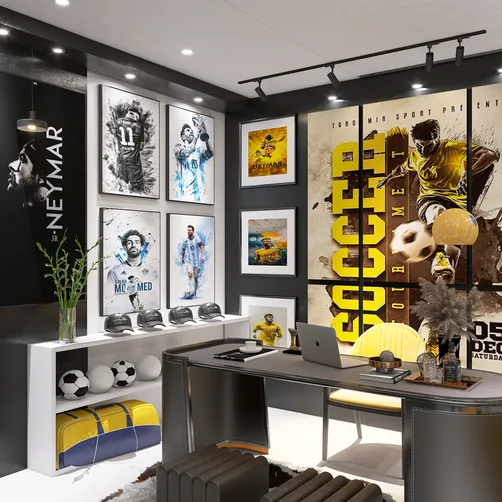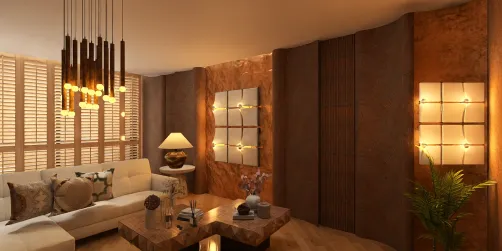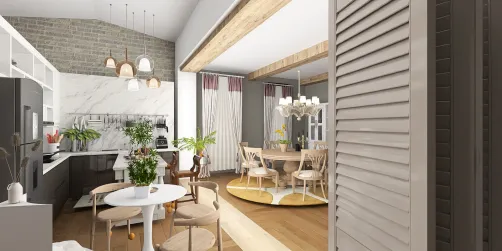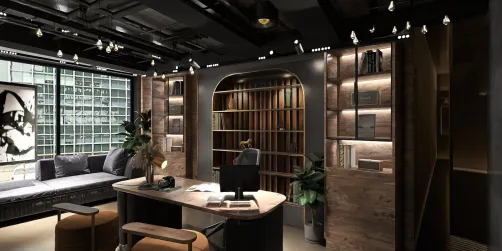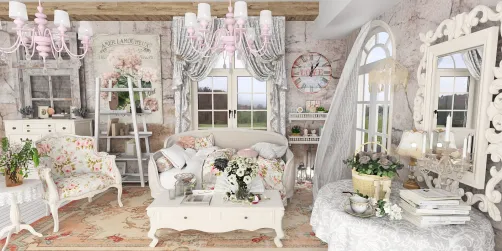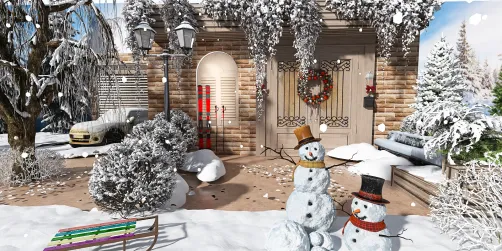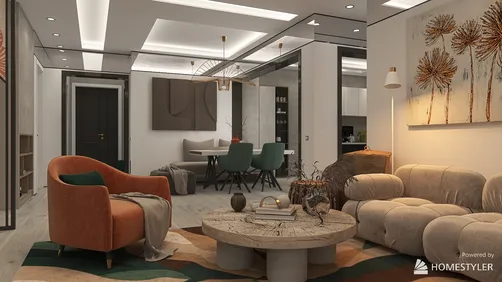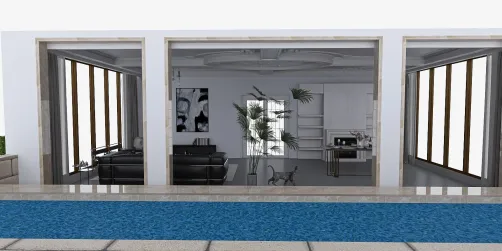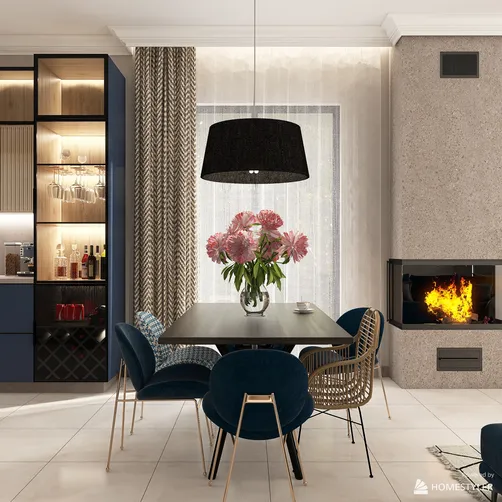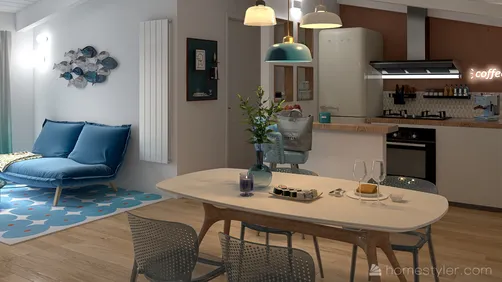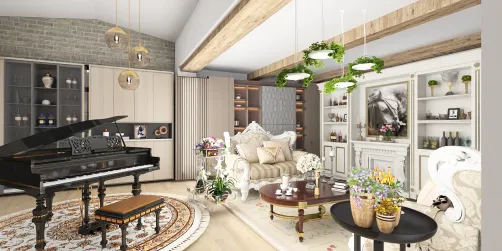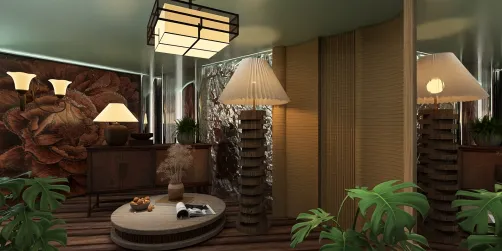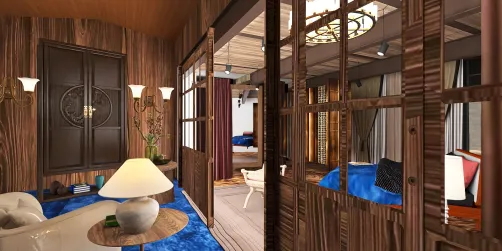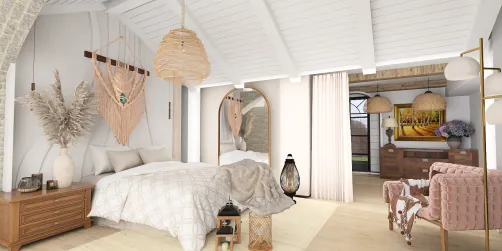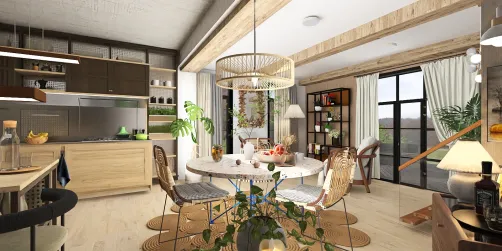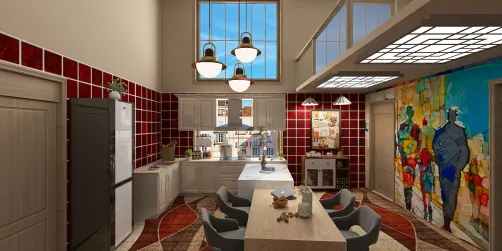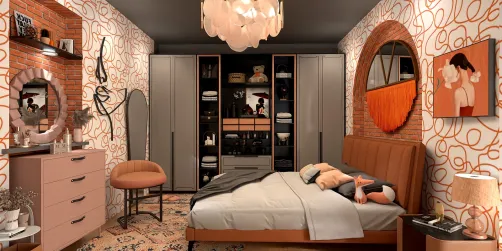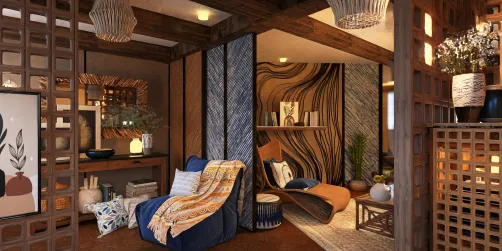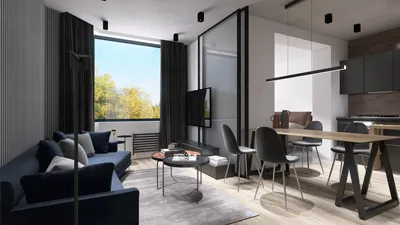
Rendering with Homestyler is a vital process in transforming your designs into captivating visuals. Mastering this feature can significantly improve your presentations. In this guide, we will delve into the fundamental techniques needed to achieve remarkable renderings.
Introduction to Rendering with Homestyler
Before you start the rendering process, it's crucial to get acquainted with the Homestyler interface and its settings. Begin by arranging your scene with suitable lighting and materials to establish a solid base for your rendering.
Preparing Your Scene for Rendering
1. Select the Ideal Renderer: Homestyler features various rendering options that you can choose from based on your project requirements.
2. Set Up Your Lighting: Effective lighting is essential for impactful renders. Combine both natural and artificial lighting to enhance realism and depth.
3. Apply Textures and Materials: Use Homestyler’s material editor to assign textures and finishes to your elements. Quality materials can elevate the aesthetic of your render.
Rendering Strategies with Homestyler
1. Tweaking Render Settings: Access the render setup dialog within Homestyler to adjust resolution, quality, and output settings for an optimal rendering experience.
2. Using Layer Management: Organize your scene components with render layers in Homestyler to manage visibility and effects individually, facilitating easier post-processing.
3. Global Illumination and Final Gathering: Activate these features within Homestyler for heightened realism in your lighting effects.
Exporting Your Render from Homestyler
Once you’re pleased with your render, it’s time to export it. Choose the appropriate file format and resolution for your final image. Common formats include JPEG, PNG, and TIFF.
Tips for Enhanced Rendering with Homestyler
1. Try Different Camera Angles: Various angles can greatly influence the final result of your render.
2. Leverage Post-Processing: Use software like Adobe Photoshop to refine your final image with adjustments and effects post-export.
Frequently Asked Questions
Q: What is the ideal renderer for newcomers in Homestyler? A: Many suggest using the friendly interface of Homestyler's default renderer due to its accessibility and powerful capabilities.
Q: How can I accelerate rendering times? A: Consider lowering the quality settings for draft exports, and optimize your scene by minimizing excess polygons.
Welcome to the Leading Home Design Software, Homestyler!