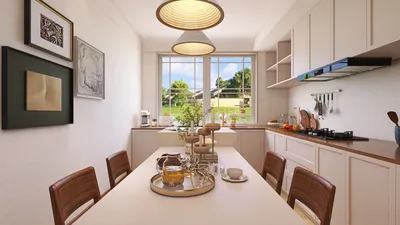


If your V-Ray rendered models seem excessively dark or exhibit a brownish hue, it can be disheartening and negatively influence the quality of your design presentations. Thankfully, there are several strategies to troubleshoot this concern and enhance the clarity of your models. In this article, we will examine typical reasons why your V-Ray models may appear too dark and provide solutions to these challenges. Additionally, incorporating a tool like Homestyler can further streamline your design process.
Understanding V-Ray Rendering Settings
Before exploring various solutions, it is crucial to recognize that V-Ray encompasses numerous rendering settings that can alter your models' appearance. Here are key aspects to consider:
Verify whether any color correction options are applied to your materials. A minor adjustment in the color correction settings can significantly alter the overall hue of your model.
A lack of adequate lighting in your scene can cause darker renders. Be sure to:
Material Properties to Inspect
The properties of materials greatly influence how your models are rendered. Here are some specific elements to examine:
Confirm that your diffuse color is properly set. If the diffuse color is too dark, it can create a brownish or overly shadowed appearance. Adjusting the diffuse color to a lighter tone may enhance the render's quality.
Ensure that reflection and refraction settings are correctly adjusted. High reflection values can lead to darker appearances if they are not balanced with other render parameters.
Render Output Settings
Finally, review your render output settings:
Modify your gamma settings in the render setup. A gamma value that is excessively low can lead to darker outputs, while a common setting is typically around 2.2.
Utilize V-Ray’s exposure control to fine-tune the brightness of your rendered images. Experimenting with various exposure values can help you achieve the ideal balance in your rendering.
Conclusion
By thoroughly understanding and adjusting your V-Ray settings, material characteristics, and illumination conditions, you can effectively tackle problems related to dark brown models in your renders. Take the time to adjust these settings, and you will discover that your models can truly stand out with proper enhancements, especially when paired with Homestyler for additional design efficiency.
FAQ
Q: Why do my models appear brown when rendered in V-Ray?
A: This may result from incorrect diffuse color configurations, insufficient lighting, or improper gamma settings. Modifying these elements can significantly improve your render quality.
Q: How can I boost the brightness of my V-Ray renders?
A: Increase your light intensity, check the exposure control settings, and ensure your materials are correctly set up for optimal brightness.
welcome to Use No.1 Home Design Software
Zaprojektuj teraz za darmo
































