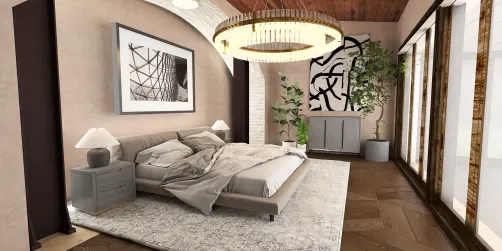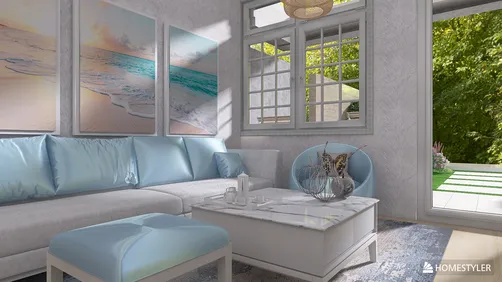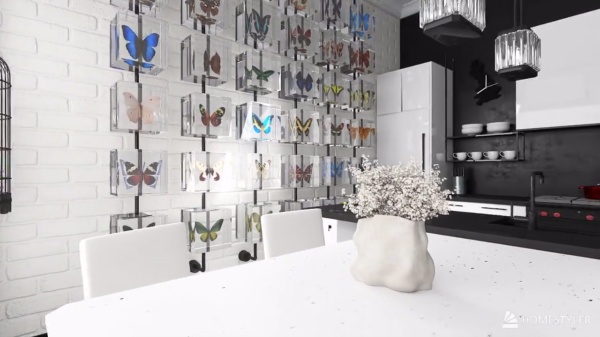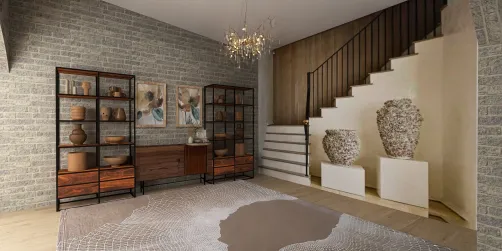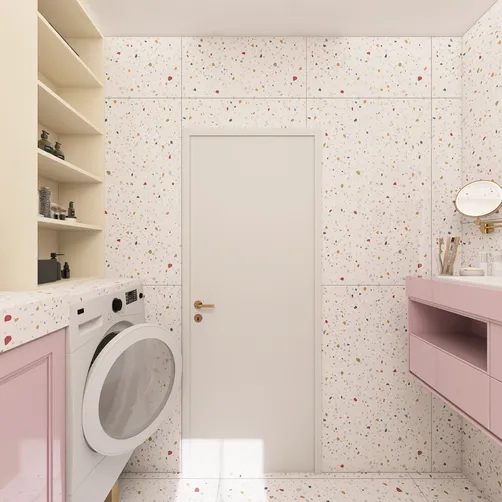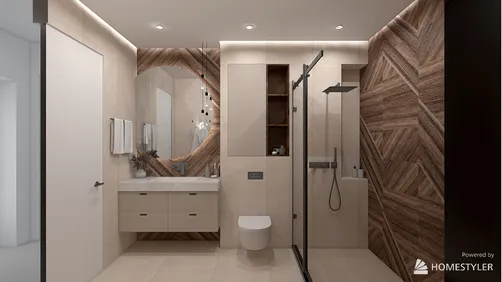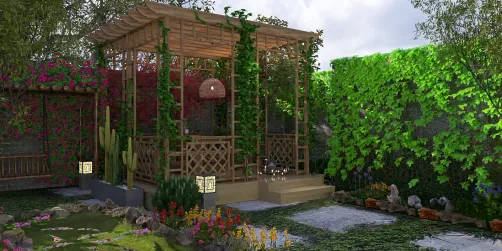
Enhancing your SketchUp models using Homestyler can remarkably transform your designs. Regardless of whether you're an experienced designer or just starting in the rendering realm, this comprehensive guide will navigate you through the fundamental steps to generate impressive visuals that effectively highlight your work.
Step 1: Integrating Homestyler with SketchUp
Before you begin with rendering, make sure that Homestyler is correctly set up alongside SketchUp. You can check this integration by accessing the Extensions menu within SketchUp. If Homestyler is integrated, a dedicated toolset should be visible.
Step 2: Preparing Your Model
Ensure your model is fully prepared for an optimal rendering experience:
Step 3: Applying Realistic Materials
Make use of materials available in Homestyler to add a touch of realism to your model:
Step 4: Setting Up Illumination
Effective lighting is crucial for achieving a striking render:
Step 5: Configuring Camera Angles
Adjust your camera settings to find the best viewpoints and perspectives:
Step 6: Rendering Your Design
When every aspect is in place, it's time to initiate the rendering process:
Step 7: Enhancing Through Post-Processing
After rendering, think about post-processing your images to enrich colors and details:
Conclusion
While rendering with Homestyler and SketchUp may appear daunting, following these steps will enable you to produce stunning and lifelike renders of your models. Don't forget to experiment and practice with various settings to discover what provides the best outcomes for your projects.
Frequently Asked Questions
Q: What are the system requirements for using Homestyler? A: Homestyler requires a compatible version of SketchUp and a robust computer with a good graphical processing unit for optimal performance.
Q: Can materials from older design software versions be used in Homestyler? A: Some materials may work, but it's advisable to recreate them in Homestyler for the best results.
Q: What tips can I utilize to reduce rendering times? A: Streamline your model by lowering polygon counts, using simpler materials, and tuning the rendering quality settings.
Explore the No.1 Home Design Software available today!