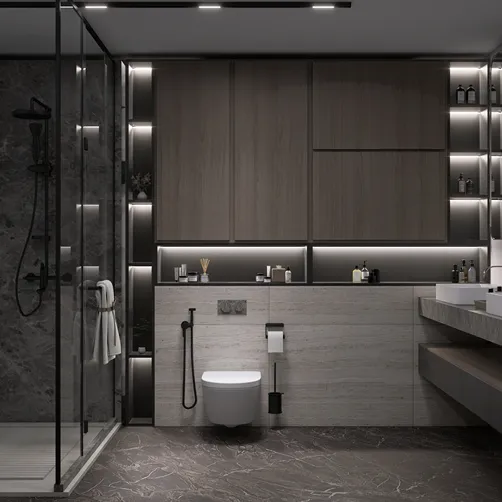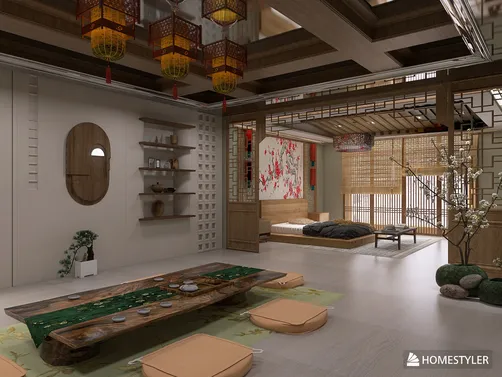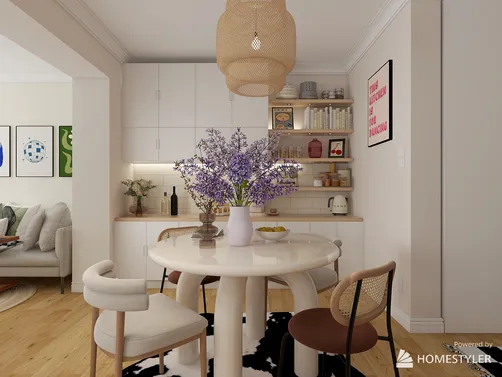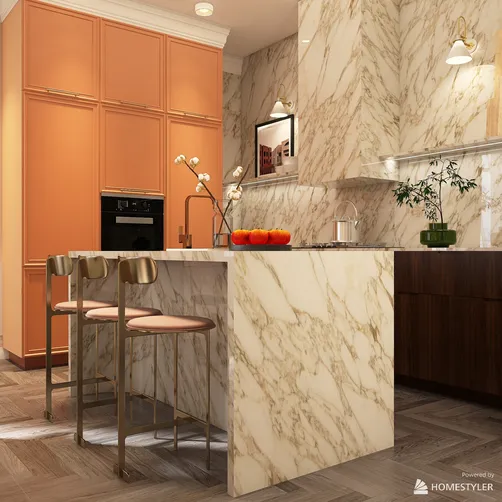
In architectural design, effectively showcasing your work holds equal importance to the design itself. If you aim to produce breathtaking Photoshop renderings from DWG house plans, you are in the right place. This guide provides you with essential steps to ensure your renderings are truly remarkable with the help of Homestyler.
What You Need to Know About DWG Files
DWG files represent a widely used format for computer-aided design (CAD) drawings. These files encompass vector image data alongside metadata, providing architects and designers with the tools to craft intricate representations of their concepts. To render these plans in Photoshop, a proper preparation process is necessary.
Preparing Your DWG Files for Use in Photoshop
1. **Exporting from CAD Software**: Start by opening your DWG file in your preferred CAD application, like AutoCAD. After that, export the drawing as a .DXF or .PDF file, which simplifies the import into Photoshop.
2. **Importing into Photoshop**: Launch Photoshop and utilize the 'Import' feature to bring in your exported file. Adjust the settings to preserve the quality and scale of your design.
Establishing a Base Render in Photoshop
1. **Managing Layers**: Once your DWG file is loaded, you'll see that each line and element exists on its individual layer. Arrange these layers into groups to facilitate smoother editing.
2. **Incorporating Colors and Textures**: Employ the brush tool to infuse colors and textures to your elements, enhancing the depth and realism of your design.
3. **Implementing Lighting Effects**: Apply lighting effects through layer styles and adjustment layers to replicate natural lighting conditions effectively. This step is vital for achieving a lifelike render.
Improving Your Render
1. **Shadowing**: Introduce shadows to give your rendering a three-dimensional appearance. Utilize the drop shadow effect or manually craft shadows using the brush tool.
2. **Background and Environment Consideration**: Enhance your render by integrating a background that mirrors the environmental context of your design, whether it be a simple gradient or a richly detailed landscape that complements your house plans.
Finalizing Your Render Export
When your rendering meets your expectations, export it in your chosen format (JPEG, PNG, etc.) for presentation or sharing with clients. It is crucial to maintain high resolution to ensure the best visual quality.
Pro Tips for Effective Rendering
- Consistently save your work to protect against data loss during your process.
- Utilize high-quality images for textures to elevate realism.
- Experiment with various styles and techniques to identify what complements your design most effectively.
Frequently Asked Questions
Q: Can I employ different software besides Photoshop for rendering my DWG files?
A: Absolutely, other software such as SketchUp, 3ds Max, or numerous rendering plugins can also yield impressive results.
Q: What file formats are optimal for exporting DWG plans?
A: The most compatible formats are .DXF for flexibility and .PDF for superior visual quality.
Welcome to the Leading Home Design Software, Homestyler!



















![[For dear Adelina madee 🤎]](https://hs-designs.homestyler.com/production/design/images/8a07e535-9cbc-4132-a42a-5932dac3a112/1706972286037.jpg?x-oss-process=image/resize,w_502,m_mfit/format,webp)