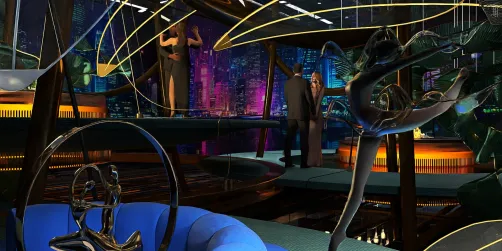
Crafting a lively and intricate megacity scene using Blender can be both an exhilarating and formidable endeavor. With appropriate techniques and tools, you can transform your concepts into reality through Blender's robust modeling and rendering functionalities, particularly employing the Eevee engine. In this guide, we will delve into the pivotal steps necessary for effectively modeling and rendering Megacity 01.
Getting Started with Blender
Prior to beginning your modeling journey, ensure that Blender is installed on your system. It's beneficial to familiarize yourself with the interface, tools, and basic features. The more at ease you are with Blender, the more seamless your modeling process will be.
Modeling the Cityscape
Initiate the process by sketching a basic layout for your megacity. This layout should include the arrangement of buildings, avenues, parks, and other urban elements. Utilize Blender's modeling capabilities to outline the fundamental shapes of your buildings and infrastructure.
After establishing the base layout, start embellishing your buildings with details. Take advantage of Blender's modifiers like Array and Bevel to create complex designs and patterns. Varying the heights and configurations of buildings can contribute to a more authentic skyline.
Further enhance your cityscape by incorporating urban features such as vehicles, streetlights, and pedestrians. You can source assets from Blender's library or design your own models. This will inject life and vibrancy into your scene.
Texturing and Materials
Texturing is essential for infusing realism into your megacity. Apply high-quality textures to your buildings, roads, and other surfaces. Blender's UV mapping tools will assist you in accurately applying these textures. Consider integrating image textures for elements like windows and signs to boost visual appeal.
With Eevee offering a real-time rendering experience, make the most of its material settings. Experiment with various shaders to obtain the desired aesthetic for your cityscape. Use reflections and refractions to elevate the realism of glass features.
Lighting Your Scene
Lighting is crucial for achieving the final render. Employ a mix of sunlight, streetlights, and ambient lighting to establish a unified atmosphere. Adjust the intensity and color of your lights to cultivate the mood of your scene.
Activate ambient occlusion in the Eevee settings to improve depth and realism in your render. This functionality mimics how light interacts with surfaces, creating soft shadows in corners and crevices.
Rendering Your Megacity
Before proceeding to render, fine-tune your render settings in Eevee. Confirm that you have selected the appropriate resolution and sampling configurations for superior quality. If your scene has moving components, consider implementing motion blur for a more dynamic appearance.
Once rendering is complete, utilize Blender's compositor for post-production refinement. You can introduce effects like bloom, glare, and color correction to elevate the final image. This step is vital for achieving a polished and professional finish.
Tips for Success
1. Organize your models with collections for easier navigation. 2. Draw inspiration from actual megacities. 3. Regularly save your work to prevent data loss. 4. Explore different camera angles for distinctive perspectives.
FAQ
Q: What are effective methods to optimize rendering time in Eevee? A: Lower sampling settings and enable features like screen space reflections instead of ray tracing.
Q: Can add-ons assist in improving my modeling workflow? A: Absolutely, numerous add-ons are available for Blender that can expedite the modeling and texturing processes.
Welcome to the use of Homestyler, the No.1 Home Design Software.