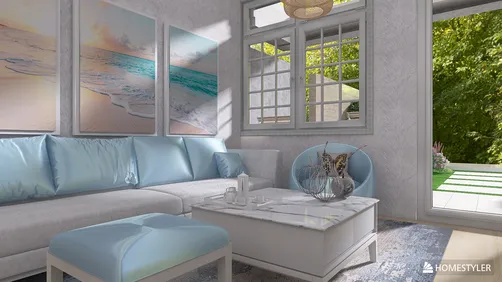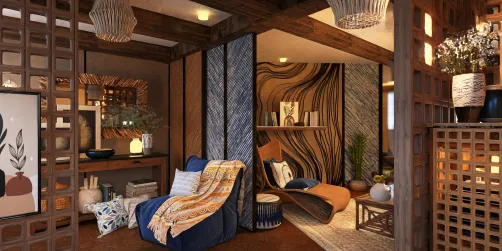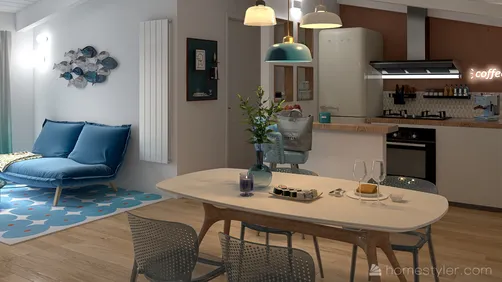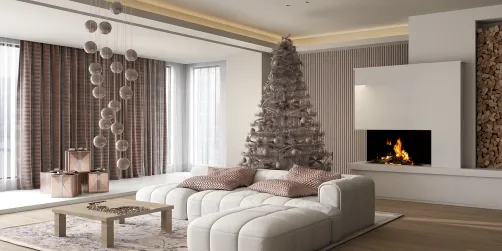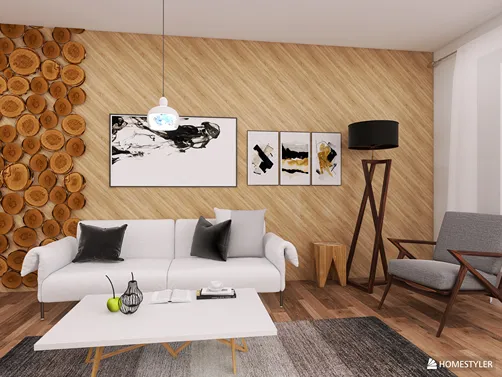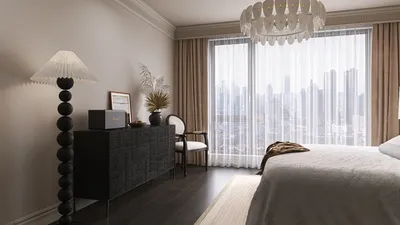
Rendering in Homestyler can significantly enhance your designs by providing a vivid representation of your concepts. Although SketchUp Free lacks the integrated rendering capabilities of its Pro counterpart, you can still achieve outstanding results through external tools and plugins. In this comprehensive guide, we will explore how to effectively render your projects, thereby improving your design presentations.
Exploring the Limitations of SketchUp Free
SketchUp Free is a web-based version that comes with certain limitations when compared to the Pro edition. It allows for 3D modeling; however, it does not include sophisticated rendering tools. Nonetheless, you can still produce visually attractive images by exporting your models and utilizing rendering software alongside Homestyler.
Steps to Export Your Model
To begin rendering your model, the first step is to export it. Here’s how to do it:
This action will download your model directly to your computer, making it ready for the rendering process.
Selecting Your Rendering Software
A variety of rendering tools are available that can work in conjunction with SketchUp Free. Some of the popular choices include:
Each of these rendering tools has unique features; therefore, choose one that aligns best with your specific needs.
Importing Your Model in the Rendering Application
After selecting a rendering tool, you should import your model:
Applying Materials and Textures in Homestyler
Most rendering software, including Homestyler, allows you to incorporate diverse materials and textures. Here are the steps to accomplish this:
Configuring Lighting and Environment Settings
Lighting is a vital component in the rendering process. Here’s how you can set it up:
Rendering Your Model with Homestyler
Once all preparations are complete, it’s time to proceed with rendering:
Final Adjustments and Exporting Your Render
Post-rendering, you may wish to make some final tweaks to your work:
Final Thoughts
Although SketchUp Free does not include native rendering functionalities, you can still produce stunning renders by exporting models and leveraging external software, including Homestyler. By adhering to these outlined steps, you can enhance your design presentations, impressing clients or stakeholders with lifelike visual representations.
Frequently Asked Questions
Q: Is SketchUp Free suitable for professional projects? A: Absolutely, SketchUp Free may be utilized for professional endeavors, although it might lack some advanced tools available in the Pro version.
Q: Which rendering software is most suitable for beginners? A: Twilight Render stands out as a user-friendly choice for those just starting in rendering.
welcome to Use Homestyler for Home Design