
🌟 Feature Overview
Easily design realistic outdoor balconies with the Exterior Balcony tool. Featuring auto-generated parametric railings and quick material replacement, balcony design is now more efficient than ever! 🏡✨
🛠️ Step-by-Step Guide
1️⃣ Step 1: Access the Balcony Design Interface
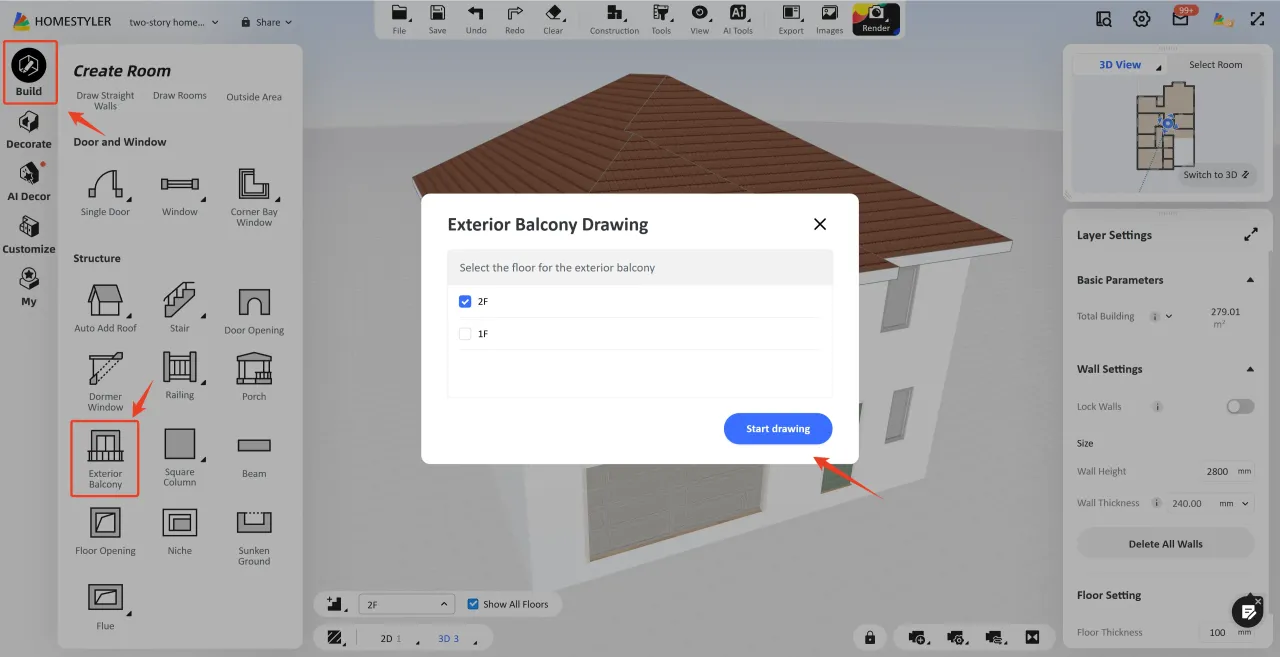
1. In the left-hand navigation bar, click Build and find the Exterior Balcony icon directly under the "Structure" section.
2. In the pop-up dialog, check the box to select your target floor (e.g., 2F), then click Start drawing to enter the dedicated canvas.
2️⃣ Step 2: Draw & Adjust Balcony Dimensions (2D)
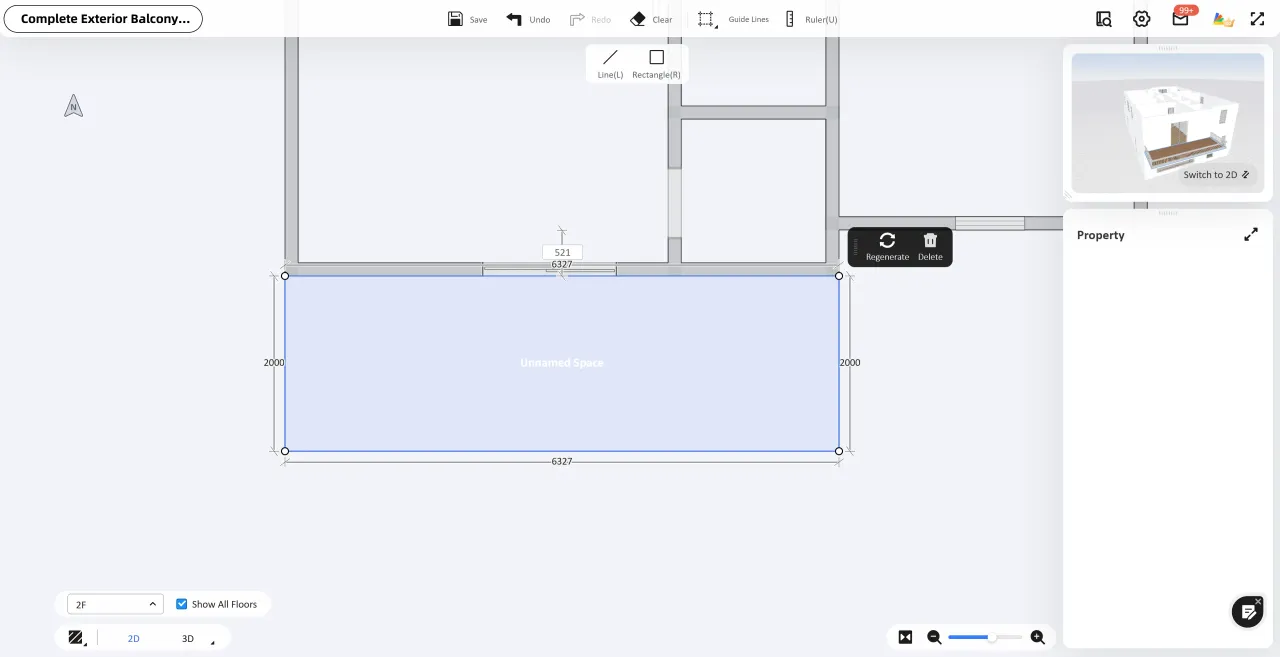
1. Select either the Line (L) or Rectangle (R) tool from the top toolbar to draw the balcony's outer boundary.
2. 💡 Pro-Tip (Dimension Input): While drawing, press the Tab key on your keyboard to quickly switch between width and length input fields to enter precise values.
3. ⚠️ Crucial Step (Regenerate): After resizing or reshaping, you must click "Regenerate" in the floating menu so the railings automatically match and auto-generate according to the new boundary.
3️⃣ Step 3: Switch to 3D View & Replace Railing Styles
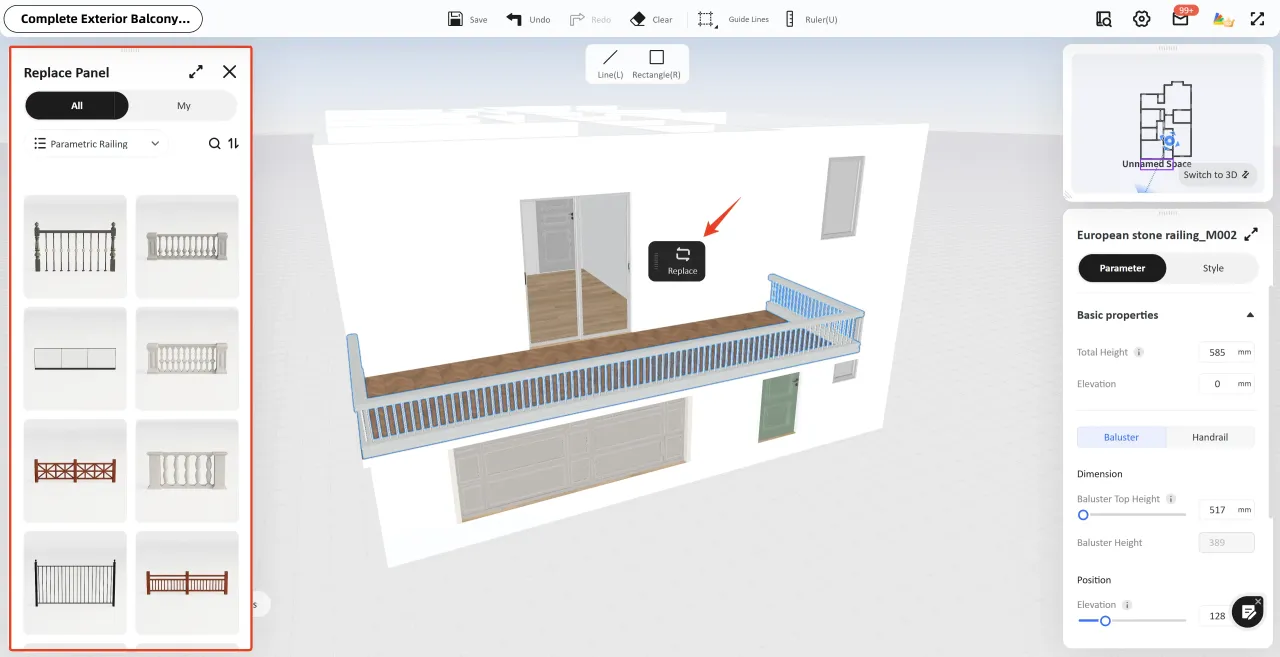
1. Press 3 on your keyboard (or click 3D in the bottom-left view toggle bar) to enter 3D View.
Left-click to select the railing component on your balcony.
2. Click Replace in the floating menu to open the library and change to your desired railing style with a single click.
4️⃣ Step 4: Fine-tune Railing Properties
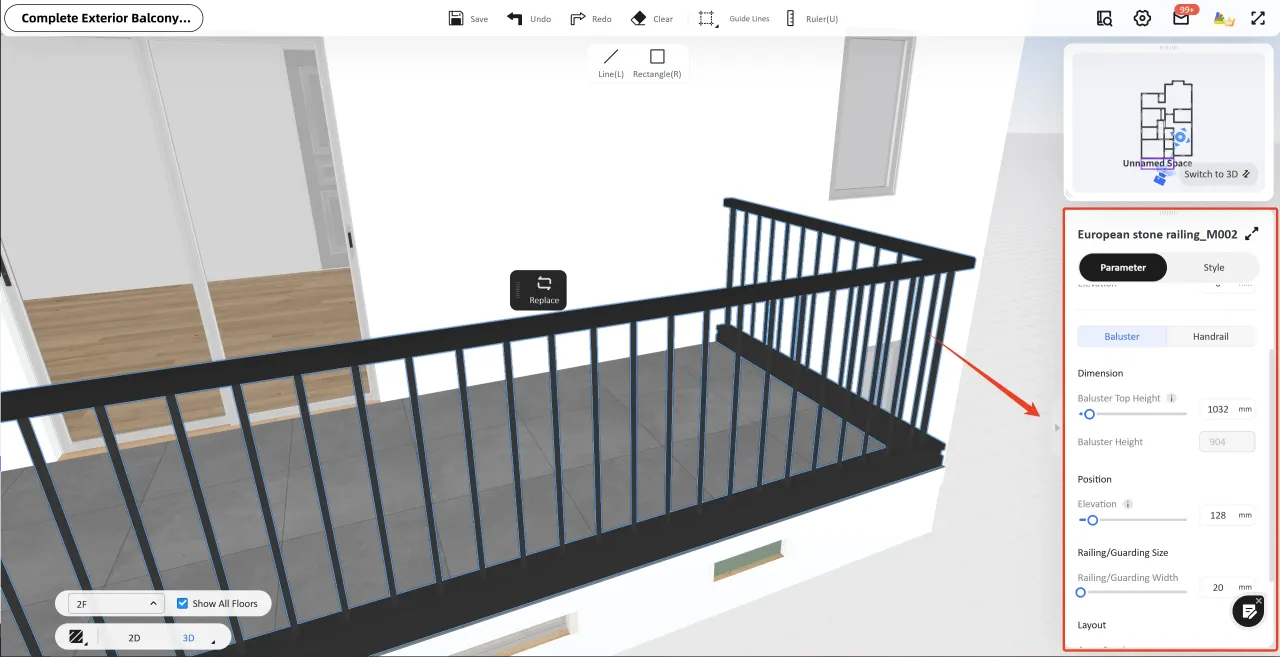
Once you select the railing in 3D View, you can customize its details using the Property Panel on the right. The panel is divided into two main tabs:
📐 Under the "Parameter" Tab:
- Basic properties: Adjust the Total Height and Elevation of the overall railing.
- Component Adjustment: Switch between Baluster (vertical posts/spindles) and Handrail (horizontal rails) to adjust:
- Dimension: Change specific height parameters (e.g., Baluster Top Height, Baluster Height).
- Position: Adjust the Elevation height/position of the component.
- Railing/Guarding Size: Customize the Railing/Guarding Width.
- Layout: Control spacing and quantity information (e.g., Array Spacing, Array Count, and Column Offset).
🎨 Under the "Style" Tab (Basic Style):
Switch between Baluster and Handrail to customize their look:
- Armrest Option: Choose different profile options.
- Style: Click to replace the specific 3D model style of the component.
- Material: Click to replace or rotate the texture of materials (e.g., iron, wood, glass) for each component.
⚠️ Note: Component attributes may vary slightly depending on the selected railing style; their available adjustable parameters and parts will differ, and you will need to adjust them accordingly.
💾 Once done, click Complete Exterior Balcony in the top-left to save and exit.
❓ Frequently Asked Questions (FAQ)
Q: Why did my railings disappear or get misplaced after I resized the balcony?
A: Don't worry! After adjusting the balcony dimensions in the 2D interface, you must click Regenerate in the floating menu. The system will then automatically recalculate and re-match the railings to the new dimensions.
Q: Can I draw balconies on multiple floors?
A: Absolutely! Simply repeat "Step 1", select the corresponding floor in the pop-up floor selection dialog, and you can design unique balconies for each different level.
🔗 Porch Design Tutorial:
👉 https://www.homestyler.com/forum/view/2067512169460875265


