🎉 The long-awaited Multi-floor Floor Plan Import feature is now officially live!
You can now import multi-floor floor plans more accurately and efficiently, making it faster to build multi-level layouts and significantly improving your workflow.
🛠️ How to Use: Import a multi-floor floor plan in just a few steps.
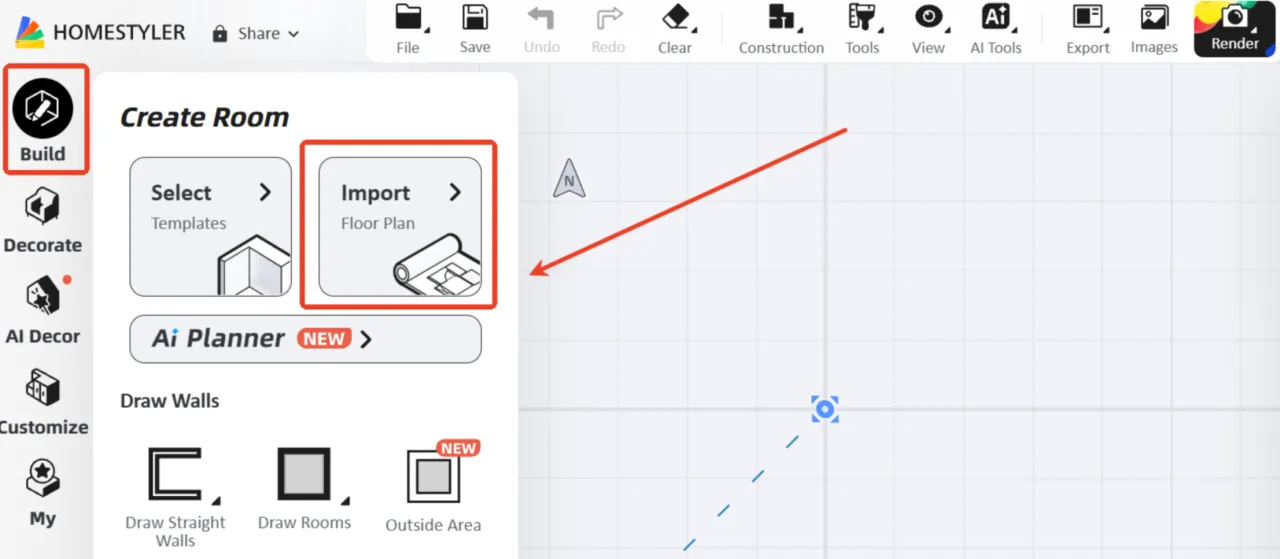
Step 1: Open the Floor Plan Import Tool
Go to Build > Import Floor Plan from the left-side panel to open the upload window.
Step 2: Upload Multi-floor Floor Plan Files
Depending on your needs, you can upload either image files or DWG files.
In this example, we’ll use Upload Image. Click Multi-floor file to upload multiple floor plan images.
You can hold Ctrl to select multiple files at once.
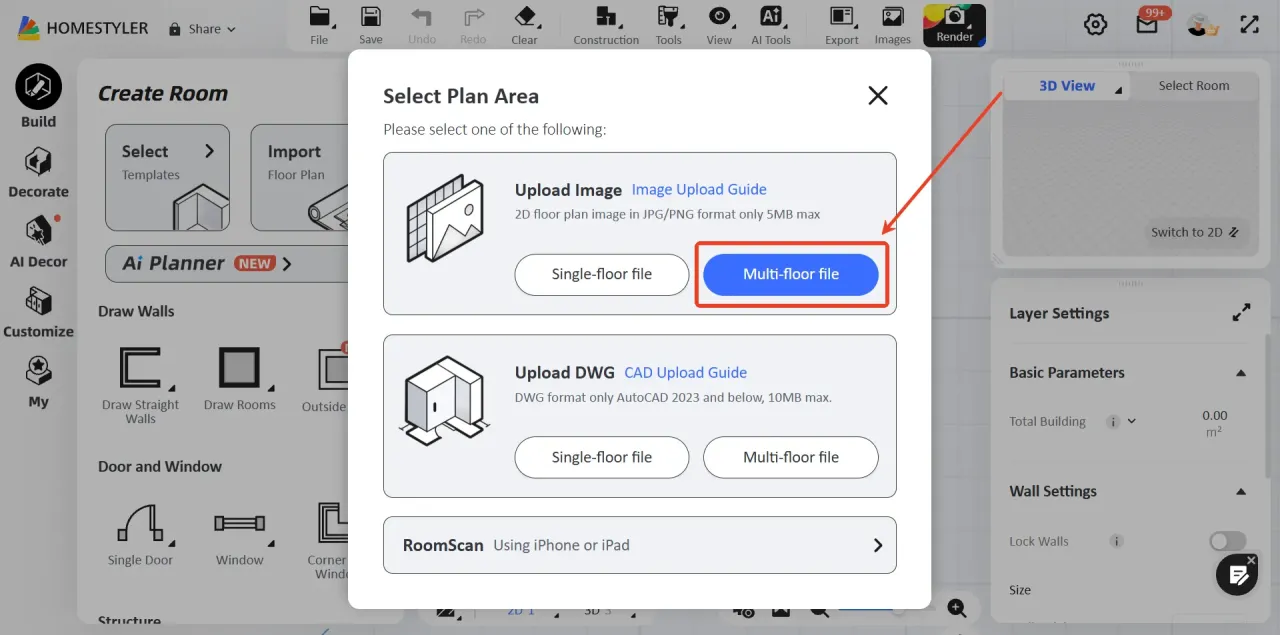
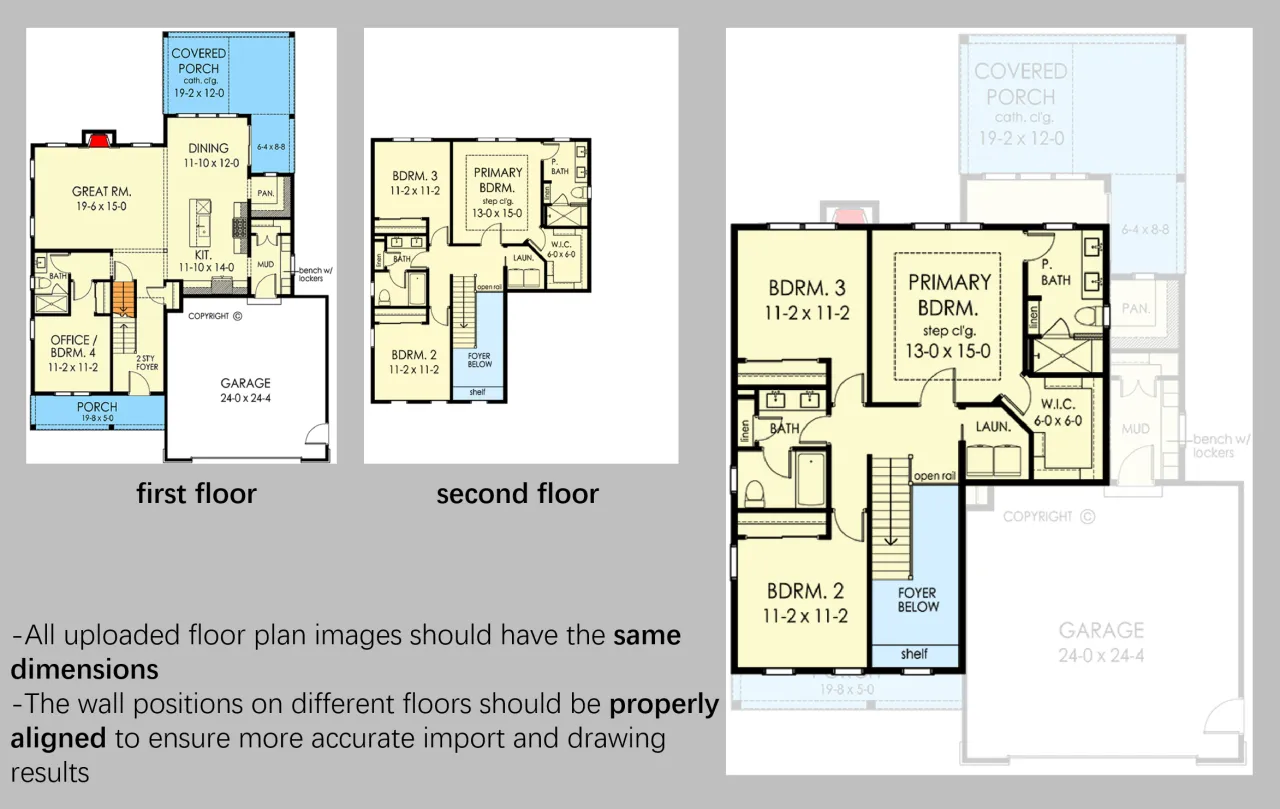
Image Upload Requirements and Notes:
-You can upload up to 10 floor plan images at a time
-Supported formats: JPEG / PNG
-Maximum file size: 5MB per image
-All uploaded floor plan images should have the same dimensions
-The wall positions on different floors should be properly aligned to ensure more accurate import and drawing results
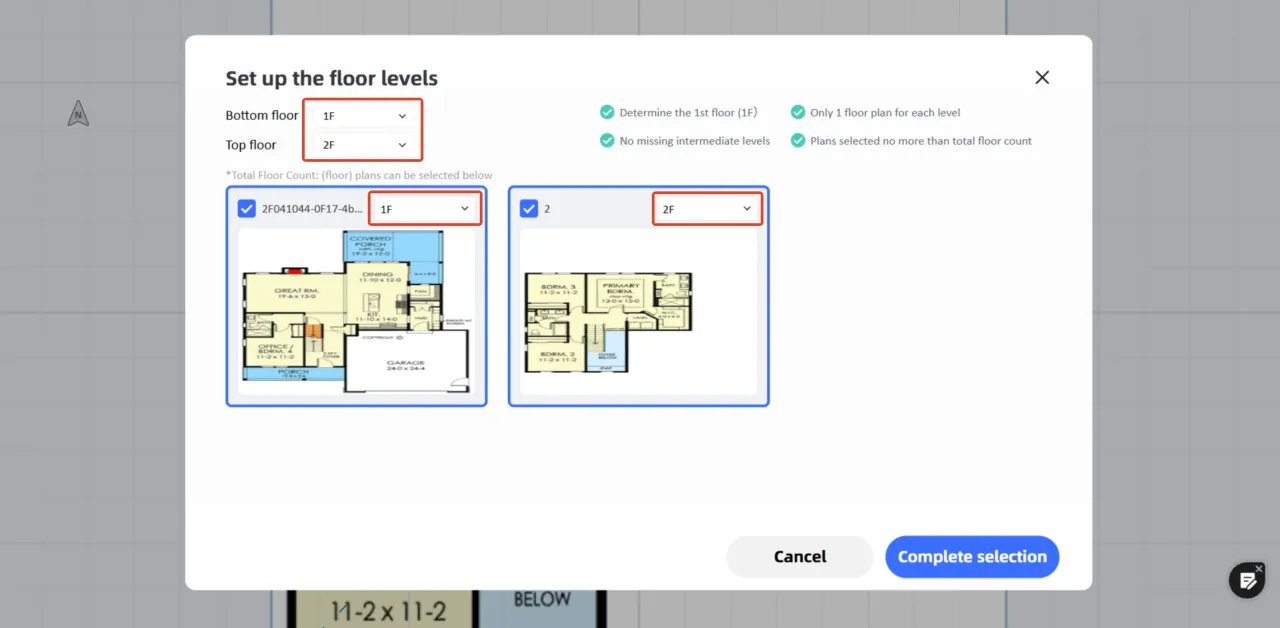
Step 3: Set the Scale and Floor Levels
After uploading the files, complete the following settings:
-Choose an import method: Draw Manually or Auto Generate (Beta)
We recommend using Draw Manually for more precise results.
-Set the scale for each floor plan:
Select a clear and accurate reference distance in the plan, and align the ruler with the wall edges as closely as possible.
-Assign each floor plan to the correct floor level, then click Complete selection.
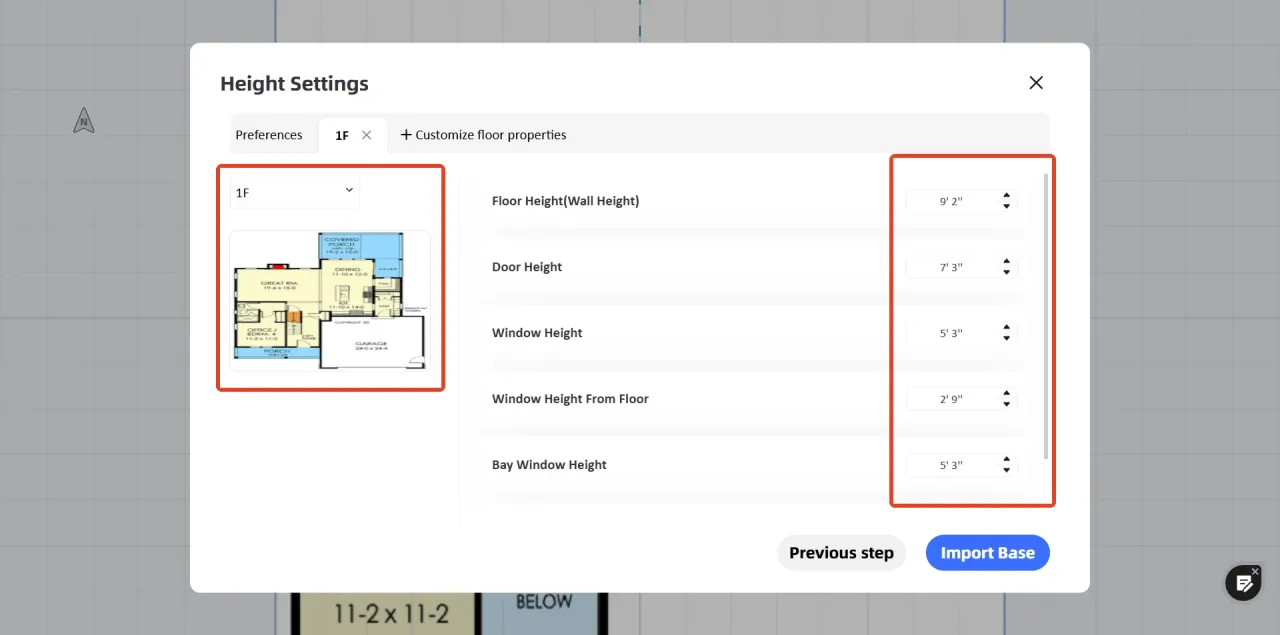
Step 4: Configure Floor Height and Door/Window Settings
Next, you can apply unified settings for:
-Floor Height (Wall Height)
-Door Height
-Window Height
-Window Height From Floor
-Bay Window Height
If you need to configure each floor separately, click Customize floor properties, then select the corresponding floor to adjust its settings.
Once everything is set, click Import Base to proceed with manual drawing or AI-assisted generation.