Homestyler Team now allows you to sync modified models back to Team Model, making them easier for your team members to use.
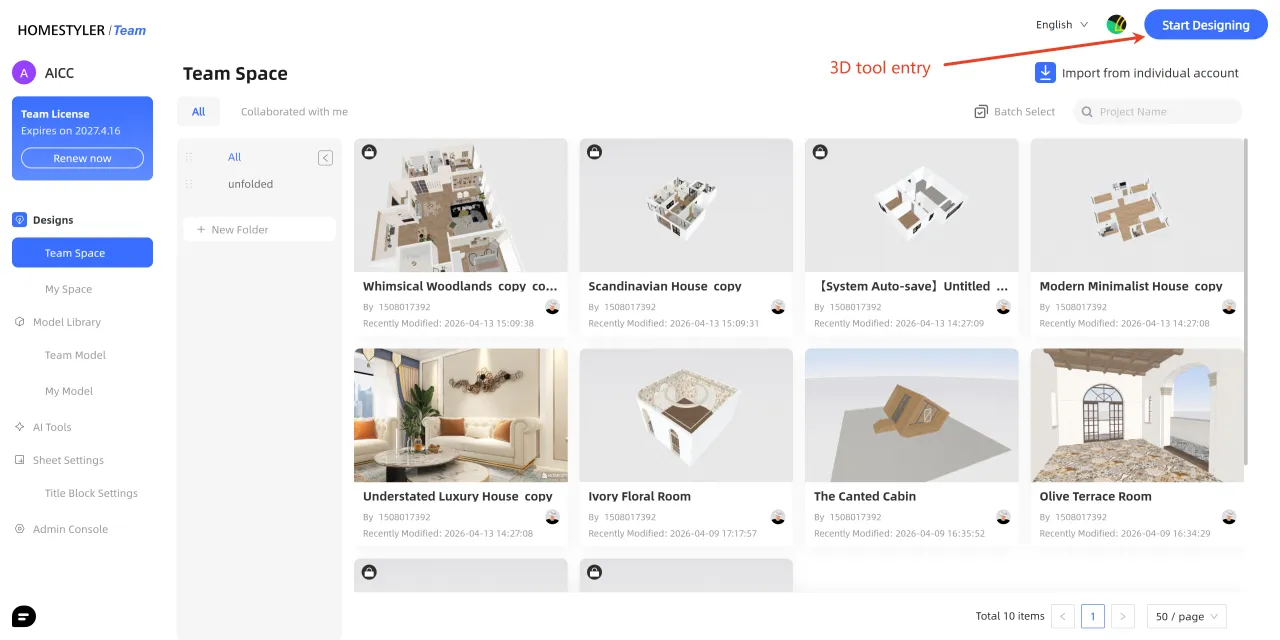
Step 1: Log in to Homestyler Team Version and enter the 3D tool.
-Team Version link: https://team.homestyler.com/
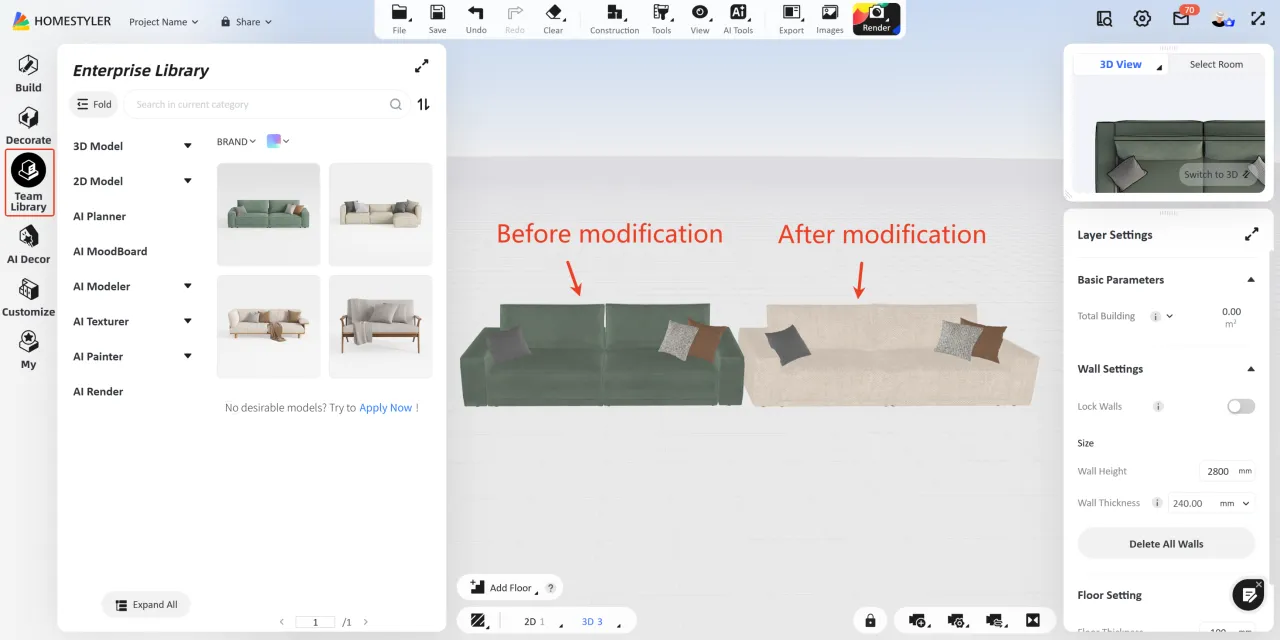
Step 2: Adjust the model as needed
-Drag a model from Team Library in the left-side panel into your project scene, then modify its material, size, and other parameters as needed.
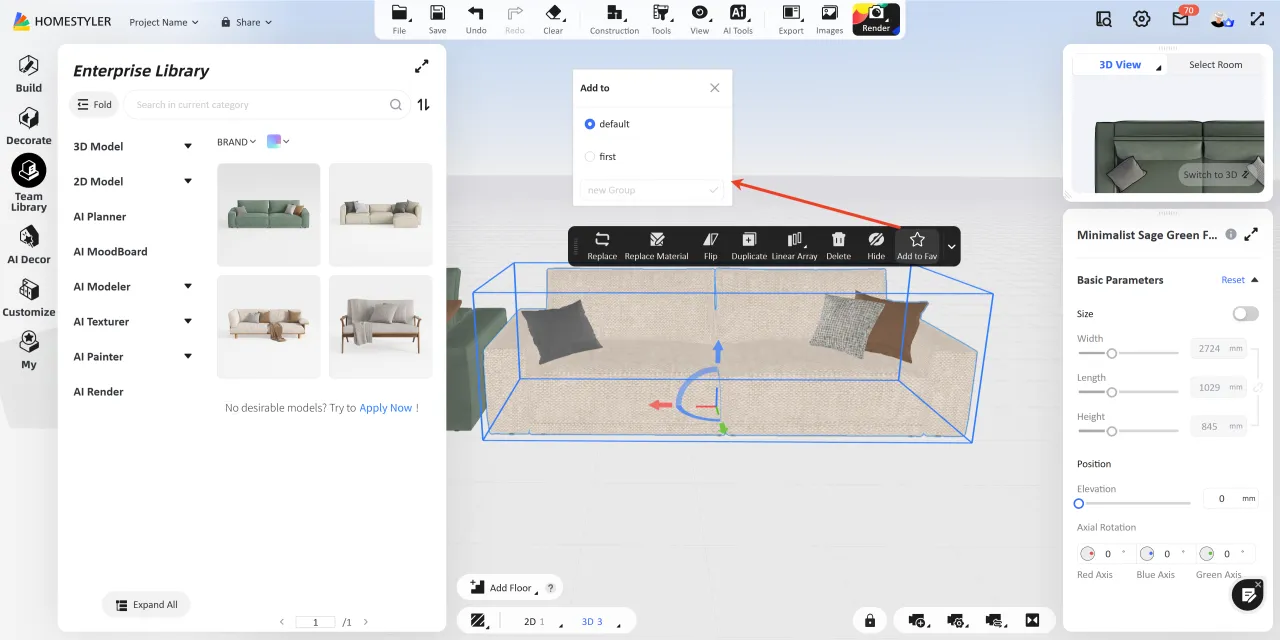
Step 3: Save the modified model to Favorites
-Select the modified model and click Add to Fav. In the pop-up Add to window, choose the target folder to save it.
-Wait for the model to finish updating before using it (about 1 minute).
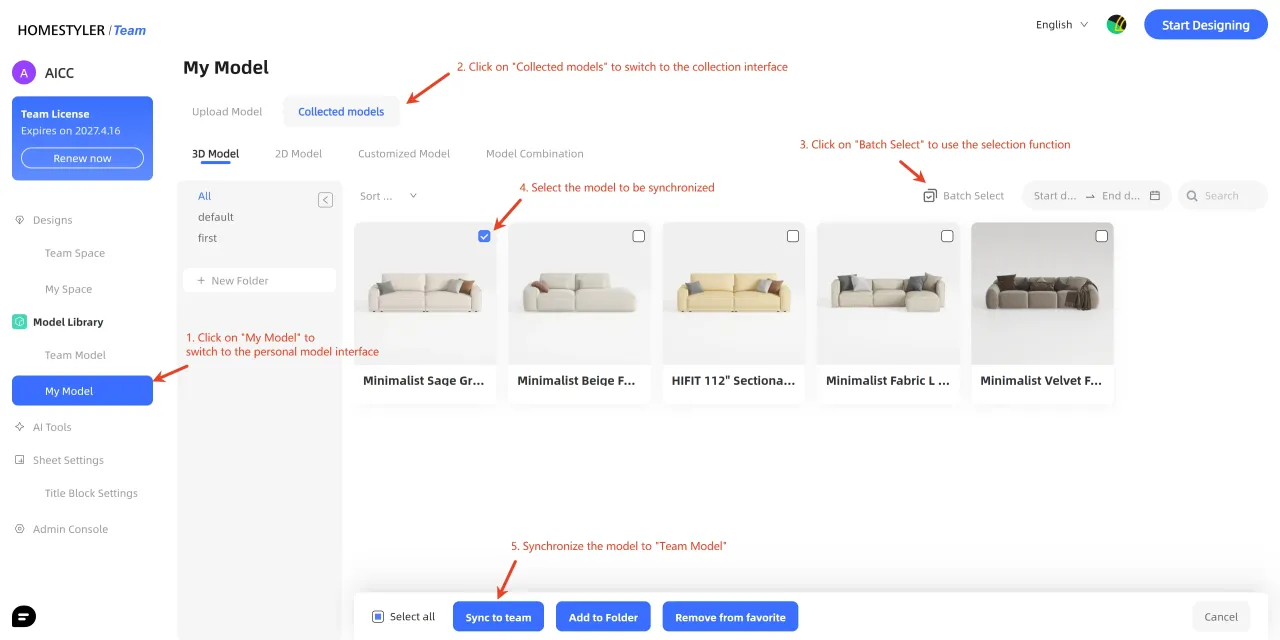
Step 4: Sync the model to Team Model
-Return to the Team Version homepage and find the modified model under My Model > Collected models.
-Click Batch Select and choose the model(s) you want to sync.
-Click Sync to team at the bottom to sync the model to Team Model.
-Note: Public library models, team models, and personal models can all be synced to Team Model using this method.