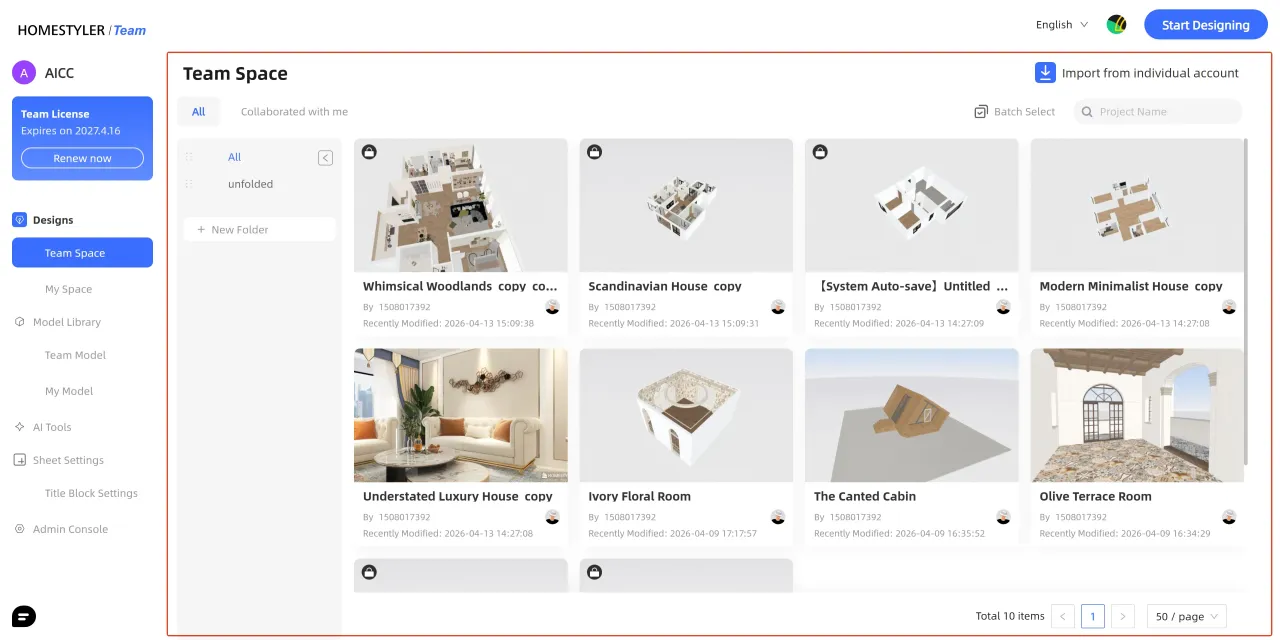
Homestyler Team Version provides a unified workspace for team collaboration, allowing members to centrally manage projects, share resources, and collaborate on designs efficiently.
After entering the Team Version, users can view team projects in the Team Space and quickly access different functional modules through the left navigation panel.
Next, we will introduce the main functions of the Team Version according to the interface sections.
1. Page Overview
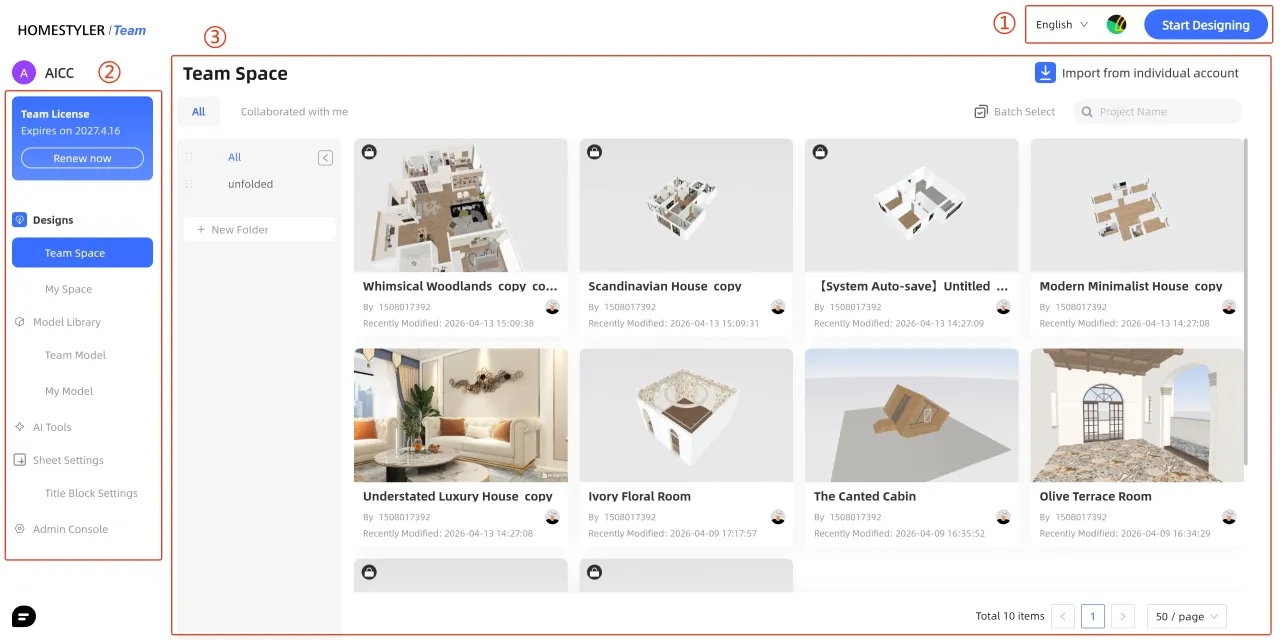
The Team Version interface is mainly divided into the following areas:
1. Top Function Area
2. Left Navigation Bar
3. Project Content Display Area
2. Top Function Area
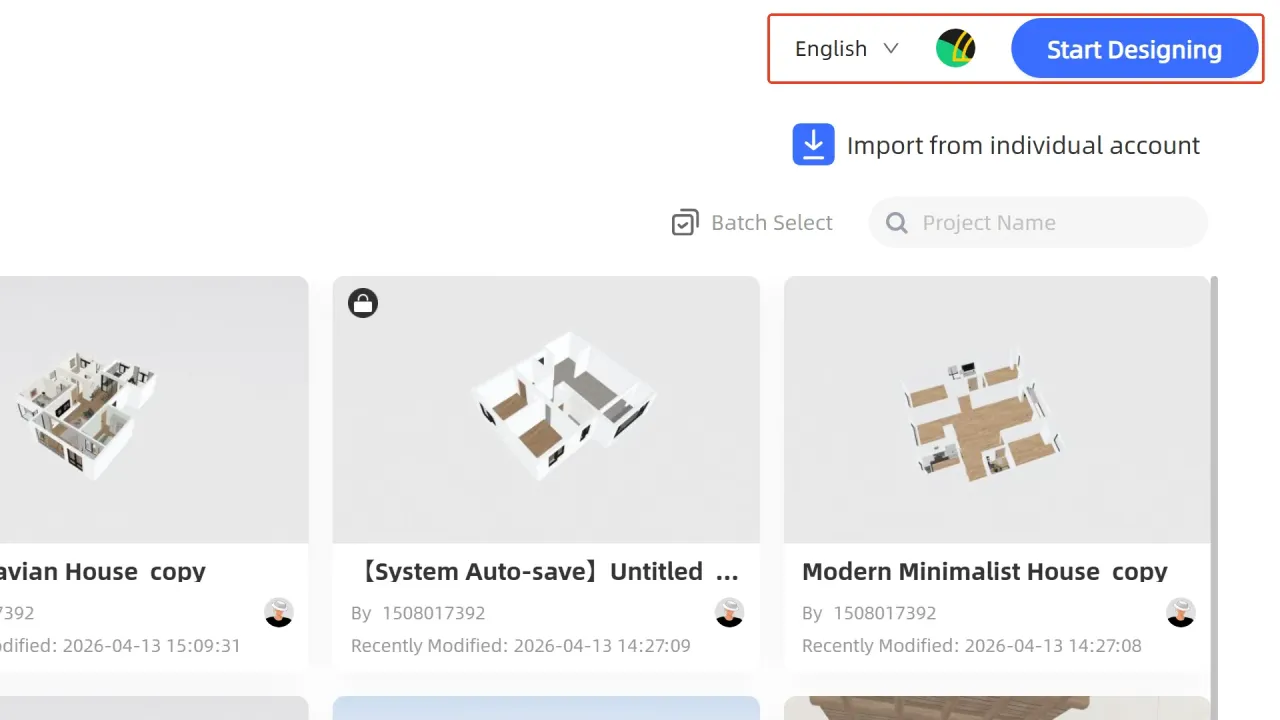
The top function area mainly includes the following operations:
- Language Switch: Switch the interface display language
- Personal Settings: View and manage personal account information
- Start Designing: Click "Start Designing" to enter the 3D design tool and create a new design project
3. Left Navigation Bar
The left navigation bar is used to switch between the main functional modules of the Team Version and display team subscription information.
The functional modules include: Designs, Model Library, AI Tools, Sheet Settings, and Admin Console.
3.1 Designs
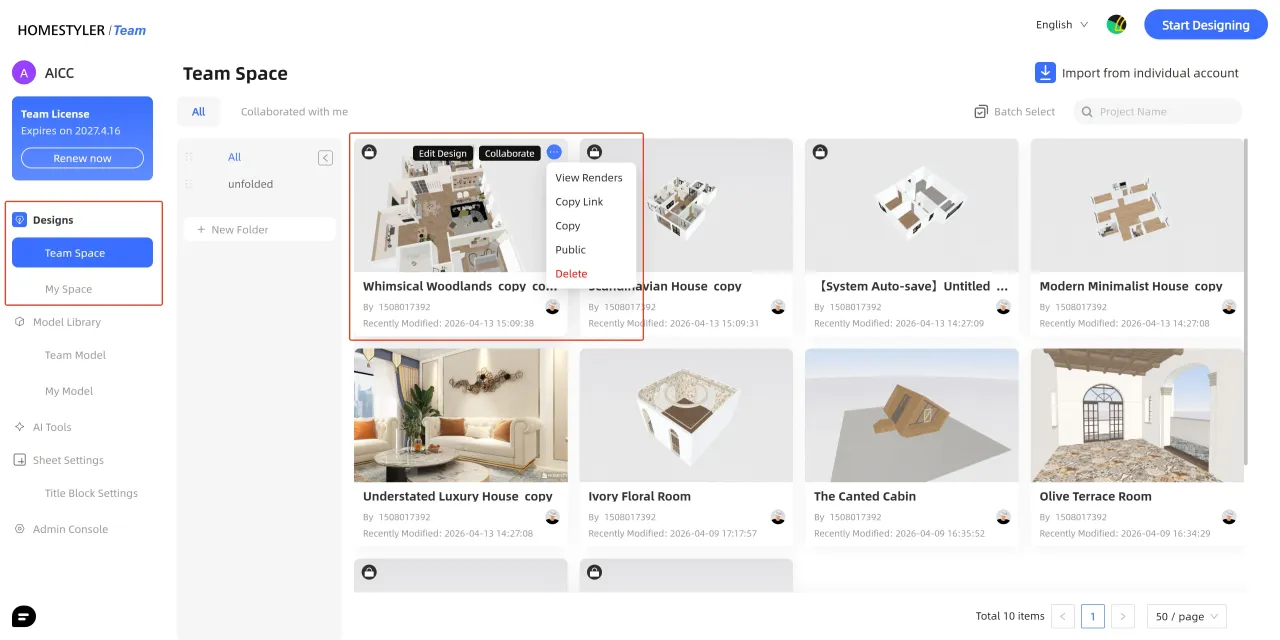
Designs is used to manage team and personal design projects. It is divided into two sections: Team Space and My Space.
- Team Space: Stores shared team projects where members can view, manage, and collaboratively edit projects
- My Space: Used to manage personal design projects, with support for folder-based organization
3.1.1 Project Management
Team members can edit, modify, delete, or collaborate on projects using the options in the upper-right corner of each project card.
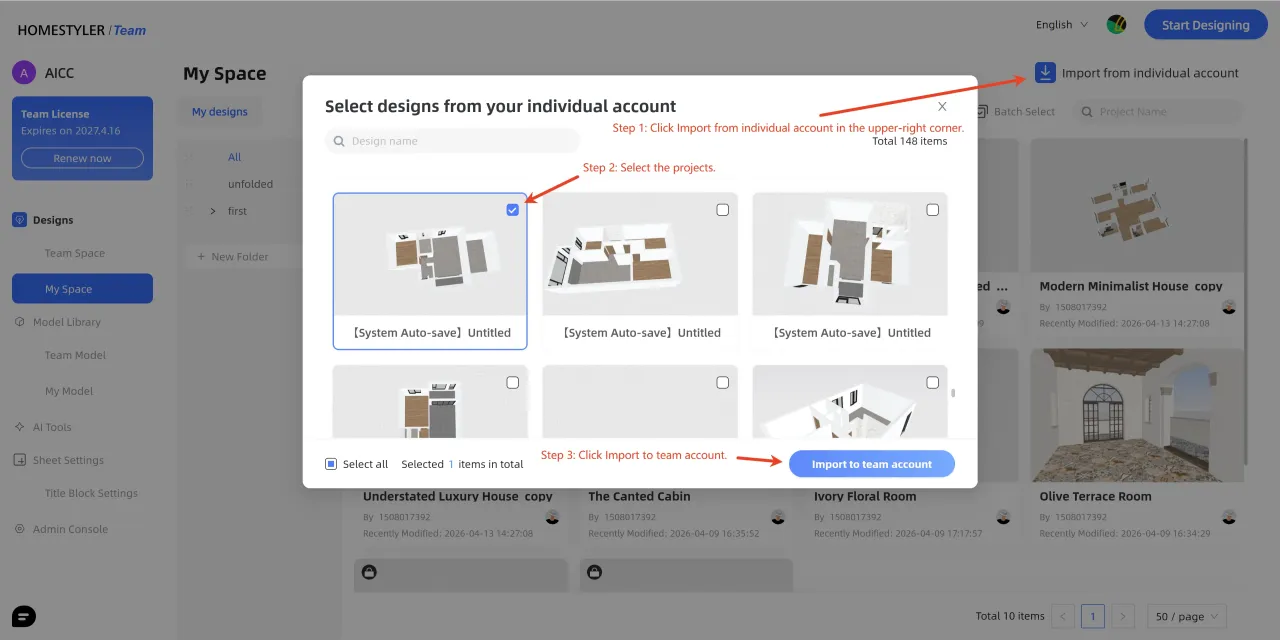
3.1.2 Import Personal Projects
Team members can import projects from the personal version into My Space and synchronize them to Team Space for team collaboration.
3.2 Model Library
Model Library is used to manage team and personal models. It is divided into Team Model and My Model.
- Team Model: Stores models shared within the team
- My Model: Stores models uploaded or collected by individual users
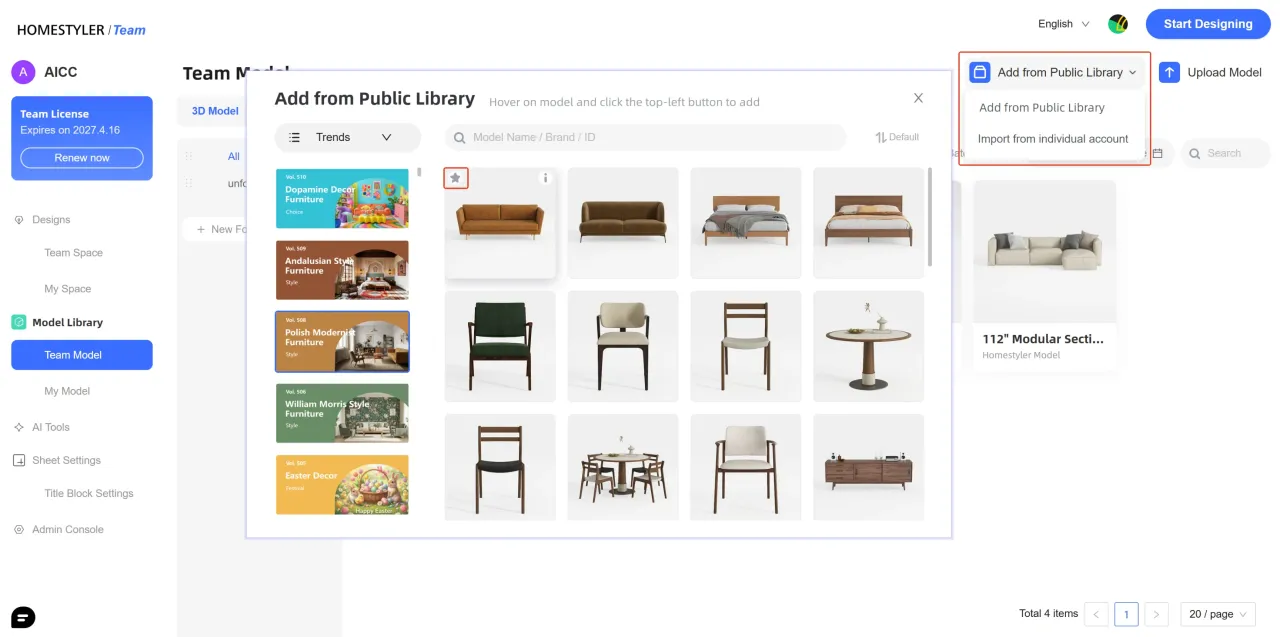
3.2.1 Model Collection and Import
In Team Model, you can import models from the Public Library or personal uploads by clicking "Add from Public Library" . After the corresponding interface appears, click the favorite icon in the upper-left corner of the model card to save the model.
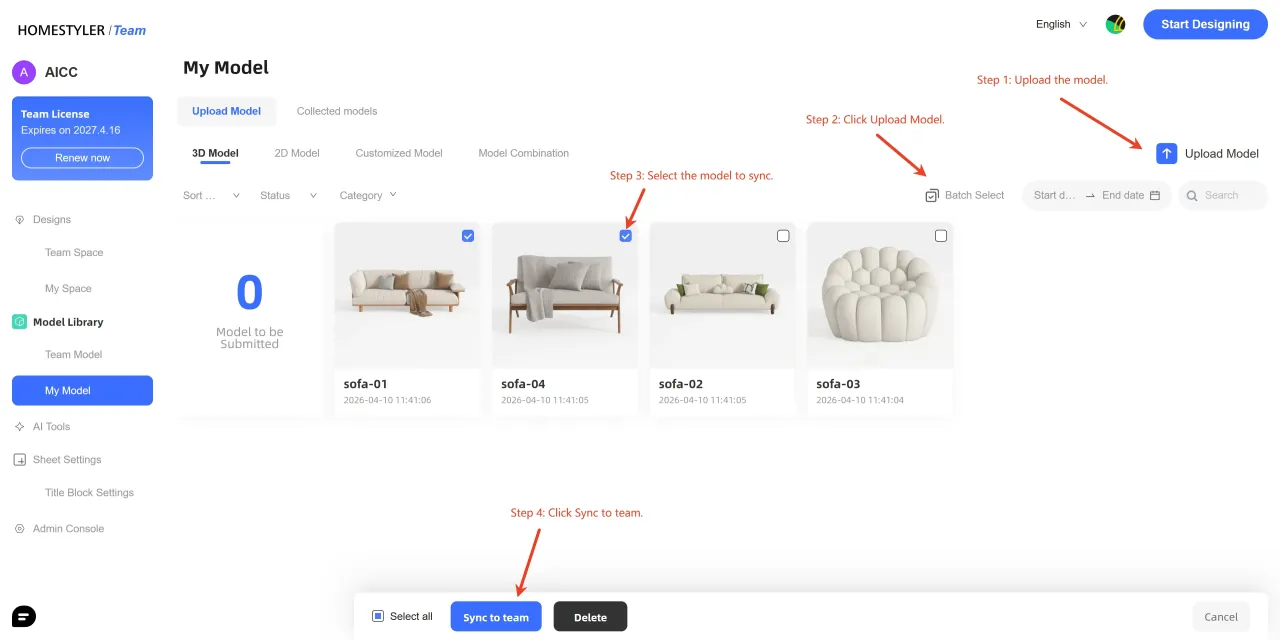
3.2.2 Sync Models to Team Model
Team members can manage personal models in My Model and synchronize them to Team Model for other members to use.
- Detailed model upload tutorial: Click here.
3.3 AI Tools
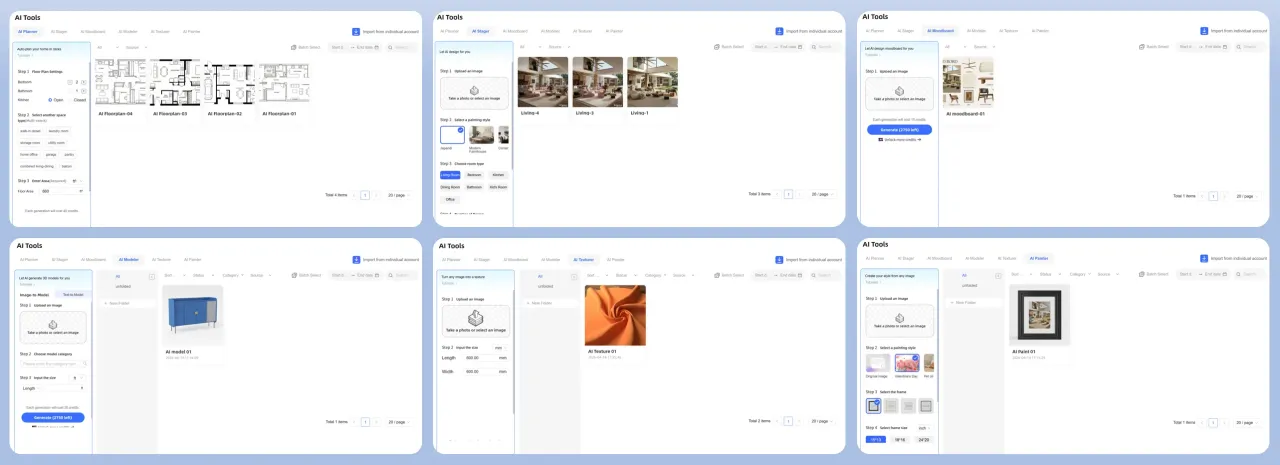
AI Tools includes six AI-powereddesign features to help you efficiently generate floor plans and quickly explore design inspiration, significantly improving design efficiency.
1. AI Planner – Generate customized floor plans in just three simple steps.
2. AI Stager – Quickly arrange interior spaces and explore multiple styles.
3. AI Moodboard – Quickly create inspiration boards and organize design ideas.
4. AI Modeler – Intelligently generate 3D models from images or text.
5. AI Texturer – Quickly extract materials from images.
6. AI Painter – Upload photos to generate decorative artwork in different styles.
- Permission Management: Administrators can flexibly assign AI feature permissions through the Admin Console to ensure standardized team usage.
- Click here to learn detailed guides for each tool.
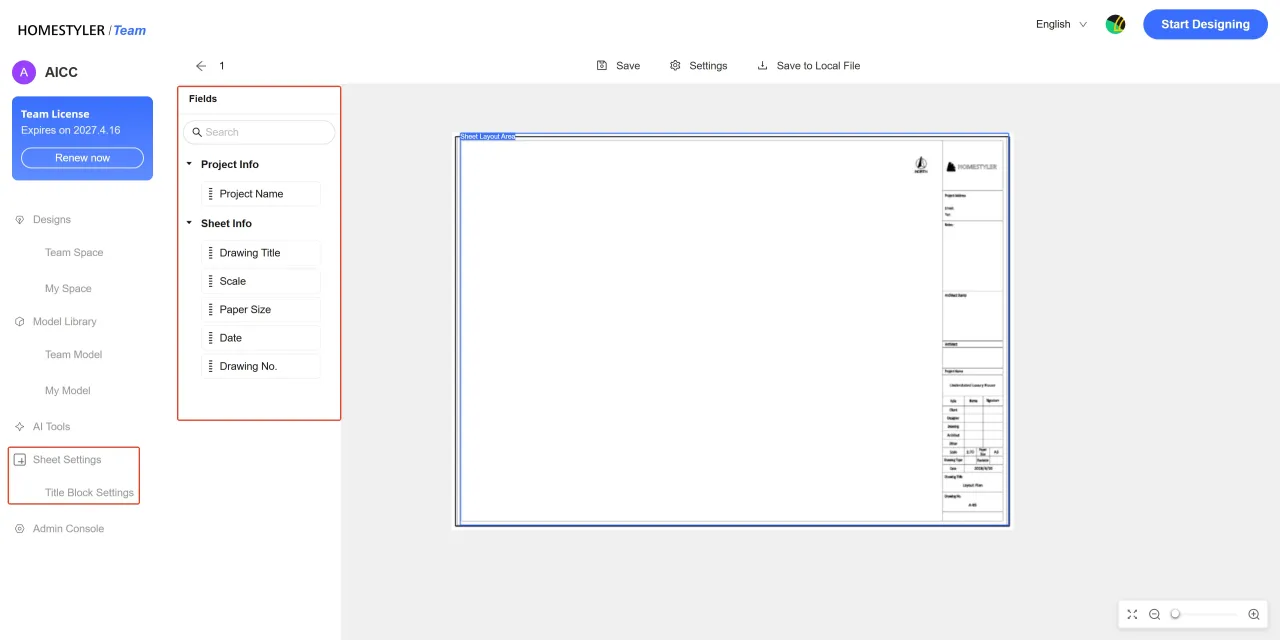
3.4 Sheet Settings
Sheet Settings is used to centrally manage title block templates for team drawings.
This feature allows users to create and manage title block templates, configure drawing information, and set corresponding templates for different languages.
- Click here to learn the detailed user guide.
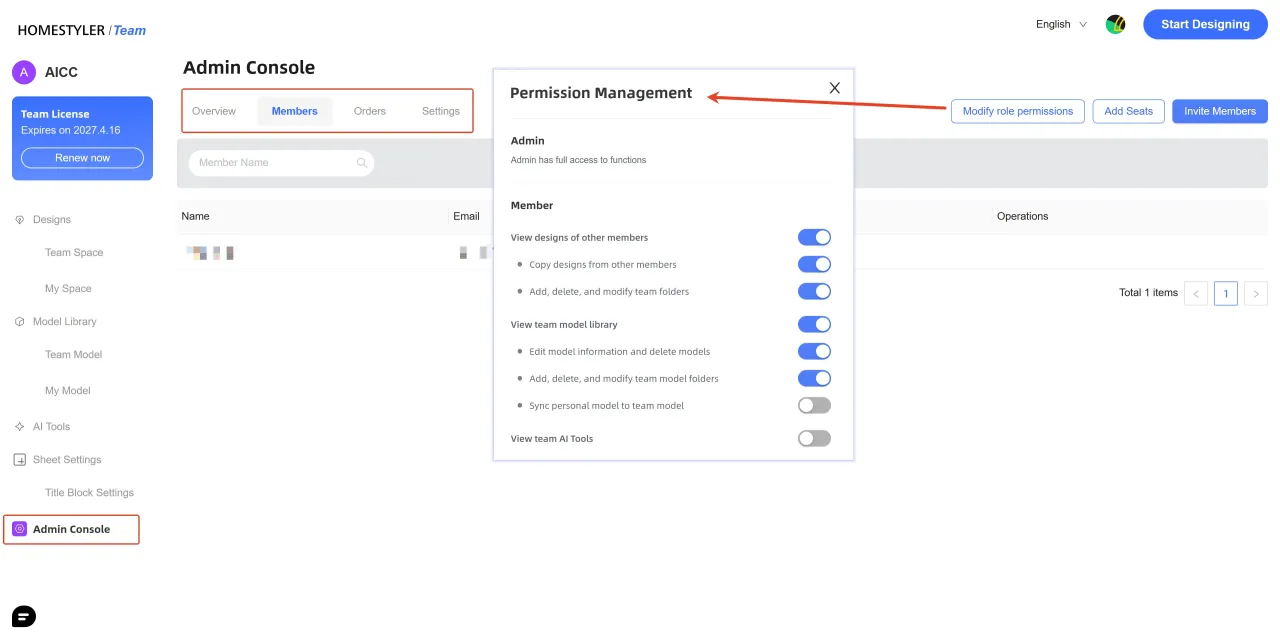
3.5 Admin Console
Admin Console is used to manage team settings, mainly including:
- Modify team information
- Invite or remove members
- Assign member permissions
- View subscriptions
- Set or modify team watermarks
Note: Only Admin users have access to this feature, and member permissions must be assigned by the Admin.
4. Project Content Display Area
The project content display area shows the detailed content corresponding to the selected module on the left.
On the Team Space page, this area displays team projects in the form of project cards, where users can view, manage, and edit projects.
In other modules, this area displays the corresponding models, tools, or settings pages.