
The Homestyler Team version now allows you to create and manage your own title block templates and reuse them on sheets.
Step 1: Open Title Block Settings
- Go to "Team > Sheet Settings" in the left panel.
- Click "Title Block Settings".
- Click "Create New Title Block".

Step 2: Create a New Title Block Template
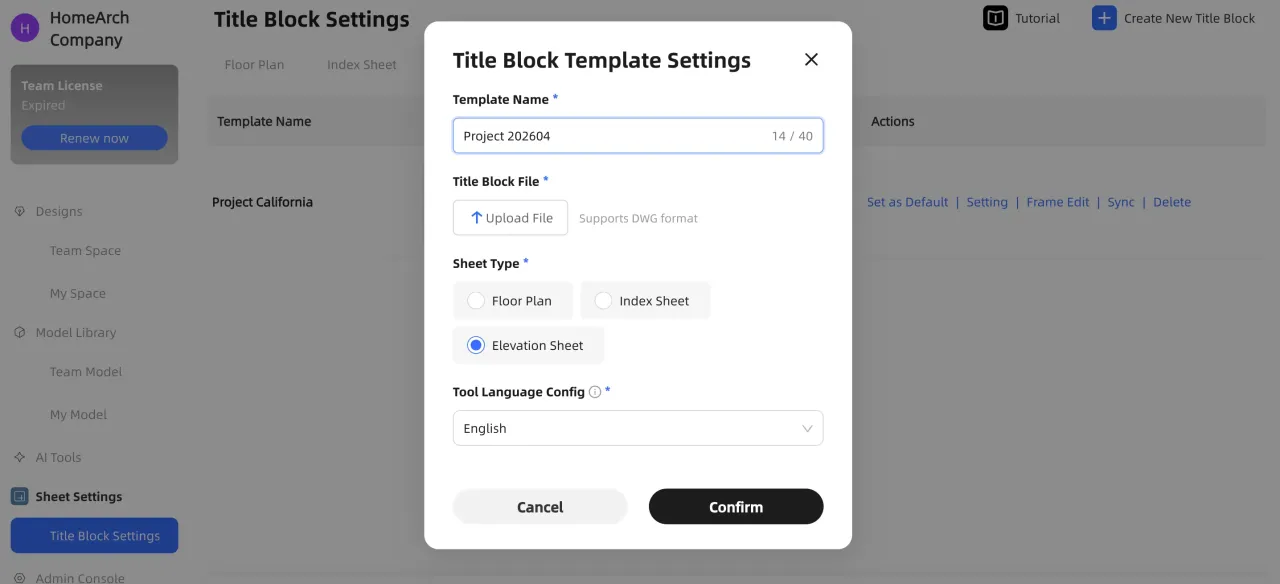
In the Title Block Template Settings dialog:
- Template Name – Enter a name for this title block.
- Sheet Type – Choose the type of sheet this template will be used for (Floor Plan, Index Sheet, or Elevation Sheet).
- Print Sheet Size – Select the print size (e.g., A3).
- Title Block File – Click Upload File and upload your title block drawing in .dwg format.
- Choose the "Language" of the template. *If a language is configured, the title block will be displayed when the design tool is set to that language.
- Click "Confirm" to open the title block editor.
(**Sample tile block template:Copy and paste the link below into your browser to download the file:
https://ezhome-uat-cad-assets.oss-cn-beijing.aliyuncs.com/legend/b98ecc3d-c917-4043-924b-7530ead9a638_legend.dwg)
Step 3: Define the Sheet Layout Area
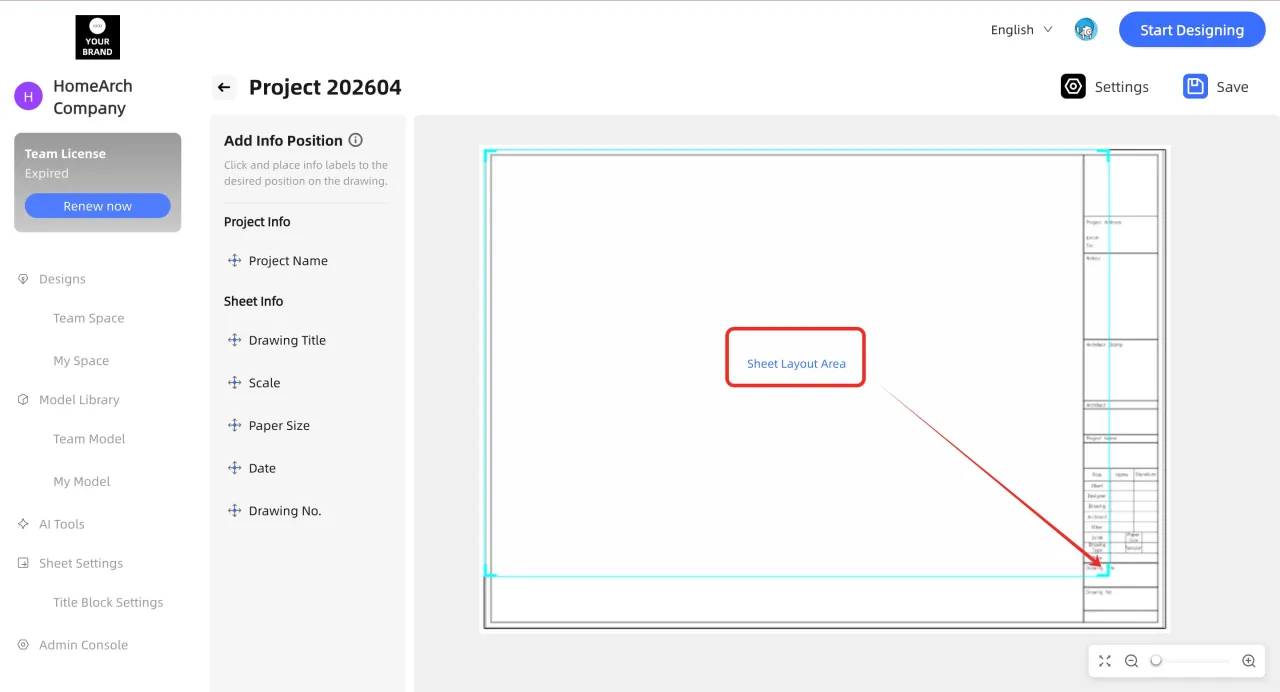
After the DWG is loaded:
- A blue frame labeled Sheet Layout Area appears on top of your drawing.
- Drag the edges or corners of the blue frame to resize and move it.
- Make sure the blue frame aligns with the actual drawing area of your uploaded title block (the printable area where the plan/elevation will be placed).
- Click "Save" when finished.
Step 4: Bind Fields to the Title Block
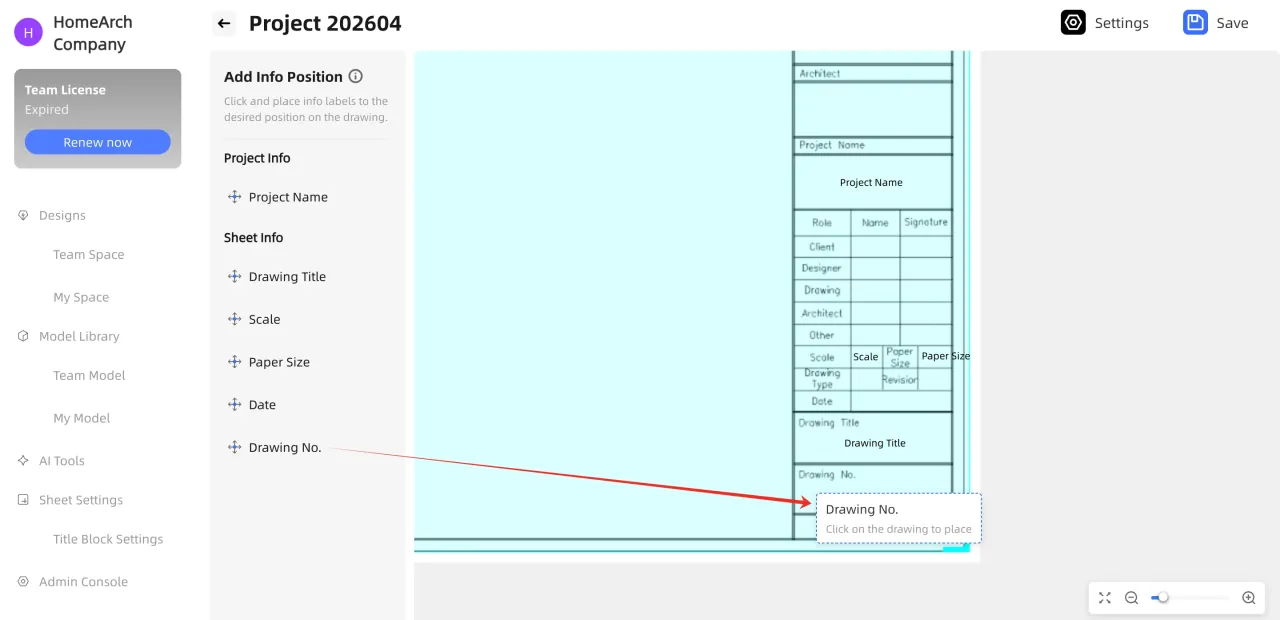
On the left side of the editor you will see Fields, grouped as:
- Project Info (e.g., Project Name)
- Sheet Info (e.g., Drawing Title, Scale, Paper Size, Date, Drawing No.)
To bind data to the title block:
- Select a field in the list (for example Drawing Title).
- Drag and drop it onto the corresponding cell / position in your title block template on the right.
- Repeat for all fields you need: Project Name, Scale, Paper Size, Date, Drawing No., etc.
- Use "Save" to store your changes.
When the sheet is created, these fields will automatically read the related project and sheet information.
Step 5: Adjust Text Style in the Title Block
You can fine‑tune the appearance of each text field:
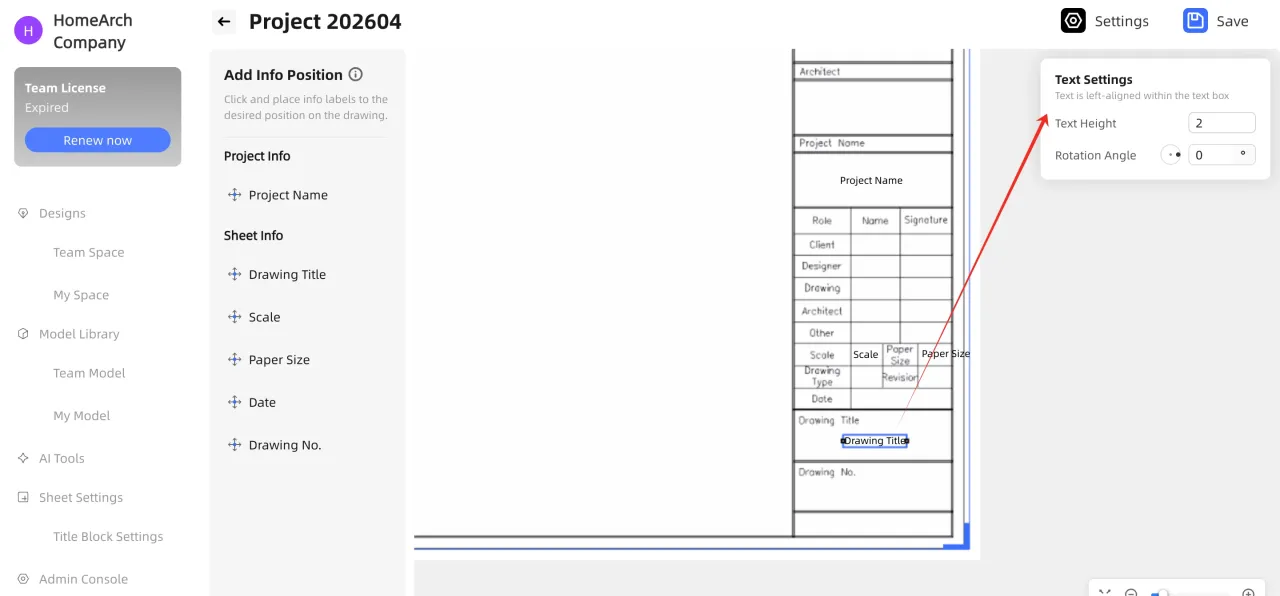
- Click the text on the title block to select it. The text is left-aligned within the text box.
- On the right, under Text Settings, edit:
Text Height – enter a value to change the text size.
Rotation Angle – enter the angle in degrees to rotate the text (for example 90° for vertical text).
- The selected text will update immediately.
Step 6: Manage Title Block Templates
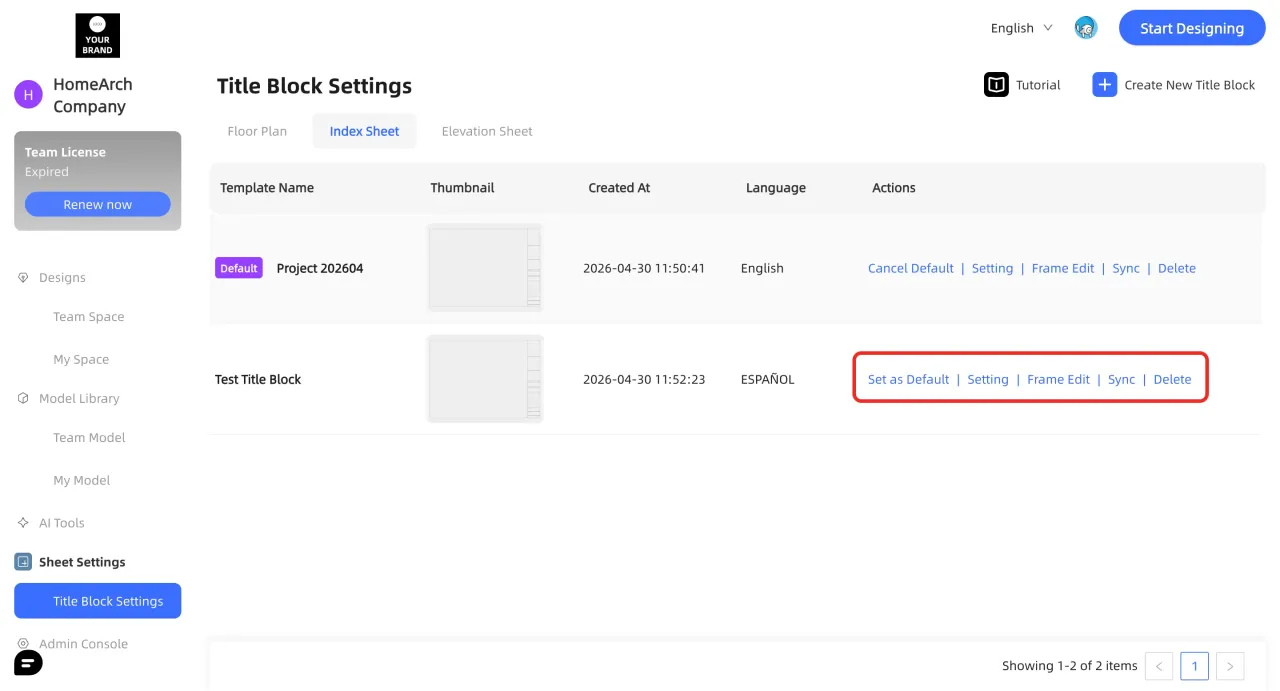
Back in Title Block Settings, you can:
- Set as Default: Apply a template as the default title block for that sheet type.
- Setting: Set up the title block template information, like name, type, language.
- Frame Edit: Re‑open the template editor to adjust layout, field positions, or text settings.
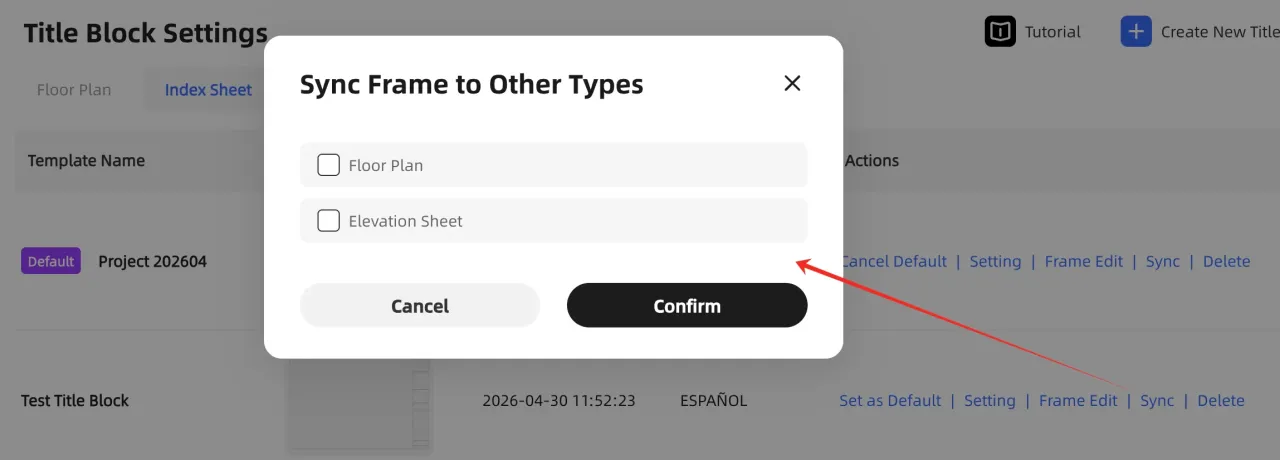
- Sync: Sync the current title block template to other types of drawings
- Delete: Remove templates that are no longer needed.
------------------------
Once configured, your custom title block will be available to all team members for the selected sheet type, ensuring consistent and automated project documentation.