
🎉 Craft dormers of any shape with ease—designs that support flat roofs, shed roofs, gable roofs, and multi‑slope roofs—breaking free from monotonous roof layouts for good.
🛠️ Create Your Perfect Dormer Window in 4 Simple Steps
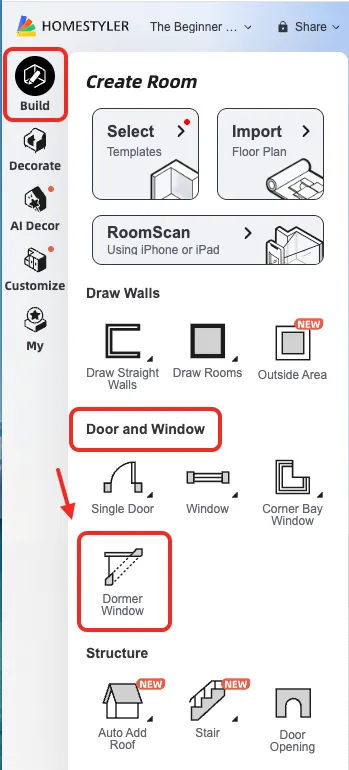
Step 1: Found the "Dormer Window" function
In the left sidebar, under “Build” > “Door & Window,” locate the “Dormer Window” tool and click to add it to the canvas.
Step 2: Place the Dormer Window on the Roof
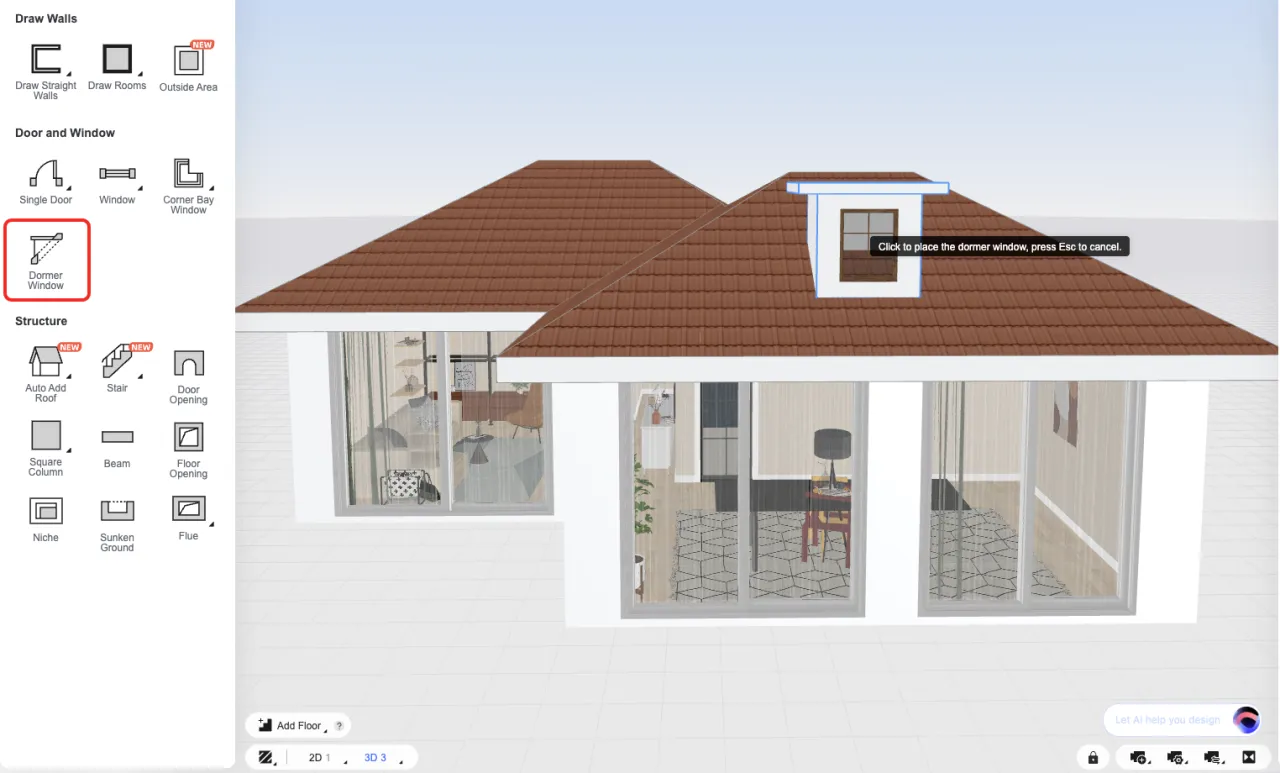
1. Make sure that the roof (such as a Shed roof or a Gable roof, except for a Flat roof) has been properly constructed.
2. Drag the selected dormer window onto the roof surface. It will automatically adapt to the roof’s slope and height.
3. Once placed, the dormer window will automatically create an opening in the roof.
Step 3: Fine‑Tune All Parameters
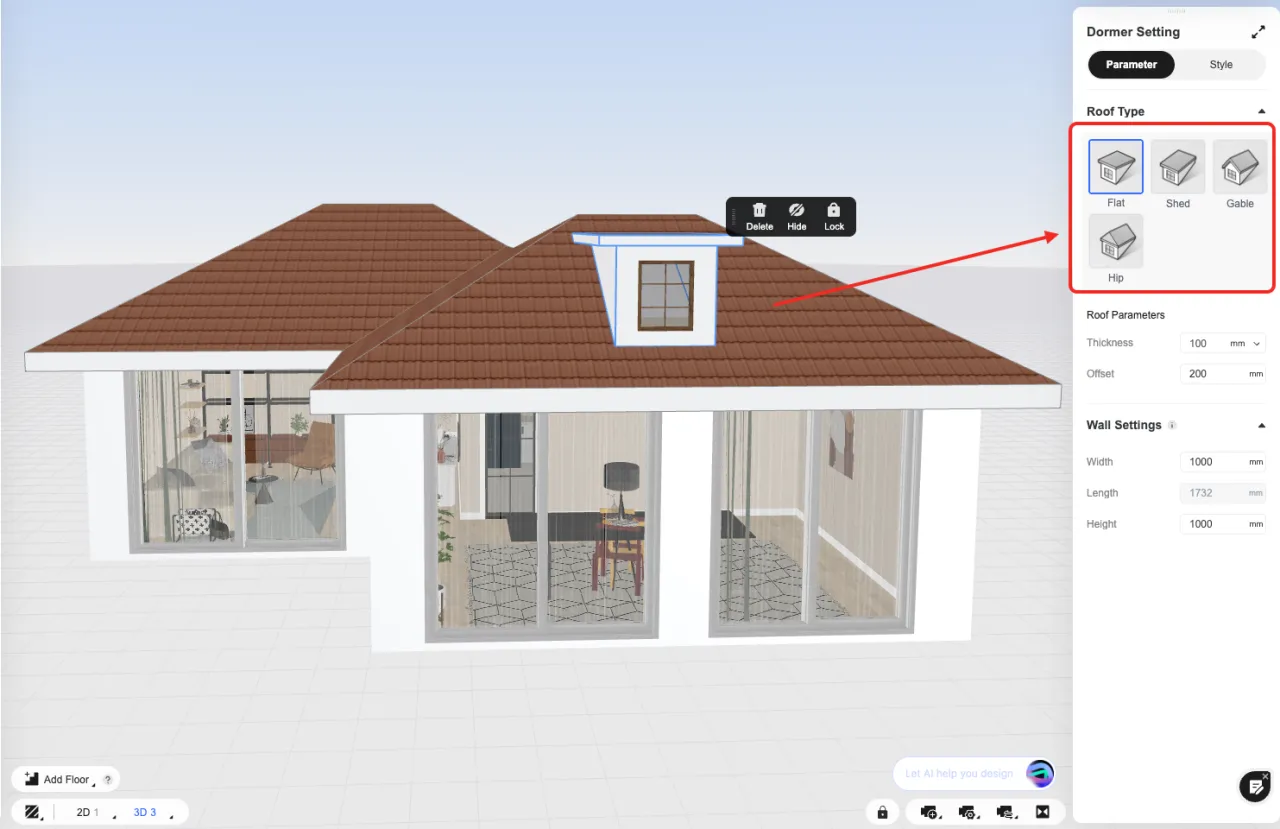
Select the Dormer Window on the canvas. In the right attribute panel, all adjustable parameters will be displayed. When adjusting, each parameter will change intelligently in response.
**Roof Type**
Choose the dormer roof type (Flat, Shed, Gable, or Hip).
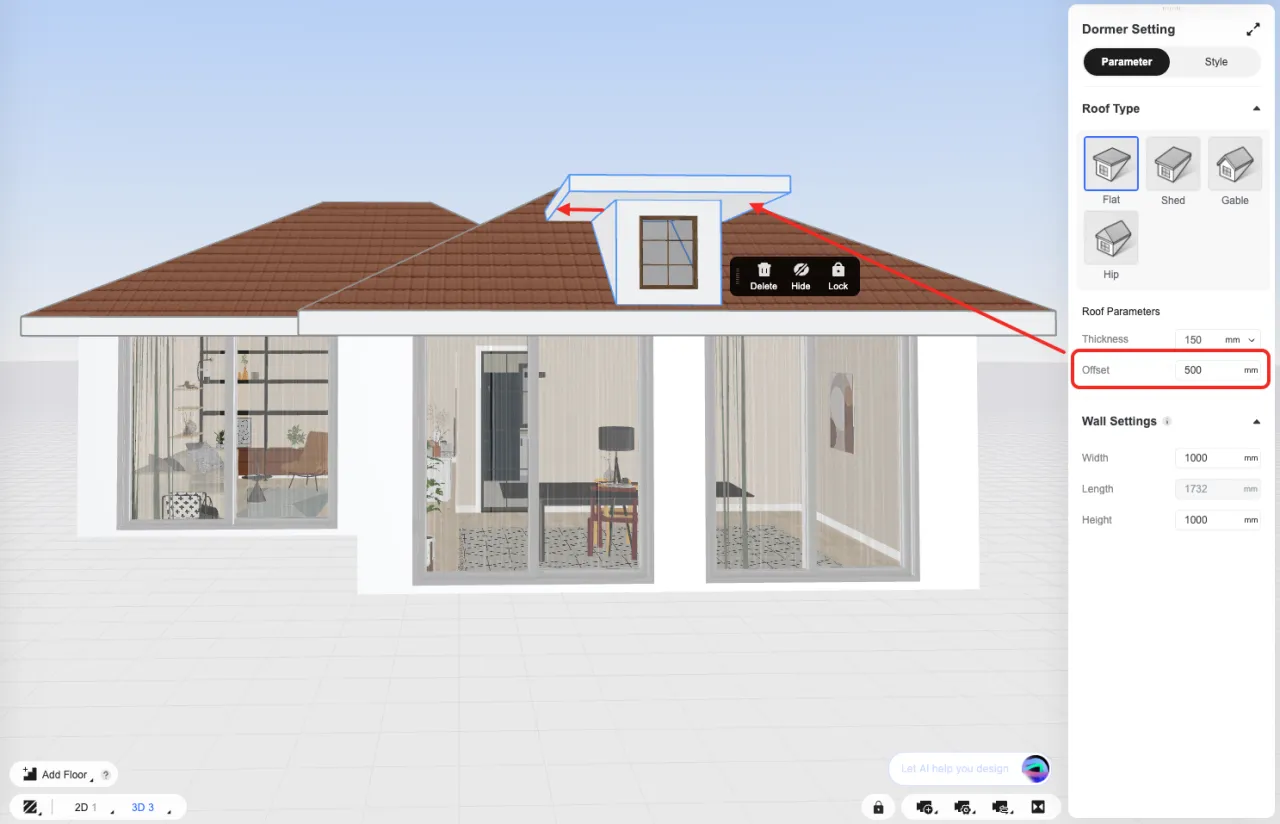
**Roof Parameters**
Thickness: Controls the thickness of the dormer roof.
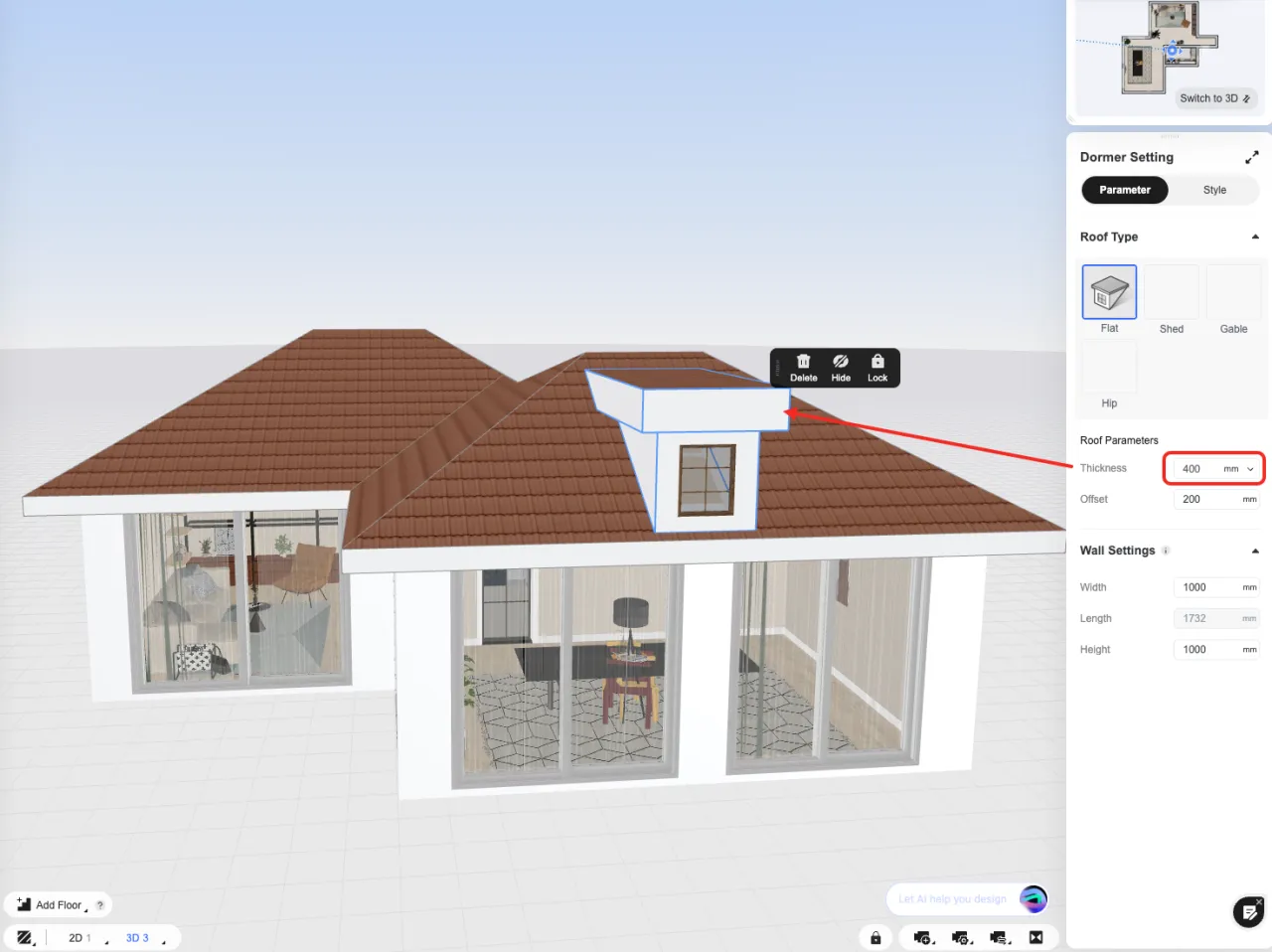
Offset: Adjusts how far the dormer roof extends outward.
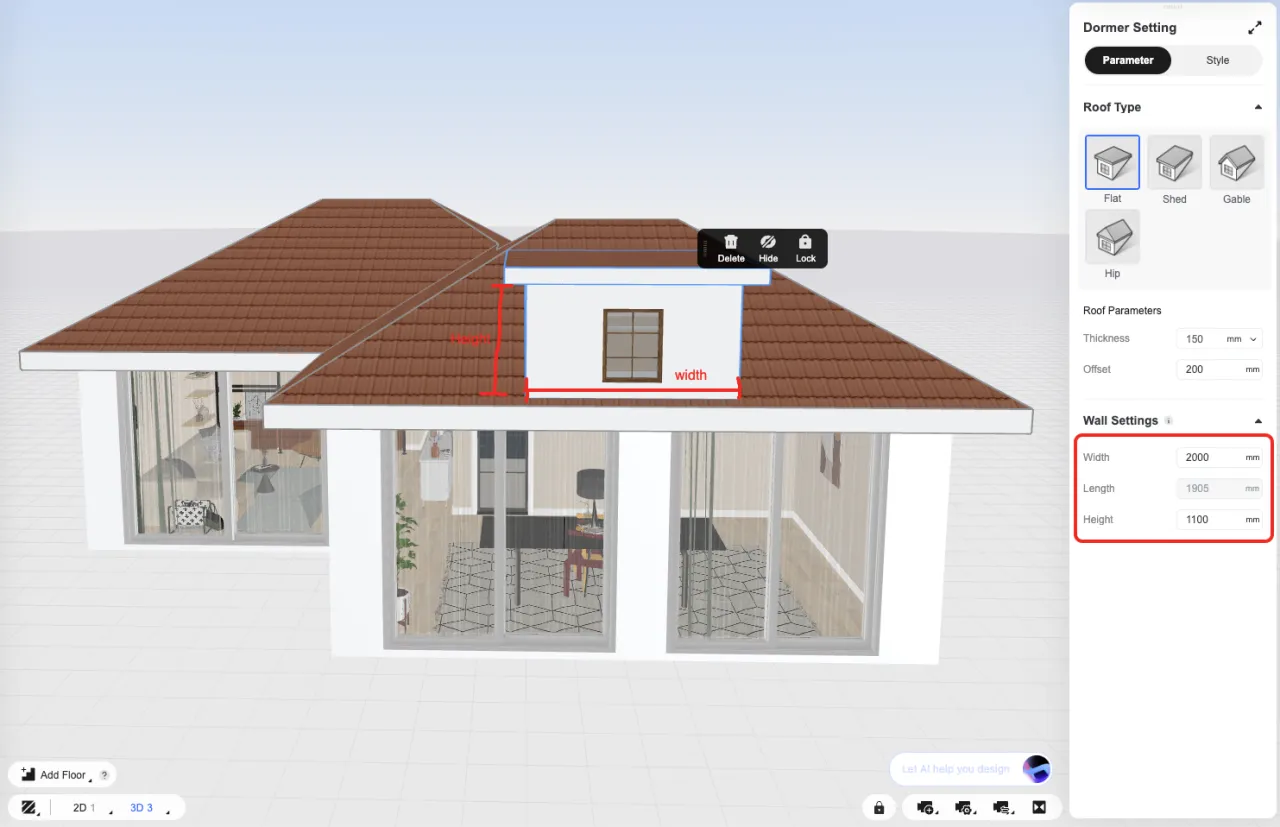
**Wall Settings**
Adjust the width, depth, and height of the dormer wall panel.
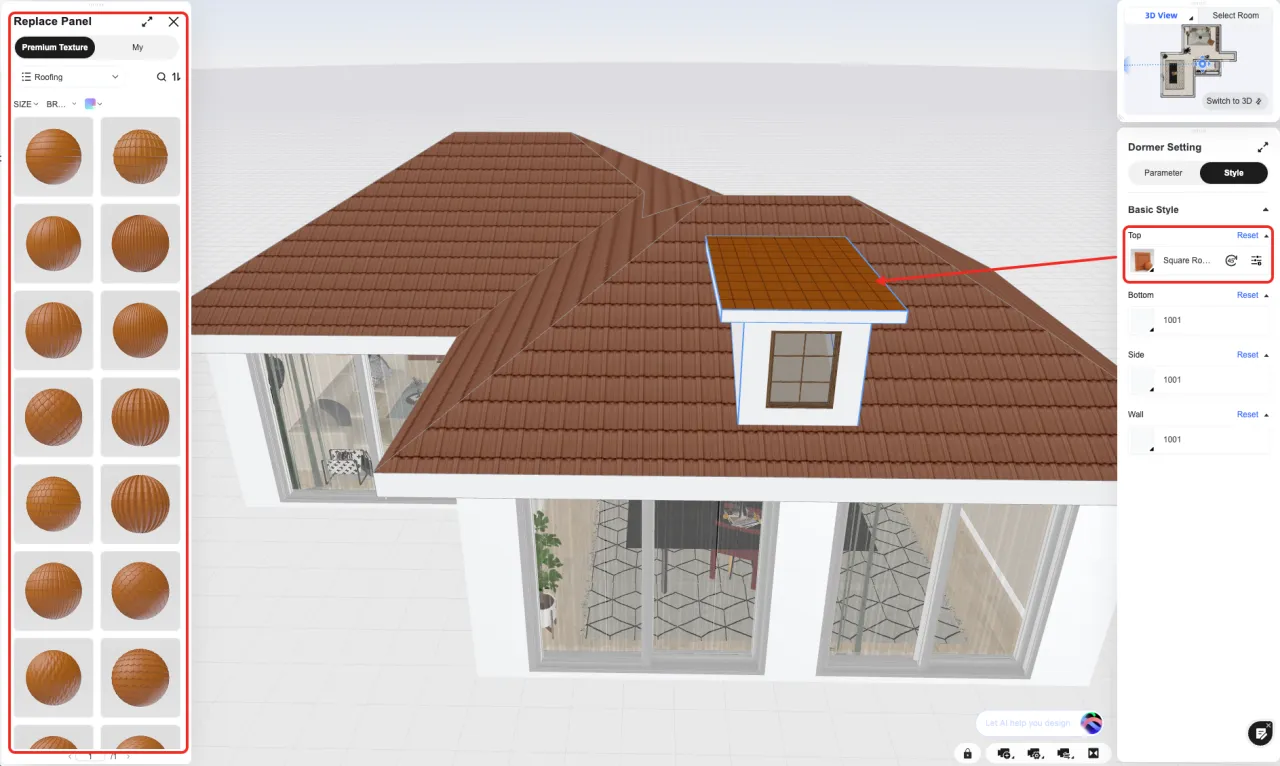
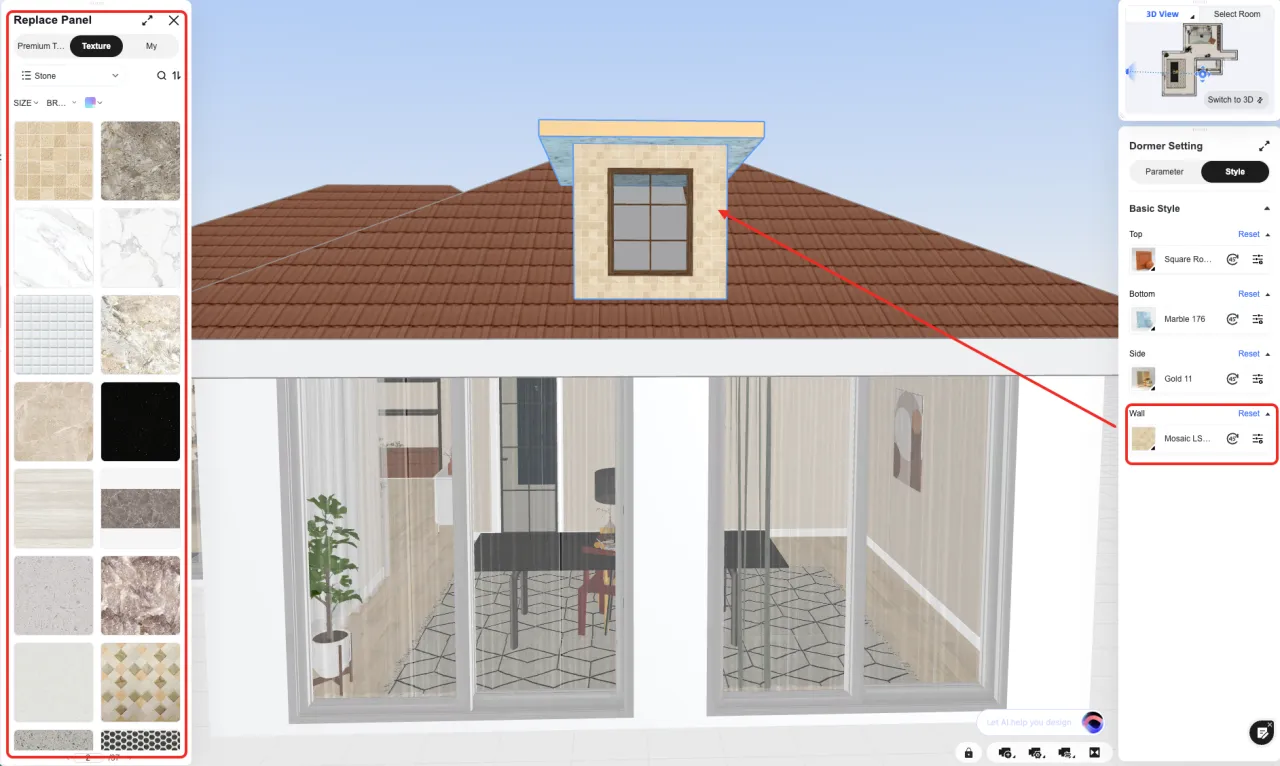
**Style**
Top: Sets the material of the dormer roof.
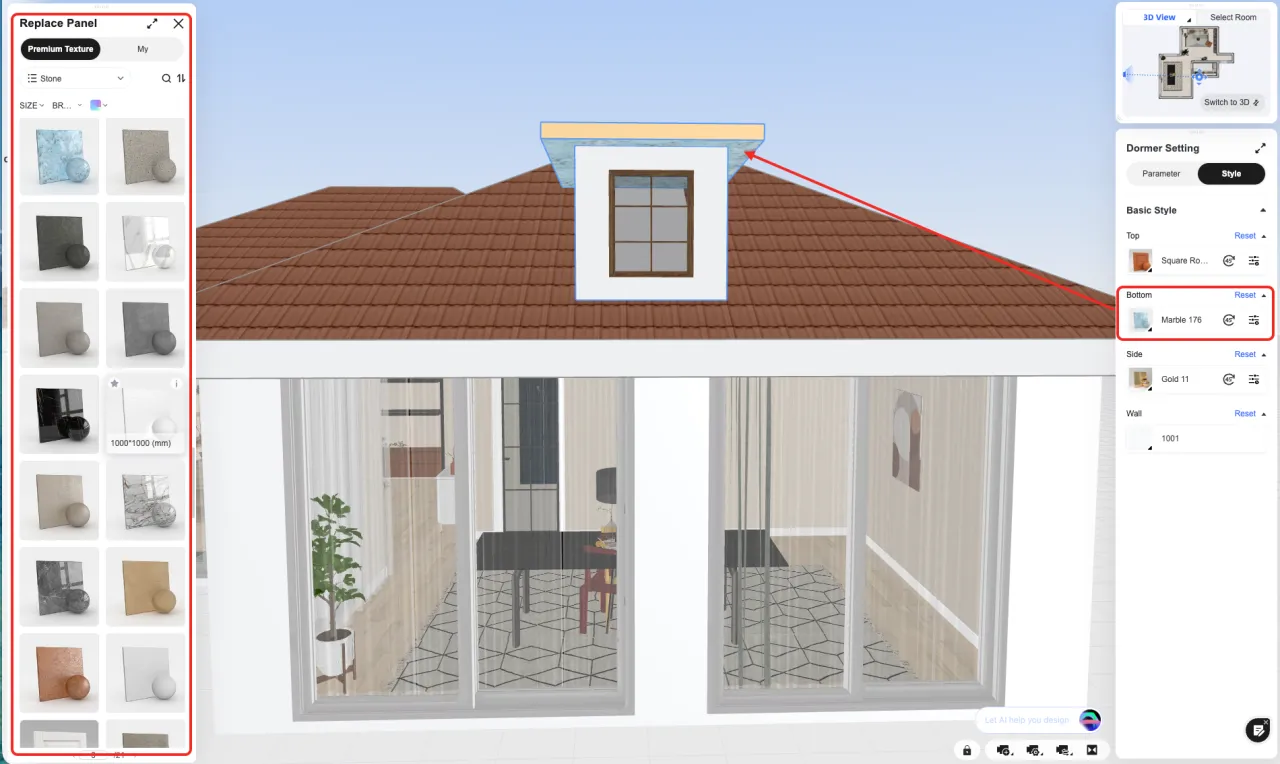
Bottom: Sets the material for the underside of the dormer roof.
Side: Sets the material for the sides of the dormer roof.
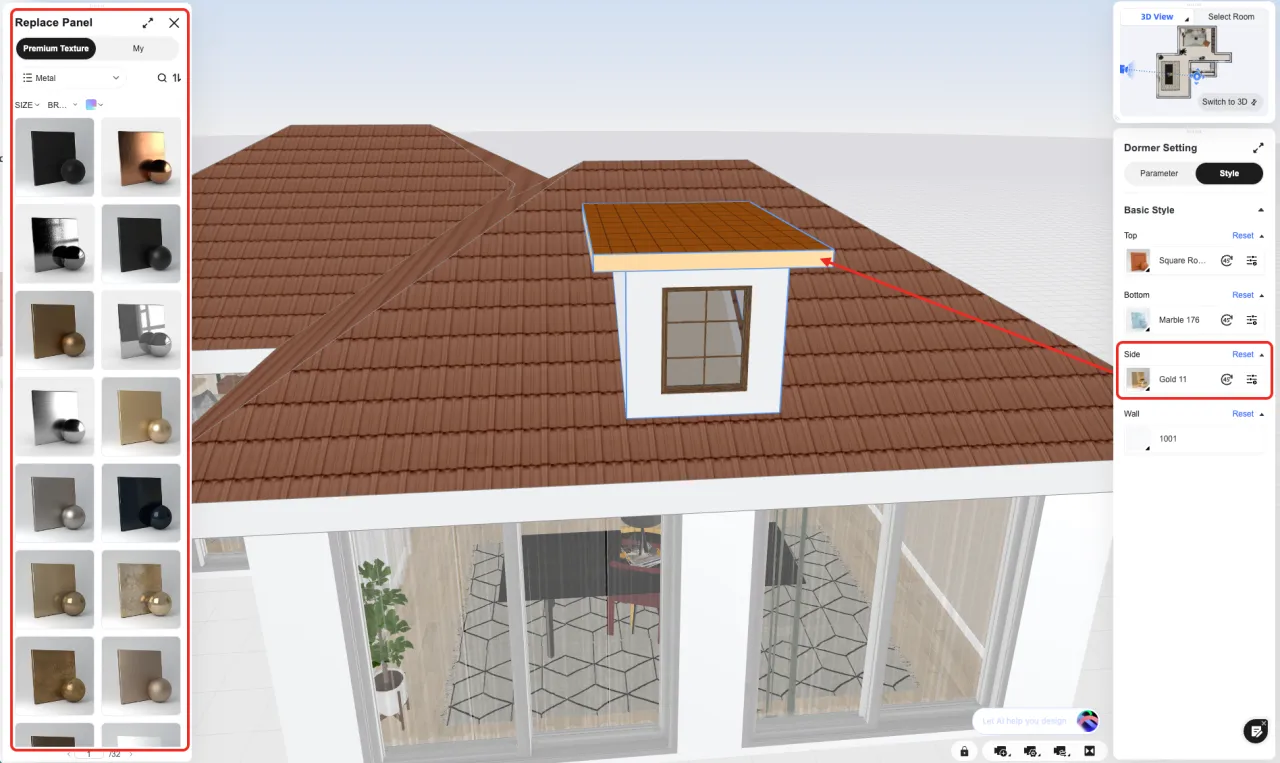
Wall: Sets the material of the dormer walls.
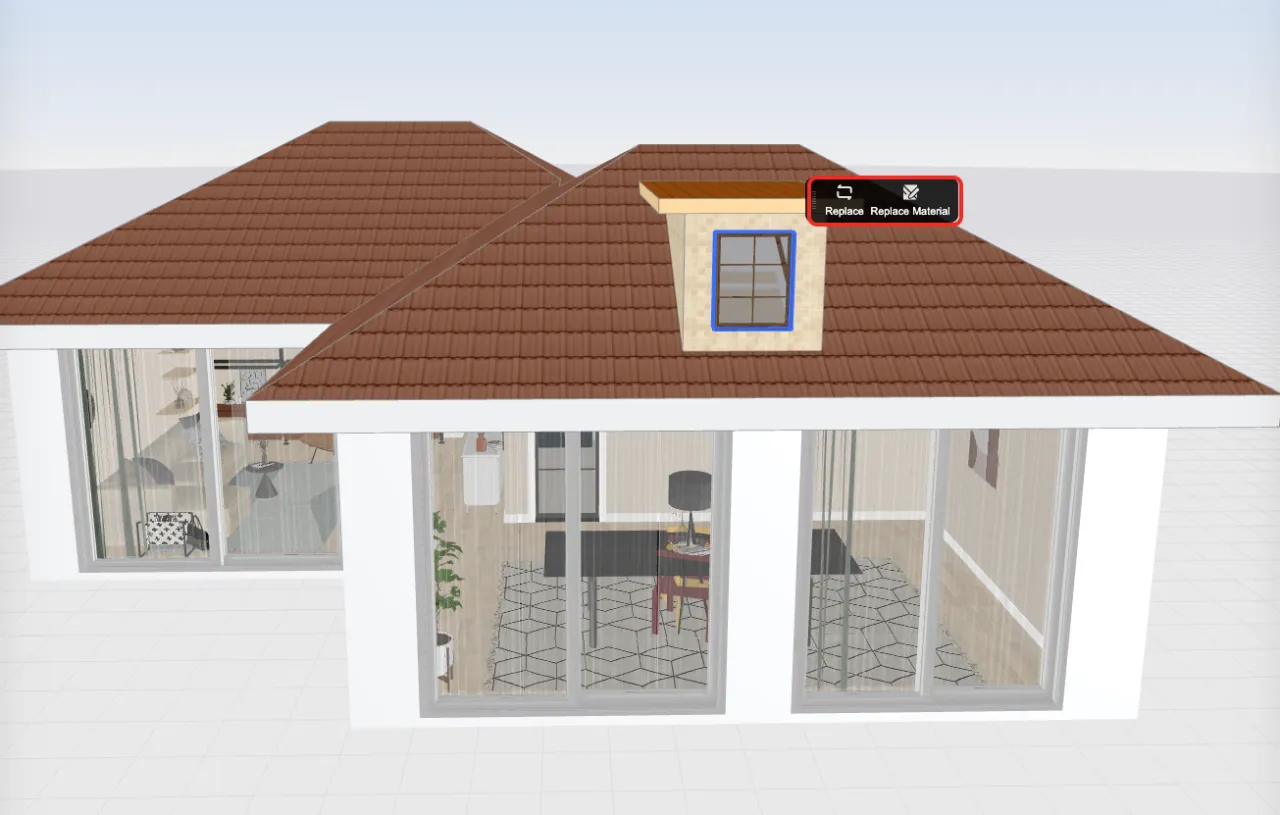
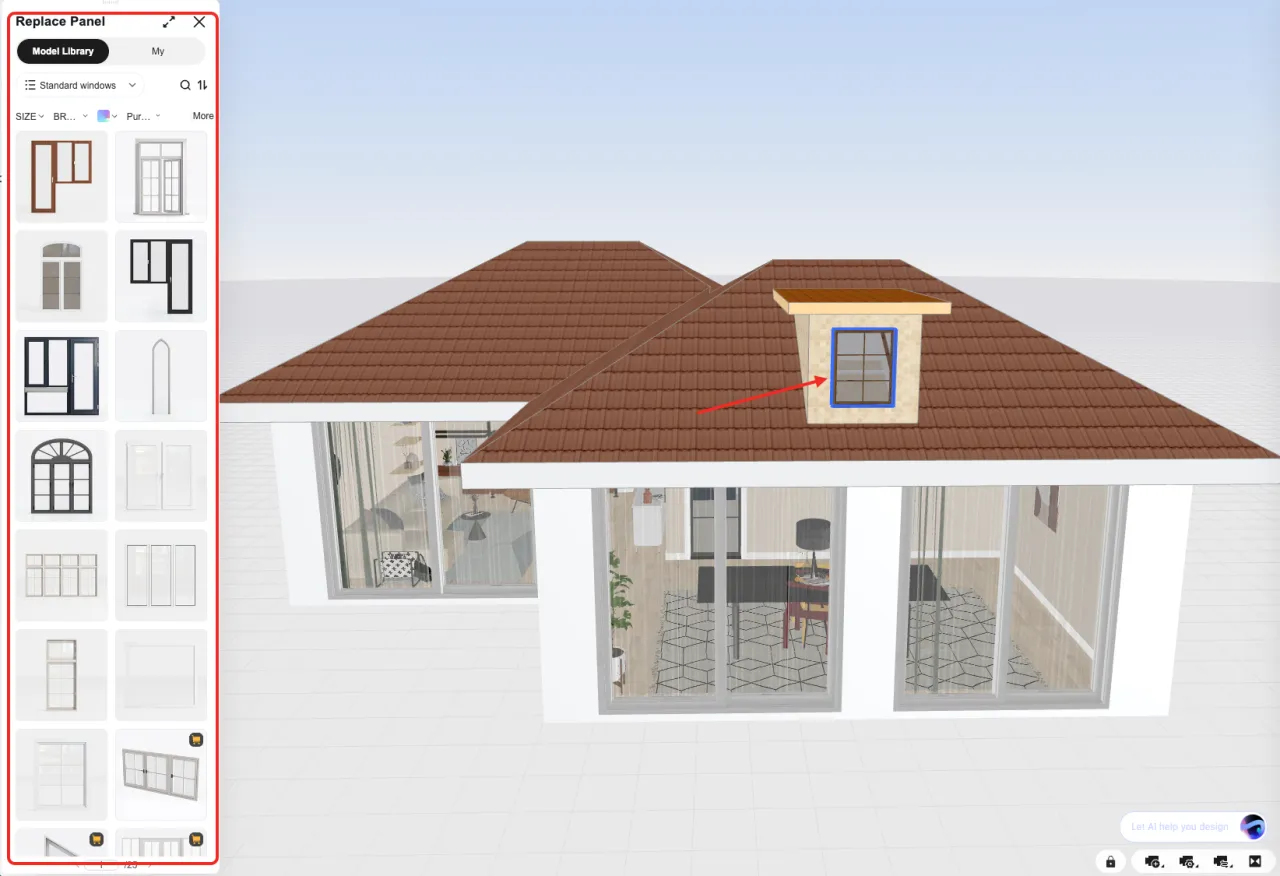
Step 4: Replace the Window on the Dormer
Select the window on the dormer wall panel. In the left‑click menu, you can directly replace the window model or change the material of the window frame.
After finishing your adjustments, switch to 3D View or Render View to preview how the dormer integrates of the Dormer Window with the entire building in real time. You can also return at any time to adjust the parameters.