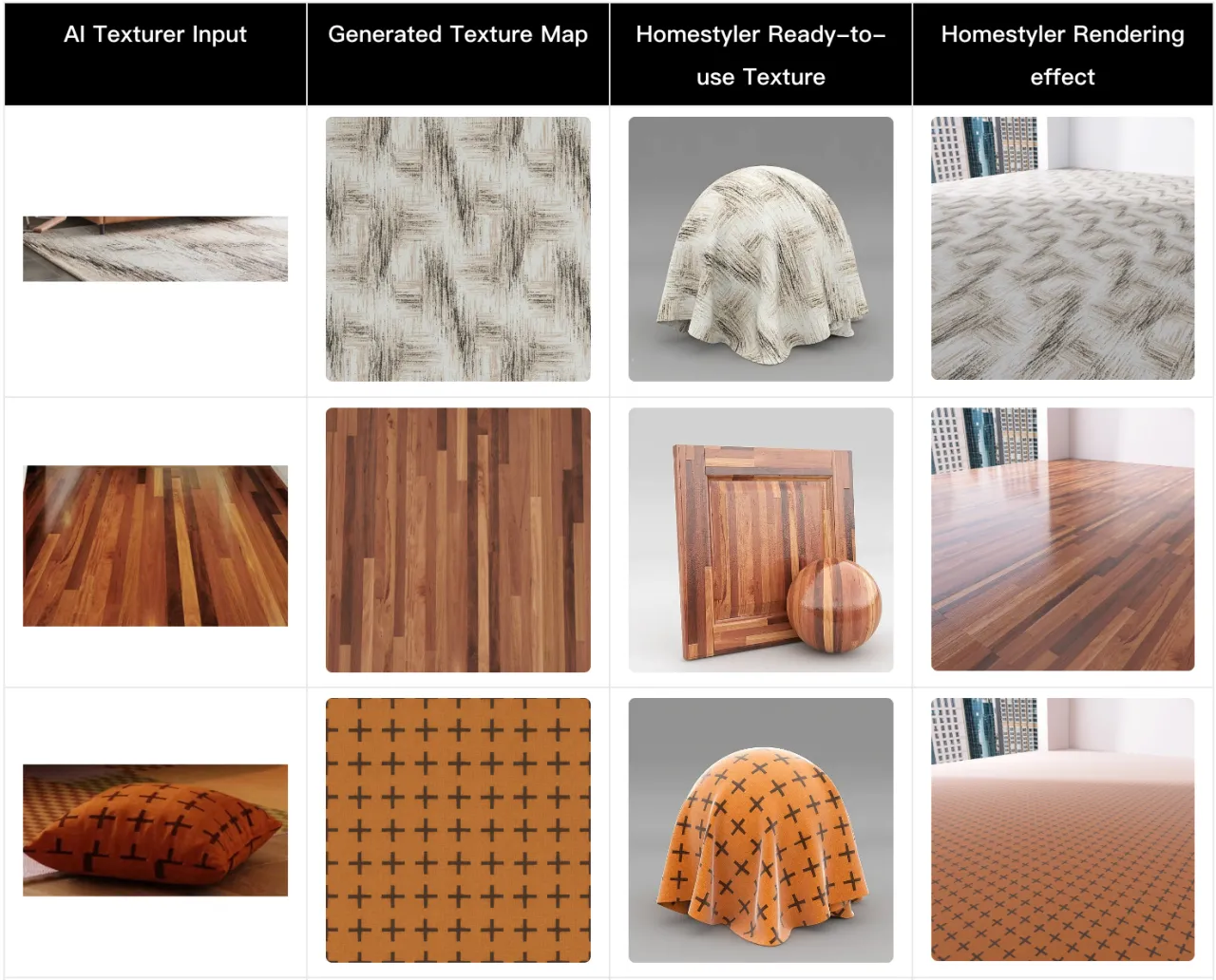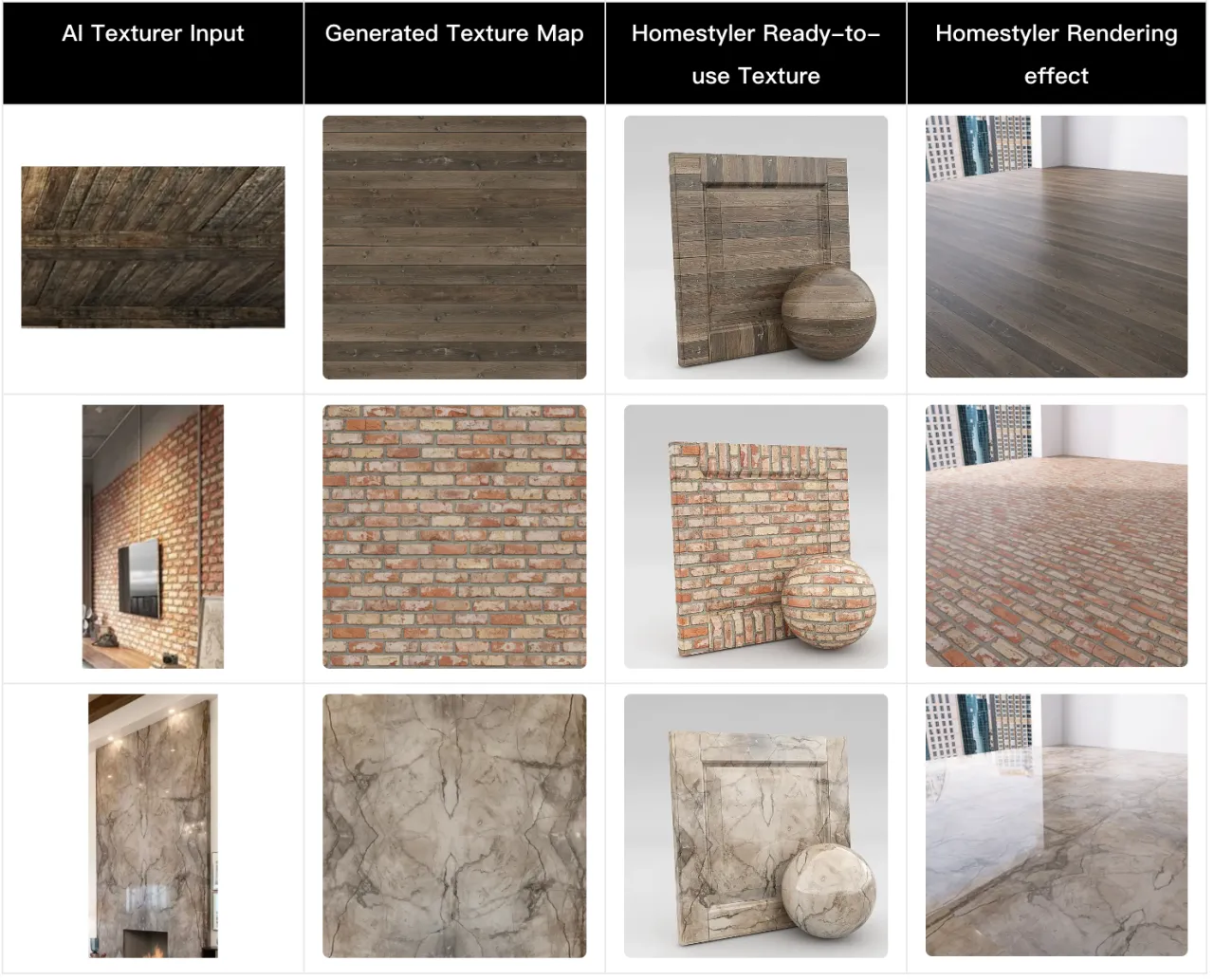
In this tutorial, you'll learn how to use AI-generated textures by uploading images of your items. Follow these steps and tips for a smoother experience.
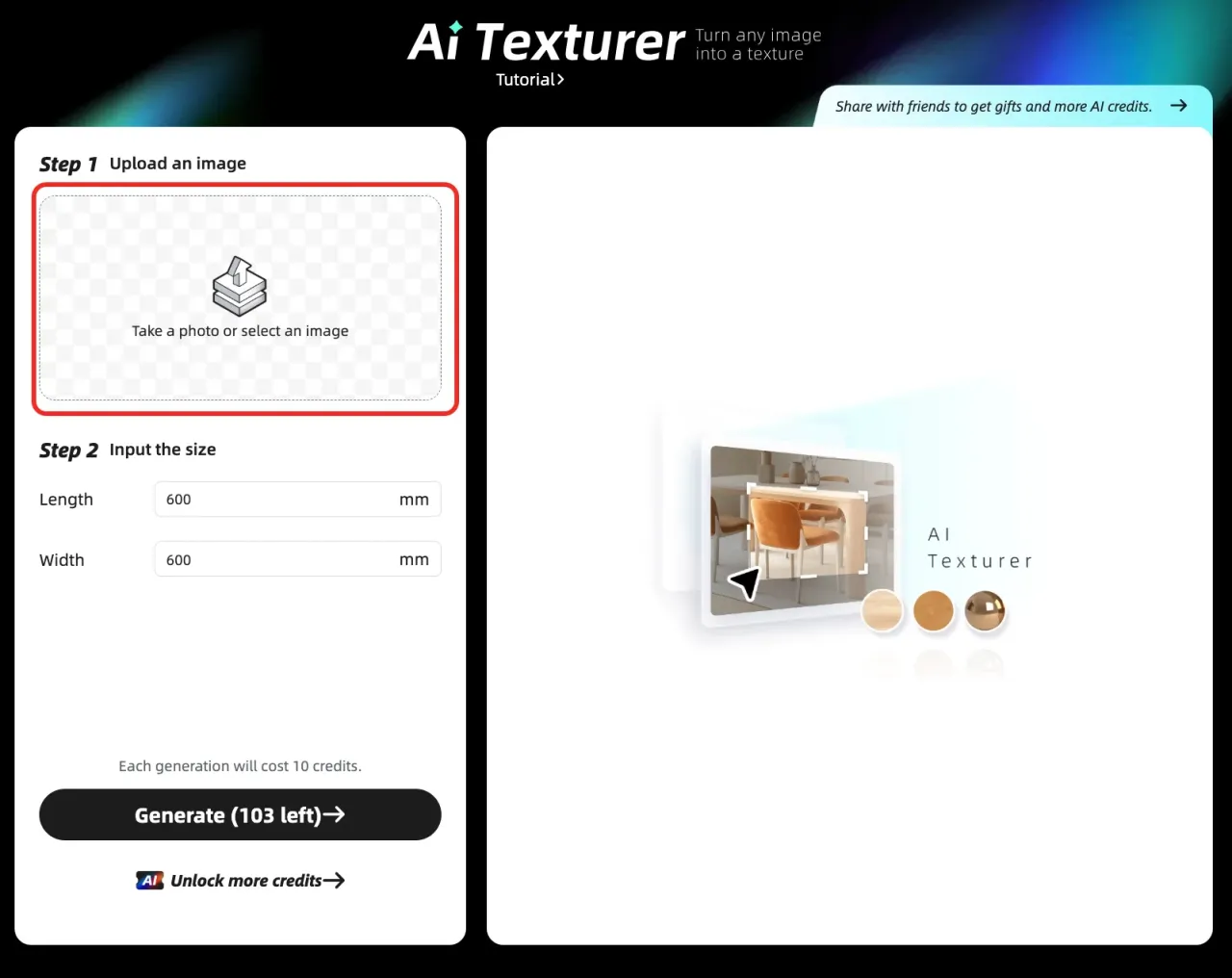
Step 1: Upload an image
Go to the "AI" channel in the top navigation, then click “AI Texturer" to start.
Or visit this link directly: https://www.homestyler.com/ai-material
Use a clear, high-resolution image. It helps the AI identify the texture more accurately.

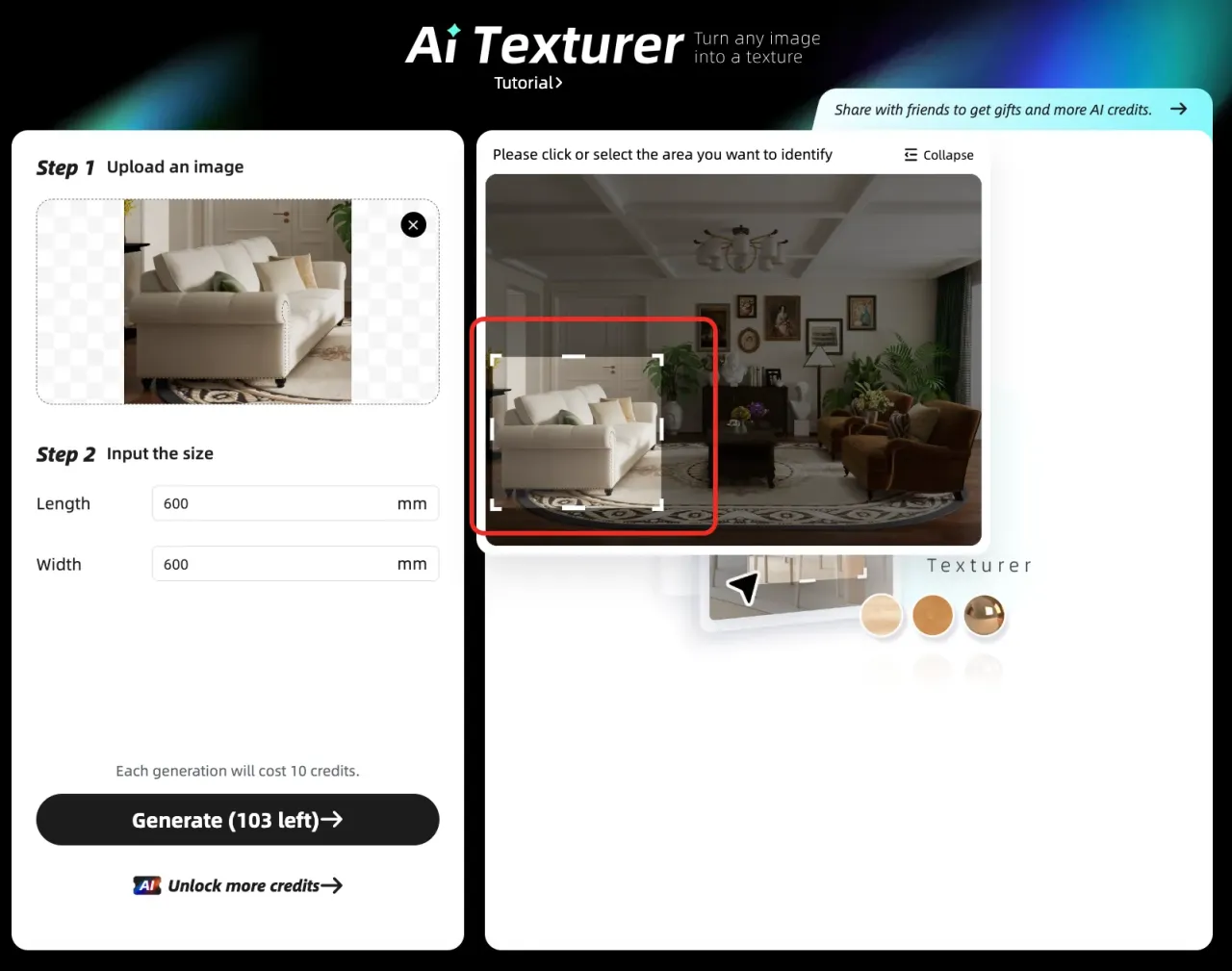
Step 2: Select the area to identify
Drag to move and resize the selection rectangle to select the area you want to identify. AI will generate a texture from the selected area.
Step 3: Input the size
After selecting the area, enter the texture size. The size you enter determines the size of each texture tile. Use millimeters (mm) only.
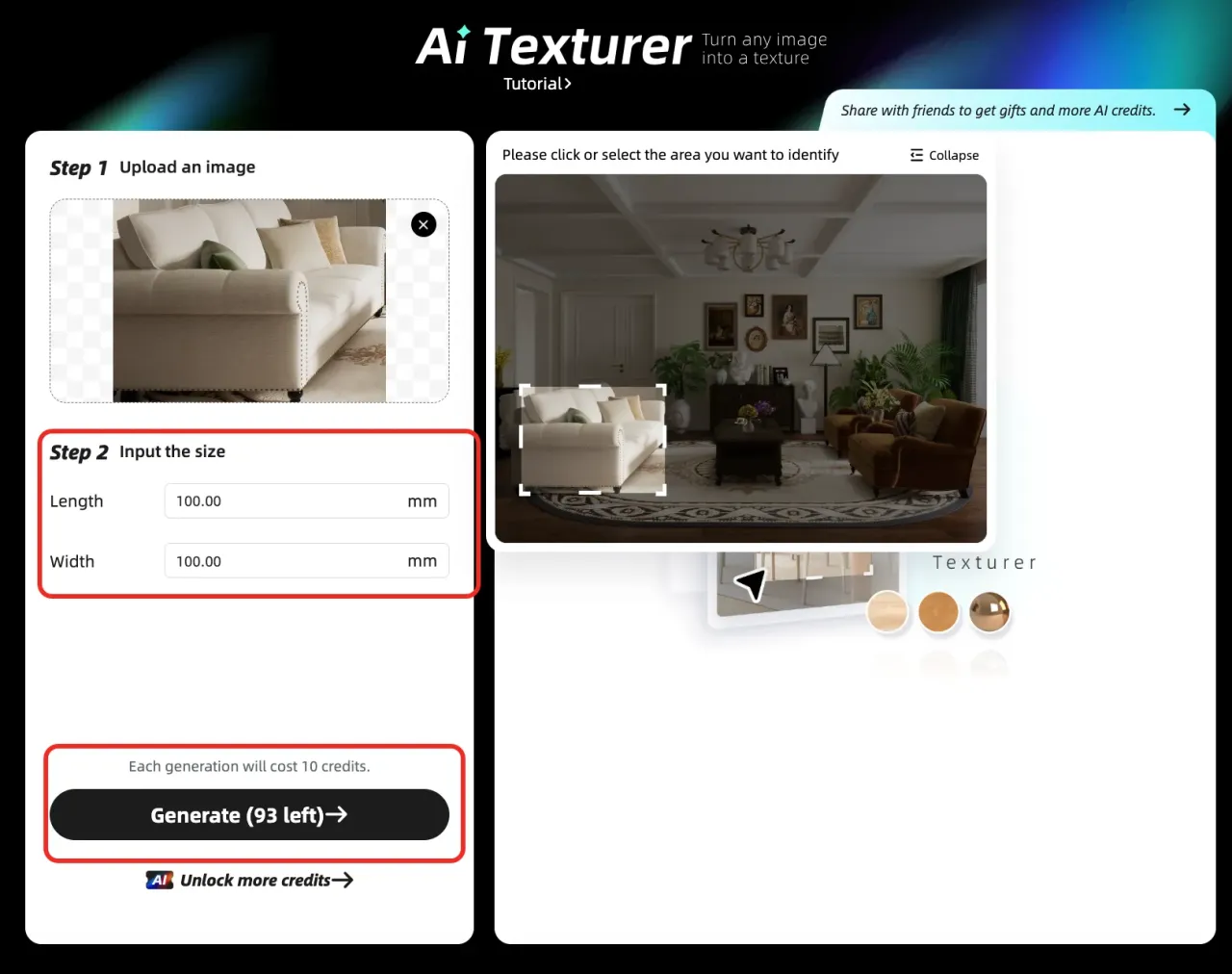
Step 4: Generate the Texture
* Credit usage: Each AI‑generated texture uses 10 AI credits.
* Texture Availability: It takes about 2–5 minutes to generate an AI texture and about 10–20 minutes to import it into Floor Planner. You’ll get a notification when it’s ready.

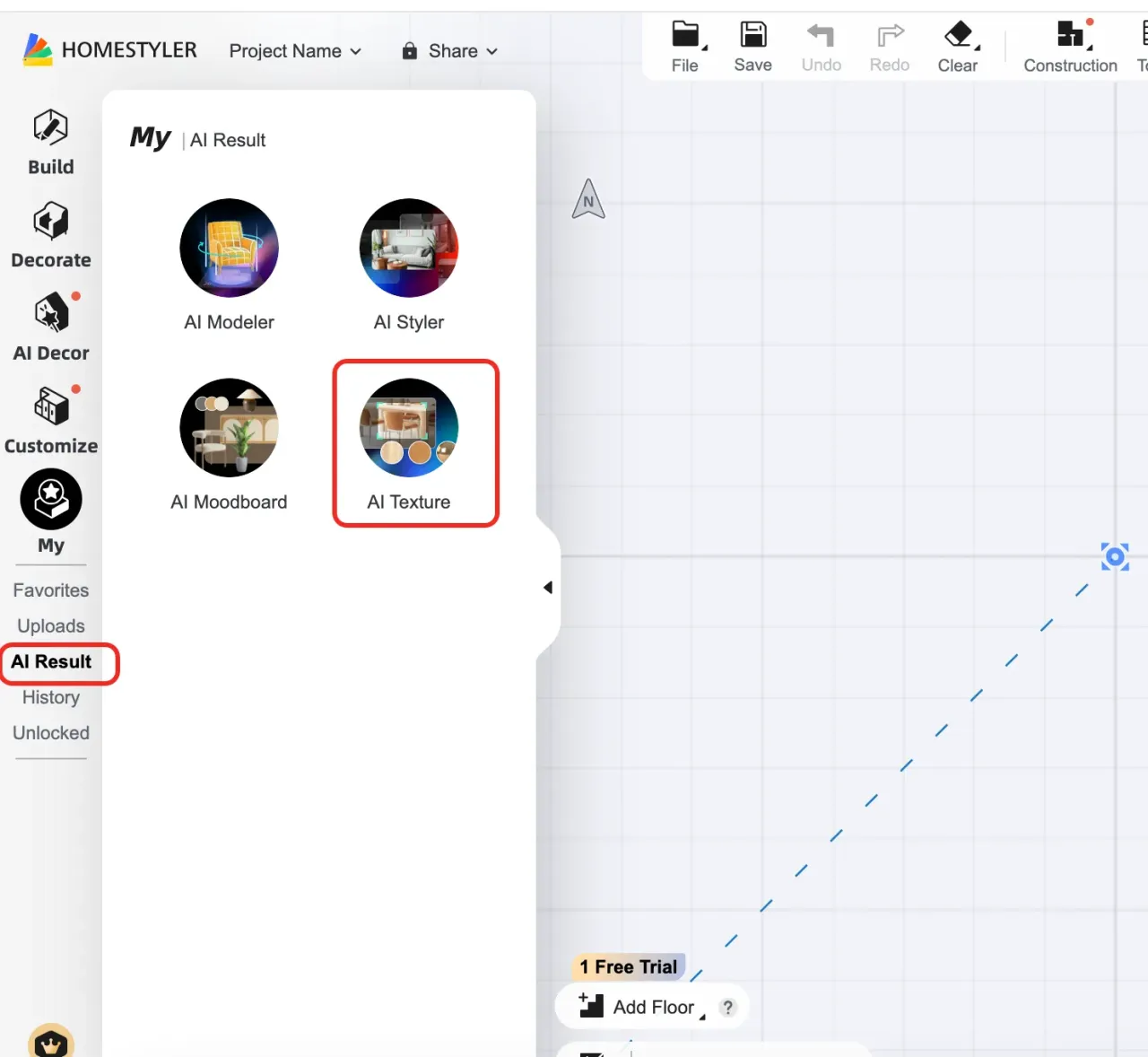
* Find Your AI Texture: Go to Floor Planner > My > AI Result > AI Textures. It will have an “AI” badge.
Below are some effect demonstrations of Homestyler AI Texturer: