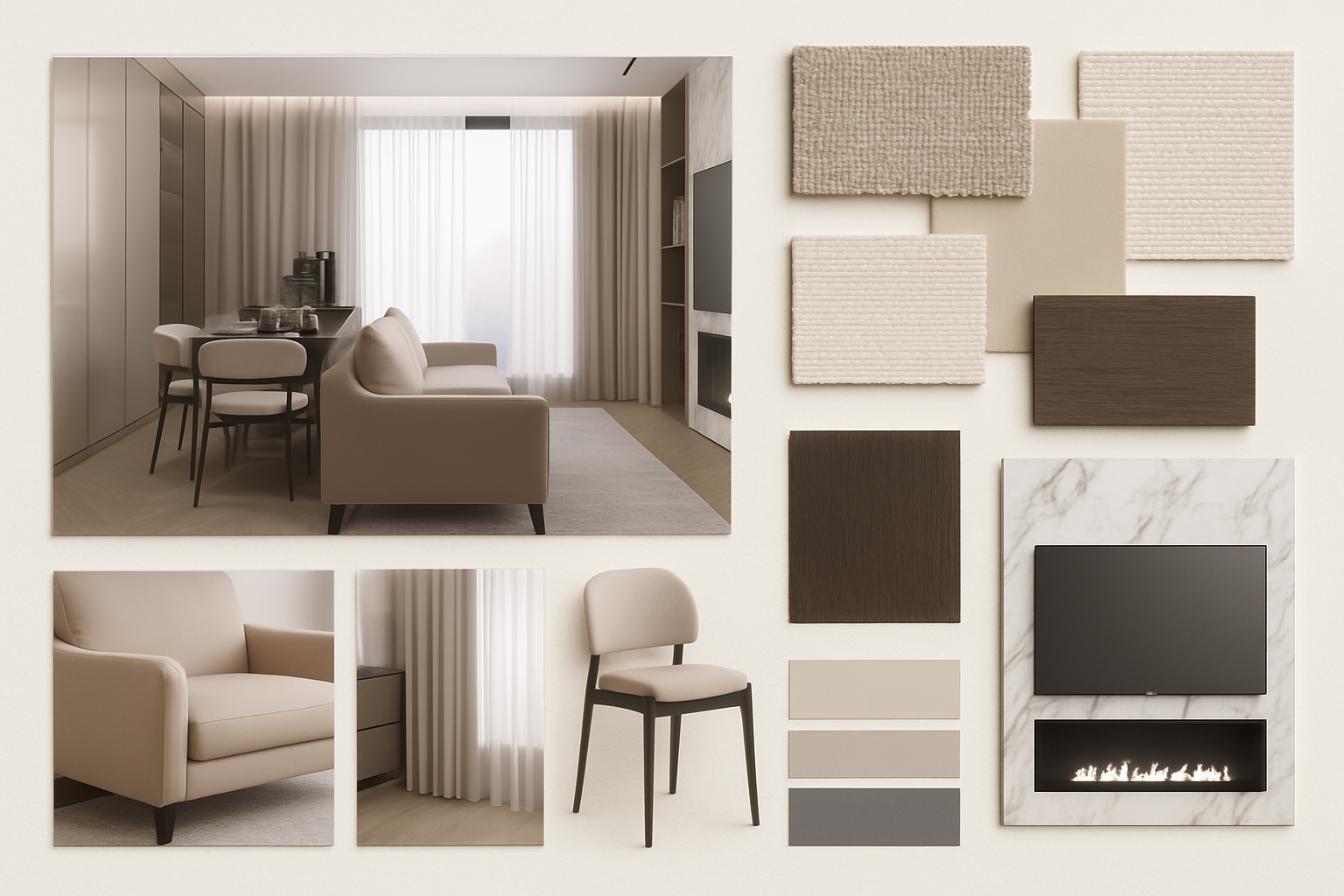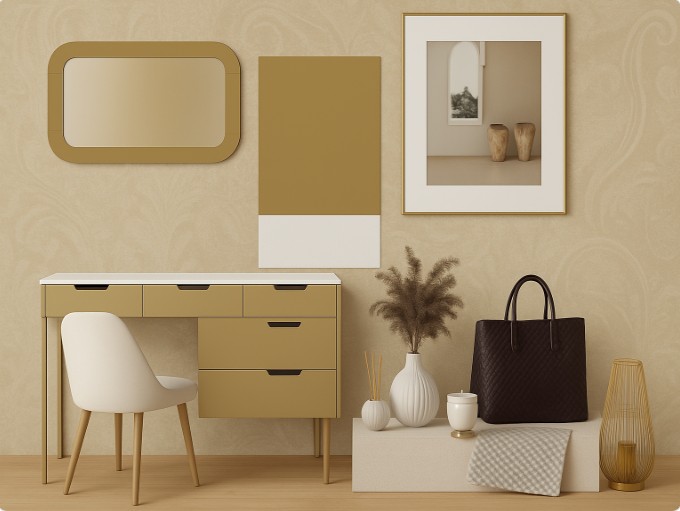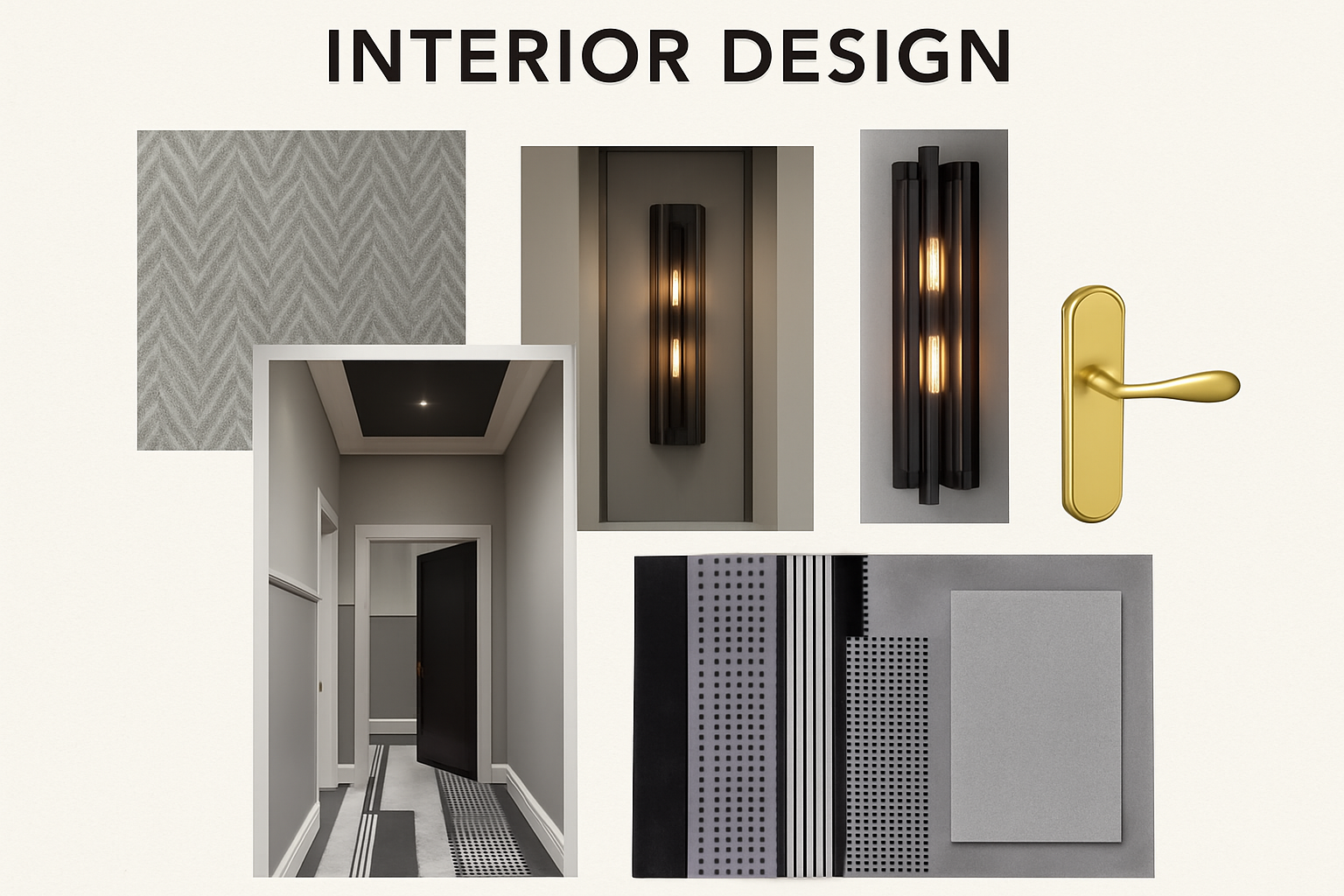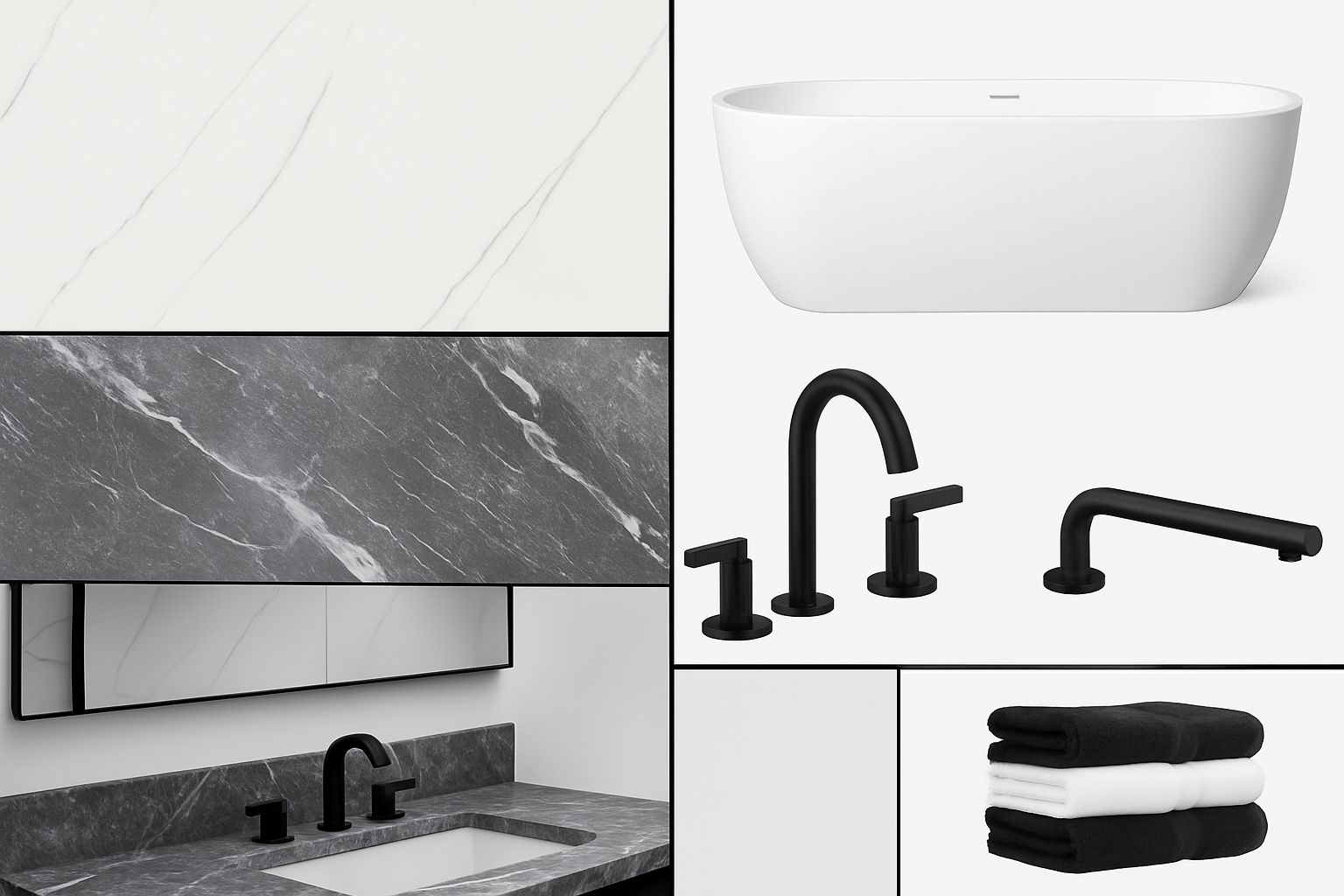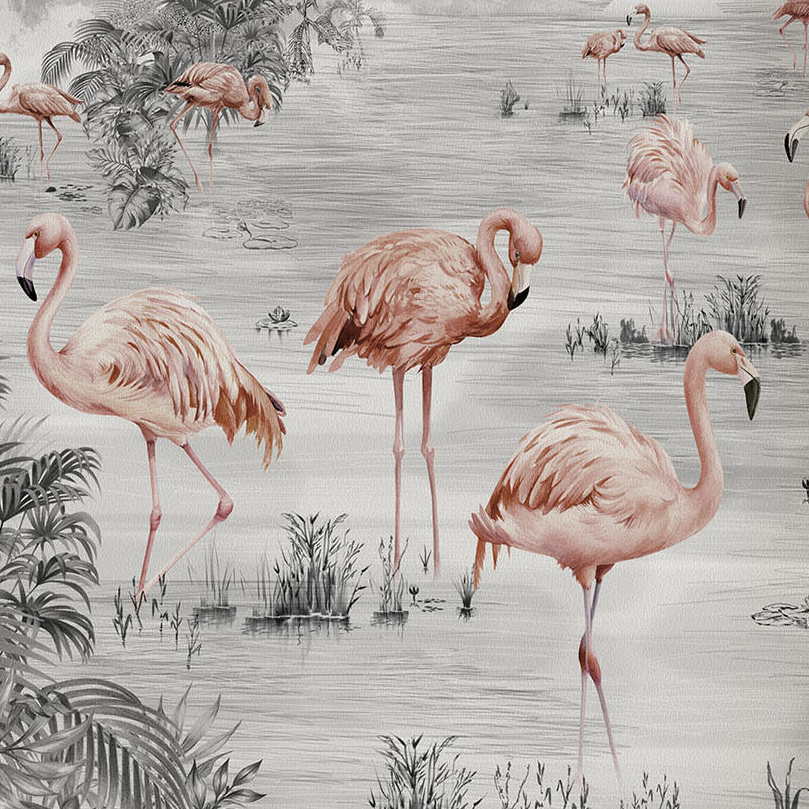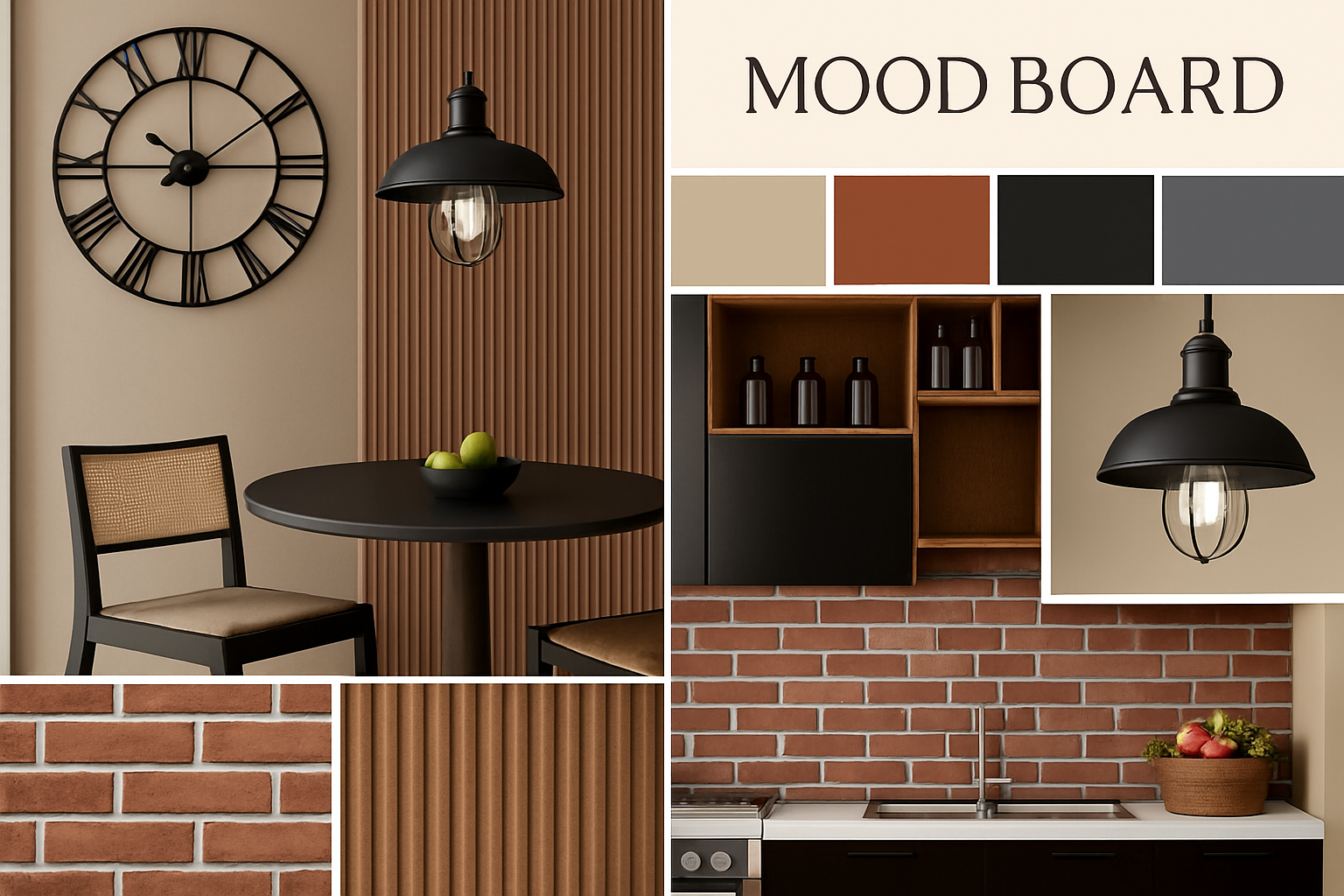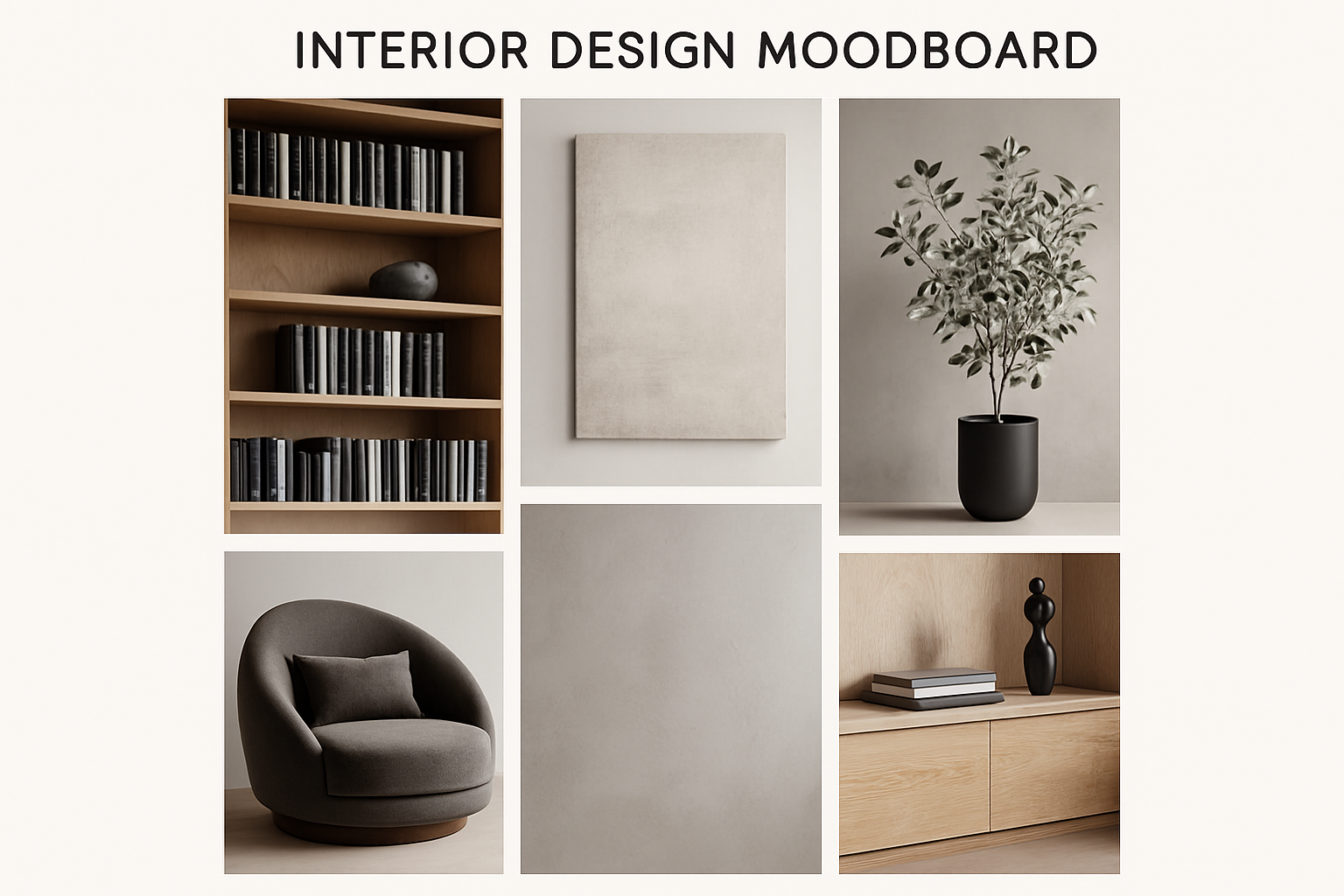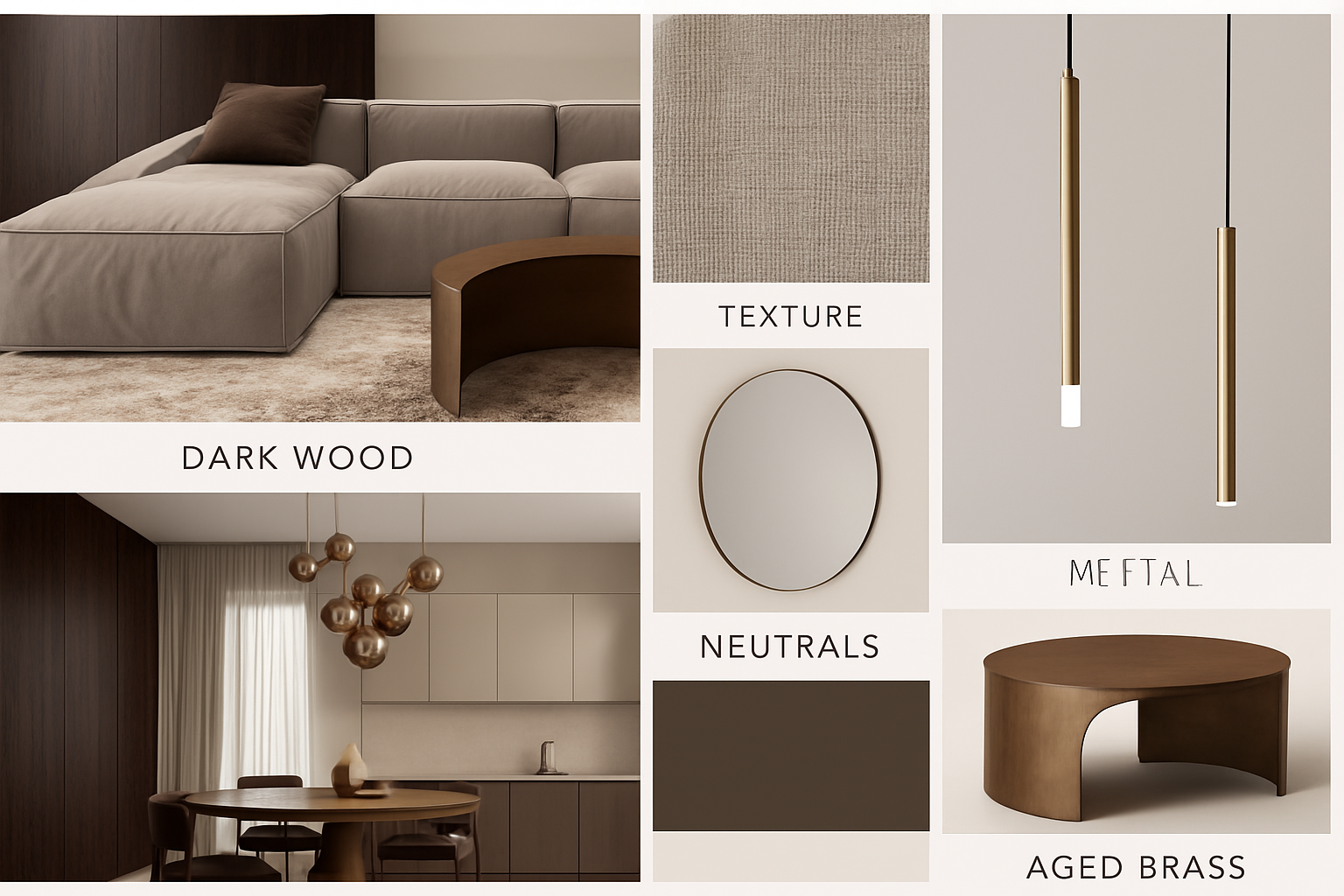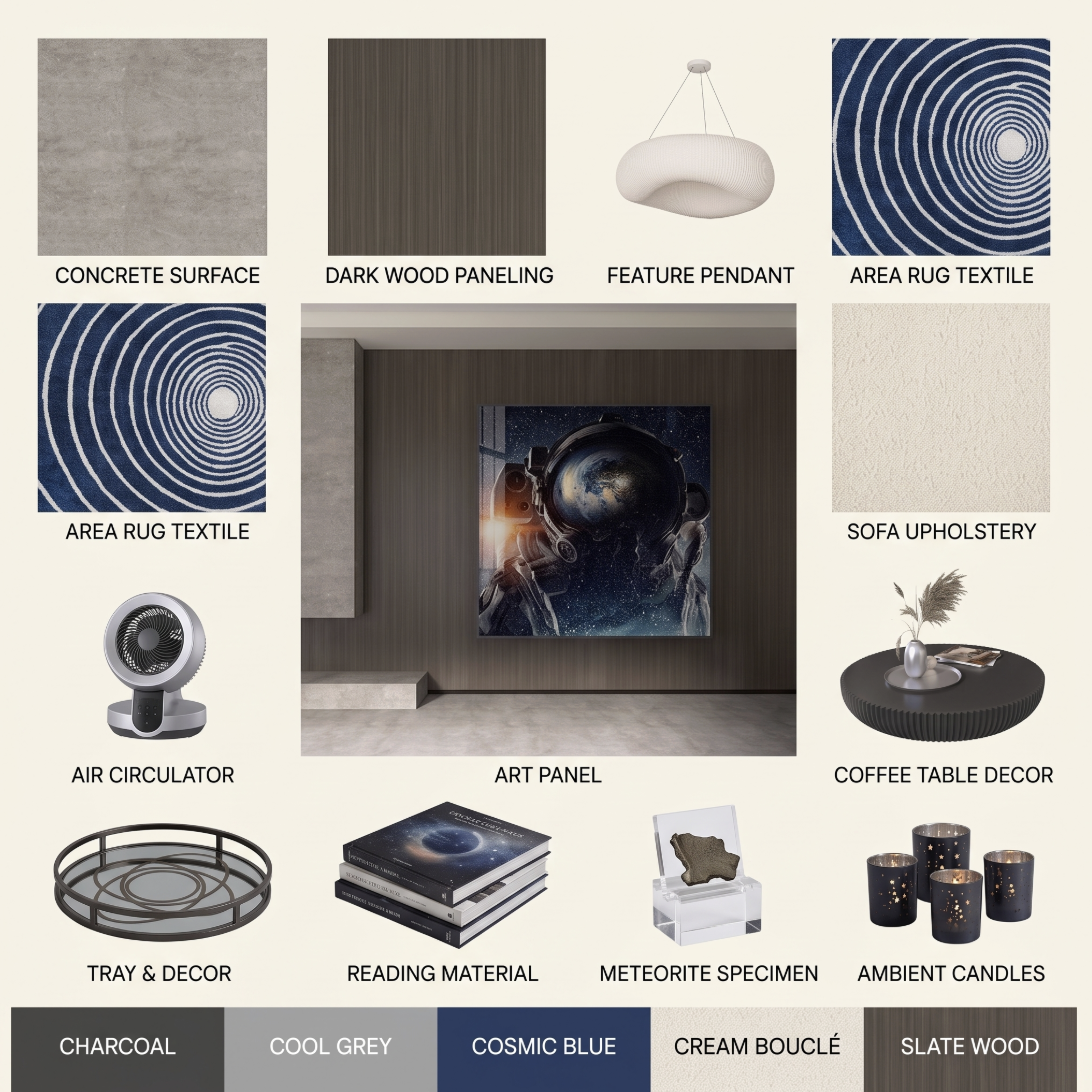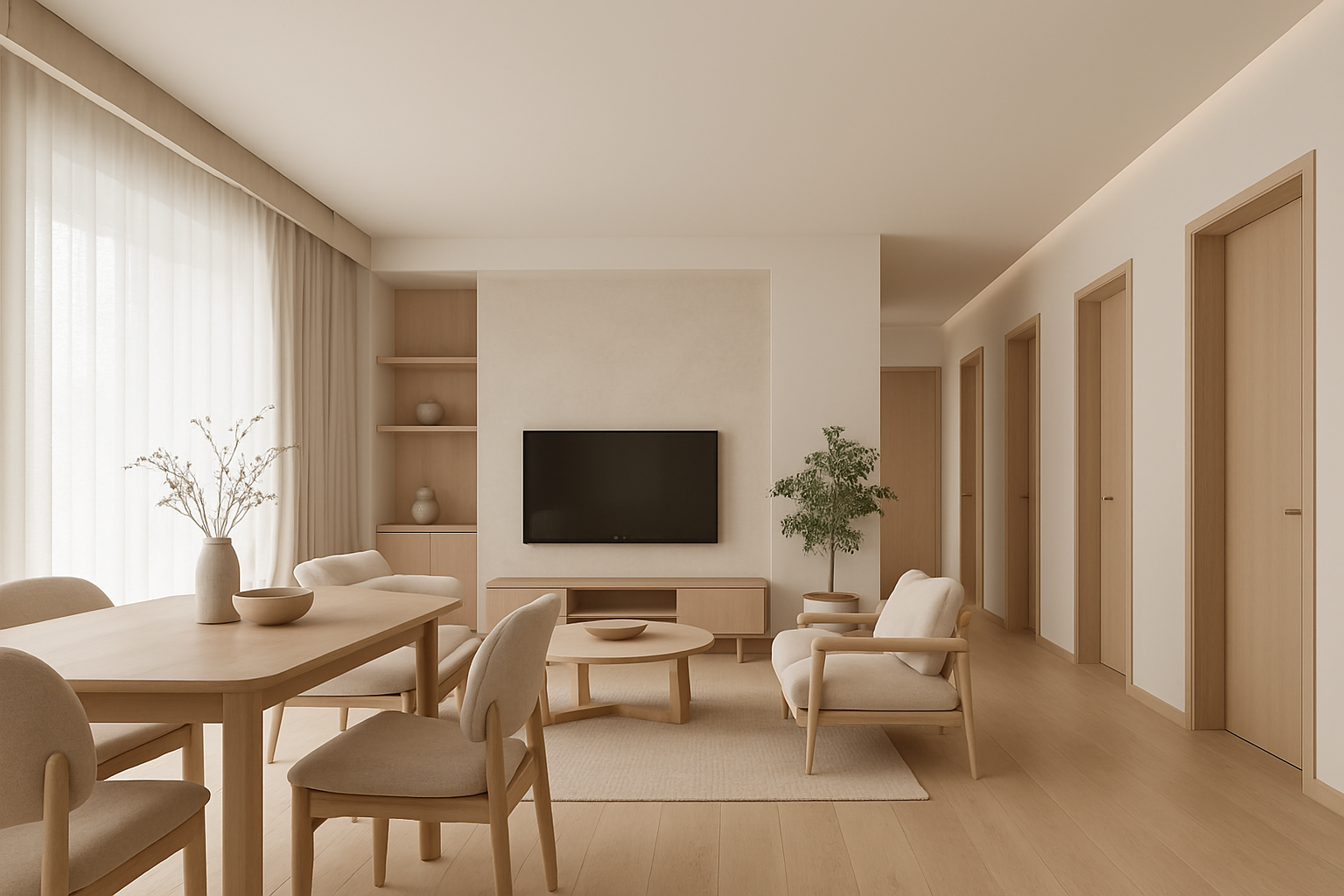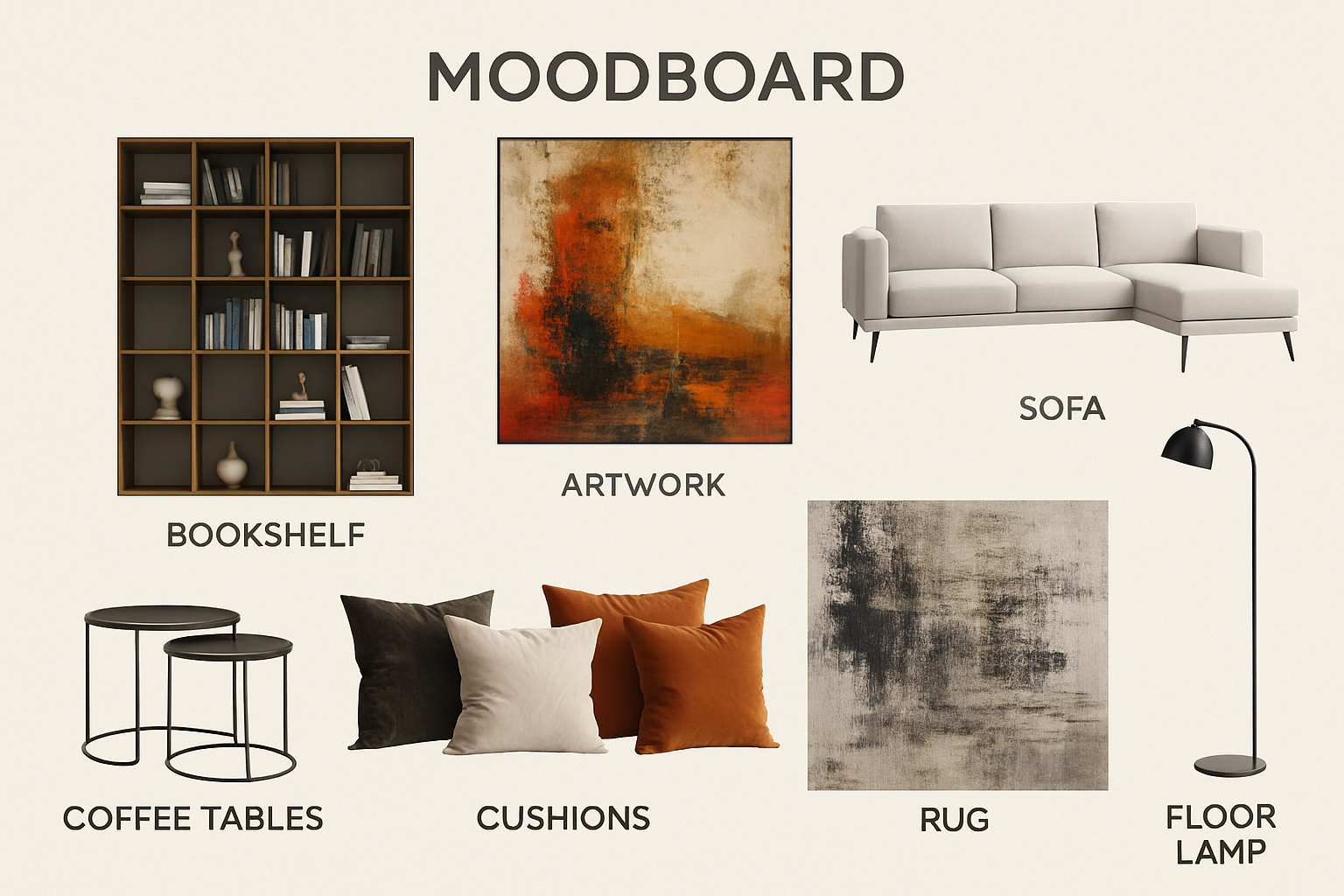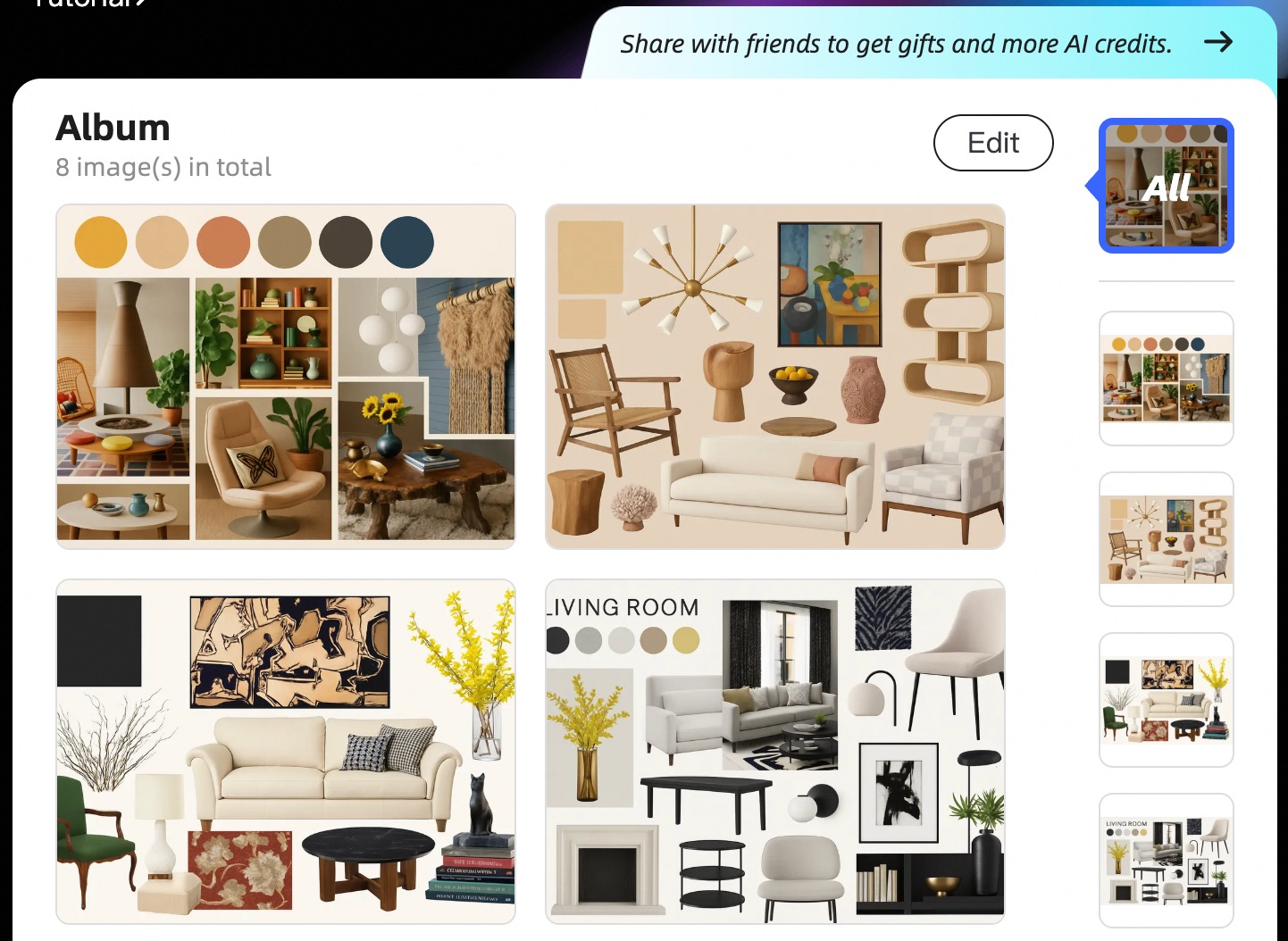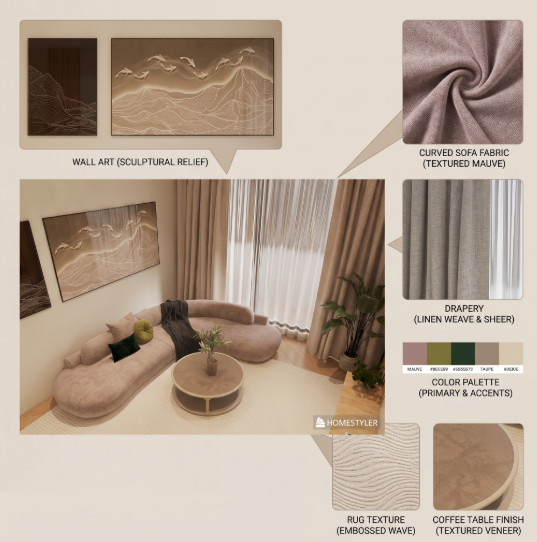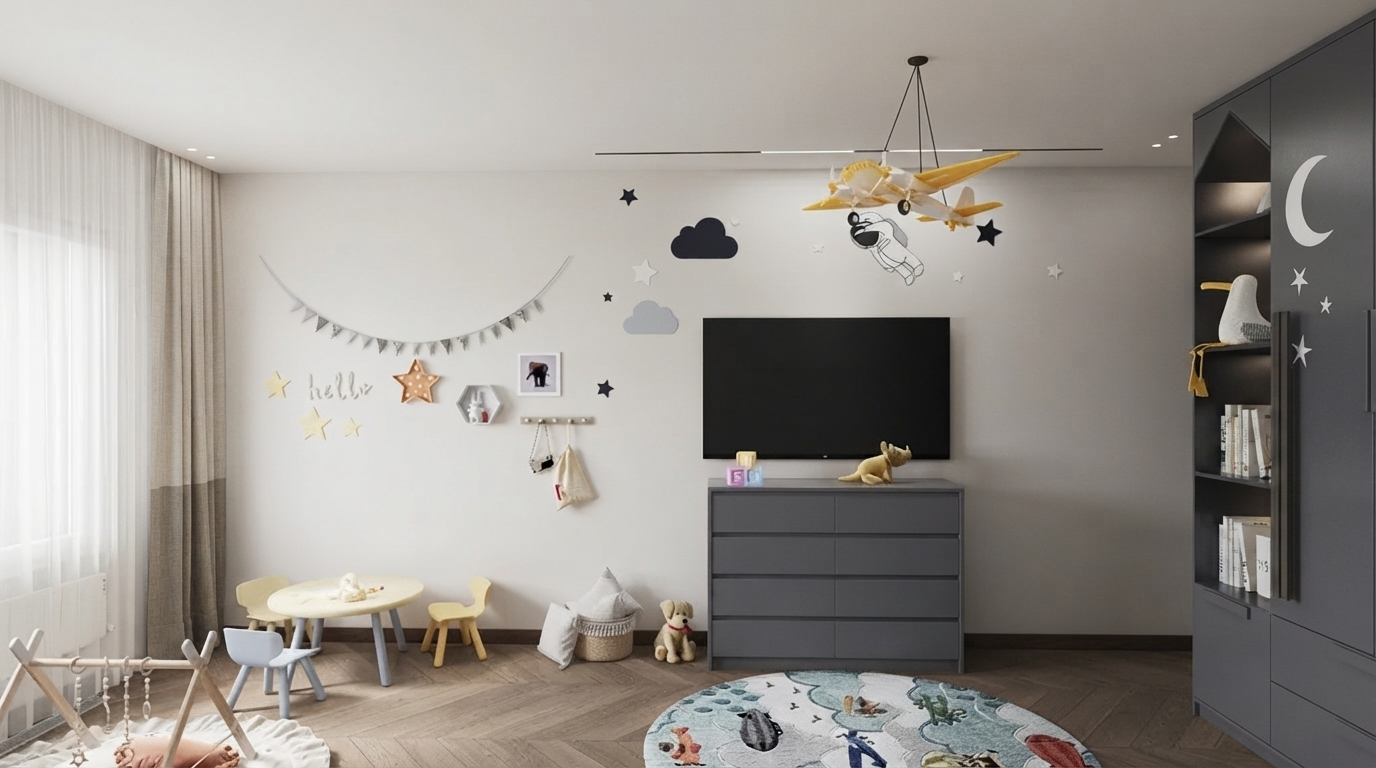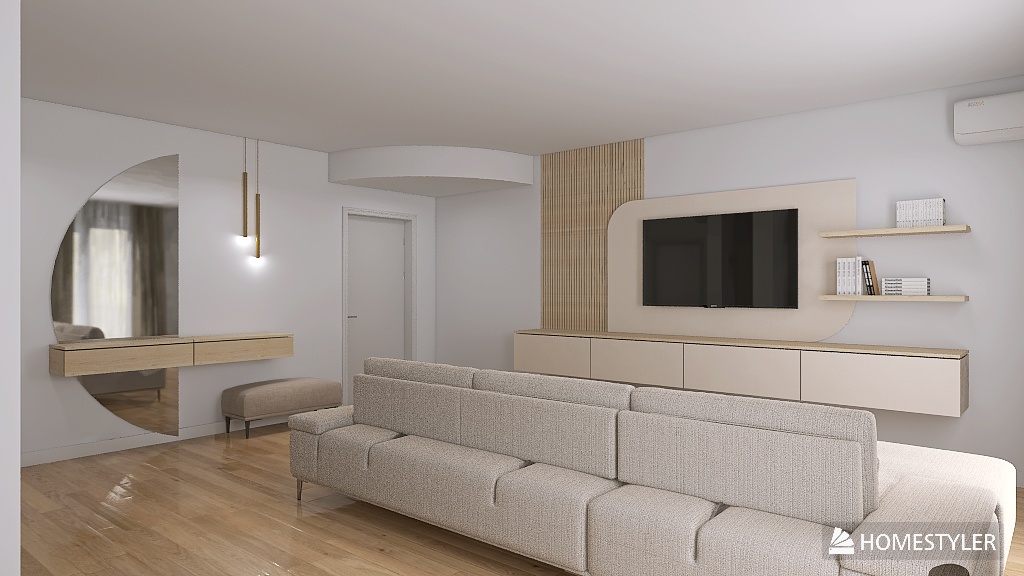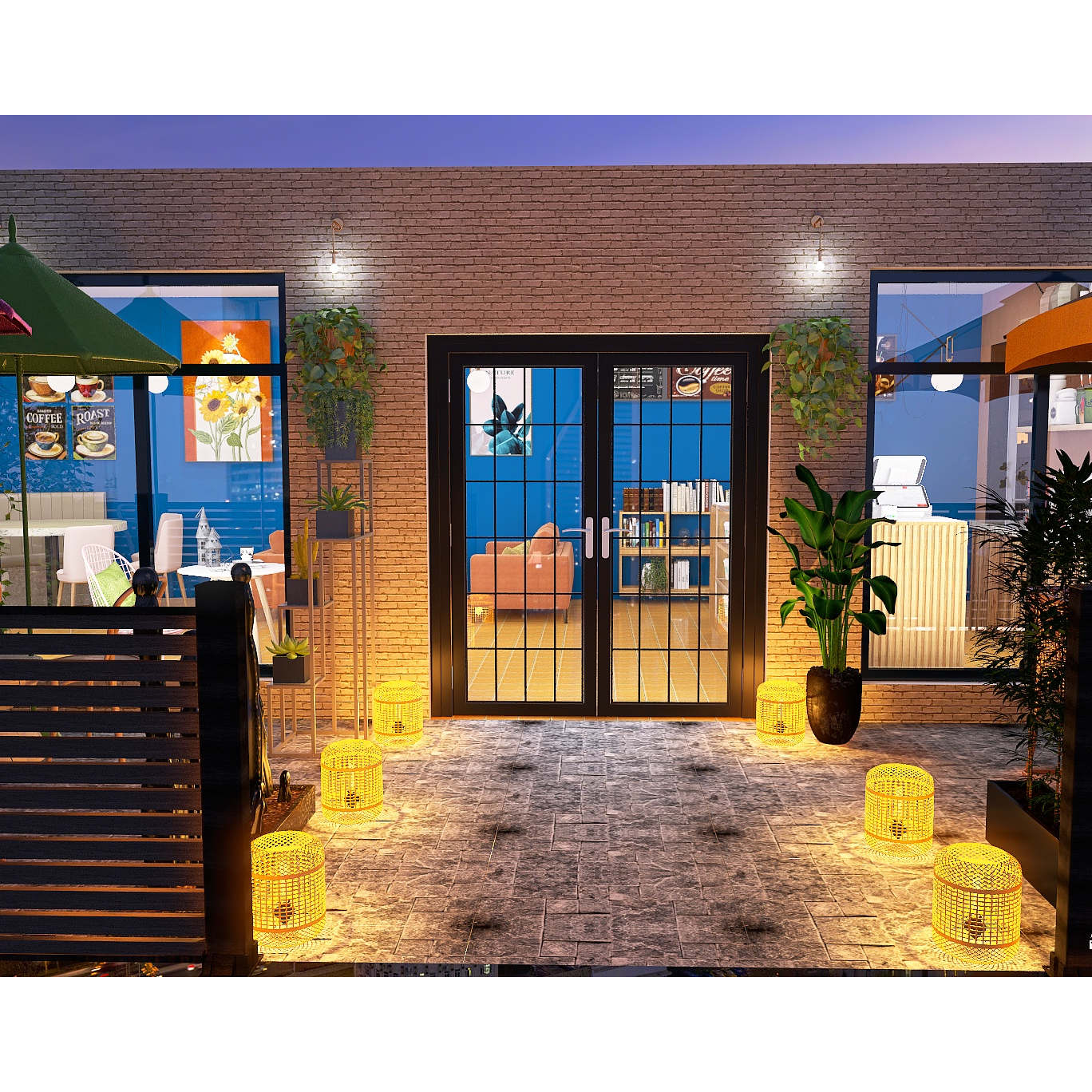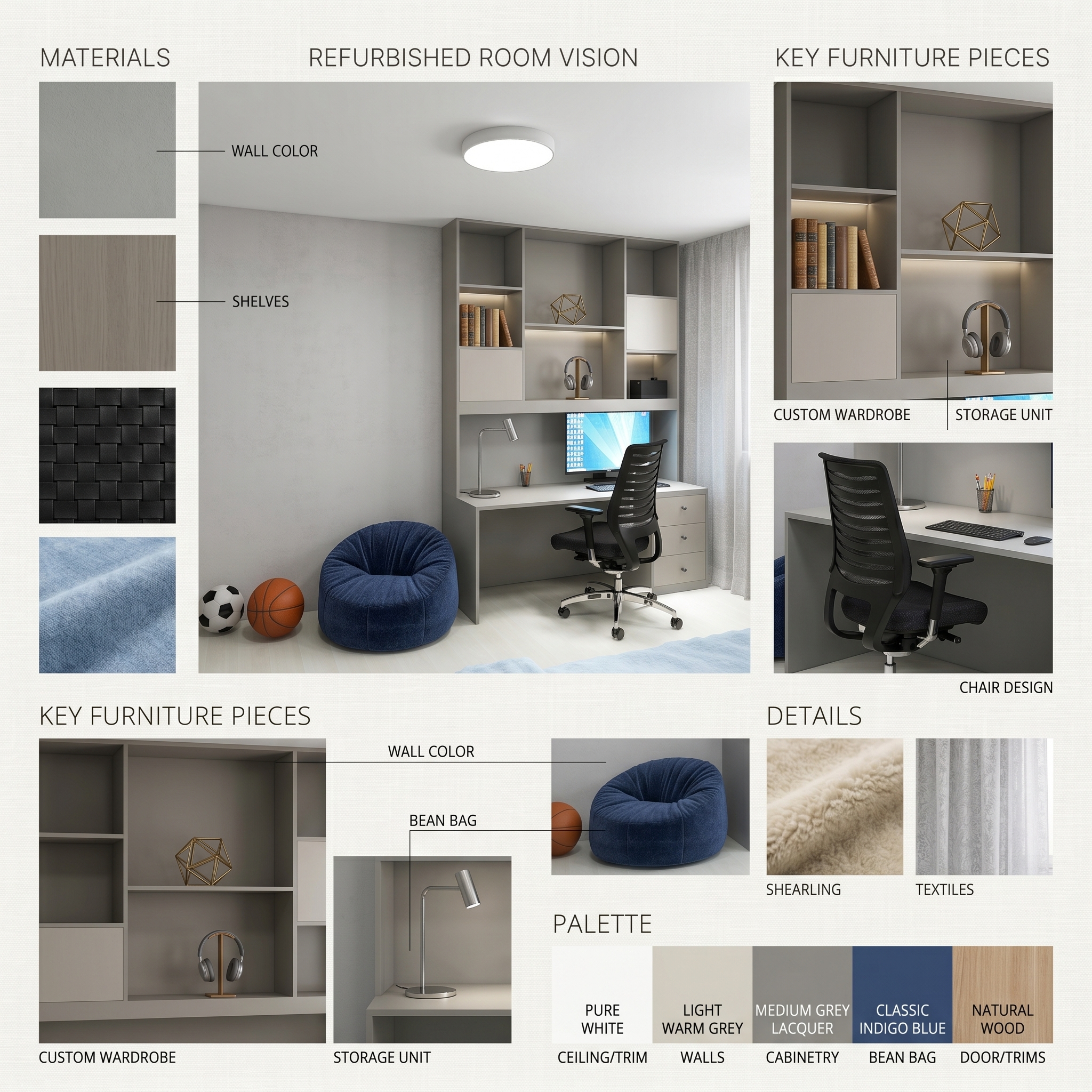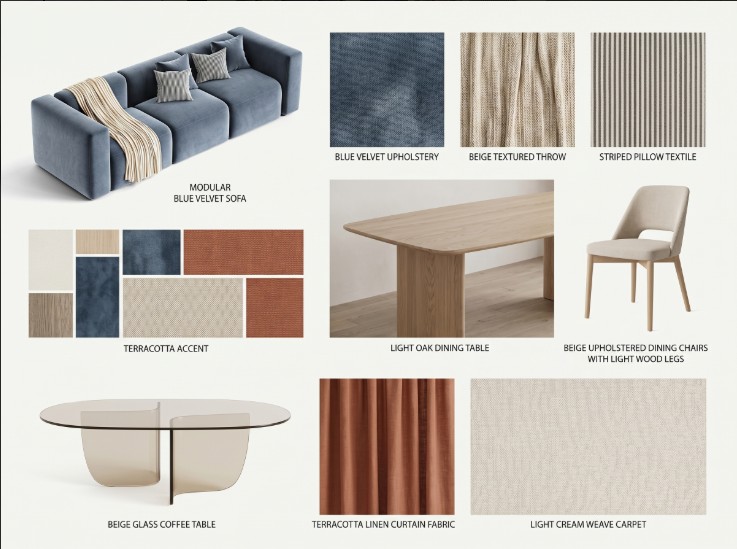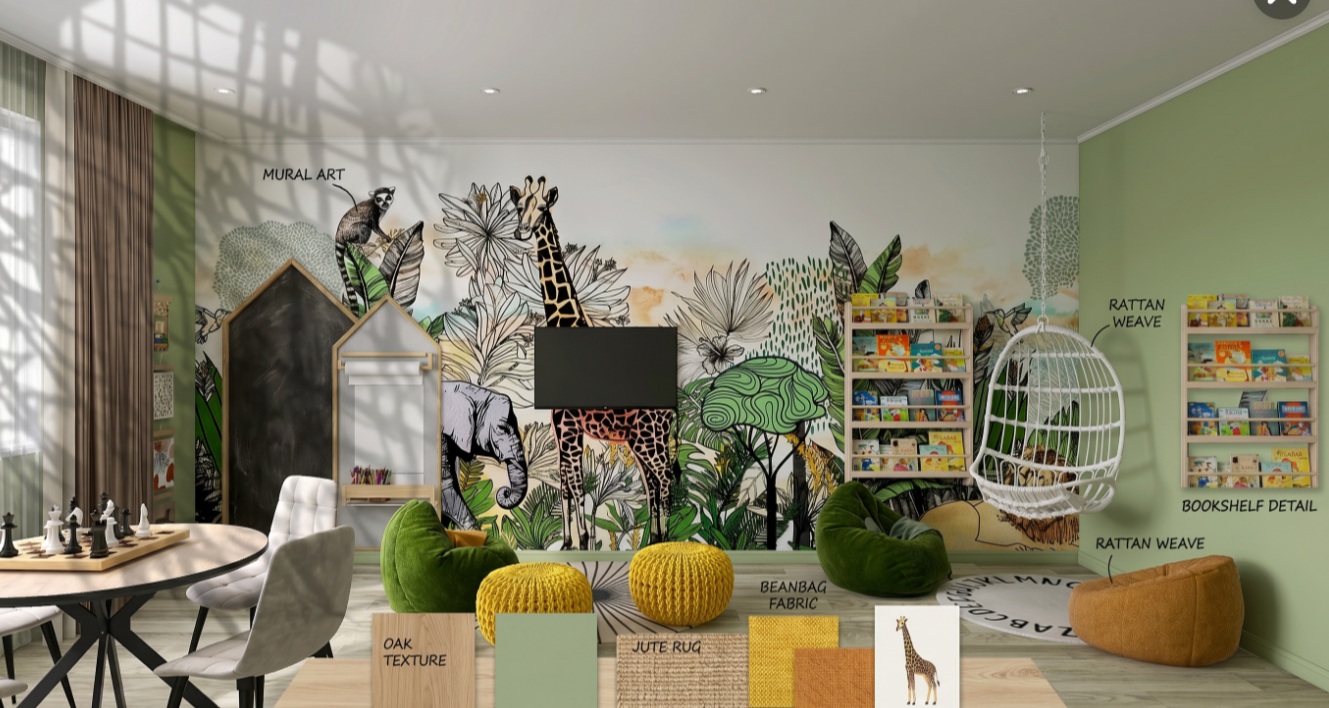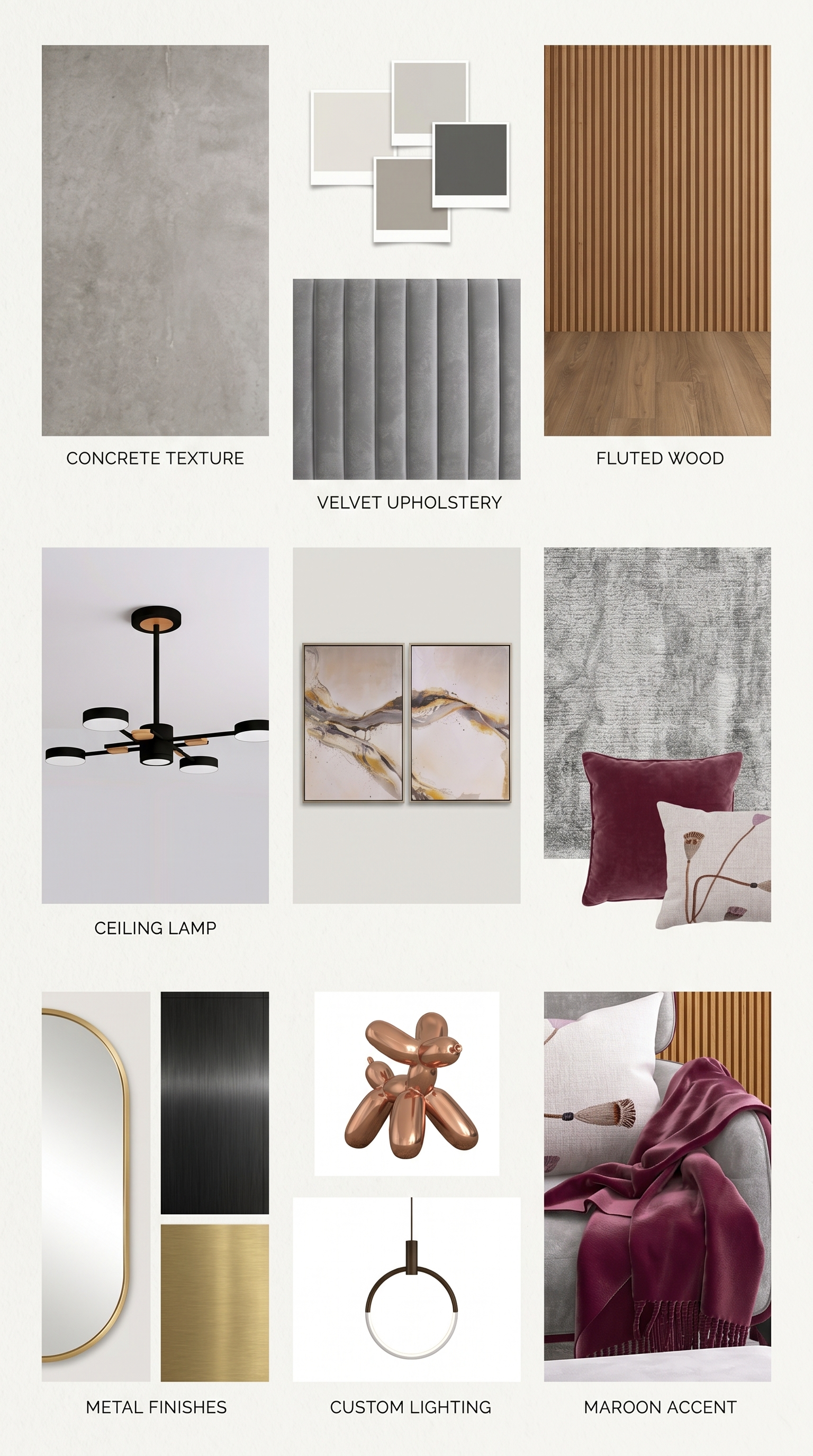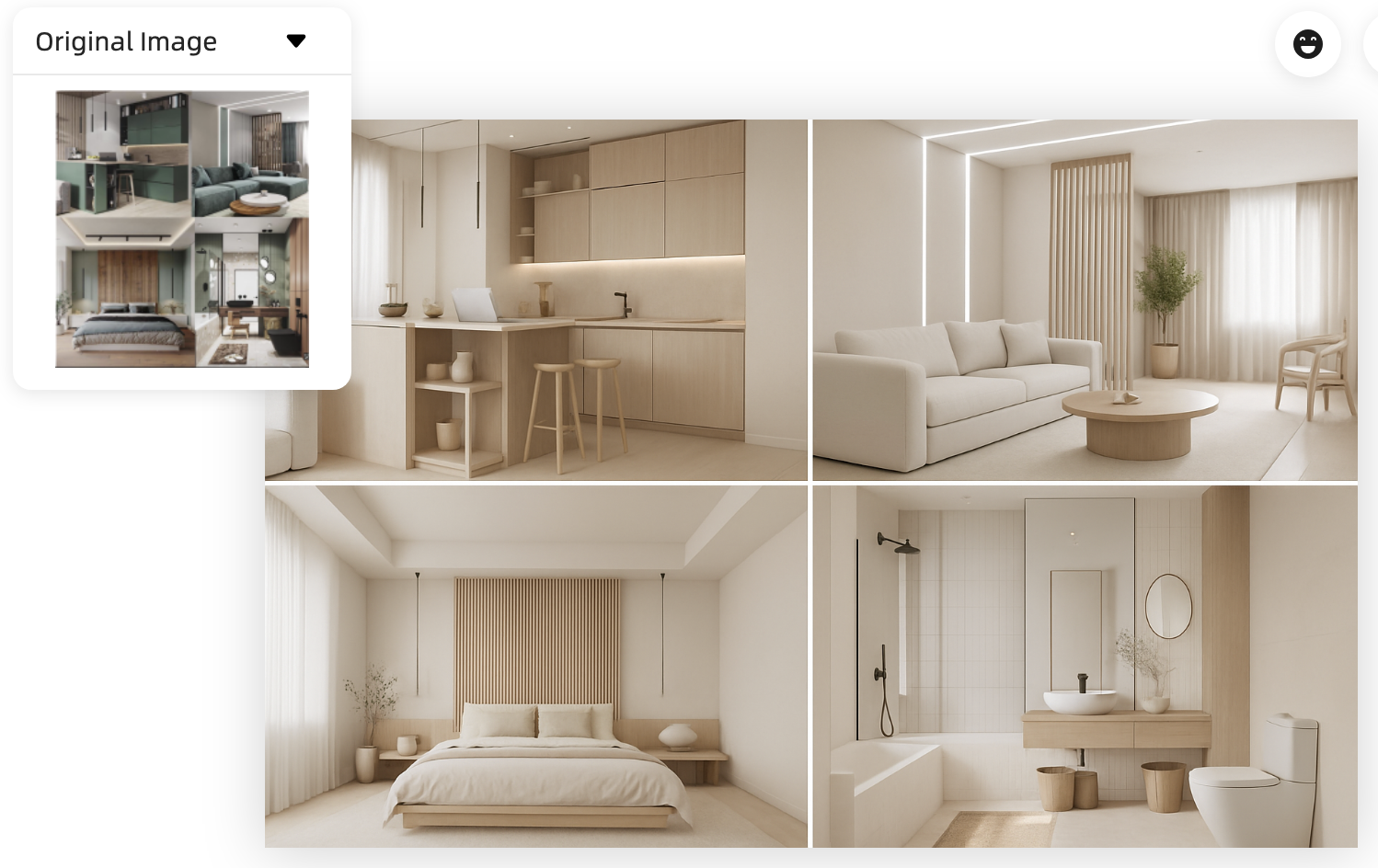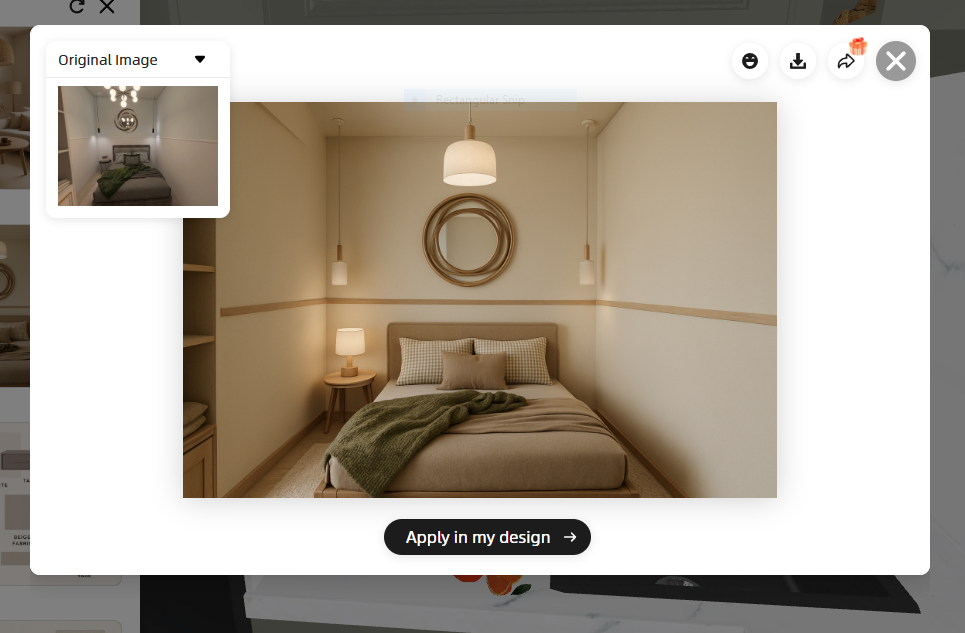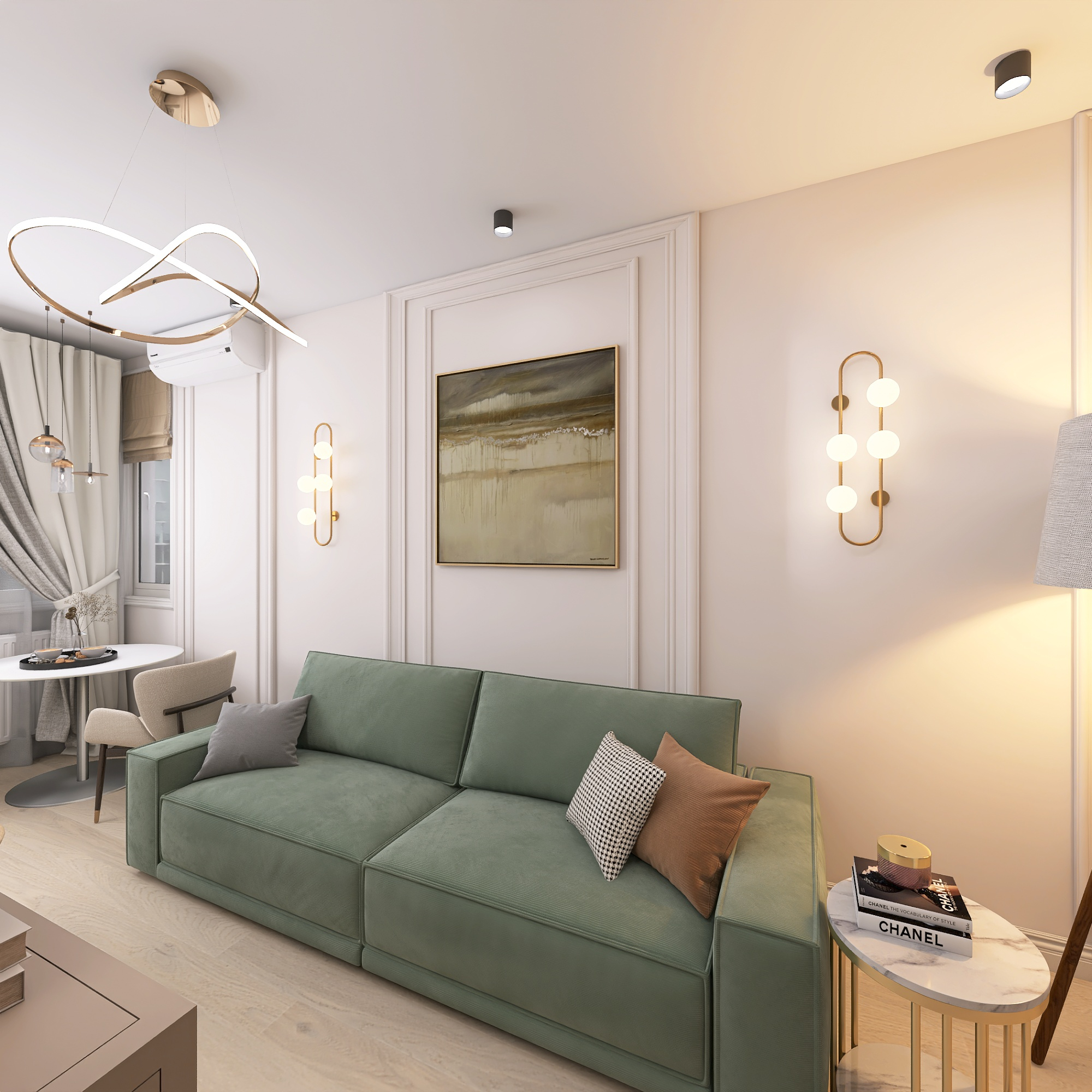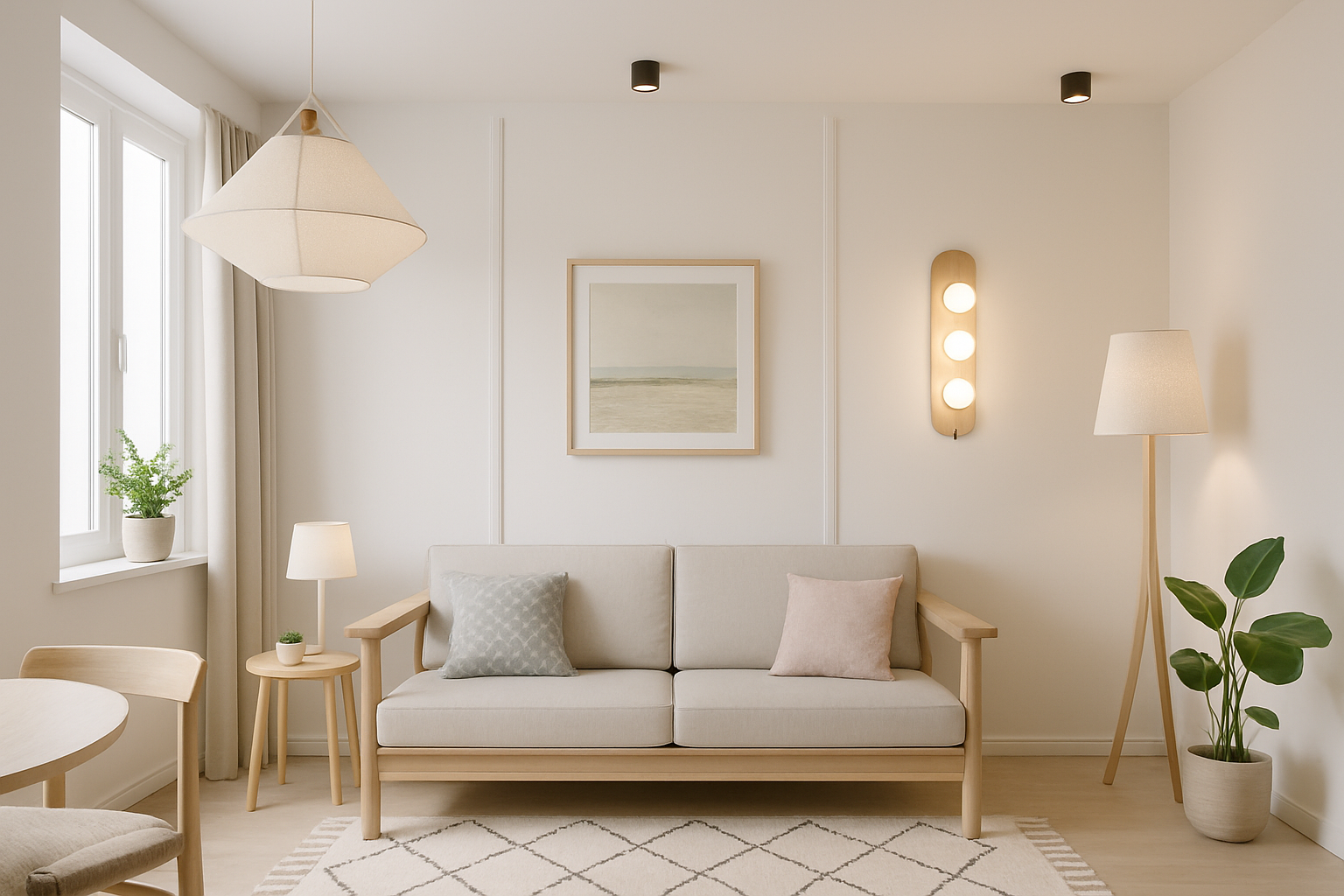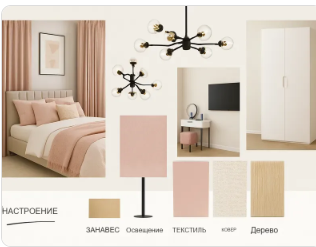
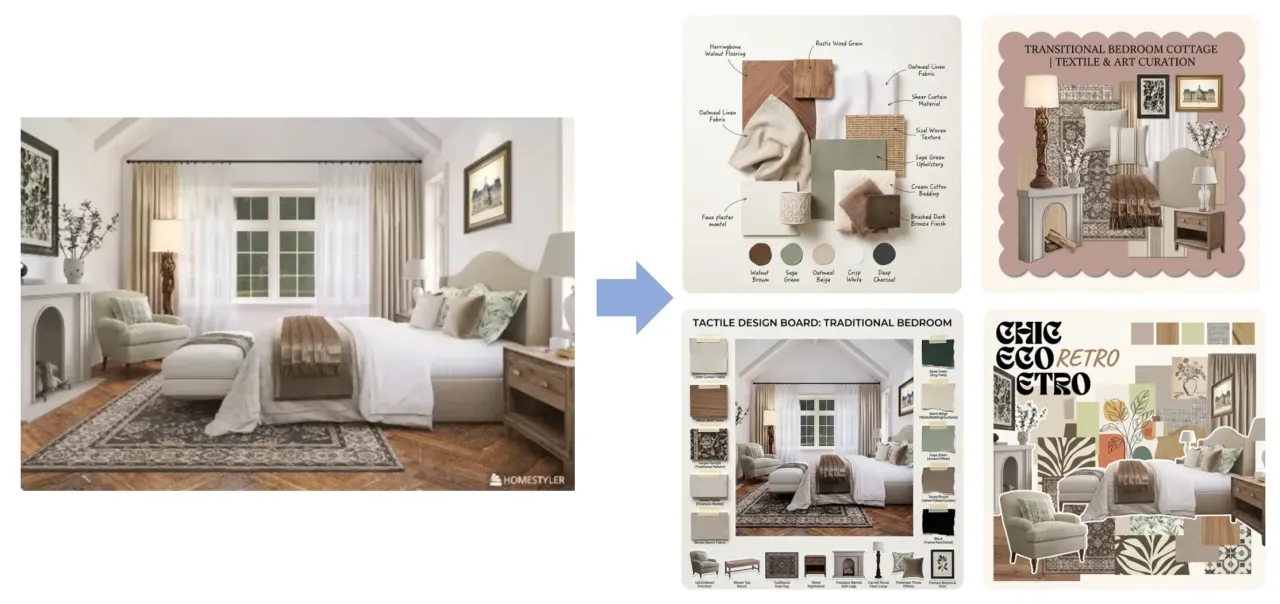
AI Moodboard can generate design inspiration boards based on uploaded images or text descriptions, helping you express spatial styles, color schemes, and design concepts. You can choose different templates and aspect ratios for early-stage inspiration development and design communication.
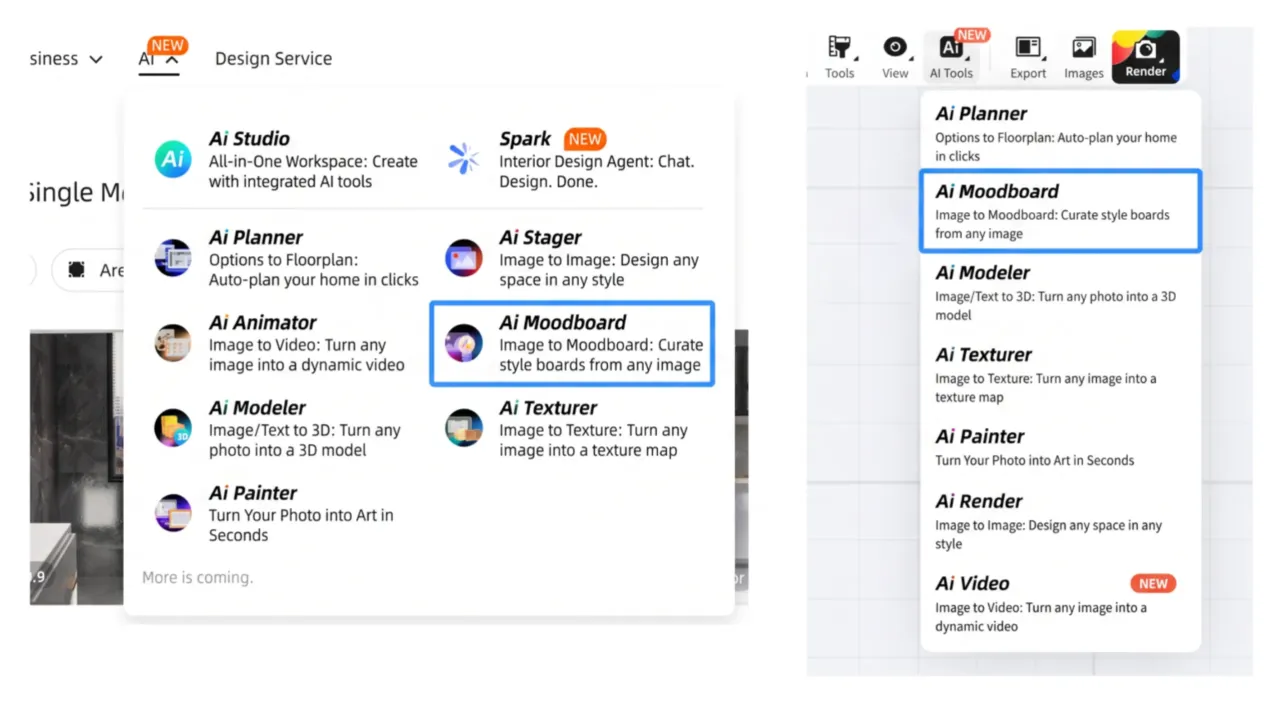
AI Moodboard Entry
You can find AI Moodboard under "AI Tools" at the top of the Homestyler homepage or the 3D editor page.
 Choose a Generation Mode
AI Moodboard offers two generation modes: Image-to-Moodboard and Text-to-Moodboard.
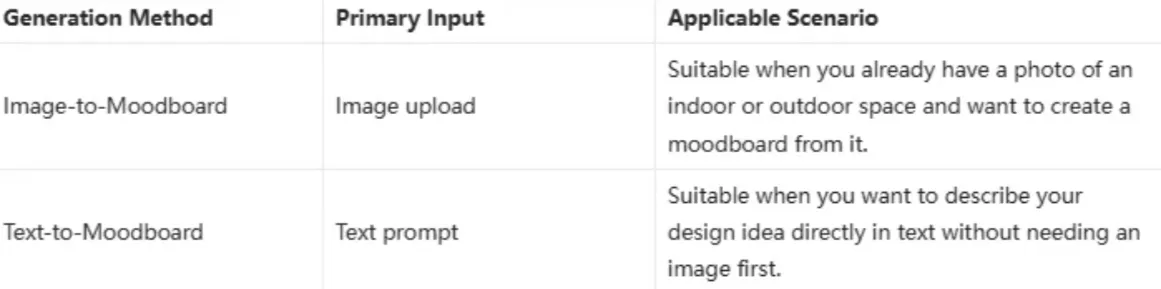
Image-to-Moodboard Workflow
Step 1 Upload an Image
Click to upload a room image in the "Upload an image" section. It is recommended to choose an interior space image with a clear subject that can express the target style.
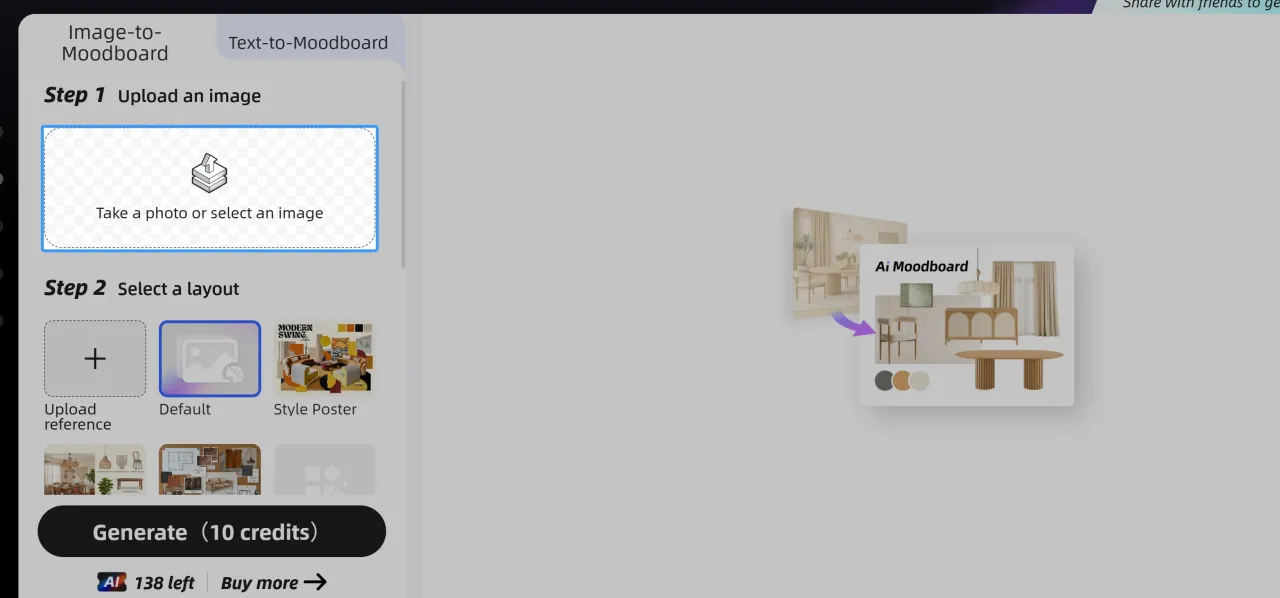
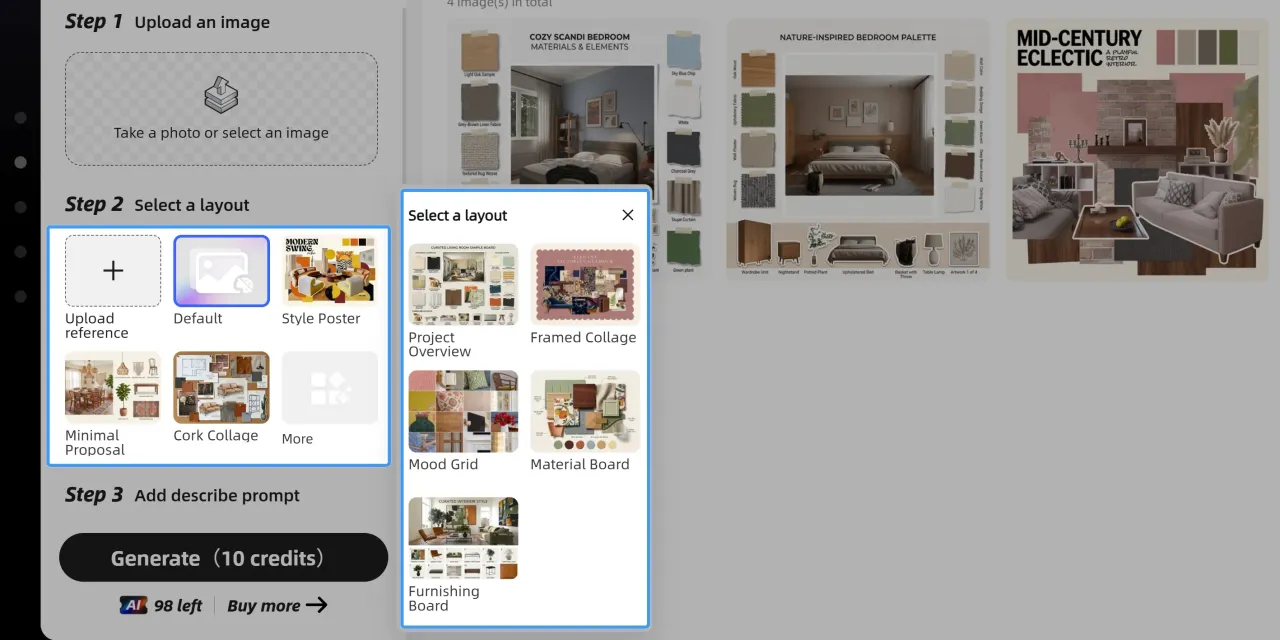
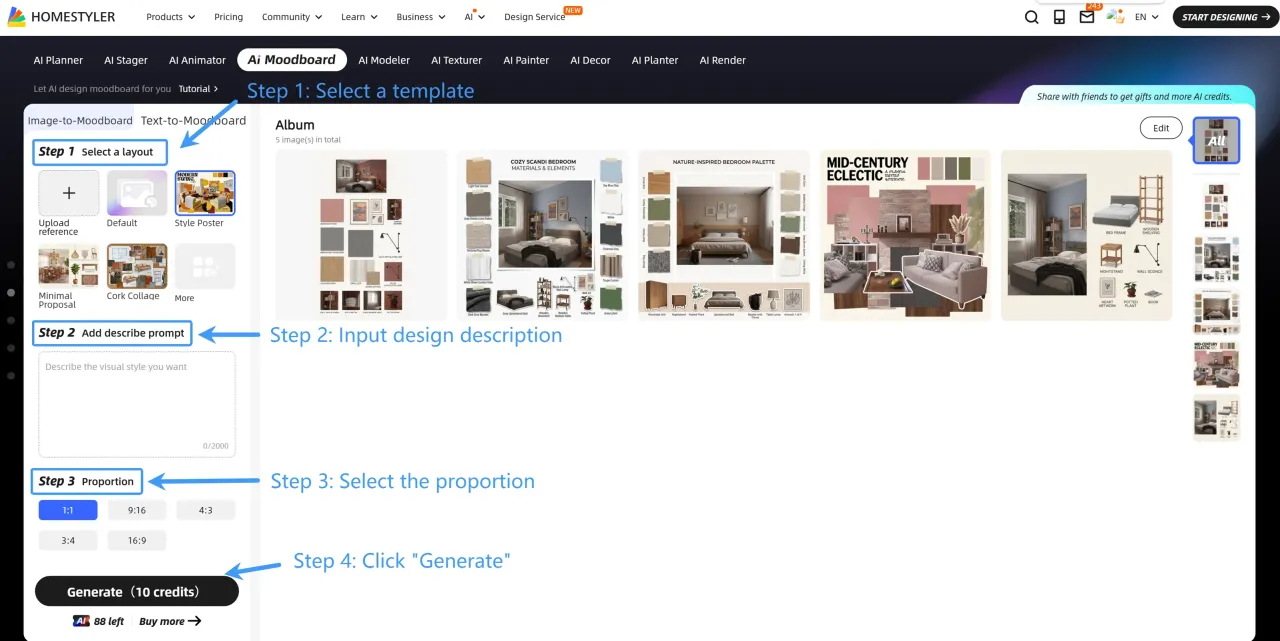
Step 2 Choose a Template
AI Moodboard provides the following 9 templates: Default, Style Poster, Minimal Proposal, Cork Collage, Project Overview, Framed Collage, Mood Grid, Material Board, and Furnishing Board.
- Select Default template or Upload reference to allow text descriptions.
- Select a preset template, and the system will use preset prompts without allowing text descriptions.
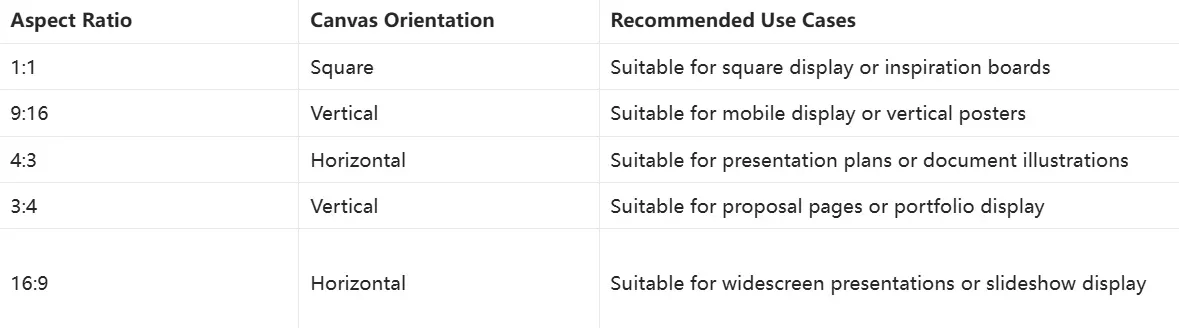
Step 3 Choose an Aspect Ratio
Select according to your needs.
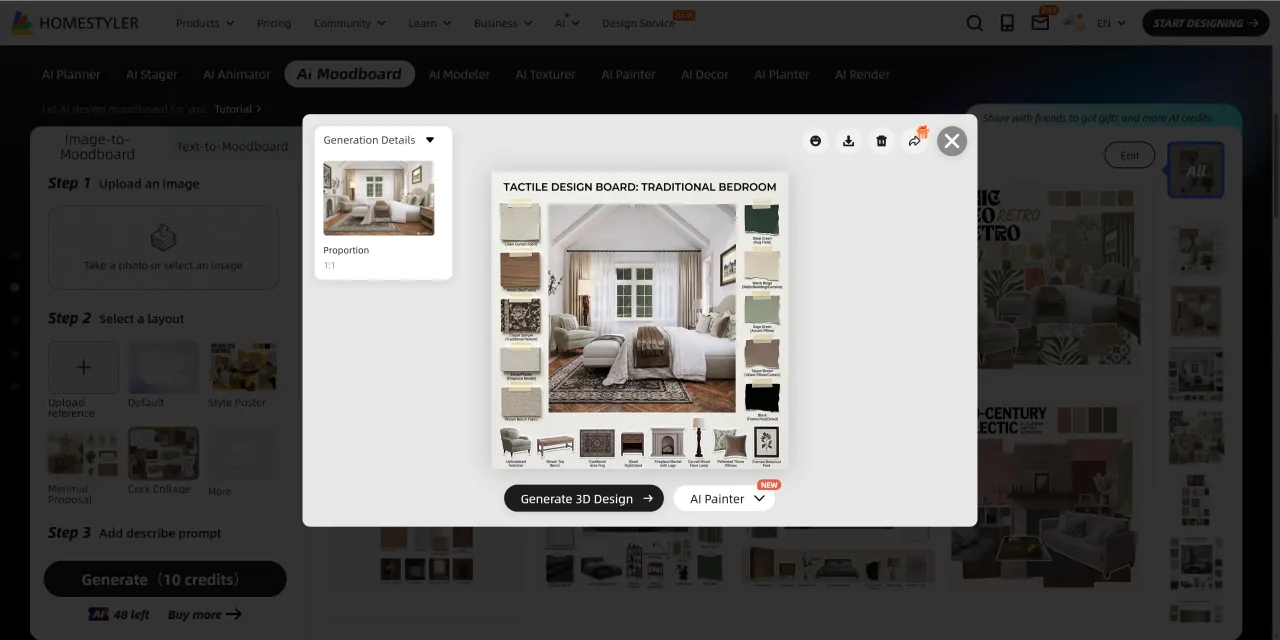
Step 4 Generate and View the Result
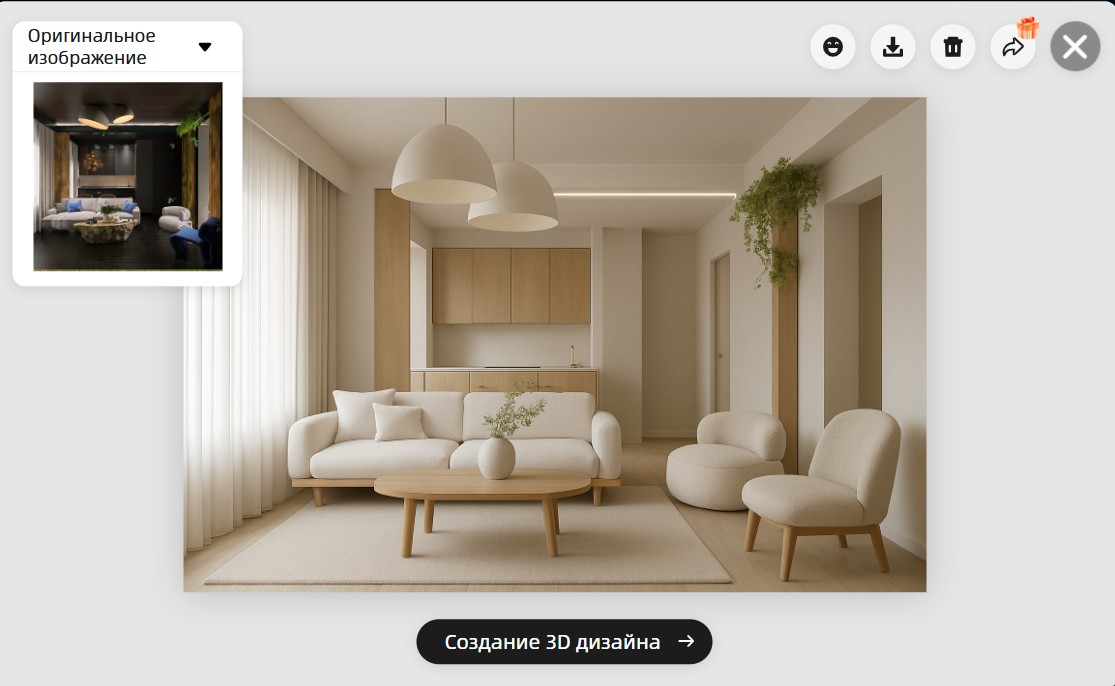
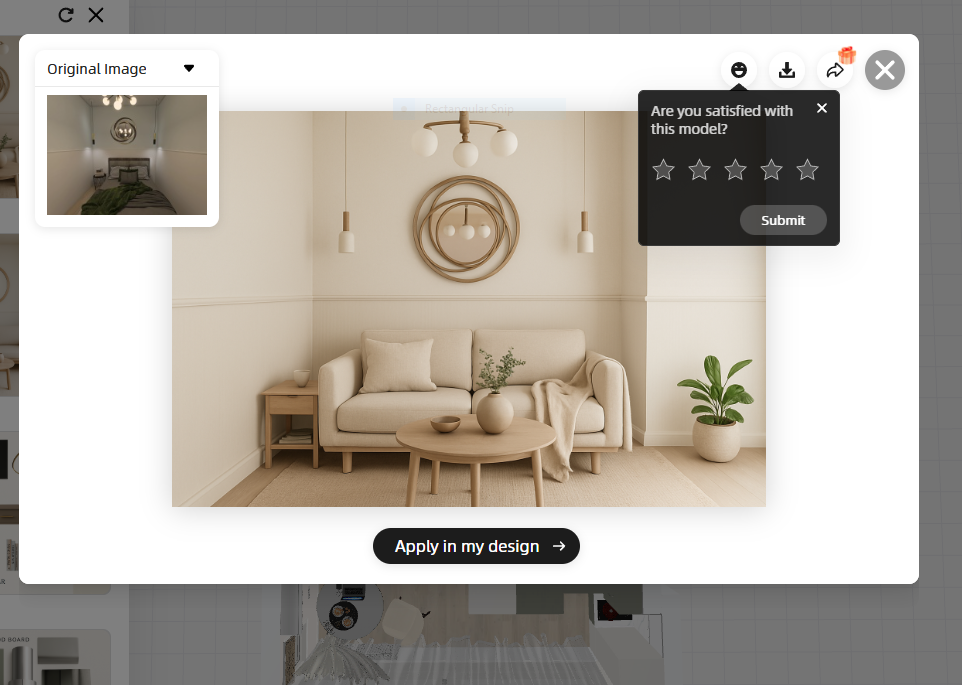
Click "Generate" and wait about 10 seconds to view the Moodboard. (Each generation consumes 10 credits)
Click "Generate 3D Design" to apply the moodboard to a 3D design project.
Text-to-Moodboard Notes
Text-to-Moodboard does not require uploading a reference image, but you need to enter design requirements in the description box.
Default template: A detailed description of the style and requirements is needed. You can organize the content based on space type, design style, main color palette, materials, and atmosphere.
- Example: Generate an inspiration board for a modern natural-style living room, using beige, light wood, and olive green as the main colors, including a linen sofa, wooden coffee table, woven rug, and ceramic decorations to create a warm and quiet atmosphere.
Preset templates: Only a brief description is required, such as room type, style, colors, and materials.
FAQ
Can I generate a Moodboard without an image?
Yes. Select Text-to-Moodboard, enter a design description, choose a template and aspect ratio, then generate the Moodboard.
Why can't I edit the prompt box in Image-to-Moodboard mode?
When a specific template is selected in image generation mode, the system follows that template's generation rules, so the prompt box becomes disabled. To add text descriptions, select the Default template.
Can I still edit the description after choosing a template in Text-to-Moodboard mode?
Yes. Text generation mode requires a clear spatial style. After selecting any template, you should provide a simple description such as room type, style, colors, or materials.
Where is the original basic version?
The original basic version is now the Default template.
How can I write clearer prompts?
First describe the desired space and design style, then add details about colors, materials, key elements, and atmosphere. Try to use specific and consistent descriptions.
In Image-to-Moodboard mode, only the Default template supports text prompts.
In Text-to-Moodboard mode, all templates support text prompts.