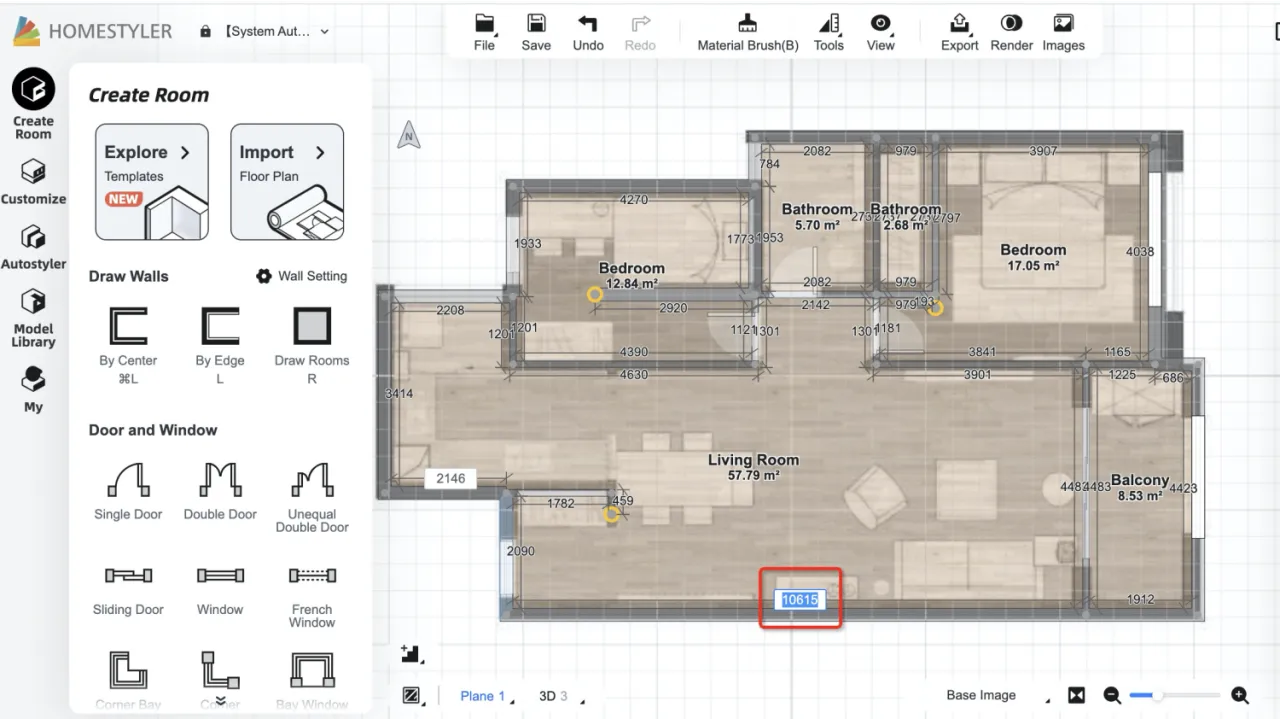
When you choose to upload an image to import the floor plan, instead of draw manually with the image underlying, Homesytler now supports "Auto Generate" of the 3D floor plan to improve your efficiency!
Here is the instruction:
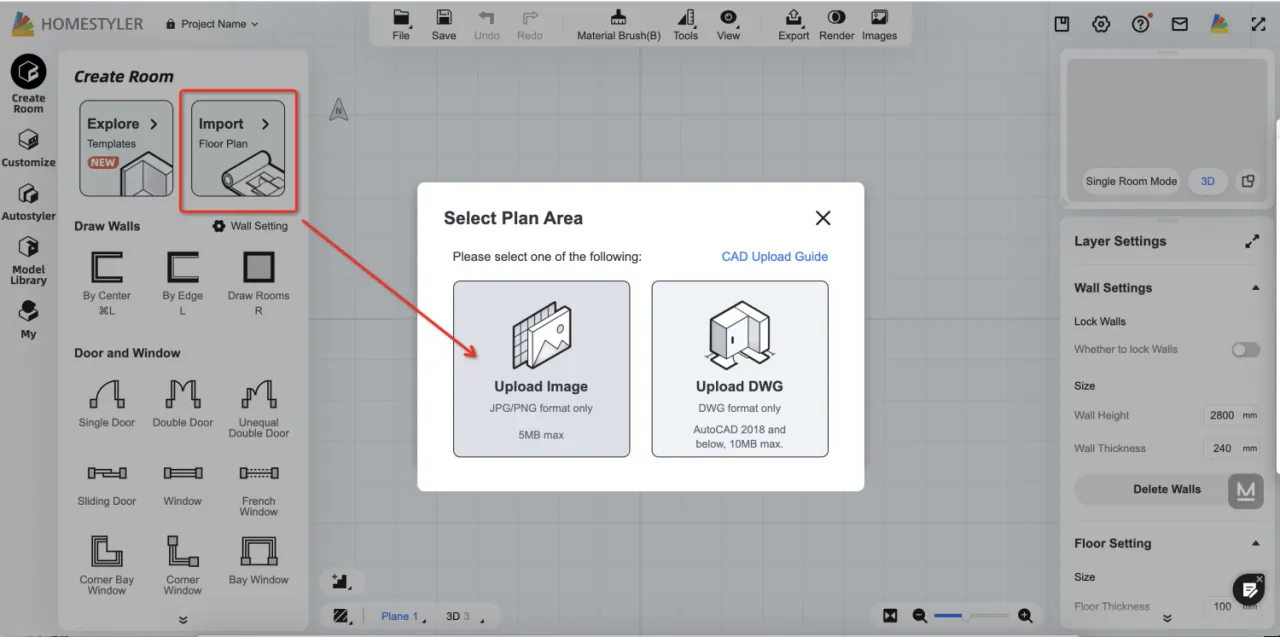
1. In the "Create Room" section from the left column, click "Import Floor Plan" and then select "Upload Image" to import the floor plan image stored locally.
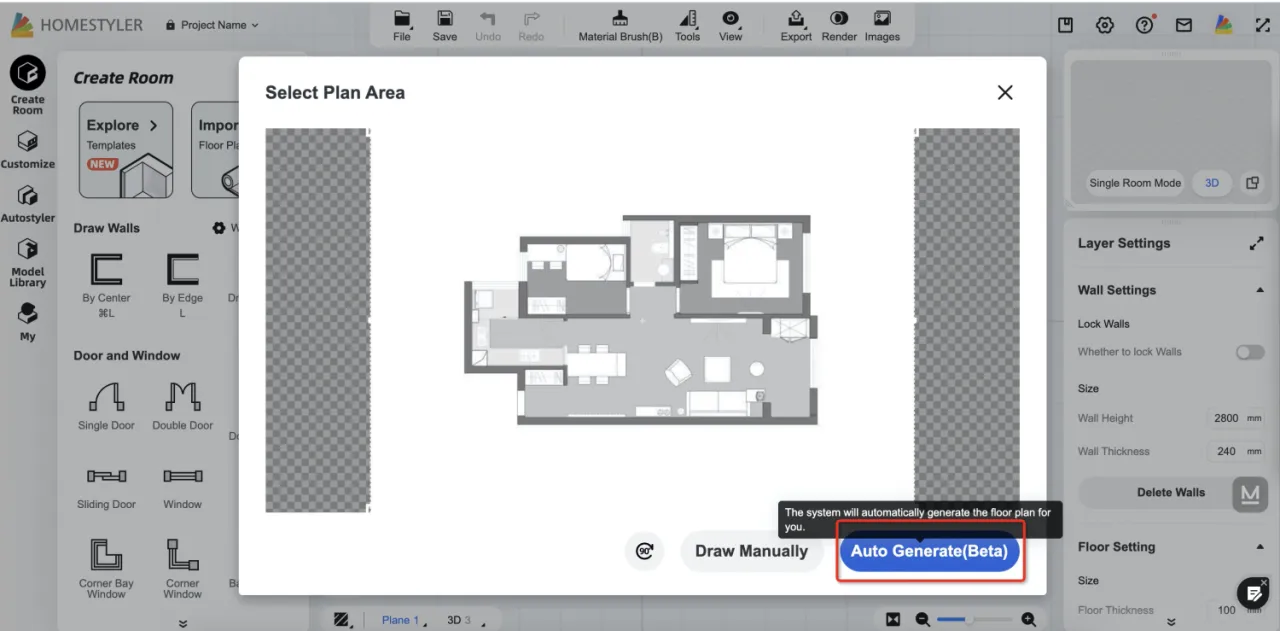
2. After importing the image, the floor plan area will be automatically recognized. You can also use the frame selection and rotation angle tool to adjust the area manually. After adjustment, click "Auto Generate" and the system will automatically generate the floor plan.
3. Enter the total floor area of the floor plan at the bottom, and then click the "Confirm" button.
(Note: we only supports squared meter unit for the area now)
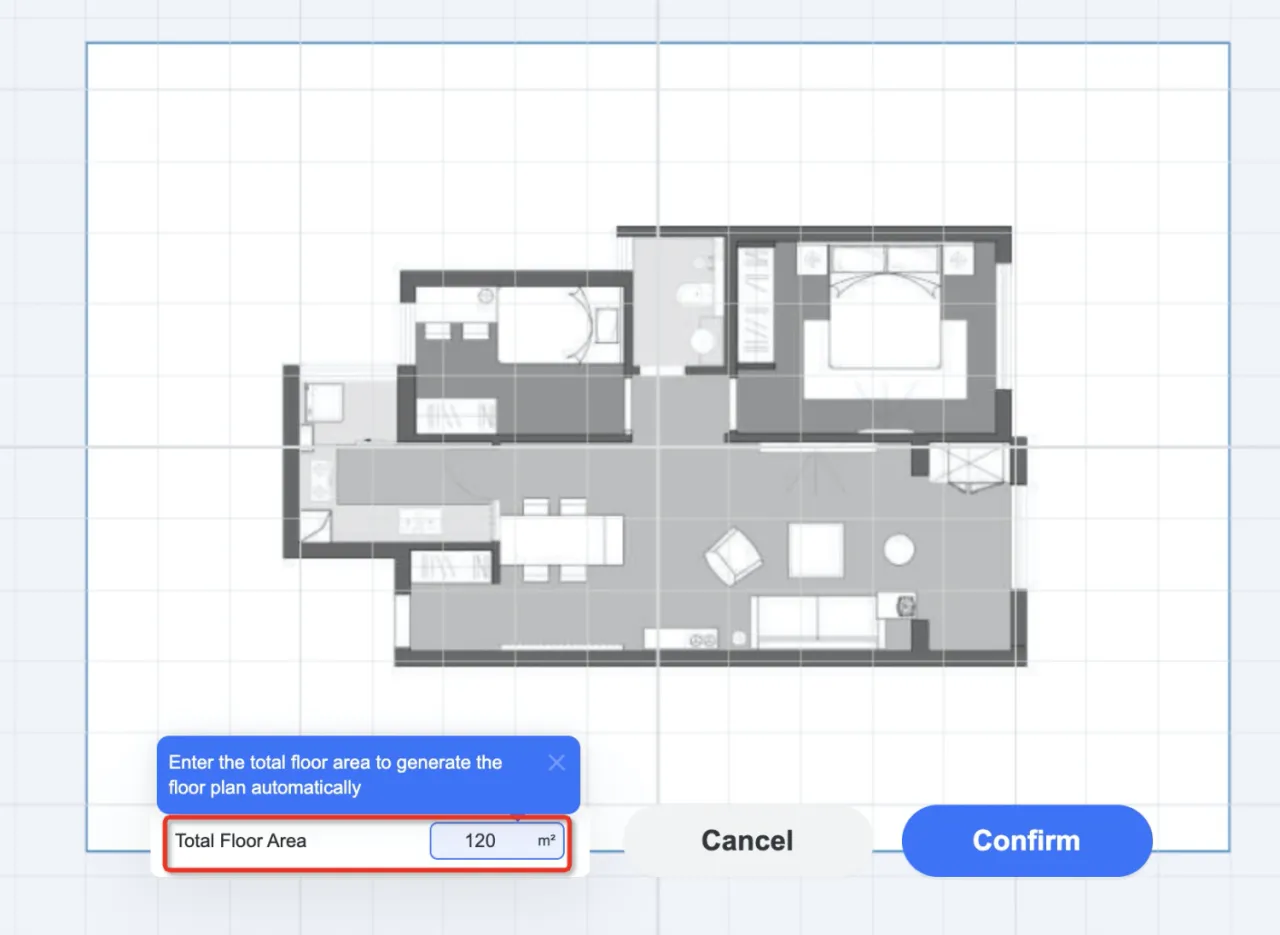
4. After a few seconds, the room will be Auto Generated. And the system will also assign the room type for each room. (If you want to change the room type, you can select the room in 2D plane view and then change the room type in the right property panel.)
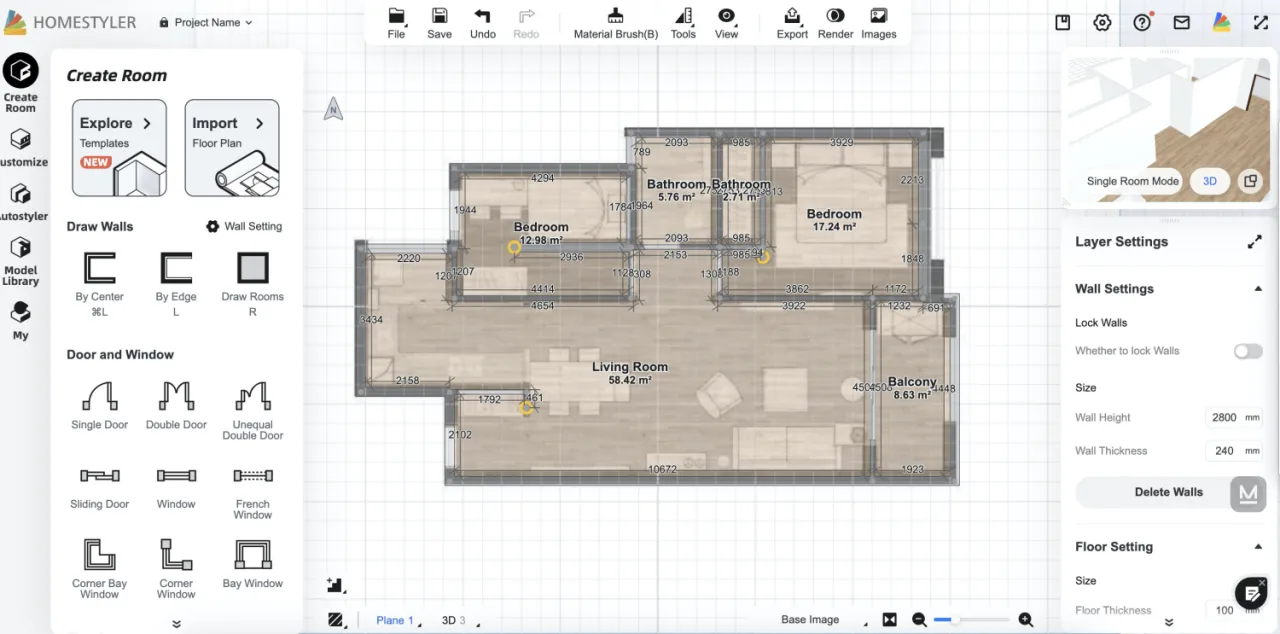
* If the auto-generated room has some deviation from your expected room size, you can select the wall in 2D view and adjust the wall size appropriately by directly dragging or typing in the precise length value.