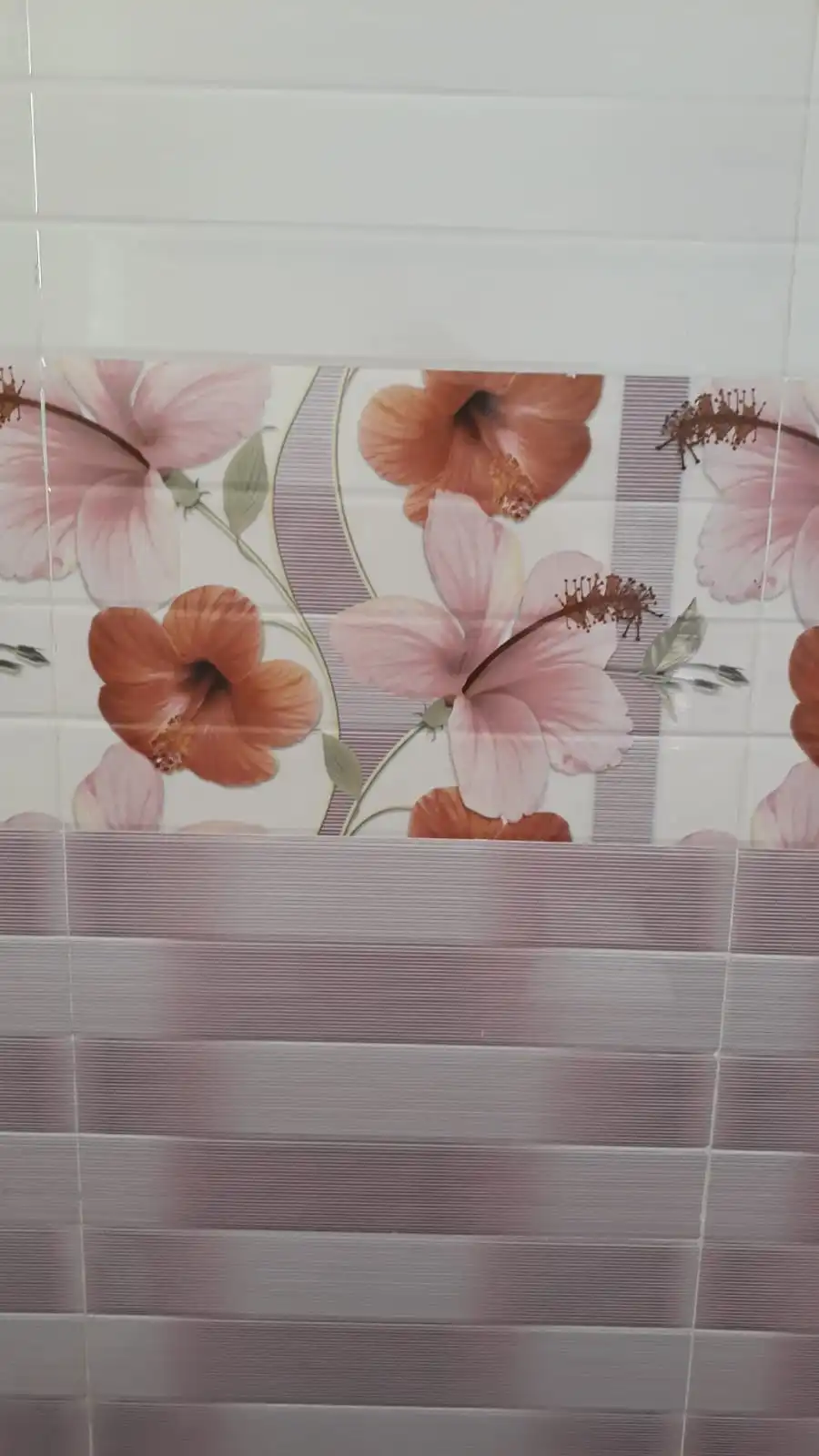
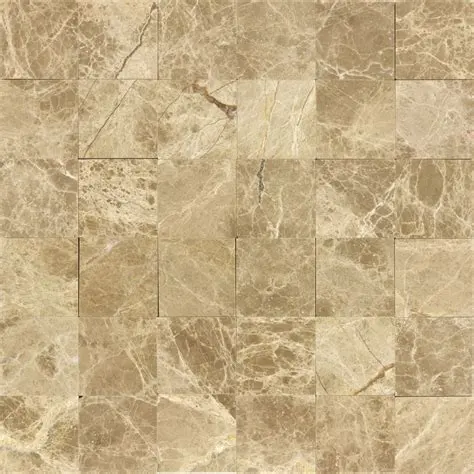
Thanks for making it work thanks to you
@ Grace Simmons
2/2......When you go back to design interface, choose your object, click on menu bar "replace materials'. On left side of screen find 'My' category, choose uploads> 'textures and images' Your image should appear, apply it as desired. This is a really old video, but same principle applies. https://www.youtube.com/watch?v=RkKx_Skforo
I did all this but it does not appear in the lists what is the solution
@ Grace Simmons
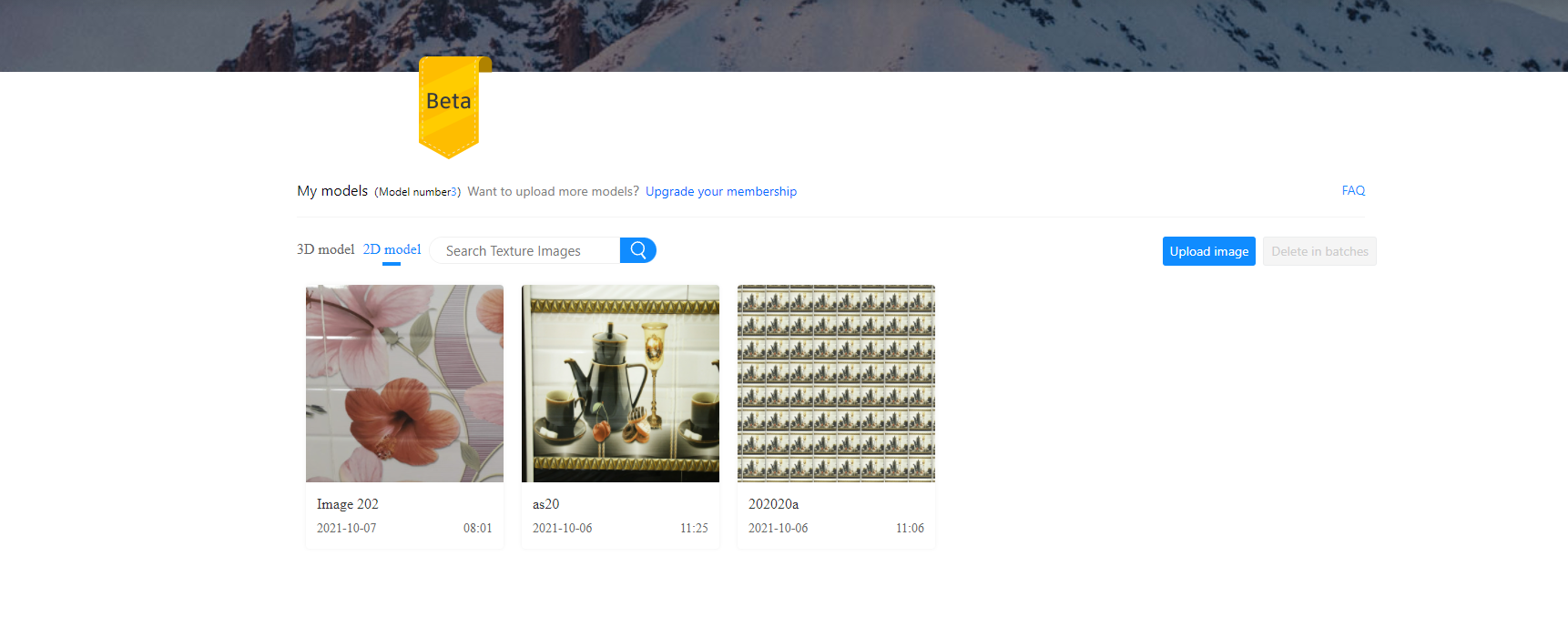
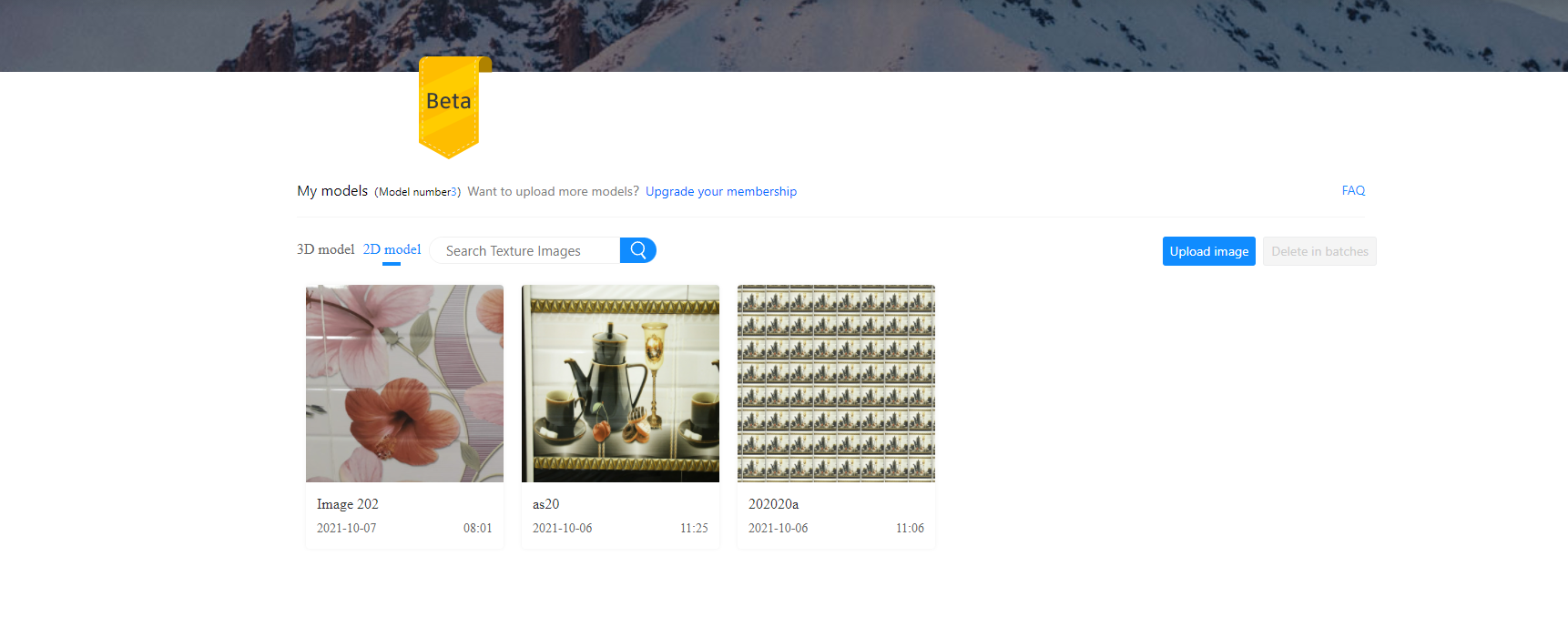
Download high quality jpeg to your computer (make note of the size: 1920x1080 etc) Go to 'my models' page >click '2D model' > upload image' > choose tile if it's a stone/brick/mosaic pattern...choose 'texture' if its a jpeg', find your image on your computer > click image, choose open. Choose 'edit'> category--choose appropriate one: I use either wallpaper or custom map (for art work) > type the name, measurements of the jpeg: 1920x1080....1000x1000....etc Then click "OK".
2/2......When you go back to design interface, choose your object, click on menu bar "replace materials'. On left side of screen find 'My' category, choose uploads> 'textures and images' Your image should appear, apply it as desired. This is a really old video, but same principle applies. https://www.youtube.com/watch?v=RkKx_Skforo
Download high quality jpeg to your computer (make note of the size: 1920x1080 etc) Go to 'my models' page >click '2D model' > upload image' > choose tile if it's a stone/brick/mosaic pattern...choose 'texture' if its a jpeg', find your image on your computer > click image, choose open. Choose 'edit'> category--choose appropriate one: I use either wallpaper or custom map (for art work) > type the name, measurements of the jpeg: 1920x1080....1000x1000....etc Then click "OK".