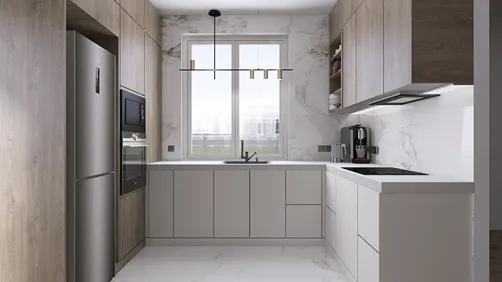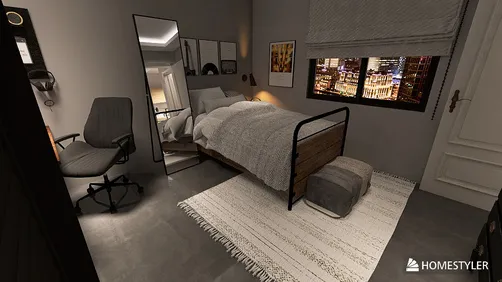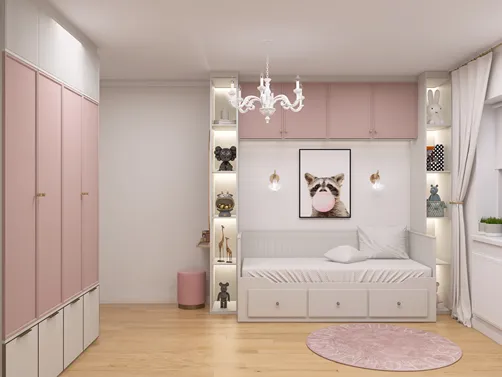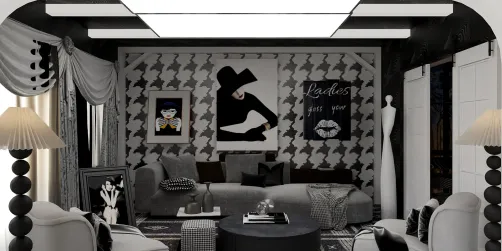
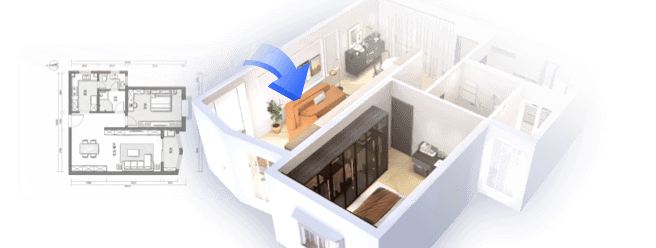
The evolving "state of play" in technology has transformed how we interact with our living spaces, blending digital innovation seamlessly into home environments. As gadgets become central to daily routines, thoughtful spatial design now emphasizes integrating smart devices with comfortable furniture, creating versatile zones for work, relaxation, and entertainment within the home. Leveraging tools like Homestyler can significantly enhance this process by allowing users to visualize and plan these dynamic environments effectively.
Direct Answer
Reshaping 3D models in Paint 3D can be accomplished by selecting the object, activating the 3D editing handles, and adjusting its scale, rotation, or depth through the built-in controls. For more intricate modifications, tools such as Magic Select, 3D Doodle, and object grouping enable partial reconstruction or alteration of specific sections of the model.
Although Paint 3D is not as comprehensive as professional suites like Blender, it provides a surprisingly effective solution for straightforward reshaping, resizing, and remixing of existing 3D objects.
Quick Takeaways
Introduction
Through my experience with both advanced modeling software and rapid concept tools, I've observed that many users underestimate Paint 3D's capabilities. Despite not being a full-featured 3D modeling platform, it excels at quick adjustments and reshaping simple models.
A frequent question from newcomers is how to modify 3D models in Paint 3D without reconstructing them from the ground up. The interface conceals a variety of transformation tools that enable stretching, compressing, rotating, and partial geometric rebuilding.
This guide walks you through effective methods I often recommend for rapid model reshaping in Paint 3D.
Why Paint 3D Handles Shape Editing Differently
Key Insight: Paint 3D primarily reshapes models by applying object transformations rather than direct vertex manipulation.
Unlike advanced modeling programs, Paint 3D does not allow editing vertices, edges, or polygons directly. Models are treated more as whole objects, so reshaping involves scaling, stretching, rotating, or combining shapes.
While this simplifies the user interface, it limits the capacity to modify complex meshes thoroughly.
Common available transformations include scaling, rotating, and stretching.
From my work with beginners, recognizing this limitation early helps avoid frustration. Viewing Paint 3D as a shape manipulation tool rather than a full modeling suite makes it remarkably useful.
How to Reshape a 3D Model Using the Built-In Handles
Key Insight: Most reshaping in Paint 3D is done via the bounding box handles surrounding the selected object.
Once a 3D model is selected, Paint 3D shows white control points that allow users to stretch or compress the shape.
Step-by-step, select the model, drag the handles to adjust dimensions, and reposition as needed.
For instance, stretching the vertical handle of a chair model can elongate the backrest without rebuilding the entire piece.
Can You Modify Individual Parts of a 3D Object?
Key Insight: Direct editing of mesh vertices isn’t available, but section modification can be emulated through separation and reconstruction.
Many tutorials miss this point. Paint 3D lacks vertex-level editing but allows model parts to be modified by isolating areas and rebuilding them creatively.
This "cut and rebuild" approach has proven effective in numerous concept interior designs I've developed with clients, especially when paired with visualization platforms like Homestyler.
Using 3D Doodle to Reshape Geometry
Key Insight: The 3D Doodle feature lets users redraw geometry directly onto the 3D model surface.
Often overlooked, 3D Doodle allows drawing new geometry that automatically converts into 3D objects within the scene.
It offers two modes tailored to different drawing needs.
This tool is particularly useful when conceptualizing missing features, such as in furniture models, where 3D Doodle can sketch components instead of importing separate objects.
Common Mistakes When Reshaping Models in Paint 3D
Key Insight: The primary challenge lies not in the tool itself but in starting with unsuitable models.
From many beginner sessions, three recurring errors emerge.
Paint 3D performs best with low-poly models and simple primitives, as also recommended in tools like Homestyler for initial layouts.
Complicated imports from platforms like Sketchfab or CAD files complicate the reshaping process considerably.
Answer Box
The simplest method to reshape a model in Paint 3D is selecting it and adjusting bounding box handles to scale, stretch, or rotate. For more complex alterations, combining shapes or redrawing parts utilizing the 3D Doodle function is advisable.
When Should You Use Another Tool Instead?
Key Insight: While Paint 3D suits fast tweaks, intensive reshaping demands professional modeling software.
If vertex editing, surface sculpting, or precision manipulations are necessary, dedicated programs offer better capabilities.
Typical scenarios where Paint 3D remains effective include rapid prototyping and simple concept iterations, often serving as a complementary step before refining designs in more advanced tools or platforms like Homestyler.
For projects requiring detailed precision, software such as Blender or Fusion 360 provides vastly superior control.
Final Summary
FAQ
Q: Can Paint 3D reshape models? A: Yes, by using scale, stretch, rotation, and grouping tools.
Q: How to stretch a model? A: Select it and drag the bounding box handles along the desired axis.
Q: Can vertices be directly edited? A: No, Paint 3D lacks vertex or polygon editing capabilities.
Q: What is the easiest reshaping method? A: Utilizing transformation handles that appear when selecting objects.
Q: Can meshes be cut directly? A: No, but sections can be isolated with Magic Select and reconstructed.
Q: Is Paint 3D beginner-friendly? A: Yes, its streamlined interface facilitates understanding fundamental 3D manipulations without complex controls.
Q: What issues arise with uneven scaling? A: It can distort proportions and stretch geometry in undesirable ways.
Q: Which models reshape more reliably? A: Low-poly and simple primitive models handle modifications better than intricate imported meshes.
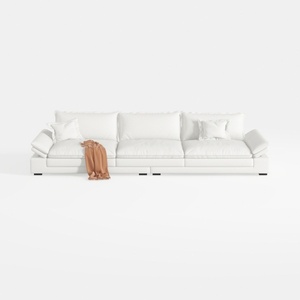

Minimalist White Leather Extra Large Sofa 3D Model
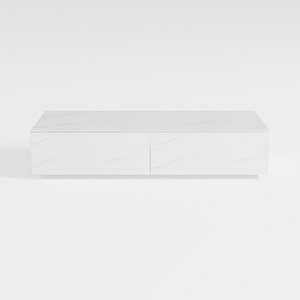
Modern Minimalist Faux Marble Coffee Table with Storage Drawers 3D Model

Minimalist White Marble Coffee Table Unique Sphere Legs 3D Model
Homestyler is an easy-to-use online home design platform offering powerful 3D rendering, extensive interior design projects, and helpful DIY video tutorials. It’s perfect for visualizing your ideas and creating beautiful spaces effortlessly. Give your home a fresh look with Homestyler!
Concevez maintenant gratuitement