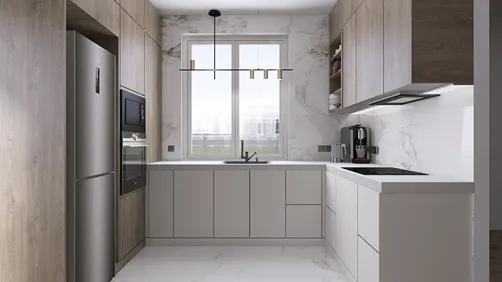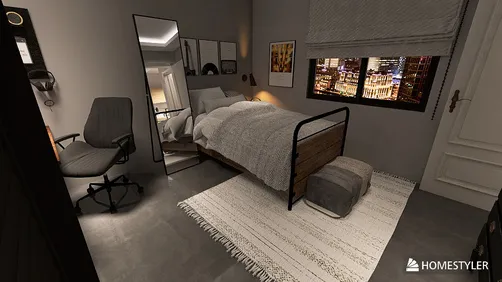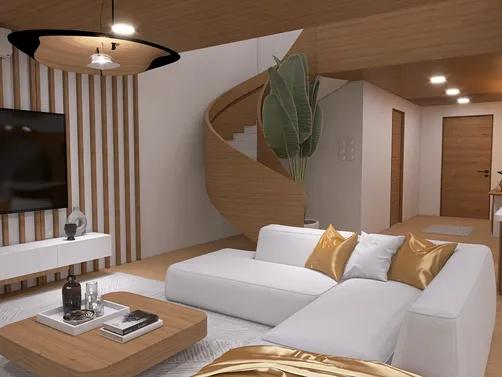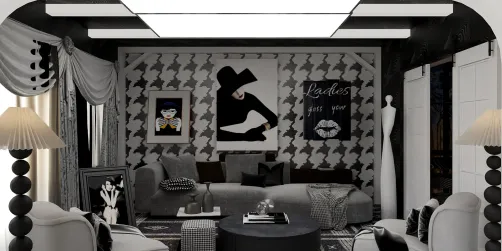
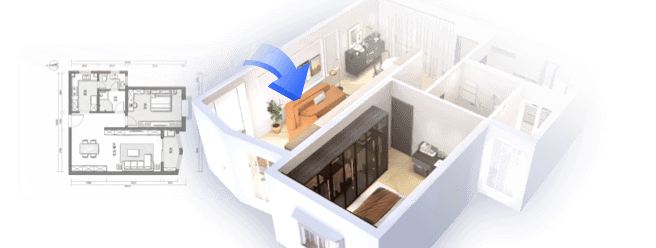
As new Xbox Game Pass games continue to expand the horizons of digital entertainment, many gamers are seeking comfortable and functional spaces that enhance their immersive experience. Creating a dedicated gaming nook with ergonomic seating and smart lighting can transform any room, blending technology seamlessly with home design to support extended play and relaxation. Using design tools like Homestyler makes it easy to visualize and arrange such spaces, ensuring an optimal gaming environment that complements your lifestyle.
Direct Answer
To link one model with another in 3ds Max, the most common tools are Attach, Link, and Align. Each serves a different purpose: Attach merges geometries into one mesh, Link establishes parent-child hierarchies without merging, and Align helps precisely position objects before connecting them. Skilled users often employ a combination of Align to set position and Attach to unify meshes into a workable single object.
Quick Takeaways
Introduction
In over ten years of experience working with architectural visualization and interior design pipelines, a frequent challenge for beginners in 3ds Max is how to connect one model to another correctly. While it may sound simple, improper methods risk losing pivot points, damaging UV maps, or complicating later modifications.
Whether assembling modular furniture, architectural components, or product models, mastering how to connect models properly in 3ds Max significantly speeds up rendering and animation workflows. This guide outlines the professional techniques applied in production scenes and explains when to use each method.
What Does Connecting Models Mean in 3ds Max?
Essential insight: In 3ds Max, 'connecting' often refers to three distinct operations—merging geometry, parenting objects hierarchically, or snapping models together for alignment. Each operation serves different production needs.
Many instructional materials tend to treat 'connecting' as a singular function, but in real-world workflows it represents different processes depending on the desired outcome.
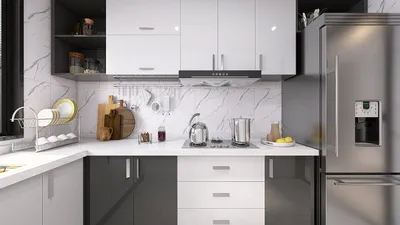
For example, when designing a modular kitchen cabinet system, initial alignment of modules is done first, followed by attaching those components intended to behave as a unified mesh to simplify UV mapping and further editing.
Understanding this separation is crucial because each connection method impacts:
How Do You Attach One Model to Another?
Core point: Using the Attach command in 3ds Max merges separate meshes into one editable poly, consolidating geometry into a single object.
This is the predominant technique for permanently joining models.
Step-by-step procedure: Select the base object, convert it to Editable Poly if not already, open the Modify panel, and use Attach to select and combine the other model.
After attachment, the models become a single mesh entity, facilitating unified editing.
Professional usage notes:
Common mistake among novices: attaching models prior to verifying pivot placement and scale. This complicates fixing transform issues afterward.
When Should You Use the Link Tool Instead?
Key takeaway: The Link tool establishes a hierarchical relationship without merging geometry, keeping models distinct but connected for coordinated movement.
This approach suits situations where objects must remain editable separately while moving cohesively.
Typical scenarios involve linking doors to frames or furniture components that require independent modification.
How to link objects: select the child model, then drag the link icon onto the parent model.
After linking, moving the parent automatically moves the child object as well.
In extensive interior scenes, linking rather than attaching is preferred to preserve flexibility during client changes or iterative design revisions.
Why Proper Alignment Matters Before Connecting Models
Insight: Most geometry issues arise from connecting models before achieving proper alignment and resetting transforms.
A tried-and-true workflow rule is to align models first before any joining operation.
Experts typically rely on Align tools and vertex snapping to guarantee precise positioning.
Recommended process: align models, reset transforms, then attach or link depending on the desired outcome.
This sequence avoids broken normals, overlapping polygons, and visual artifacts when rendering.
Common Hidden Problems When Connecting 3D Models
Key observation: Problems frequently occur due to incorrect pivot points, inconsistent scale settings, and non-uniform topology.
Such issues appear mostly in real production environments rather than beginner tutorials.
1. Incorrect pivot alignment causes odd rotation behavior.
2. Discrepant scales from imported files create inconsistencies.
3. Flipped normals after attaching cause shading irregularities.
4. Overlapping surfaces induce z-fighting and rendering glitches.
Before attaching, verify pivot, scale, normals, and geometry to prevent these problems.
Answer Box
The simplest approach to connect models in 3ds Max involves using Attach to merge meshes or Select and Link to set up parenting relationships. Always align and reset transforms prior to connection to ensure clean, error-free geometry.
Final Summary
FAQ
How do I attach objects in 3ds Max?
Transform the base object into Editable Poly, open the Modify tab, initiate Attach, and select the other model to merge.
What distinguishes Attach from Link in 3ds Max?
Attach combines models into a single mesh, whereas Link maintains them as separate but connected for joint movement.
Can models be separated after attaching?
Yes, via Element selection mode and Detach function to divide previously attached geometry.
Why might objects misalign post-attachment?
This often results from not resetting pivots or transforms before joining models.
Is it advisable to attach models for rendering purposes?
Not necessarily; keeping objects separate can enhance scene organization and flexibility for edits.
What is the best method to align models in 3ds Max?
Utilizing the Align tool (Alt+A) in combination with vertex snapping produces accurate positioning before connecting models.
Does attaching models reduce scene file size?
Occasionally, fewer objects simplify the scene, though very large meshes might hinder editing performance.
Is attaching models a destructive process in 3ds Max?
It can be risky: attached models share a single mesh structure, limiting independent modifications afterwards.

Chinese Style Solid Wood Fabric Three Seat Sofa 3D Model
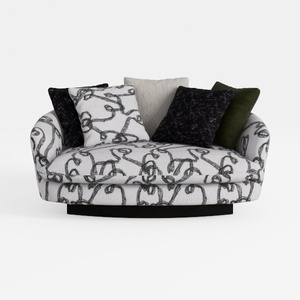
Abstract Pattern Fabric Upholstered Loveseat Sofa 3D Model
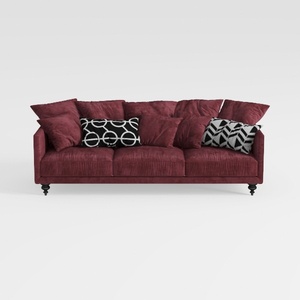

Burgundy Velvet Modern 3 Seater Sofa With Decorative Throw Pillows 3D Model
Homestyler offers an easy-to-use online design tool with stunning 3D renderings, a vast collection of interior projects, and helpful DIY video tutorials. It’s perfect for anyone looking to create and visualize beautiful home designs effortlessly.
Design Now for FREE