The evolving "state of play" in technology has transformed how we interact with our living spaces, blending digital innovation seamlessly into home environments. As gadgets become central to daily routines, thoughtful spatial design now emphasizes integrating smart devices with comfortable furniture, creating versatile zones for work, relaxation, and entertainment within the home.
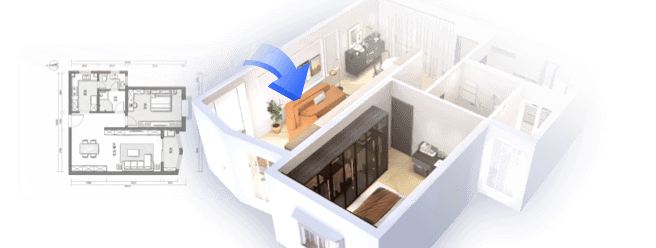
Several years ago, I confidently downloaded an elegant designer sofa model for a client presentation. However, upon importing, the piece appeared no larger than a coffee mug. This humbling experience taught me how delicate importing 3D furniture models can be. Since then, I have adopted the habit of testing models early by previewing them in a quick 3D floor layout within platforms like Homestyler, before committing to any client promises.
Compact living spaces challenge us to be more inventive with furniture arrangement, but this creativity hinges on dependable 3D assets. When a model fails to import properly, loses its textures, or is incorrectly scaled, the entire design workflow can suffer setbacks. In this article, I’ll outline five common problems encountered during real-world projects and share practical solutions that have repeatedly proved effective.
Why 3D Furniture Models Often Fail to Import Properly
A surprisingly simple reason behind 3D furniture models not importing correctly is improper file export. I have encountered models where the geometry remains intact, yet hidden layers or unsupported elements cause the software to reject the file altogether.
Overly complex geometry is another frequent culprit. Certain models are created for cinematic visualization rather than interior layout applications. In these instances, simplifying the mesh or re-exporting the model from programs like Blender or SketchUp generally resolves the issue.
File Format Compatibility Challenges in Floor Plan Software
Different floor planning applications support specific file formats—OBJ, FBX, SKP, or occasionally GLTF. Early in my career, I mistakenly believed "3D model" implied universal compatibility; that’s rarely the case.
Nowadays, I always verify supported file types before importing. If an import fails, I promptly convert the asset and test it within a simple interior layout platform such as Homestyler. This brief step can save hours of troubleshooting later.
Resolving Missing Textures and Materials Issues
Have you ever imported a beautiful wooden dining table only to see a gray block instead? That’s a classic case of missing textures, usually caused by texture files not being bundled correctly with the model.
My go-to solution is to place texture files in the same directory as the model before import. Sometimes I need to manually relink materials after importing. While not glamorous, this approach instantly restores realism.
Addressing Scaling and Dimension Problems Post-Import
The miniature sofa dilemma I mentioned earlier typically stems from unit mismatches. For example, one program might export in centimeters while another expects meters, resulting in furniture that appears dollhouse-sized.
Before importing, I always verify unit settings in both software packages. If something looks off, I immediately adjust the scale and confirm proportions by placing the model next to standard reference objects like a 90 cm table.
Best Practices to Prevent Import Errors
Over time, I have developed a simple routine whenever I download furniture models: check file formats, confirm unit measurements, organize textures properly, and conduct quick import tests before integrating assets into final scenes, especially when using tools like Homestyler.
I also recommend a preliminary render test in a straightforward interior visualization setup. If the furniture appears correct there, it generally behaves appropriately in the full project. This small precaution prevents awkward issues such as floating sofas during client presentations.
Frequently Asked Questions
1. Why won’t my 3D furniture model import into floor plan software?
Most import failures arise from unsupported file formats or corrupted exports. Converting the model to OBJ or FBX often remedies the issue.
2. How can I fix missing textures in 3D furniture models?
Ensure all texture image files are located in the same folder as the model before importing. If textures still don’t appear, manually relink materials inside the editor.
3. Why does imported furniture look disproportionately small or large?
This usually occurs due to unit mismatches between programs. Verify if the model was exported in meters, centimeters, or inches and adjust scaling as needed.
4. Which file formats are best suited for importing furniture models?
OBJ and FBX formats are widely compatible across most floor plan software and tend to better preserve geometry and materials than other options.
5. Can high-polygon models cause import issues?
Yes, very dense geometry can overload design tools. Simplifying meshes or reducing polygon counts typically resolves performance and import difficulties.
6. Why do materials sometimes appear different after importing?
Different rendering engines interpret lighting and shaders uniquely. You may need to fine-tune parameters such as roughness, reflections, or colors after import.
7. What’s the best way to test a downloaded 3D furniture model safely?
Importing it into a small test scene first allows you to check scale, textures, and performance before deploying it in a full design project, especially using platforms like Homestyler.
8. Are there any standards to improve 3D model compatibility?
Yes, organizations like the Khronos Group promote standards such as the glTF format, which facilitates efficient 3D asset sharing and enhances compatibility across platforms.

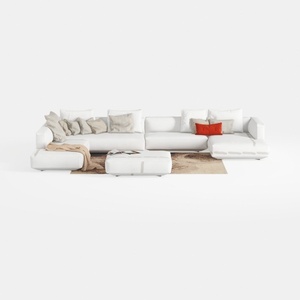
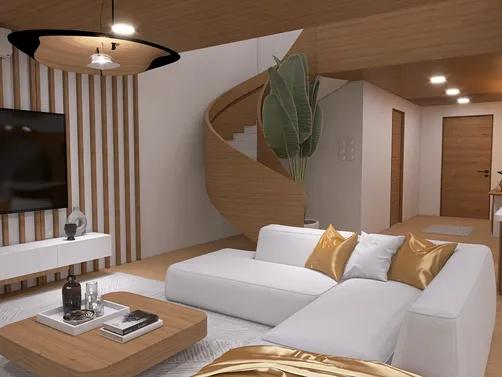
Minimalist White Fabric L Shaped Sectional Sofa with Ottoman 3D Model


Minimalist Cream Fabric Modular Sectional Sofa 3D Model
Homestyler offers an easy-to-use online design tool with stunning 3D renderings, a vast collection of interior projects, and helpful DIY video tutorials—ideal for anyone looking to create and visualize their perfect home space effortlessly.
Concevez maintenant gratuitement