


To transform a 3D model into a 2D drawing within Creo 4.0, begin by opening your finalized 3D model, whether it’s a part or an assembly file. Next, navigate to ‘File’ > ‘New’ and select ‘Drawing’ from the available options. You will be prompted to link your drawing to the existing 3D model; select your model and continue. In the drawing workspace, utilize the ‘General View’ feature to place a standard or customized orthographic projection of your model onto the sheet. You can further enhance your drawing by adding additional perspectives, such as section, detail, or auxiliary views, along with dimensions and annotations as necessary. By exporting your drawing to widely used formats like PDF or DWG, sharing your 2D representation becomes seamless.
Tips for Transitioning from 3D to 2D:
As a designer, I’ve recognized that moving from a 3D representation to a 2D plan is more than just a technical task—it serves as the link between ideation and implementation. Effectively arranging your design in a 2D format often reveals constraints or possibilities that can influence your subsequent 3D revisions. For intricate layouts or when enhancing floor plans, utilizing tools like Homestyler’s 2D Floor Planner can significantly simplify visualization, especially when collaborating with various stakeholders or clients who require clear and actionable drawings.
Frequently Asked Questions
Q: Is it feasible to create multiple 2D views from a single 3D model in Creo 4.0?
A: Yes, you can produce several views, including front, side, isometric, and more, from one model through the drawing module.
Q: Can I export the 2D drawing to formats like DXF or DWG?
A: Certainly! Creo 4.0 permits the export of drawings in these formats for sharing or additional editing.
Q: How can I update my 2D drawing if the 3D model undergoes changes?
A: The drawings maintain an associative link; modifications in your 3D model will automatically reflect in the linked 2D drawing after regeneration.
Q: Is it possible to incorporate dimensions and annotations into my 2D drawing in Creo?
A: Yes, you can effortlessly add dimensions and annotations to your drawing utilizing Creo’s drafting tools.
Q: What is the recommended sheet size or orientation in Creo for architectural designs?
A: The sheet size and orientation should cater to your project requirements—typically, A3 in landscape format is used for architectural plans, but customization is always an option based on your specific needs.
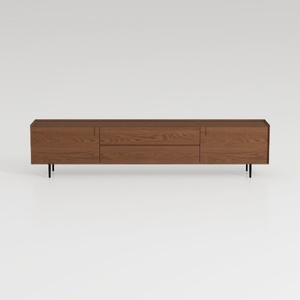

Modern Minimalist Walnut Solid Wood TV Stand with Drawers 3D Model

Neos Modern Furniture Dining Chair, Taupe
Garden Patio Furniture 7-Piece PE Vine Cut
Homestyler is your go-to online home design platform! Effortlessly create stunning designs with its user-friendly design tool, explore endless 3D renderings, and gain inspiration from a wealth of design projects and video tutorials. Transform your space today with Homestyler!
立即免费设计
































