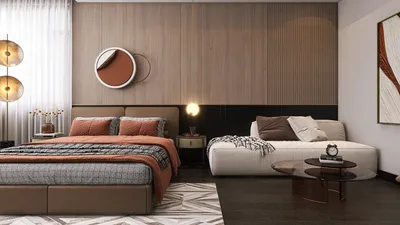


Transforming a logo into a 3D model using Blender offers an exciting range of possibilities for animation, branding, and presenting interior designs. This method allows designers to incorporate brand elements smoothly into visual representations, providing presentations with greater depth. Below is a detailed guide on how to convert a two-dimensional logo into a intricate 3D model utilizing Blender.
Step 1: Prepare Your Logo File
Begin by obtaining a high-resolution, monochrome version of your logo, ideally in a vector format such as SVG. Vector graphics maintain sharp edges, which are crucial for generating clean 3D geometries.
Step 2: Import the SVG Logo into Blender
1. Launch Blender and create a new project.
2. Navigate to File > Import > Scalable Vector Graphics (.svg).
3. Find and import the logo file you've prepared.
After importing, the logo will display as a curve object in the 3D viewport, which may appear quite small. Use the S key to scale it to your desired size.
Step 3: Convert Curves to Mesh
To facilitate further 3D modifications, it’s necessary to convert the curve into a mesh:
1. Select the logo that you just imported.
2. Press Alt + C or go to Object > Convert To > Mesh from Curve/Meta/Surf/Text.
Step 4: Extrude for 3D Depth
Once the logo has been converted to a mesh, switch to Edit Mode by pressing the Tab key. Use the A key to select all vertices.
Next, utilize the Extrude tool by pressing the E key and dragging along the vertical axis (commonly the Z axis) to give thickness to your 2D logo, forming a solid 3D representation.
Step 5: Refine the Model
In Edit Mode, refine the model using tools such as Edge Split, Bevel, and Smooth Shading to enhance edges, corners, and surfaces for a professional finish. Apply the appropriate materials, colors, or textures to ensure accurate branding representation.
Step 6: Render and Export
Arrange your camera, adjust the lighting, and set your background before rendering your scene with either the Cycles or Eevee engine. If you plan to utilize the model in other projects or interior design tasks, export it in FBX, OBJ, or GLB formats.
For interior designers, embedding branded elements creates immersive presentations for clients; envision placing your completed 3D logo on walls, signage, or within digital walkthroughs. To elevate realism across extensive projects, consider incorporating advanced 3D rendering software such as Homestyler for enhanced visual presentations.
Tips 1:
Before importing your logo into Blender, ensure all logo paths are clean and closed. If you're looking to visualize how branded graphics, signage, or bespoke art will appear in either real or virtual spaces, utilizing a 3D rendering solution like Homestyler can provide valuable clarity and design certainty.
FAQ
Q: Is it possible to use a PNG or JPG logo instead of SVG in Blender?
A: While you can utilize PNG or JPG images as reference, for effective 3D extrusion, it's necessary to convert raster images into vector format (SVG). Tools like Adobe Illustrator or Inkscape can assist with this conversion.
Q: How can I address messy geometry after importing my SVG into Blender?
A: In Edit Mode, you can remove doubles by merging vertices that are too close together and recalibrating normals to fix potential issues. You may need to manually adjust vertices, especially for logos with intricate designs.
Q: What could cause my 3D logo to have gaps or missing surfaces?
A: This typically occurs from open or overlapping paths in your original vector file. To resolve this, ensure you clean your SVG in a vector editing tool prior to import, guaranteeing that all paths are both closed and non-overlapping.
Q: Is it feasible to animate my 3D logo in Blender?
A: Yes, you can create animations for your logo by keyframing transformations, applying different modifiers, or even animating materials to bring dynamic branding elements to life within your scenes.
Q: What is the most suitable file format to export my 3D logo for integration with other design applications?
A: The preferred formats for exporting include OBJ, FBX, and GLB, depending on the software you're transferring to. Each format offers unique advantages—GLB is optimal for web applications, FBX is widely supported across numerous 3D platforms, and OBJ provides general compatibility.
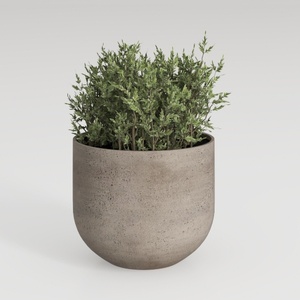
Minimalist Concrete Planter Pot with Indoor Greenery 3D Model

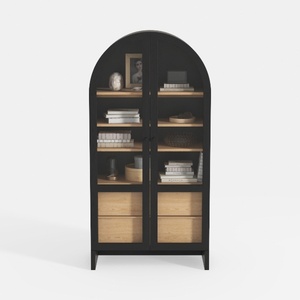
Wood Bookshelf with Adjustable Shelves, 72" Tall
Homestyler is your go-to online home design platform, offering a user-friendly design tool and stunning 3D renderings. Dive into inspiring design projects and learn through engaging DIY video tutorials. Transform your living space with ease, no matter your experience level!
Design Now for FREE
































