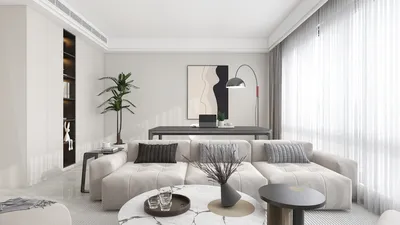


Transform your artistic creations from ordinary to extraordinary by utilizing the capabilities of 3D modeling images through Photoshop. This process merges the robust features of 3D design with the flexibility of digital painting, allowing you to produce visually stunning effects. This article will guide you step-by-step on how to bring 3D models to life in Photoshop, with the help of tools like Homestyler.
Understanding Your 3D Model
Before diving into painting, it’s crucial to fully comprehend the structure and details of your 3D model. Take some time to analyze the shapes, textures, and surfaces. What materials are showcased in the model? Where is the light source located? Grasping these details will steer your painting style and lay the foundation for creating realistic and captivating artworks. This foundational knowledge is key to enhancing your work with the precision found in applications like Homestyler.
Once you are familiar with your model, the next step is to open it in Photoshop. Ensure the canvas size corresponds with the dimensions of your model. This will provide the ideal environment for your creative elements.
Preparing Your Workspace
Creating a comfortable workspace is vital for creativity. Navigate to the 'Window' menu to enable the essential panels such as layers, brushes, and color palettes. Make sure to select your 3D model layer in the layers panel for optimal editing.
Use the brush tool and select a soft brush to begin applying your base colors. Layer the colors to create depth, considering how different areas appear under various lighting conditions.
Utilizing Textures and Brushes
To enhance realism, consider applying texture overlays. You can find a variety of textures online or create your own. Set the texture layer to 'Overlay' or 'Multiply' blending mode for a natural effect. Remember to use a low opacity brush to build the texture in layers.
Additionally, custom brushes can mimic details like hair, wood grain, or fabric. By combining these different options, you can further elevate the painting effect of your 3D model.
Refining Details and Final Touches
After applying base colors and textures, it's time to refine your painting. Zoom in to examine details, observing highlights, shadows, and any small elements that can breathe life into your model. The smudge tool is helpful for softening edges and smoothly blending colors.
Finally, don’t forget to add a background that complements your 3D model and enhances the overall composition. You can use gradient fills or textured patterns to create a more dynamic effect.
Frequently Asked Questions
Q: Can I use 3D models from other software in Photoshop? A: Yes! Photoshop supports multiple 3D file formats, making it easy to import models seamlessly.
Q: What’s the best brush for painting 3D models? A: Custom texture brushes work well for adding detail, while soft round brushes are excellent for base layers and blending.

Palace Imports Solid Wood Bookcase - 6-Tier

Modern Dark Green Velvet Tufted L-shaped Sectional Sofa 3D Model
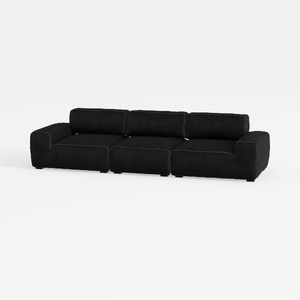

Minimalist Black Fabric Modular Sofa 3D Model
Discover your design potential with Homestyler! This user-friendly platform offers a fantastic online design tool, stunning 3D renderings, and a plethora of design projects. Plus, you can learn and get inspired with engaging DIY video tutorials. Start creating your dream space today!
Concevez maintenant gratuitement
































