


If you're curious about how to transform a 2D image into a 3D model using Photoshop, you're certainly not alone. Many designers are on the lookout for creative strategies to animate their two-dimensional concepts, and leveraging Photoshop can significantly enhance this process. Let’s explore the steps necessary to obtain remarkable 3D effects!
Grasping the Fundamentals of 3D Modeling in Photoshop
Photoshop equips artists with distinctive tools for 3D modeling that can elevate your digital artwork to new heights. To start, select a standard image that you aim to convert into a 3D form, ensuring it features clear shapes and vibrant colors to facilitate the modeling phase.
Once you've chosen your image, take a moment to explore the 3D panel within Photoshop. This is where most of the transformative processes occur, as it houses the tools and features necessary for shaping and personalizing your 3D model.
Step-by-Step Instructions for Transforming a 2D Image into a 3D Model
1. **Open Your Image in Photoshop**: Begin by launching Photoshop and loading the chosen image for conversion. It's advisable to use a high-resolution file to achieve optimal results.
2. **Create a 3D Object from the Image**: Go to the `3D` menu and select `New 3D Extrusion from Selected Layer`. This command generates a 3D extrusion based on the shapes identified in your image.
3. **Customize the Depth and Settings**: In the right panel, adjust the extrusion depth and explore various settings, including lighting and material characteristics. Tweaking these options can substantially impact your 3D model's visual appeal.
Enhancing Your 3D Model
After you've generated your 3D model, you may wish to refine it further. Utilize the tools in the 3D panel to rotate, scale, and position your model precisely. Incorporating textures and colors can significantly enhance the realism of your creation.
Play around with the `Lighting` settings to give your model added depth and authenticity. Don't forget to render your 3D model to assess how it appears with the applied effects.
Saving and Exporting Your 3D Model
Once you are pleased with your model, remember to save your project. To export, navigate to ‘3D’ and select ‘Export 3D Layer’. Opt for the format that best suits your requirements, whether for integration into other 3D applications or for rendering additional visuals in Photoshop.
Conclusion
Transforming a 2D image into a 3D model in Photoshop may initially appear challenging, but by following these instructions, you'll soon be capable of crafting impressive 3D visuals. Are there particular aspects of 3D modeling that you are eager to delve into more deeply? Don't hesitate to connect with your creative community for additional tips and inspiration!
FAQ
Q: Is it possible to create 3D models from any image? A: While theoretically you can utilize any image, for best results, opt for images that showcase clear shapes and colors to form a discernible 3D structure.
Q: Are there limitations on the number of layers I can use? A: Photoshop supports multiple layers, although maintaining a lower number of layers will facilitate more manageable control over your 3D model.
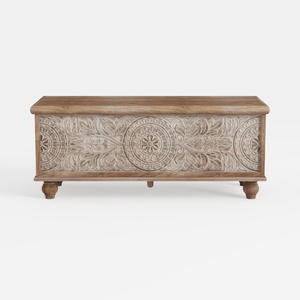
Vintage Carved Solid Wood Storage Bench 3D Model
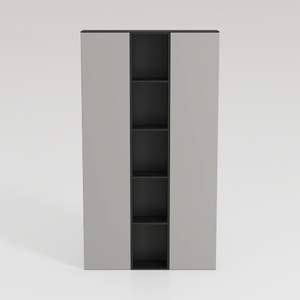
Minimalist Two Tone Open Shelf Storage Cabinet 3D Model
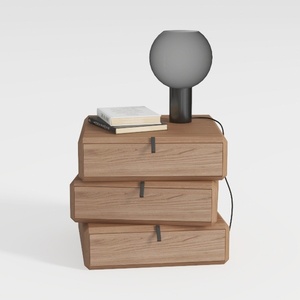

Minimalist Solid Oak Stacked Nightstand 3D Model
Discover the ease of home design with Homestyler! This online platform offers an intuitive design tool, stunning 3D renderings, and numerous design projects. Plus, with DIY video tutorials, you'll be inspired to create your dream space effortlessly—perfect for all skill levels!
Design Now for FREE
































