


Resizing 3D models in SolidWorks is a routine task, particularly for designers aiming to modify the dimensions of components, prototypes, or imported shapes. SolidWorks provides a "Scale" feature that allows scaling of entire bodies, parts, or imported geometry efficiently, whether they are solid or surface bodies. To initiate the scaling process, begin by opening your part file and navigate to the Scale tool located under Insert > Features > Scale. In this menu, you can select a scaling factor, determine if the scaling should be uniform or directional, and identify the specific bodies you want to resize. It’s essential to keep in mind the impact on reference geometry and constraints during the scaling process, as sketches and feature relationships may require reevaluation afterwards.
As a designer, I often realize that properly scaling models is merely the beginning of crafting a coherent and functional space. For instance, when planning interior designs, converting a scaled 3D object into a tangible real-world setting demands careful space planning and visualization. Utilizing robust design applications like Homestyler becomes invaluable; it aids not only in visualizing scaled objects within a designated environment but also in ensuring precision when organizing furnishings and architectural components. This comprehensive strategy guarantees that your scaled models seamlessly integrate into the intended space, both digitally and in reality.
Tip 1:
Following the application of the scale feature, it is crucial to verify critical dimensions and relations within your model. If your design contains complex features or interconnected components, utilize the Evaluate tab to measure and confirm accuracy. Additionally, when handling multi-body parts, each body can be independently scaled for more refined adjustments. Clear communication of scale modifications is essential in collaborative projects to minimize confusion among team members or manufacturers.
FAQ
Q: Can SolidWorks directly scale assemblies?
A: No, SolidWorks does not support direct scaling of entire assemblies; each component must be scaled separately before being assembled.
Q: What occurs to hole sizes and patterns during scaling in SolidWorks?
A: All geometrical aspects, including holes and patterns, are proportionately scaled. Adjustments may be necessary after scaling if specific dimensional requirements are critical.
Q: Can only selected features be scaled, without altering the entire part?
A: No, the scaling feature is applicable to bodies only, not individual features. However, you can create a new body from features and then scale that body.
Q: Will constraints and mates remain functional after scaling a part used in an assembly?
A: Constraints and mates may become invalid or misaligned post-scaling, so it is important to review and adjust them as needed.
Q: Is it possible to scale imported non-native SolidWorks files?
A: Yes, once imported, you can utilize the scale feature to modify sizes as required. However, be cautious of potential loss of parametric definitions in these imported files.
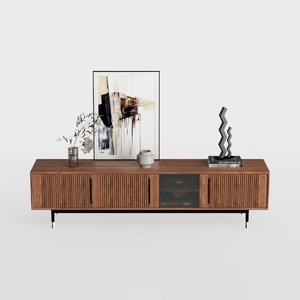

Modern Minimalist Walnut Fluted Door TV Cabinet 3D Model

Minimalist Travertine Top Solid Wood Round Coffee Table 3D Model
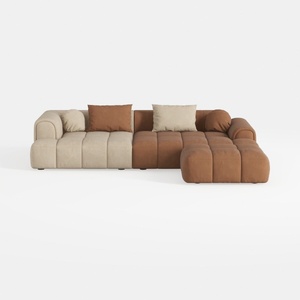
Modern Velvet Sectional Sofa, U Shape Minimalist M
Homestyler is an outstanding online home design platform ideal for both novice and experienced users. With its easy-to-use design tool, stunning 3D rendering, diverse design projects, and helpful video tutorials, transforming your creative ideas into reality has never been simpler. Start your design journey today!
Дизайн сейчас бесплатно
































