


Uploading 3D models to a Cloud Storage Platform (CSP) can greatly improve accessibility and collaboration on your projects. If you're working in interior design or any form of 3D modeling, it's vital to ensure that your assets are easily shareable. In this detailed guide, we will take you through the step-by-step process to optimize your workflow, incorporating tools like Homestyler to streamline your design experience.
Step 1: Select Your 3D Model Format
Firstly, ensuring that your 3D models are saved in the appropriate format is crucial. Commonly accepted formats by most CSPs include .OBJ, .FBX, and .STL. Always check the specific guidelines of the Cloud Storage Platform you’re utilizing to confirm which file types are permitted to prevent any complications during the upload.
Step 2: Access Your CSP Account
When you're ready to upload, the next step involves logging into your Cloud Storage Platform account. Usually, these platforms offer intuitive interfaces that make uploading a breeze. If you haven't created an account yet, you'll need to do so to access their services.
Step 3: Locate the Upload Section
Once logged in, look for the 'Upload' button, which is generally found on the main dashboard or within the folder designated for your 3D models. Click this button to begin the upload process seamlessly.
Step 4: Choose Your 3D Model Files
A dialog box will appear for file selection, allowing you to pick the 3D model files from your device. Navigate through your directories to find the necessary files such as .OBJ or .FBX. Once you’ve made your selection, click 'Open' to confirm your choice.
Step 5: Confirm Your Upload
Once you've chosen your files, the upload process should start automatically. You will often see a visual status bar to track the progress. Please be patient, as the upload time may vary depending on the file size and your internet connection speed.
Step 6: Organize Your Models Effectively
After successfully uploading your models, it’s wise to organize them for optimal management. Many CSPs allow you to create subfolders, rename files, and add tags, which simplifies the retrieval and categorization of your assets later. Utilizing software like Homestyler can also assist in this organizational effort, enhancing your project management.
Step 7: Share and Collaborate Efficiently
Your upload is incomplete until you share your models! Make sure to set the appropriate permissions—whether public or restricted—to enable your collaborators to view or edit the uploaded models as needed. Homestyler can facilitate better collaboration by providing tools that allow team members to work together on designs seamlessly.
FAQ
Q: What formats are supported for upload to CSP? A: Most platforms accept file types like .OBJ, .FBX, and .STL. Always review the specific requirements of the CSP you are using.
Q: How can I share my 3D models post-upload? A: Typically, this can be managed through the sharing options provided by your CSP, allowing you to set user permissions accordingly.
Q: Is it possible to organize my 3D models after uploading? A: Yes, most CSPs enable you to create folders and manage your models for easier access and organization.


Minimalist Fabric Curved Sofa With Throw Pillow 3D Model
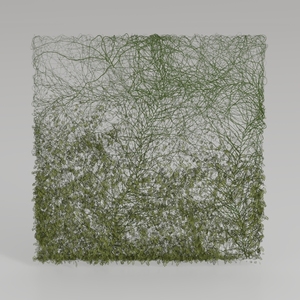
Natural Green Vine Wall Panel Decorative 3D Model
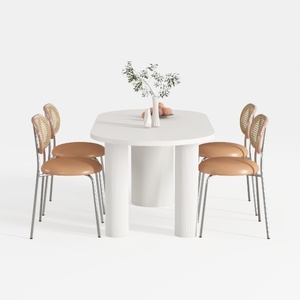
DUOMAY Modern Boucle Dining Chairs Set of 2,
Discover your dream home design with Homestyler! This user-friendly platform offers an easy-to-use online design tool, stunning 3D renderings, and a wealth of inspiring design projects and DIY video tutorials. Transform your vision into reality, no experience needed!
立即免费设计
































