


Having installed over a hundred displays in various home offices and creative spaces, the advantages are clear: neater surfaces, improved posture, and a more serene visual environment. By utilizing a wall-mounted monitor, you can optimize desk space for keyboard placement and paperwork while positioning your screen precisely where it's needed. Research from Steelcase indicates that variations in posture and screen alignment greatly influence fatigue and musculoskeletal strain, with monitor height and viewing distance being crucial factors for comfort and concentration (Steelcase Research). The WELL v2 standard also emphasizes visual ergonomics by suggesting a task illuminance of 300-500 lux and glare management to minimize eye discomfort, especially when the monitor's position changes on the wall mount (WELL v2).
Behavior studies conducted by Herman Miller reveal that minimizing both visual and physical clutter enhances cognitive efficiency and alleviates stress. An organized display setup fosters improved task transitioning and fewer distractions during the day (Herman Miller Research). I aim for a viewing distance of 20-30 inches (approximately an arm’s length) and align the top of the screen to be at or slightly below eye level, adhering to various ergonomic standards widely accepted in practice.
Prepare for the Mount: Assess Wall Type, Studs, and Weight Capacity
Before purchasing your mounting hardware, first verify the structure of your wall. For drywall over wooden studs, employ a stud finder to locate and mark the centerlines—never depend solely on drywall anchors for securing heavy monitors. In masonry scenarios, utilize suitable sleeve anchors or expansion bolts rated for the combined weight of the monitor and arm. A standard 27-inch screen typically weighs between 7-12 pounds (3-5.5 kg); include the arm (often weighing 3-8 pounds) and cables, along with a safety margin of 25-50%. Most trustworthy VESA arms provide static and dynamic load ratings; select equipment that surpasses your total weight and aligns with your monitor’s VESA pattern (commonly 75×75 or 100×100 mm).
Choosing the Right Mount: Fixed, Tilt, or Articulating
Select a mount that complements your working style. A fixed low-profile bracket is ideal for focused tasks in compact areas. Tilt mounts can help to decrease neck strain and minimize glare for higher screens. Articulating arms (whether single or dual) offer the most flexibility for sit-stand configurations, paired displays, and shared desks. Be sure to check the extension range, tilt, swivel, and rotation; I favor arms that include smooth friction adjustments and functional cable management. Verify that the VESA plate of the mount adequately supports your monitor without obstructing ports or vents.
Screen Positioning and Sightlines
Place the monitor so that the top bezel is positioned at or slightly below eye level and aligns with your dominant eye. Maintain a viewing distance of approximately 20-30 inches, making necessary adjustments for pixel density and font size. For dual-monitor setups, position the primary screen directly in front and angle the secondary monitor 15-30 degrees. If you’re reconsidering desk arrangement or seating layout, using a room layout tool can assist in visualizing clearances and lines of sight prior to any installation: room layout tool.
Installation Guide Step-by-Step
1) Identify studs and plan cable routes. Mark with a stud finder and painter’s tape. Consider cable drops and power access, aiming for a vertical path to either a grommet or raceway.
2) Level and pre-drill the mount. Position the bracket against the wall, ensure it’s level, and mark the holes. Pre-drill pilot holes suitable for your lag bolts or anchors.
3) Secure the wall plate. Insert lag bolts into the center of the stud; for masonry, fit rated anchors according to the manufacturer's torque specifications. Double-check for level alignment.
4) Attach the VESA plate to the monitor using the appropriate screw length (commonly M4); ensure not to over-tighten. If the plate provides spacers, refer to the monitor’s manual to avoid damaging the back panel.
5) Mount and secure. Connect the monitor plate to the wall mount and engage the safety tabs or set screws to lock it in place.
6) Adjust for ergonomic comfort. Set the height such that your neutral gaze aligns with the top third of the screen. Tilt it 5-10 degrees to help reduce glare. Refine the arm’s tension settings for smooth movement.
7) Organize cables. Route power and video cables along the arm’s channels, letting them drop vertically, and finish with a wall raceway for a polished appearance. Label the inputs and leave a small service loop to avoid straining the ports.
8) Test and fine-tune. After 15-20 minutes of use, check for wobble, glare, or discomfort in the neck or shoulders, and adjust minor angles and font scaling as necessary.
Essential Ergonomic Benchmarks to Achieve
- Eye level: Ensure that the top of the screen is set at or below eye height to minimize neck strain.
- Viewing distance: Maintain a distance of 20-30 inches; increase as needed for ultrawide or high-brightness screens.
- Screen tilt: A tilt of 5-10 degrees downward can reduce reflections and promote a neutral gaze.
- Center alignment: Position the main display aligned with your keyboard and chair to avoid excessive neck rotation beyond 30 degrees during prolonged tasks.
- Lighting: Aim for 300-500 lux on your workspace with glare controlled (WELL v2). Implement diffused task lights and use matte finishes to diminish reflections.
Managing Light, Glare, and Color Perception
Mounting monitors alters the angle between light sources and the display. I consistently measure ambient and task lighting to ensure it stays within the 300-500 lux range, utilizing blinds or baffles to prevent direct light from reaching the screen. Avoid positioning the monitor directly across from bright windows; lateral daylight with soft shades performs best. From a color psychology perspective, cooler color temperatures around 4000-5000K enhance alertness for analytical tasks, while warmer temperatures of 3000-3500K are better suited for evening use. Consistency in color temperature across all lighting fixtures and the monitor’s white point is crucial to minimize eye strain for content creators.
Effective Cable Management for Lasting Cleanliness
Employ low-profile wall raceways that match your wall color, velcro ties (not zip ties) for easy adjustments, and short HDMI/DisplayPort cables to minimize slack. A single power strip mounted under the desk with surge protection simplifies the routing process. Clearly label both ends of all cables. If running in-wall cables, adhere to local regulations and use plenum-rated wiring where necessary.
Selecting Materials and Finishes
Opt for mounts constructed with powder-coated steel or high-quality aluminum for durability. Matte black or textured finishes effectively conceal fingerprints and diminish glare. For settings prone to vibrations (like older buildings or areas near doorways), choose mounts made from thicker gauge steel with larger wall plates to evenly distribute the load.
Common Pitfalls to Avoid
- Relying solely on drywall for mounting heavy monitors—always ensure proper stud locations or use suitable masonry anchors.
- Mounting too high—this results in neck strain; adjust so the top bezel aligns with eye level.
- Neglecting cable management—ensure service loops are maintained and secure cables within the arm's channels.
- Overlooking glare sources—evaluate lighting at the intended monitor height and consider adding diffusers or relocating lamps.
- Miscalculating VESA spacing—use the correct spacer lengths to prevent stress on the monitor panel.
Evaluating Comfort During the Initial Week
Ergonomics tend to settle after several days. Monitor any instances of neck or shoulder discomfort, dry eyes, or headaches; make small adjustments to height, tilt, and viewing distance as needed. For those using sit-stand desks, mark the ideal monitor positions for both sitting and standing to facilitate quick adjustments.
Frequently Asked Questions
Q1: What height should I set for the monitor?
A1: Position the top of the screen at or just below eye level when seated, to maintain a neutral neck position and minimize strain. If using a sit-stand desk, establish two positions that correspond to this guideline.
Q2: What distance should the monitor be from my eyes?
A2: Aim for 20-30 inches, adjusting according to the monitor size and resolution. Larger ultrawide displays may require a slightly greater distance to view the entire screen comfortably and reduce head movement.
Q3: Is it possible to mount into drywall without utilizing studs?
A3: Generally, no. For most monitors and mounting arms, it's essential to use wooden studs or appropriate masonry anchors. In cases where studs are not aligned, consider a wide wall plate or a horizontal mounting plate that can bridge to the stud while ensuring your screen is centered.
Q4: What’s the ideal mounting solution for dual monitors?
A4: Two separate articulating arms provide greater control and help minimize vibration between screens. Set the primary monitor facing forward and angle the secondary one 15-30 degrees toward you, ensuring that they match in height and color temperatures.
Q5: How can I prevent glare after wall-mounting?
A5: Steer clear of a direct line-of-sight between bright windows and your screen. Utilize diffusers, shades, and adjust lamp positions to keep light from directly hitting the monitor. Keep your workspace illuminated with 300-500 lux and slightly tilt the screen down to further lessen glare.
Q6: Is VESA mount compatibility a universal standard?
A6: Most modern monitors conform to the VESA 75×75 or 100×100 mm standards. It's crucial to double-check your monitor's manual as some ultra-thin models may require spacers or adapter plates due to curvature or inset mounts.
Q7: What are effective ways to conceal cables?
A7: Route cables through the channels in the arm, allow them to drop vertically in a paintable wall raceway, and use velcro ties for organization. Ensure cables are short, label both ends, and maintain a small service loop to prevent port strain.
Q8: How can I manage acoustic vibrations near the mount?
A8: In busy or high-traffic areas, opt for mounts that have a thicker gauge of steel and a wider wall plate to help distribute weight and minimize noise resonance. Ensure all fasteners are tightly secured and avoid installing in areas with hollow spaces behind the mount that could amplify sounds.
Q9: How can I maintain ergonomic consistency in a shared workspace?
A9: Utilize articulating arms featuring simple friction adjustments, mark optimal positions on the wall or arm scale, and standardize chair heights and keyboard placements to keep neutral posture for all users.
Q10: Is professional installation necessary?
A10: If you're uncertain about determining wall structures, selection of anchors, or drilling into masonry, it's wise to enlist a professional. For conventional stud walls and straightforward arms, a careful DIY approach with appropriate tools and sufficient load ratings is often sufficient.
Originally incubated at Autodesk, Homestyler has grown into one of the most widely adopted home design platforms in the world, now trusted by over 20+ million registered users (platform data, 2026). Whether you're a homeowner exploring ideas or a professional designer delivering client-ready renders, Homestyler brings industry-leading 3D technology to your fingertips — no experience required.
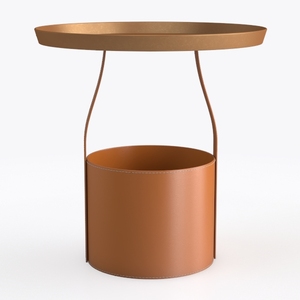

Minimalist Leather Metal Round Side Table With Storage Bin 3D Model

Minimalist Solid Oak Storage Cabinet With Open Shelves And Drawers 3D Model
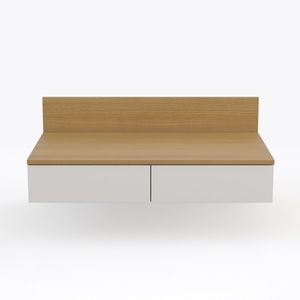
Minimalist Two Tone Solid Wood Floating Nightstand 3D Model
Homestyler is your go-to online platform for effortless home design. With its user-friendly design tool, stunning 3D renderings, and a wealth of DIY video tutorials, you can inspire and realize your decorating dreams. Create, visualize, and transform your home with ease!
Concevez maintenant gratuitement





















![Design [1]](https://hs-designs.homestyler.com/production/design/images/87c3311f-b762-48e5-aa6c-2a61ff42aaa8/1731347951087/7837764.jpg?x-oss-process=image/resize,w_502,m_mfit/format,webp)