Have you ever encountered the notorious “Proxy Information” popup when dealing with drawings in AutoCAD from consultants or different disciplines, especially in vertical applications like Civil 3D or Plant 3D? This dialog alerts you that the drawing contains proxy objects—those unique items created by third-party applications or specialized AutoCAD products that standard AutoCAD may not identify. These can range from distinct annotation symbols to custom civil or architectural features added through plugins.
The Proxy Information popup typically presents three options: displaying proxy graphics (visual depictions of the unidentified objects), opting not to display them, or ignoring future warnings. While this alert doesn’t pose a threat to your project, it can be a nuisance, particularly when opening multiple drawings or collaborating in team environments.
As a designer, I highly suggest preserving the integrity and visualization of the original drawing as much as possible. Doing so protects essential design intentions or critical information embedded within those proxy objects. Here are some proposed solutions:
From a design professional's standpoint, the goal is to minimize workflow disruptions and facilitate smooth collaboration. Lessening the distraction from such alerts is vital to maintaining your creative process, particularly when devising spatial layouts or room configurations in your digital designs. Innovative solutions, such as utilizing an advanced AI floor planner like Homestyler, can further enhance this workflow by providing compatibility checks and intelligent tools to connect different drafting standards and data types seamlessly.
Tips 1:
If proxy objects are a regular aspect of your work, consider developing project documentation guidelines. These should recommend saving drawings into a neutral format (for instance, DWG with proxy graphics activated) and ensuring that all project team members have the requisite object enablers. This consolidated strategy helps avoid miscommunication and data loss during the design development phases.
FAQ
Q: What triggers the AutoCAD Proxy Information popup?
A: This popup appears when you open drawings that contain custom or third-party objects not supported by your current version of AutoCAD.
Q: How can I disable the Proxy Information popup?
A: You can disable it by setting the PROXYNOTICE system variable to 0 or by adjusting settings in the Options dialog under the “Open and Save” tab.
Q: Will turning off the popup impact my drawings?
A: No, but without the correct object enabler installed, you may not be able to view or interact with custom objects correctly.
Q: What are proxy graphics?
A: Proxy graphics are visual representations of custom objects for users who lack the original third-party application or object enabler.
Q: How can I find the appropriate object enabler?
A: Determine the source application (such as Civil 3D or Plant 3D) and visit the vendor’s website to download the correct enabler that matches your AutoCAD version.
What began as an Autodesk innovation has evolved into a design platform used by more than 20+ million registered users (platform data, 2026) around the globe. Homestyler combines powerful rendering, an intuitive editor, and a vast furniture library to help you turn inspiration into photorealistic designs — whether you're redesigning a single room or planning an entire home.
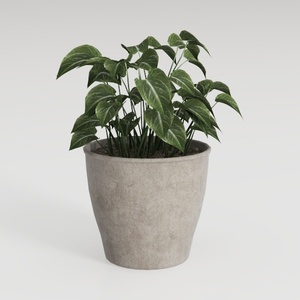
Concrete Potted Indoor Green Plant Decor 3D Model

Minimalist Velvet L Shape Sectional Sofa 3D Model
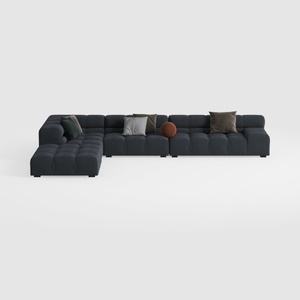
Modern Dark Fabric Tufted L Shaped Sectional Sofa 3D Model
Homestyler is your go-to online home design platform, perfect for creating stunning spaces effortlessly. With its intuitive design tool, breathtaking 3D renderings, and helpful DIY video tutorials, you can transform your interior ideas into reality, whether you're a novice or a pro!
Design Now for FREE