In the realm of interior design, leveraging software such as AutoCAD can greatly enhance your efficiency. However, have you ever faced the frustrating experience of losing countless hours of careful design work? Fortunately, AutoCAD's autosave feature is designed to be your safety net! This functionality is vital for avoiding data loss from unforeseen crashes or power interruptions. By default, AutoCAD performs automatic saves at regular intervals, which can truly be beneficial. Nonetheless, tailoring these settings to fit your unique workflow can tremendously impact your design approach. Let's explore how the autosave mechanism functions, how to modify it, and useful tips to maximize this feature. To begin with, to examine or alter the autosave configurations in AutoCAD, access the Options dialog box and head to the 'Open and Save' tab. Here, you will discover the 'Automatic Save' option, allowing you to set the interval for autosaving your designs. The typical preset is every 10 minutes, but you can opt for a shorter frequency if you desire more frequent saves. Bear in mind that while reducing the interval could enhance the security of your designs, it might also slightly hinder performance, particularly when working with larger files. Furthermore, it's crucial to understand that autosaved files are kept in a temporary directory, characterized by a .sv$ extension. These files are invaluable for recovering your progress should AutoCAD crash. Accessing these autosave files can be done by navigating to the designated temporary files directory in your AutoCAD settings, or you may simply search for '.sv$' files on your computer. Always remember to save your work manually as well, since although autosave serves as an excellent support, having multiple backup layers is a prudent strategy in your design workflow. Additionally, you can elevate your productivity by incorporating tools like Homestyler, which provides an extensive array of design templates and a vast library of furniture models that seamlessly integrate with your AutoCAD projects. This combination enables effective visualization of your interior spaces while ensuring your designs are securely saved. In summary, mastering the autosave function in AutoCAD is essential for any interior designer seeking to protect their efforts. By grasping how to set it effectively and complementing it with resources like Homestyler, you can cultivate a smooth design experience without the anxiety of losing your advancements. Happy creating!
Tips 1:
Always verify your autosave settings before embarking on a major project to ensure they correspond with your working habits.
FAQ
Q: How can I retrieve an autosave file in AutoCAD? A: You can locate autosave files in the designated temporary directory in your AutoCAD settings, typically with a .sv$ extension.
Q: Is it possible to turn off the autosave function? A: Yes, you can deactivate the autosave feature in the Options dialog under the 'Open and Save' tab.
Q: How frequently does AutoCAD autosave my progress? A: By default, AutoCAD autosaves your work every 10 minutes, although this can be adjusted to your preference.
welcome to Homestyler
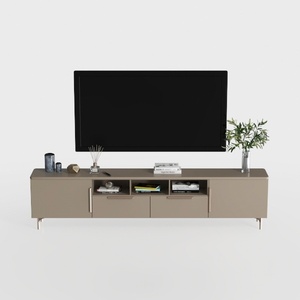
Modern Minimalist Solid Wood TV Stand Cabinet with Storage 3D Model


Minimalist Fabric Curved Sofa With Throw Pillow 3D Model

Minimalist Fabric Oversized Sofa 3D Model
Discover the creative potential of your home with Homestyler! This user-friendly online design platform offers robust tools for creating stunning 3D renderings, an extensive library of design projects, and helpful DIY video tutorials. Transform your space effortlessly and bring your vision to life!
立即免费设计