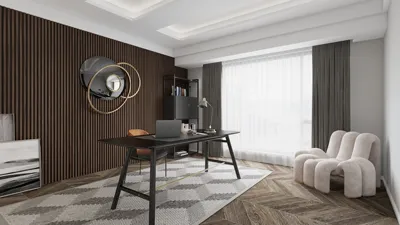


Blender 3D stands out as an exceptional software for interior design enthusiasts, particularly because it allows the creation of breathtaking wood floor designs. Whether you are just starting or have extensive experience in design, learning how to effectively handle wood floor textures in Blender can greatly enhance your projects. Begin by getting acquainted with Blender's interface. Create a new project and customize your workspace to streamline navigation. Once your workspace is accessible, add a plane to serve as the foundation for your wooden floor by pressing 'Shift + A', selecting 'Mesh', and then 'Plane'. This will generate a flat surface where your wood texture will be applied. After establishing your plane, scale it to match the desired size of your floor. With the plane selected, press 'S' to scale, dragging your mouse until the appropriate dimensions are achieved. The subsequent step involves adding a wood texture. Although Blender includes a selection of textures, for a more lifelike appearance, consider exploring external texture resources or crafting your own. Access the 'Shading' workspace, where you can assign a new material to your plane. In the Shader Editor, introduce an Image Texture node and link it to the Base Color of the Principled BSDF shader. Upload your wood texture image, and fine-tune the mapping settings to ensure it aligns with the scale of your wood planks, using 'UV Mapping' for precise application. To enhance realism, modify the roughness and specular settings in the material attributes; lower roughness values yield a glossy finish while higher values provide a matte look. Incorporating minor imperfections, like scratches or dirt, can also boost the authenticity of your design. Furthermore, lighting plays a vital role in effectively showcasing your wood floor design. Implement various light sources in Blender to cultivate a warm and welcoming ambiance. Consider adding point lights or area lights, positioning them strategically to accentuate the wood’s texture. Play around with the light intensity and colors to achieve the ideal atmosphere for your scene. Once you are content with your wood floor design, proceed to render your scene. Blender’s Cycles rendering engine delivers high-quality results even under complex lighting conditions. Navigate to the Render Properties tab, select 'Cycles', and set your preferred resolution. Click on 'Render' to view your final output! Remember to save your project, and consider sharing it with the Blender community for constructive feedback! In summary, designing a convincing wood floor in Blender 3D requires careful scaling, adept texture application, thoughtful lighting, and proficient rendering techniques. With diligent practice, you can excel in digital interior design and captivate clients or friends with your exquisite wood floor creations.
Guidelines for Achieving Realistic Wood Floors:
1. Utilize a high-resolution wood texture image to capture finer details. 2. Explore various lighting options to discover the most effective setup for your scene. 3. Incorporate a subtle bump map to your wood texture to provide depth. 4. Always verify your materials in diverse lighting scenarios for optimal appearance.
Common Questions
Q: Is it possible to create custom wood textures in Blender? A: Absolutely! You can utilize image editing software to craft your own textures and import them into Blender. Q: How can I introduce variations in my wood floor? A: By using multiple textures and blending them in the Shader Editor, you can achieve a more dynamic aesthetic.
For a simplified and user-friendly design experience, consider using Homestyler for your interior projects.

Minimalist Solid Wood TV Stand Cabinet with Slatted Doors 3D Model
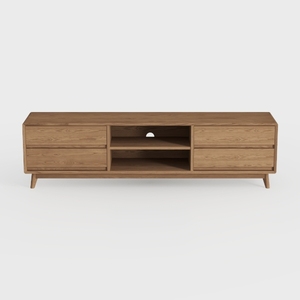
OKD TV Stand for 75+ Inch TV, Mid Century Modern
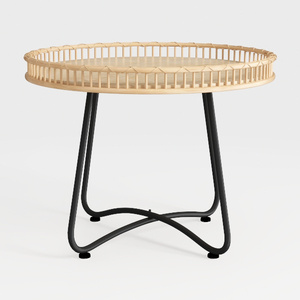
Minimalist Rattan Metal Round Side Table 3D Model
Homestyler is your go-to online home design platform, offering an intuitive design tool that helps you create stunning spaces effortlessly. With vibrant 3D renderings, a vast array of design projects, and easy-to-follow video tutorials, turning your home design dreams into reality has never been simpler!
立即免费设计
































