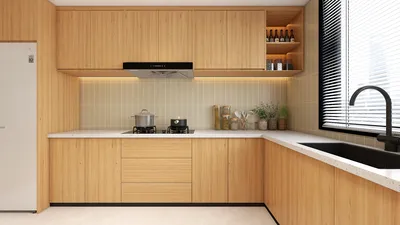


Incorporating texture into a Google 3D model can significantly enhance its aesthetic appeal and realism. This process not only adds depth and character but also makes your modeling experience enjoyable and fulfilling. Whether you're working on a specific project or simply unleashing your creativity, mastering texture application is key to achieving a polished, professional appearance. Exploring tools like Homestyler can also augment your design skills.
To start, choose the specific model that you wish to enrich with texture. Utilizing Google SketchUp or other suitable 3D modeling platforms is recommended. Import your model into the software, and make sure it is correctly oriented and sized for the best results.
1. Getting Your Texture Image Ready
Before you can apply textures, it's essential to have the right image. Think about the type of surface you want to create: wood, stone, fabric, or perhaps something more distinctive. It's vital that your texture image is high resolution to eliminate any pixelation during viewing.
After you've sourced your image, save it in a widely accepted format like JPEG or PNG to ensure compatibility when integrating it into Google 3D software or Homestyler.
2. Applying Texture Using Google 3D Tools
With your texture image prepared, it's time to get it onto your model. In Google SketchUp, utilize the 'Paint Bucket' tool located in the toolbar. Select the texture file that you wish to use, making sure to import it into the texture library if it's not already there.
Once you have your texture selected, click on the area of your model where you'd like the texture to be applied. You will see the surface transform to showcase your selected texture. Adjust the texture's size and orientation as necessary to achieve your ideal look.
3. Refining Your Texture Application
After you have added the texture, refine its appearance for a more natural finish. Scaling and rotating the texture can help it fit your model perfectly. Use the 'Texture Position' function to make adjustments on how the texture overlays.
Moreover, consider experimenting with opacity and blending modes, if permitted by your software. This approach can introduce layers of complexity to your texture, enhancing its realistic quality.
4. Reviewing and Finalizing Your Work
When you're pleased with how your texture looks, take a moment to preview your model in various lighting circumstances. This is critical for assessing how the textures react in different environments. Make any adjustments needed until you're completely satisfied with the aesthetics.
Lastly, save your model in your desired format. Factors like transparency or suitability for 3D printing may affect this decision. Ensure that all textures are included in your final export settings for optimum results as you refine your design experience with tools like Homestyler.
Frequently Asked Questions
Q: Is it possible to use multiple textures on a single 3D model? A: Absolutely! You can apply various textures to different surfaces of your 3D model to achieve a more complex and detailed design.
Q: What format is best for texture images? A: JPEG and PNG are the most commonly used and compatible formats for texture images in the realm of 3D modeling.
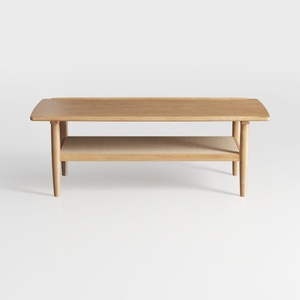
Minimalist Solid Oak Two Tiered Coffee Table 3D Model

Minimalist Oak Linen 3 Seat Sofa 3D Model


Rustic Solid Wood Round Coffee Table With Black Metal Legs 3D Model
Homestyler is an exceptional online home design platform that empowers users to create stunning interiors effortlessly. With its user-friendly design tools, impressive 3D renderings, and a wealth of DIY video tutorials, you'll find everything you need to transform your home effortlessly and inspire your creativity!
立即免费设计
































