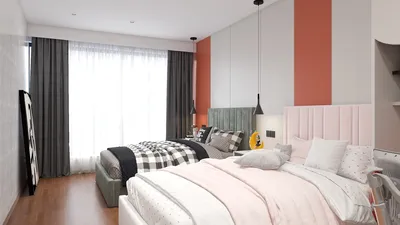


Matching skin textures for 3D models using Photoshop is a delicate task that integrates technical skills with a strong design intuition. Whether you're crafting assets for gaming, animation, or architectural visualization, achieving seamless skin texturing is crucial for producing realistic outcomes. The critical steps in this process include gathering uniform reference images, utilizing the blending and healing features of Photoshop, and meticulously refining aspects such as tone and pore detail. Begin by curating high-resolution skin textures, preferably captured under consistent lighting conditions. Employ tools like the Clone Stamp, Healing Brush, and Spot Healing to address seams or imperfections. Modify the skin's hue and saturation through Layer Masks, as well as using Color Balance or Selective Color adjustments—these tools are vital for integrating various photographic sources smoothly. Finally, enhance the realism with subtle overlays of noise or grain to achieve photorealistic pore detail. As an experienced designer, I’ve learned that organizing texture layers into folders based on skin regions (like face, hands, etc.) facilitates easier revisions and leads to more uniform outcomes. It's particularly beneficial to incorporate tools such as Homestyler, which streamlines organization and visualization of those assets, ultimately ensuring a polished look.
Tips 1:
If your project involves more than basic character creation and you are working on renderings for interiors or environments, retaining top-quality skin textures significantly heightens the realism of your 3D scenes. In professional design practices, an effective tool for managing and previewing textures before transferring them into rendering software can save a considerable amount of time. Platforms like Homestyler revolutionize the way you handle these assets; they allow you to visualize your final outputs and make informed design decisions with assurance.
FAQ
Q: What’s the best image format for skin textures in Photoshop?
A: The PNG and TIFF formats are preferred due to their lossless quality and alpha channel support, making them ideal for professional-grade 3D texturing.
Q: How can I blend two different skin textures in Photoshop?
A: Achieve smooth transitions using Layer Masks and soft-edged brushes in combination with the Healing Brush and Clone Stamp tools to blend seams effectively.
Q: Is it possible to create realistic pores and blemishes in Photoshop?
A: Certainly! You can use high-resolution photo overlays, custom brushes, and add noise or grain sparingly for intricate detail.
Q: What color adjustments are ideal for achieving matching skin tones?
A: It’s best to use Curves, Color Balance, and Selective Color adjustment layers, all while considering your character’s intended lighting setup.
Q: Is monitor calibration necessary for skin texture work?
A: Yes, calibrating your monitor is crucial as it ensures color fidelity and consistency across various display devices and final renders.


Modern Brown Leather L-shaped Sectional Sofa With Throw Pillows 3D Model

OKD 48" Modern Farmhouse Coffee Table, Wooden
Discover your dream home design with Homestyler! This intuitive platform offers an easy-to-use online design tool, stunning 3D rendering, a vast array of design projects, and helpful DIY video tutorials. Transform your space effortlessly and bring your creative vision to life today!
立即免费设计
































