

Incorporating a photo into a 3D model can greatly enhance your design’s realism and intricacy. Whether you are crafting a virtual environment or a precise architectural model, mastering the integration of images can elevate your project’s uniqueness. This guide will outline the process of importing photos into your 3D models seamlessly, ensuring your designs resonate strongly with users and leave a lasting impression.
Grasping the Fundamentals of 3D Modeling:
Before you embark on the import journey, it’s vital to understand the basics of 3D modeling. Essentially, 3D modeling involves creating a three-dimensional depiction of a physical object through specialized software. This depiction consists of vertices, edges, and faces, shaping the object’s form. By importing photos into these models, designers can achieve richer textures and more visually compelling projects, thus enhancing both aesthetic and functional aspects of their creations.
Generally, 3D modeling applications come equipped with features that allow users to utilize images as textures, backgrounds, or references. It’s important to familiarize yourself with the software interface for an efficient import experience. Always verify the supported file types to prevent compatibility issues, which can save time and optimize your workflow.
Steps to Import a Photo into Your 3D Model:
1. **Choose Your Image**: Select a high-resolution photograph that aligns well with your project objectives. Clear and well-lit images yield the most effective results, enhancing the realism of your design.
2. **Launch Your 3D Modeling Software**: Open your preferred tool. Renowned options include Blender, SketchUp, and AutoCAD. Each platform features distinct methods for importing images, so consult the user manual for specific instructions.
3. **Find the Import Function**: Look for an option—typically located in the ‘File’ menu—that allows you to import or add images or textures. This function is commonly labeled as 'Import,' 'Add Image,' or 'Load Texture.' Familiarity with these terms will help streamline your workflow.
4. **Modify Image Settings**: After importing, adjust the image settings to ensure it integrates harmoniously within your model. You may need to scale, rotate, or reposition the image. This step is crucial, particularly when striving for alignment with specific features of your 3D model.
5. **Set the Image as a Texture**: If your design necessitates it, apply the photo as a texture. This typically involves selecting the model's surface and applying the image texture. Make sure that the alignment matches the areas you wish to enhance.
6. **Save Your Progress**: After completing all adjustments, don’t forget to save your project regularly. Frequent saving prevents data loss and allows for future refinements, keeping your creative process running smoothly.
Tips for Achieving Optimal Results:
1. **Opt for Quality Images**: High-resolution photos significantly influence your results. Avoid using blurry or pixelated images, as they can detract from the quality and professionalism of your 3D model.
2. **Experiment with Textures**: Don’t shy away from experimenting with various textures and placements of images. Playing with blending modes can yield surprising creative outcomes that enhance your design’s attractiveness.
3. **Utilize Tutorials**: For those new to particular software, online tutorials can prove invaluable. Resources created by the community often provide step-by-step guidance through complex processes, facilitating a quicker learning experience.
FAQ
Q: Can I import any image format into my 3D model? A: Most software accepts formats like JPG, PNG, or BMP. Always refer to your software's documentation for specific compatibility details.
Q: Will the quality of the photo affect my model's performance? A: Absolutely, high-resolution images can increase file sizes and impact performance, especially in intricate scenes. Optimize the quality of the image based on your project's scale and specifications, such as Homestyler, which supports these functionalities.
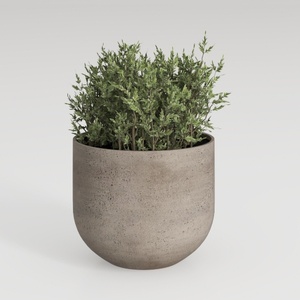
Minimalist Concrete Planter Pot with Indoor Greenery 3D Model
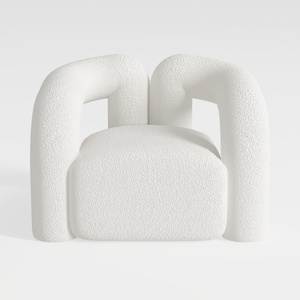
Minimalist Boucle Fabric Armchair Modern Unique Design 3D Model
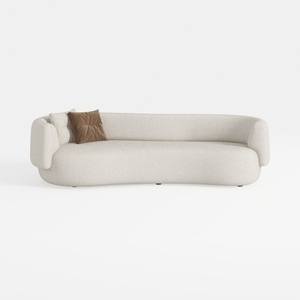
Minimalist Boucle Curved Living Room Sofa 3D Model
Homestyler is your go-to online home design platform, ideal for all skill levels. With an intuitive design tool, stunning 3D renderings, and a plethora of DIY video tutorials, you can effortlessly transform your space and bring your creative visions to life!
Progetta ora GRATIS
































