Incorporating paint texture into a 3D model using Blender is crucial for adding authentic detail and personality to your digital projects. Whether you're crafting furniture, architectural designs, or decorative elements, the process of applying paint requires a blend of both technical skills and creative imagination. To assist you, here's a streamlined workflow:
1. Prepare Your Model: Ensure that your 3D mesh is adequately UV unwrapped. UV mapping sets up the coordinates that instruct Blender on how to project your 2D paint texture onto the 3D surface with precision.
2. Enter Texture Paint Mode: Select your model in Blender and switch from ‘Object Mode’ to ‘Texture Paint’ mode found at the top left of the 3D viewport. This mode provides various painting tools that enable you to apply colors, textures, and intricate details directly onto your model.
3. Configure the Paint Texture: In the Properties panel, create a new image texture slot within the ‘Material’ tab, opting for a blank canvas or loading a reference image. Ensure that this texture is correctly linked to your model’s material nodes for effective application.
4. Begin Painting: Utilize the Brush tools to apply color, details, or effects to the surface. You can adjust the brush’s strength, size, and opacity as needed. Additionally, masks and stencils can be used for enhanced precision, allowing for realistic brush strokes or patterns.
5. Refine and Export: Once you've completed your painting, you can further tweak the finished texture or bake details into a new texture map. When you're satisfied with the results, save your painted texture image and proceed to export or render your completed model as required.
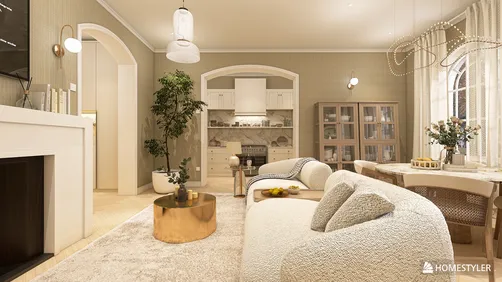
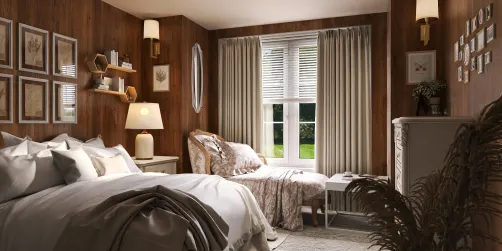
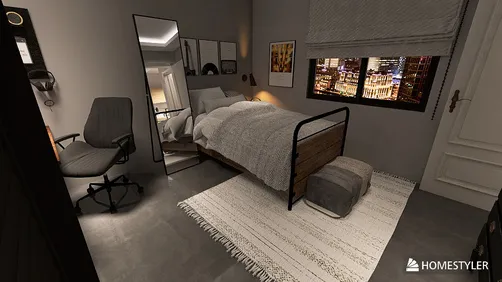
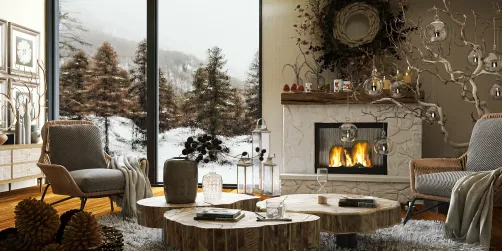
As a designer, I frequently view painting in Blender through the lens of light, material, and contextual influence. For achieving well-placed color accents and realistic painted finishes, employing tools like Homestyler can be incredibly beneficial. These tools enable you to visualize and refine color selections in photorealistic settings, ensuring that your design is not only technically flawless but also seamlessly integrated into a broader aesthetic framework.
Tips 1:
Utilize layered paint textures—incorporate multiple layers for base colors, highlights, and wear effects to enhance depth and realism. Investigate real-world paint finishes, as glossy, matte, and distressed surfaces will respond uniquely to light. Also, remember to examine your UVs for any stretching or seams that could interfere with your paint application.
FAQ
Q: Is it possible to import custom paint textures into Blender for my 3D models?
A: Yes, you can import any image as a texture and apply it to your model using UV mapping and the Image Texture node within the Shader Editor.
Q: What image formats are recommended for paint textures in Blender?
A: The preferred formats include PNG and JPEG, with PNG being ideal for transparency. Ensure your texture has a high resolution for optimal outcomes.
Q: How can I resolve seams that appear in my painted texture?
A: You can adjust your UV layout and utilize Blender’s bleed or clone tools in Texture Paint to effectively blend over seams.
Q: Is it feasible to use procedural textures to emulate paint in Blender?
A: Certainly! Procedural textures can be employed to mimic paint effects and can be modified for various appearances without the need for image imports.
Q: What is the best approach to rendering painted 3D models for presentations?
A: Use Blender’s Cycles or Eevee render engines, establish realistic lighting, and fine-tune material settings to highlight the details of your paint textures.
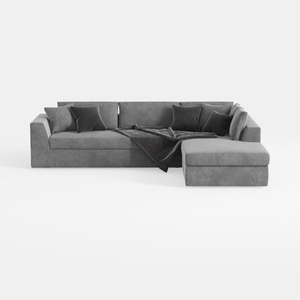
Minimalist Gray Fabric Sectional Sofa with Throw Pillows and Blanket 3D Model
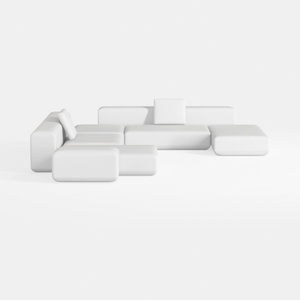

Minimalist Modern White Fabric Modular Sectional Sofa 3D Model
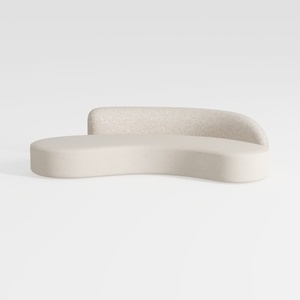
Minimalist Boucle Curved Sofa 3D Model
Homestyler is an outstanding online home design platform perfect for anyone looking to revamp their space! With its user-friendly design tool, stunning 3D renderings, and a treasure trove of DIY video tutorials, you can effortlessly create and visualize your dream home. Discover the joy of designing today!
立即免费设计