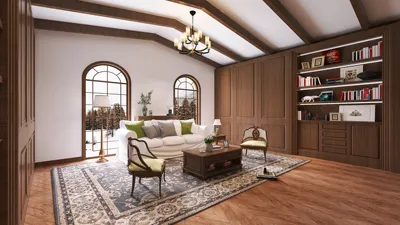


Reducing the opacity of specific elements in your 3D model can significantly enhance its visual appeal and realism. Whether your aim is to achieve a glass-like effect or a subtle layering of materials, this guide on utilizing Homestyler will simplify the process for you. Let’s get started!
Comprehending Opacity in 3D Modeling
Before we delve into the steps for adjustment, it’s crucial to grasp what opacity signifies in the realm of 3D design. Opacity indicates the level of transparency or solidity of a material in your model. A material that is entirely opaque has an opacity value of 1 (0% transparency), while a completely transparent material holds a value of 0 (100% transparency).
To begin modifying opacity in leading 3D modeling software like Homestyler, you must access the material properties of the object or surface you wish to alter. This section allows you to set the opacity to your preferred level.
Step-by-Step Instructions for Lowering Opacity
To adjust the opacity of a certain section of your 3D model, follow these steps:
Select the Object: Identify and click on the part of the model where you wish to adjust the opacity.
Open Material Editor: Most 3D modeling tools will provide a materials or properties editor. Find this feature within the software.
Locate Opacity Settings: Within the material options, search for the opacity or transparency slider, which may vary in name across different applications.
Modify Opacity: Slide the opacity control to reduce the opacity of the chosen section. Observe the changes in your viewport for immediate feedback.
Apply Changes: After achieving your desired opacity, apply the adjustments and render the model to preview the final appearance.
Best Practices for Optimal Results
Experimenting with different opacity levels across various surfaces is encouraged. Keep in mind that lighting can drastically alter the appearance of materials, so it's wise to simulate various lighting conditions to evaluate your settings. Additionally, consider creating multiple materials with distinct opacity attributes for complex models to create layered visual effects.
Frequently Asked Questions
Q: Can I create glass-like materials through opacity adjustment? A: Absolutely! Lowering the opacity can effectively produce realistic glass effects in your 3D models.
Q: Does reducing opacity impact rendering performance? A: Yes, reduced opacity and increased transparency may lead to longer rendering times, particularly in intricate scenes.

Looking to transform your space? Homestyler is the go-to online home design platform! With its user-friendly design tool, stunning 3D renderings, a wealth of design projects, and informative video tutorials, you'll effortlessly create beautiful interiors that reflect your style. Start designing today!
Design Now for FREE
































