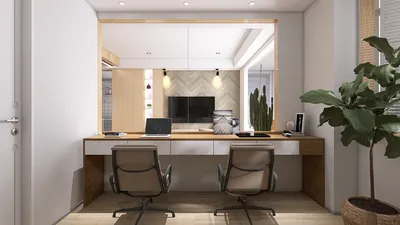


Rendering mesh files within Homestyler can significantly enhance the visual quality of your projects. Understanding the fundamentals of mesh rendering alongside the ideal settings is essential for optimal results.
What Are Mesh Files?
Before you start rendering, it’s crucial to grasp the concept of mesh files. These files encapsulate the geometric data of 3D models, inclusive of vertices, edges, and faces. In Homestyler, these mesh files can be imported and manipulated to craft impressive visual effects.
Steps to Prepare Your Mesh for Rendering
1. **Importing Your Mesh**: Start by bringing your mesh file into Homestyler. Navigate to the 'File' menu and select 'Import'. Make sure that your mesh file is compatible, utilizing formats such as OBJ or FBX.
2. **Material Setup**: Create realistic appearances for your mesh by assigning suitable materials. Use the Material Editor to craft detailed textures and shaders.
3. **Lighting Configuration**: Proper lighting is essential to achieving realistic results. Utilize ambient, directional, and spot lights to effectively highlight your mesh model.
Rendering Configuration
1. **Choose Your Render Engine**: Select the appropriate rendering engine in Homestyler, which may include the built-in options or third-party selections like V-Ray or Maxwell.
2. **Adjust Resolution and Quality**: Set your intended output resolution and quality settings. Opting for higher resolution and quality will improve the final output, though it may require longer render times.
3. **Explore Render Options**: Experiment with several rendering options such as anti-aliasing, depth of field, and motion blur to elevate the quality of your final output.
Initiating the Render Process
After configuring all settings, initiate the rendering by clicking the render button and monitoring the process to ensure all elements are operating correctly.
Post-Render Enhancement
Following the render, you might consider utilizing post-production software, like Adobe After Effects or Photoshop, to further refine your visuals. This could involve color correction, adding effects, or composite integration with background images.
Final Thoughts
Rendering mesh files in Homestyler involves several detailed steps that require careful attention to each aspect. By mastering the basics and applying the appropriate settings, you can produce remarkable visuals that authentically represent your designs.
Frequently Asked Questions
Q: Which file formats does Homestyler support? A: Homestyler allows for mesh imports in formats such as OBJ, FBX, and STL.
Q: What can I do to reduce render times in Homestyler? A: To enhance render efficiency, consider lowering the output resolution or quality settings, or opting for optimized materials and lighting setups.
Q: Is it possible to integrate third-party render engines with Homestyler? A: Absolutely, Homestyler is compatible with multiple third-party rendering engines like V-Ray and Maxwell, offering advanced rendering functionalities.
Welcome to the Top Home Design Software Experience!
立即免费设计
































