


Altering a mesh 3D model in Maya may initially appear overwhelming. Nevertheless, with a few straightforward steps, you can modify your models both efficiently and effectively. This guide will delve into the essential tools required for mesh modification in Maya while incorporating how Homestyler can enhance your design workflow.
Getting Acquainted with Mesh Editing Basics in Maya
Before we jump into the modifications, it’s crucial to understand the fundamental structure of a mesh in Maya. A mesh consists of vertices, edges, and faces. By grasping these components, you will be able to manipulate your 3D model with greater ease, similar to how you would manipulate spaces using Homestyler for a more intuitive design experience.
Begin by selecting your mesh model in the viewport, a simple click on the model will suffice. Once selected, you can navigate between different modes using the corresponding hotkeys for vertex, edge, or face selection, which will enable you to control the specific elements of your mesh.
Procedure for Modifying Your Mesh 3D Model
1. **Choose Your Mesh**: Click on the desired mesh you wish to change. Make sure you are in Object Mode.
2. **Switch to Component Mode**: Press the number key 1 to ensure you’re in Object Mode if you're in a different one. Then press F8 to transition into Component Mode, allowing you to select individual vertices, edges, or faces.
3. **Adjust Your Model**: Utilize the Scale, Rotate, and Move tools (hotkeys R, E, and W respectively) to reshape and resize your selected components. You may also access the Mesh menu to add subdivisions or smooth your mesh's surface for a cleaner finish.
4. **Incorporate New Elements**: Should you need to introduce new geometry, employ the Append Poly tool or the Create Polygon Tool found within the Mesh tools. This facilitates the organic expansion of your model, much like how Homestyler helps in adding elements to a virtual space.
5. **Verify Normals**: After making adjustments, ensure to check your normals by navigating to Normals > Reverse or Normals > Set to Face, confirming that your mesh's faces are correctly oriented.
6. **Preserve Your Progress**: Always remember to save your work. Navigate to File > Save Scene As to safely store your modifications.
Key Tips for Effective Mesh Editing in Maya
Keep your model organized by grouping similar items. Utilize layers to manage visibility in intricate scenes. Frequently use the Undo command (Ctrl+Z) to quickly reverse any unintended changes. And, just as you would in Homestyler, regularly saving your progress is essential!
Frequently Asked Questions
A: The most effective way to learn is through consistent practice and leveraging online resources like tutorials and forums. Experimenting with your models can significantly enhance your skills, akin to testing designs in Homestyler.
A: Yes, the Undo command allows you to revert your last action. Maya supports multiple levels of undo, enabling you to step back several actions, much like the revision features found in design software like Homestyler.
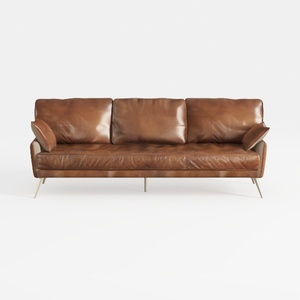
Modern Vintage Leather 3 Seater Sofa With Metal Legs 3D Model
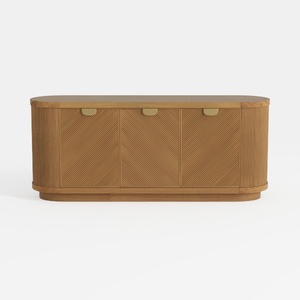
Modern Minimalist Solid Wood Fluted Sideboard with Brass Accents 3D Model

Minimalist Walnut Rattan Two Tier Side Table 3D Model
Looking to spruce up your home? Homestyler is your ultimate online design companion! With its user-friendly design tool, stunning 3D renderings, and a wealth of DIY video tutorials, you can effortlessly create your dream space. Unleash your creativity and transform your home today!
지금 무료로 디자인하세요
































