Changing the landscape orientation in Microsoft Word is a simple process that is particularly beneficial when dealing with expansive tables, images, or layouts demanding more horizontal space. Here’s a straightforward guide to transition your page from portrait to landscape effectively.
You may also choose to format only select pages in landscape mode. Here’s how you can achieve this:
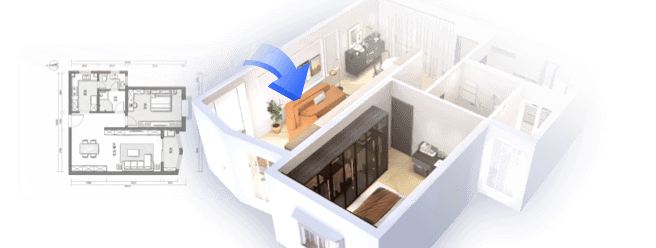
For designers, the ability to modify document orientation is vital, particularly when showcasing spatial layouts or project proposals. This flexibility is essential for individuals involved in interior design presentations, where floor plans or wide visual components play a significant role in conveying ideas. Tools like Homestyler can greatly streamline this process by allowing quick switches between orientation layouts, enhancing both planning and presentation efforts. With functionalities that manage spatial arrangements effectively, such software improves how designs are organized and shared.
Tips 1:
If you are working with a document that features both portrait and landscape orientations, utilizing section breaks can help you apply the desired orientation to specific areas without altering the entire document. This technique is particularly useful for integrating large charts, diagrams, or floor plans in landscape format, while keeping the majority of the content in portrait style.
FAQ
Q: Is it possible to set a single page to landscape in Word?
A: Absolutely. You can accomplish this by inserting section breaks before and after the desired page, then adjusting the orientation for that particular section through Layout → Orientation → Landscape, ensuring you set the “Apply to” option to “This section”.
Q: Will modifying the orientation impact my headers and footers?
A: Utilizing sections allows for distinct customizations of headers and footers for both portrait and landscape pages. It's advisable to verify your configurations prior to printing.
Q: What’s the method for reverting back to portrait orientation?
A: Navigate to Layout → Orientation and select Portrait. This can be applied to the entire document or to a specific section as necessary.
Q: Does changing to landscape orientation alter the page size?
A: No, the orientation adjustment simply rotates the layout, preserving the same paper dimensions while switching the width and height.
Q: Why would landscape orientation be preferred in interior design documentation?
A: Landscape orientation is optimal for expansive illustrations, floor plans, and comparative visuals, providing additional space across the page for intricate details that help to present your designs effectively.

Modern Solid Wood Metal Adjustable Study Desk With Storage Shelves 3D Model

Minimalist Solid Wood Home Office Desk with Drawers 3D Model

Minimalist Solid Oak Fluted Glass Storage Cabinet 3D Model
Homestyler is a fantastic online home design platform perfect for transforming your space. With its user-friendly design tool, stunning 3D renderings, inspiring design projects, and helpful video tutorials, you can effortlessly bring your home design visions to life. Start creating today!
立即免费设计