Switching to landscape orientation can significantly improve your design experience, particularly when you're dealing with expansive areas or layouts that demand a wider viewpoint. In various design tools, including Homestyler, transitioning to landscape mode is quite simple. Here's how you can achieve that:
1. **Open Your Design Project**: Begin by launching Homestyler and selecting the project you wish to work on. This action will direct you to the main interface where your current layout is visible.
2. **Access Page Setup or Settings**: Locate the 'Page Setup' or 'Settings' feature in the toolbar, typically found in the upper menu of your screen. Click on it to access the orientation options.
3. **Select Landscape Orientation**: Within the Page Setup or Settings menu, you will find options for orientation. Select 'Landscape' from the available choices. This adjustment alters the layout of your design workspace to a horizontal format.
4. **Adjust Your Design Elements**: After switching to landscape mode, take time to rearrange your design components. This orientation offers a new perspective and may necessitate some adjustments to ensure everything is well-aligned.
5. **Save Your Changes**: Once you are pleased with your design in landscape mode, be sure to save your changes. This will keep your layout in landscape view for future edits.
6. **Preview and Render**: Finally, utilize the preview function to visualize how your design appears in landscape orientation. You can render the final output for sharing or presentations. Make sure that colors, textures, and elements are harmonized and visually appealing in this layout.
Opting for landscape mode can allow for greater creativity and assist in visualizing your designs more effectively. While each design software may have slightly different procedures, the overall process is generally similar. With Homestyler’s intuitive interface, this transition is seamless.
Happy designing! Embrace the landscape view to broaden your creative horizon!
Tips 1:
Utilizing landscape mode is particularly beneficial for presentations or when designing wider areas such as living rooms and offices, as it provides a more natural representation of your work.
FAQ
Q: Can I switch back to portrait mode? A: Absolutely, you can follow the same steps and select 'Portrait' in the orientation options.
Q: What if my design elements don’t fit in landscape mode? A: You might need to resize or rearrange your components to suit the new layout effectively.
Q: Is landscape mode suitable for all design types? A: Not necessarily. It largely depends on the nature of the space you are designing, with landscape mode being ideal for wider layouts.
Welcome to Homestyler!
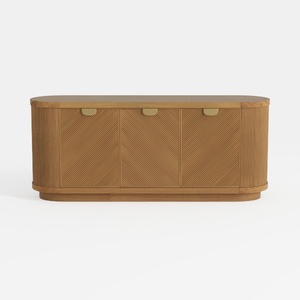
Modern Minimalist Solid Wood Fluted Sideboard with Brass Accents 3D Model
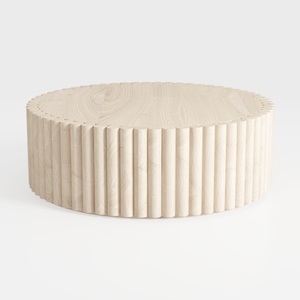
Minimalist Solid Wood Fluted Round Coffee Table 3D Model
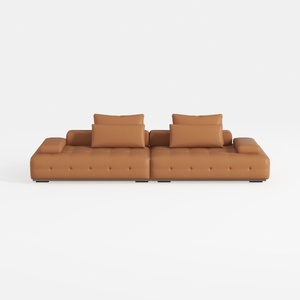

Modern Tufted Leather Oversized Sectional Sofa 3D Model
Looking to transform your space? Homestyler offers a seamless online design tool that allows you to create stunning interiors with ease. Enjoy countless 3D renditions, explore diverse design projects, and dive into helpful DIY video tutorials. Unleash your creativity and make your dream home a reality!
立即免费设计