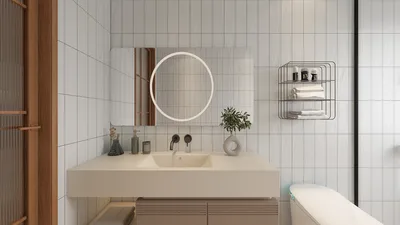


Creating stunning interior designs requires the right lighting to truly make a space vibrant. By using Homestyler, designers can produce outstanding renderings that accurately reflect their vision. If you're looking to refine your interior lighting abilities, this guide will provide you with key techniques and insights to effectively leverage Homestyler’s capabilities.
Exploring Homestyler Renderer
Homestyler is an innovative, advanced rendering platform that integrates seamlessly into the design process. This tool is tailored to manage intricate scenes effortlessly, enabling users to create high-quality visualizations for everything from architectural projects to product showcases. Familiarity with how Homestyler operates is essential for maximizing its potential.
Configuring Your Design Space
Before applying lighting techniques, ensure your design space is correctly configured. This involves crafting your interior layout, selecting appropriate materials, and accurately placing your objects. A well-structured environment is crucial for effective lighting and rendering using Homestyler.
Homestyler provides a variety of lighting options, including area lights, spotlights, and point lights. For interior designs, area lights are particularly beneficial, as they closely replicate real-world lighting conditions.
Each light source within Homestyler can be modified in terms of intensity and color. By experimenting with these parameters, you can dramatically alter the mood and ambiance of your interior. Warm tones typically foster a cozy environment, whereas cooler hues create a sleek, modern look.
Global illumination in Homestyler allows light to reflect throughout the space, yielding more realistic lighting effects. Activating this feature enhances the overall quality of your render, softening shadows and giving highlights a more natural appearance.
Rendering Insights
Once your lighting is set, it’s time to proceed with rendering. Keep these tips in mind to obtain the best possible results:
Before you begin, review your settings. Adjusting the sampling rates can help minimize noise while preserving detail. Using higher sample rates will result in clearer images, especially in shaded areas.
AOVs (Arbitrary Output Variables) in Homestyler enable you to render various elements of your scene individually, facilitating adjustments in post-production. This is especially handy for managing shadows, reflections, and lighting passes separately.
Perform test renders with lower quality settings to expedite the adjustments to your lighting. This process of iteration allows you to enhance your scene effectively before finalizing with a high-quality render.
Final Enhancements and Post-Production
After rendering, you may want to further enhance your visuals through post-processing. Tools like Adobe Photoshop or After Effects can add finishing touches, such as color correction and compositing, to elevate your render using Homestyler.
Common Questions
Q: What is the optimal light type for interior rendering?A: Area lights are generally the best option for interior rendering as they efficiently emulate natural light sources.
Q: How can I minimize noise in my renders?A: Increasing the sampling rates in your render settings can help reduce noise while ensuring detail is preserved.
Q: Is Global Illumination essential for interior designs?A: While not a requirement, Global Illumination greatly improves realism by facilitating light bounces throughout the space.
Welcome to the leading Home Design Software
Progetta ora GRATIS
































