


Designing a floor plan with SolidWorks can be both an enjoyable and demanding endeavor, especially when striving for a balance between functionality and aesthetics. Although SolidWorks is renowned for its 3D modeling features, it can also effectively facilitate the drafting of floor plans. Whether you're an aspiring designer, a seasoned professional, or simply have an interest in interior design, this guide aims to navigate you through the crucial processes of creating a comprehensive floor plan.
Fundamentals of Using SolidWorks for Floor Plans
Before embarking on your design journey, it's essential to gain a solid understanding of the tools within SolidWorks that enhance floor planning. The software provides various sketching utilities, dimensioning options, and annotations that assist in crafting precise layouts. Begin by establishing the scale of your floor design to ensure proportionality across all elements.
How to Create Your Floor Plan Using SolidWorks
1. **Create a New Drawing**: Start SolidWorks and select a new drawing from a template. Choose a paper size that best fits your planned layout.
2. **Configure Your Units and Scale**: Within the document properties, set your measurement units (whether in feet, inches, or metric) and adjust the scale for your drawing accordingly.
3. **Outline the Walls**: Utilize the line tool to draw the walls of your floor plan. It's important to keep a consistent wall thickness that accurately reflects actual dimensions.
4. **Incorporate Doors and Windows**: Add standard sizes for doors and windows, using rectangles or arcs to represent them on your layout.
5. **Furnish Your Space**: After establishing the walls, begin placing furniture and fixtures within your plan. SolidWorks enables you to create or import 3D models of furniture to integrate into your design.
6. **Adding Dimensions and Annotations**: For clarity, include dimensions in your drawing. Employ the dimension tool to indicate measurements and annotate rooms to clarify their intended use.
7. **Final Review**: Examine your floor plan for precision. Make any required adjustments and ensure that all elements are aligned correctly.
8. **Save and Export Your Project**: Finally, make sure to save your work and export it in a format that's suitable for sharing or printing.
Strategies for Successful Floor Planning in SolidWorks
Pay attention to the flow and functionality of your intended design. Ensure there is adequate space for movement and consider how natural light will interact with the area. Furthermore, feel free to experiment with various layouts until you discover the most fitting arrangement. Remember, creativity is vital in the realm of interior design!
Frequently Asked Questions
**Q: Is SolidWorks suitable for interior design tasks?**A: Certainly! SolidWorks is adaptable and can be employed for various design endeavors, including those focused on interiors.
**Q: Should I use a specific template for floor plans?**A: While there are no rigid guidelines, starting with a drawing template tailored for architectural designs is recommended.
**Q: Are there available plugins for SolidWorks that improve floor planning?**A: Yes, there are numerous plugins and add-ons specifically designed to aid architectural and interior design projects.
Explore Homestyler as an alternative tool for creating stunning floor plans with ease.


Modern Mixed Wood Stacked Nightstand 3D Model
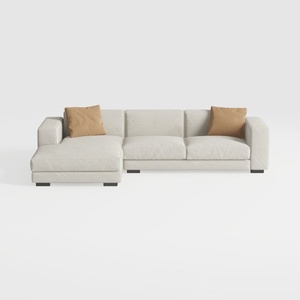
Minimalist Fabric L Shape Sectional Sofa with Throw Pillows 3D Model

Meridian Furniture 77054Natural Everson Collection
Homestyler is your go-to online home design platform. Experience its user-friendly design tool, stunning 3D renderings, diverse design projects, and helpful DIY video tutorials. Transform your interior spaces effortlessly and unleash your creativity without any prior experience!
Design Now for FREE
































