


Modeling in Blender may initially seem daunting, especially when it comes to incorporating precise dimensions into your design. However, there's no need to worry! Whether you're a hobbyist or a professional designer, mastering the art of using dimensions for 3D modeling in Blender can significantly enhance your projects. Additionally, you might want to explore tools like Homestyler for further design inspiration.
Familiarize Yourself with the Blender Interface
To get started, it's essential to understand Blender's unique interface. When you open Blender, a default cube appears, but don’t become too attached to it just yet! Begin by customizing your workspace, maximizing the viewport for focused modeling.
In the top left corner, you will notice the ‘Editor Type’ dropdown menu. Ensure you're set to ‘3D Viewport’ to kick off your modeling journey. On the right side, the ‘Properties Panel’ allows you to input precise measurements for your objects, ensuring accuracy throughout your project.
Configuring Scene Units
Accuracy in measurements starts with selecting the correct unit. Within the ‘Properties Panel,’ look for the ‘Scene Properties’ option and set your ‘Units’ preference to either metric or imperial. This step lays the foundation for precision modeling.
Once you've chosen your units, it's crucial to understand the grid in the viewport. This grid serves as a visual guide for measurements, so keep it in mind as you work. You can enable grid snapping to make positioning objects more accurate.
Creating Your First Model Using Dimensions
Let’s dive into the modeling process! Start by adding a mesh object, such as a cube. Once the cube is selected, press ‘N’ to bring up the Transform panel. Here, you can numerically adjust dimensions. Input the desired values in the ‘Dimensions’ field to achieve accuracy.
If your project requires specific measurements, this method ensures your model accurately reflects those exact specifications. You can manipulate the cube by scaling, rotating, or moving it based on these precise dimensions. Want to create a rectangular prism? Simply adjust the width, height, and depth accordingly!
Enhancing Precision with Additional Features
For greater measurement accuracy, consider utilizing Blender's built-in features or add-ons. The ‘MeasureIt’ add-on lets you perform measurements directly in the viewport. Activate it by going to ‘Edit’ > ‘Preferences’ > ‘Add-ons’ and searching for ‘Measure’.
This add-on will display length measurements in your scene, ensuring everything is just right. With it, you can visualize and verify dimensions during the modeling process, eliminating guesswork.
Advanced Tips for Users: Using Dimensions in the Modifier Stack
Once you’re familiar with Blender's modeling tools, you can further leverage dimensions in modifiers for building complex shapes. For instance, when using the Array modifier, you can input the exact distance between repeated objects. This allows you to create intricate designs while maintaining precise measurements.
Frequently Asked Questions
Q: How can I ensure my model maintains its proportions? A: Always begin by setting the correct units in the scene properties. Compare everything against the established grid to retain consistent proportions.
Q: Can I export measurements for printing? A: Absolutely! Just ensure your model is appropriately scaled in Blender, then export it in a format suitable for 3D printing, such as STL.
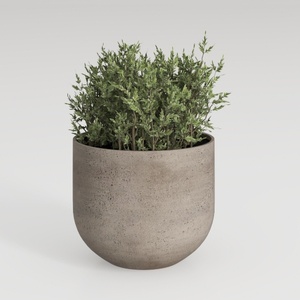
Minimalist Concrete Planter Pot with Indoor Greenery 3D Model
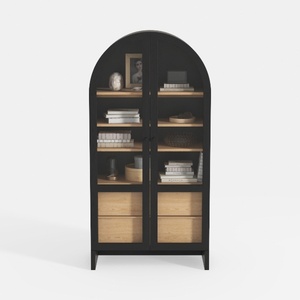
Modern Black Oak Arched Glass Display Cabinet 3D Model

Natural Live Edge Solid Walnut Coffee Table Top 3D Model
Homestyler is your go-to online home design platform! With its easy-to-use design tool, stunning 3D renderings, and a wealth of inspiring design projects and video tutorials, you can effortlessly transform your ideas into reality—perfect for both novices and seasoned designers alike!
Design Now for FREE
































